


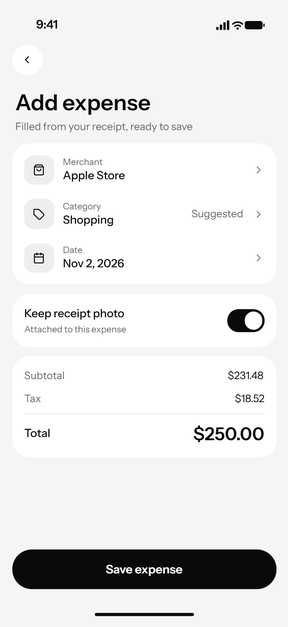
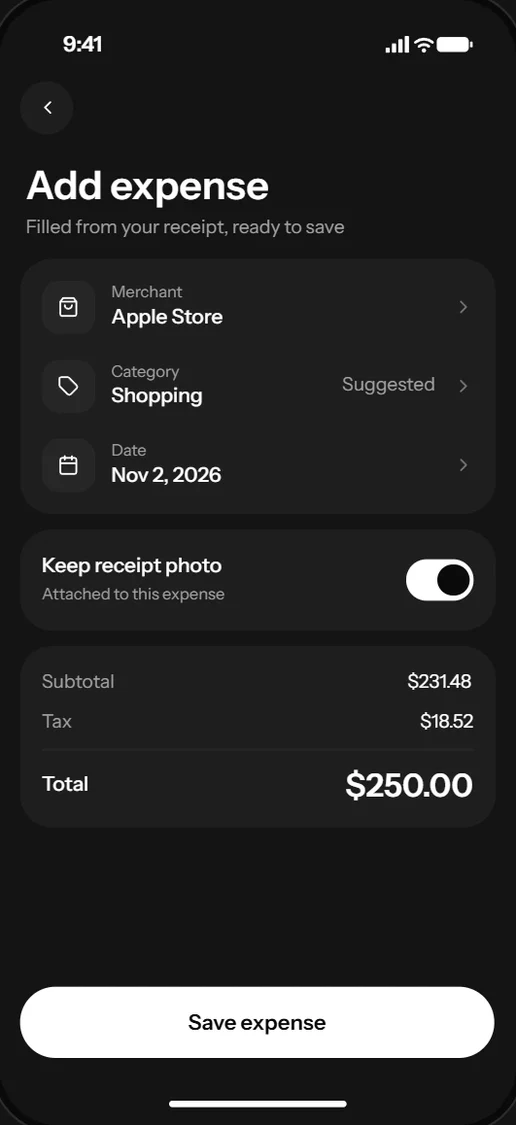
Capture the real screensExplore the app or run a test, and Revyl captures each screen it reaches in light or dark appearance.
Workflow
Connect
By team
Learn
Resources
See the screens and states of the running app on real devices, and compare a captured screen with its Figma frame.

Design
Atlas keeps the screens your app actually renders on device, so design review starts from the build users get and covers the states a mock leaves out.
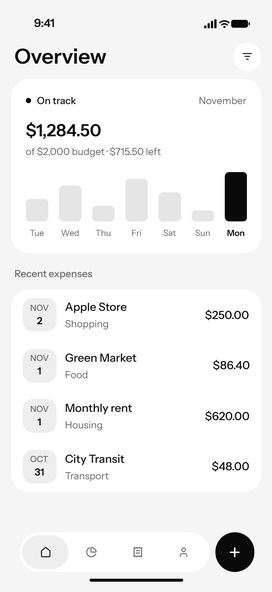
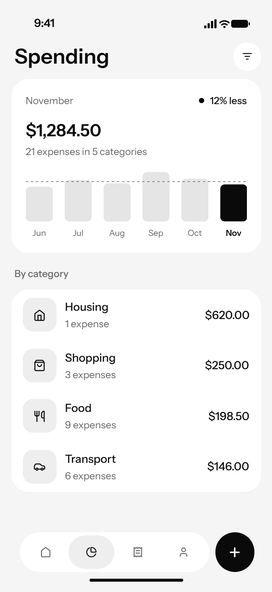
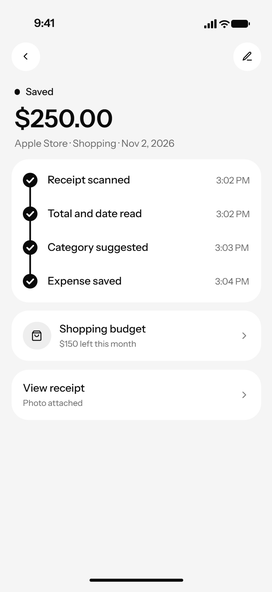
Atlas maps each screen and state a run reaches, with the transitions between them, so review covers what the app actually shows.
Run the same flow on iPhone, Android phones and tablets in light or dark appearance, and review each capture side by side.
Link a Figma frame and Revyl captures the same screen on the device, compares the two and names the visible differences.
How it works
Capture the real screensExplore the app or run a test, and Revyl captures each screen it reaches in light or dark appearance.
ValidationThe Overview screen is visible with recent expensesInstructionTap the "+" button on the tab barValidationThe Add expense form shows "Apple Store" and "$250.00"ValidationThe expense detail screen shows "Saved" and "$250.00"Check the flow on deviceWrite the flow as instructions and validations and run it on iOS or Android, so each check passes on the real screen.
Compare with the Figma frameLink the frame in the pull request or in Atlas chat, and Revyl names the visible differences between the design and the build.
01Capture the real screensExplore the app or run a test, and Revyl captures each screen it reaches in light or dark appearance.
02Check the flow on deviceWrite the flow as instructions and validations and run it on iOS or Android, so each check passes on the real screen.
03Compare with the Figma frameLink the frame in the pull request or in Atlas chat, and Revyl names the visible differences between the design and the build.
ValidationThe Overview screen is visible with recent expensesInstructionTap the "+" button on the tab barValidationThe Add expense form shows "Apple Store" and "$250.00"ValidationThe expense detail screen shows "Saved" and "$250.00"Keep exploring
Atlas turns evidence into a living model of your screens and flows.
Run shared user intent and inspect where behavior, layout, or state diverges.
Attach visible evidence to a change before it merges.
Your team and its agents build, run and verify every change on Revyl’s devices and Macs, and what they see becomes your record.