





Revyl Atlas report
Finch app screen map and user flows
Revyl Atlas mapped 93 iOS app screens, 93 transitions, 14 user paths, and 761 UI elements in Finch. Use this report for mobile UX research, QA coverage planning, competitive teardown work, and AI agent navigation context.
Research uses
What this Finch app map helps teams inspect
Key journeys
Finch mobile app user flows
Complete onboarding
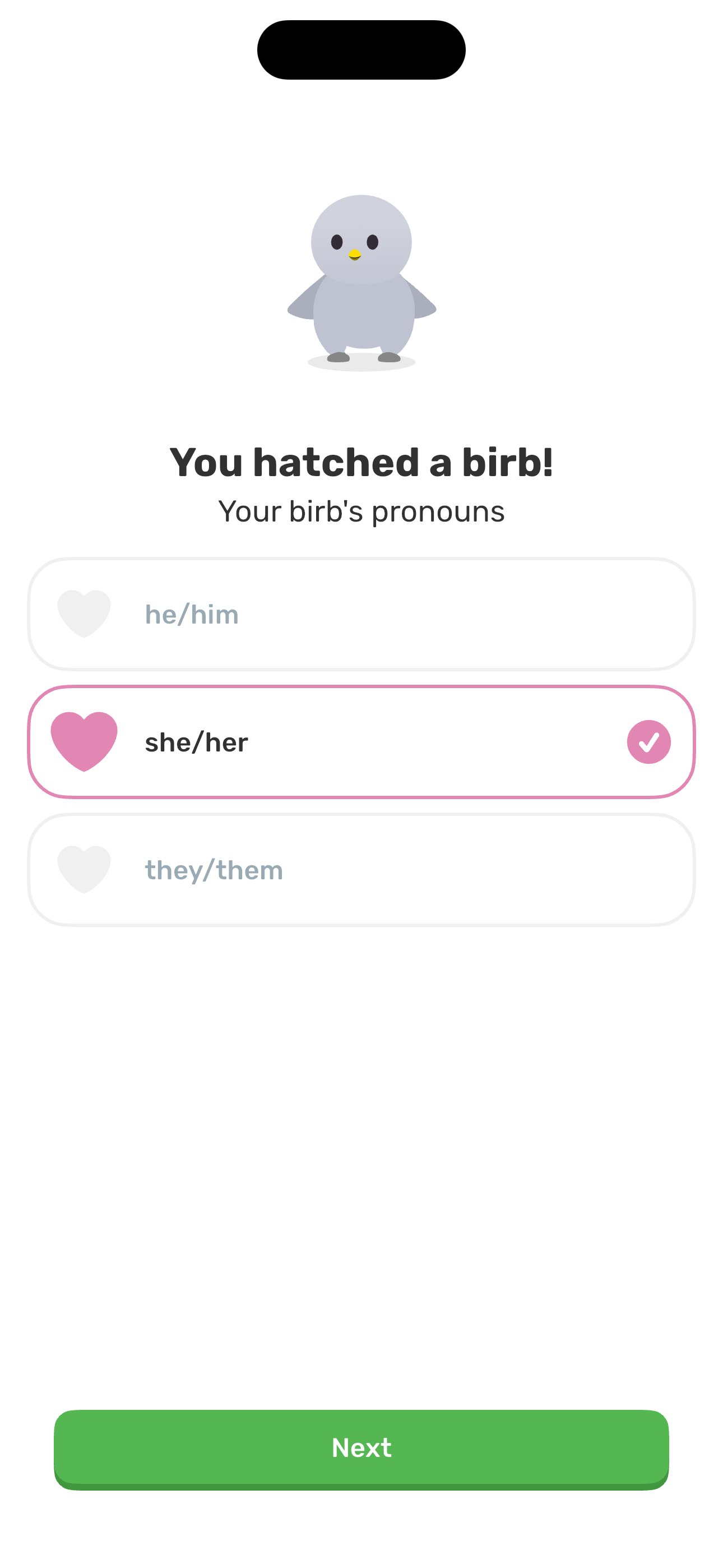
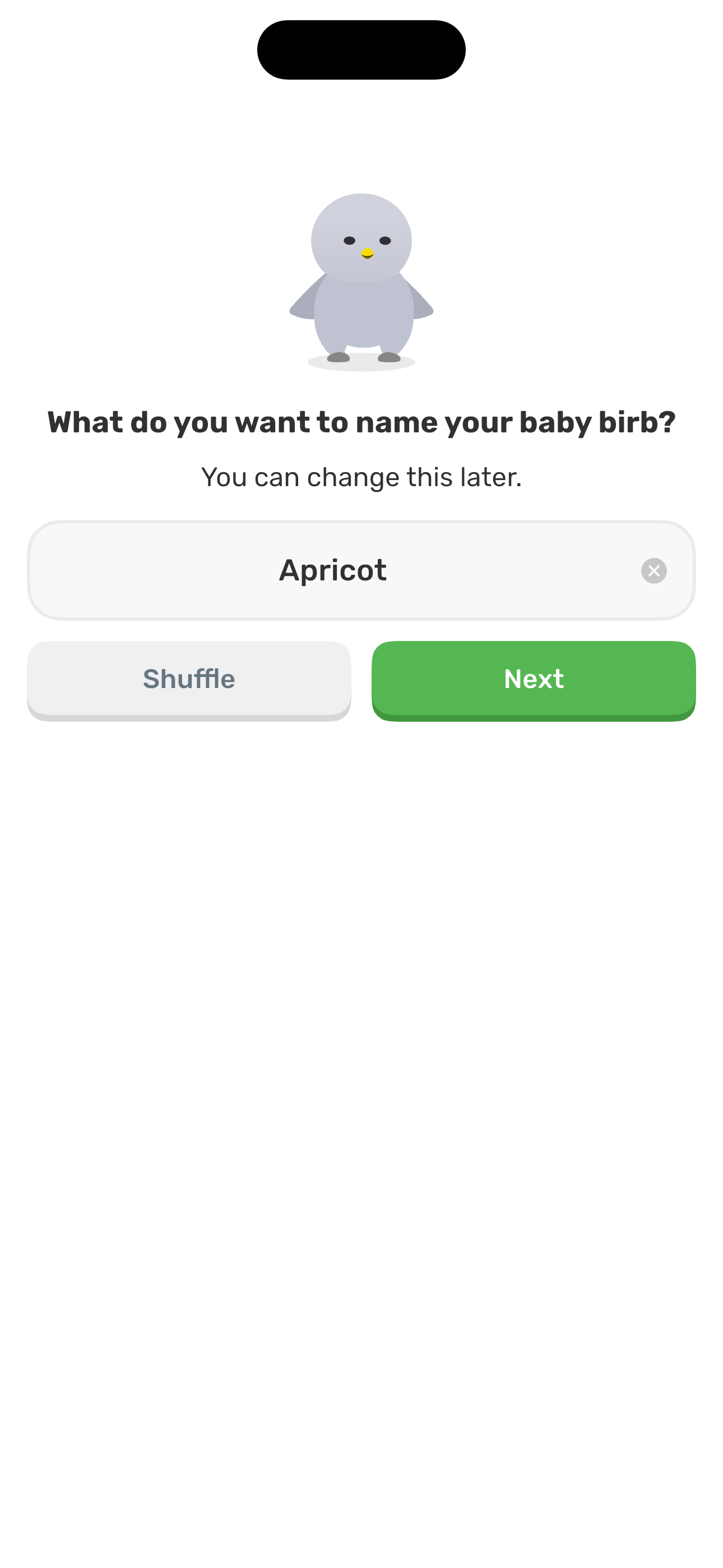
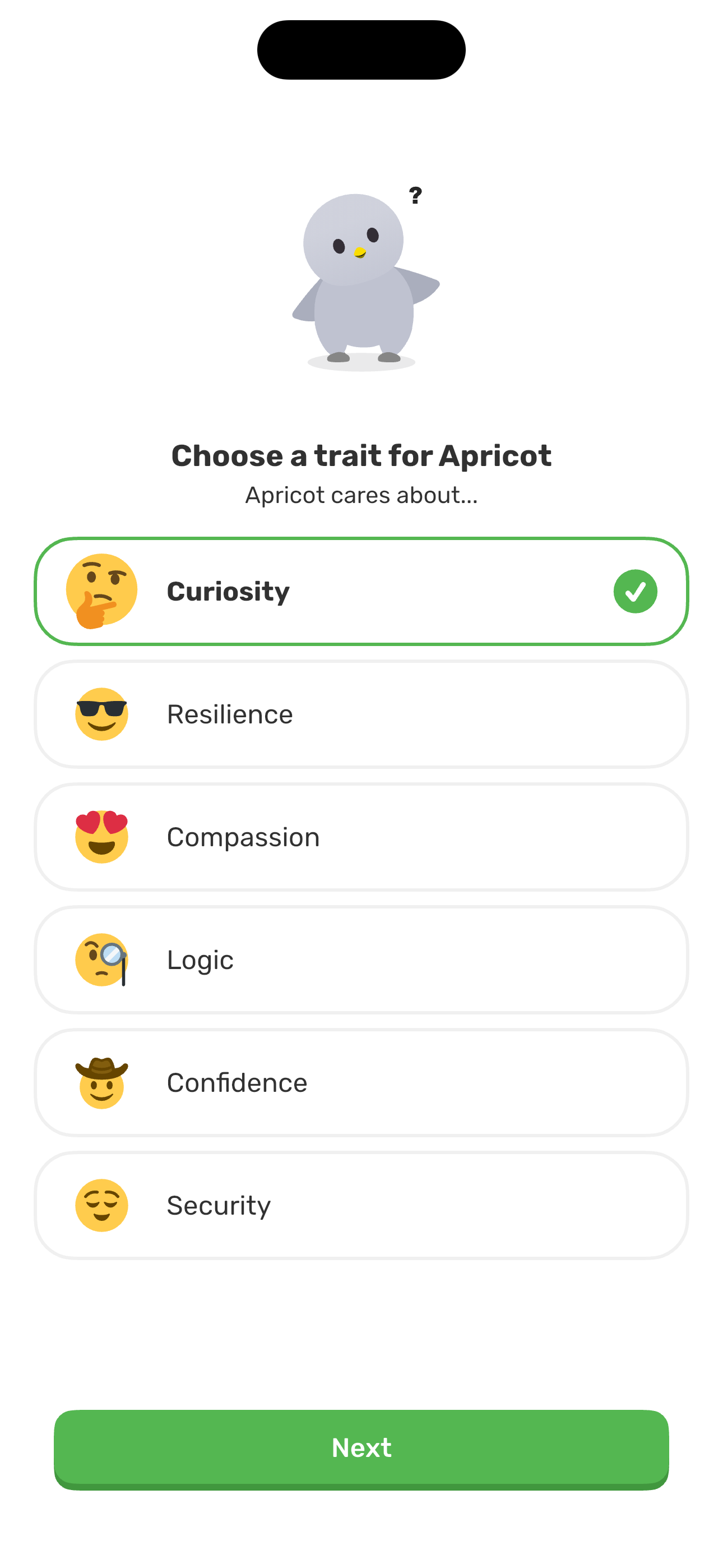
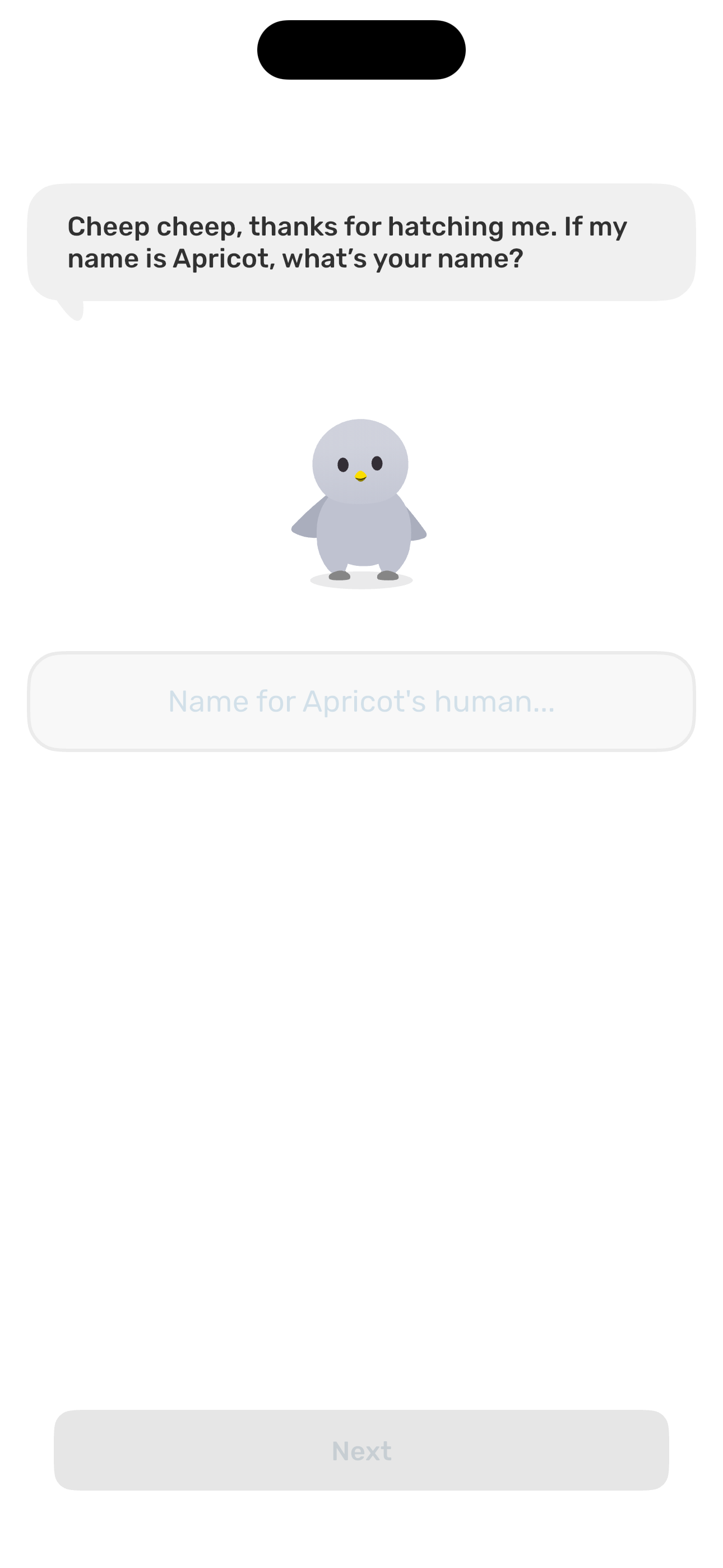
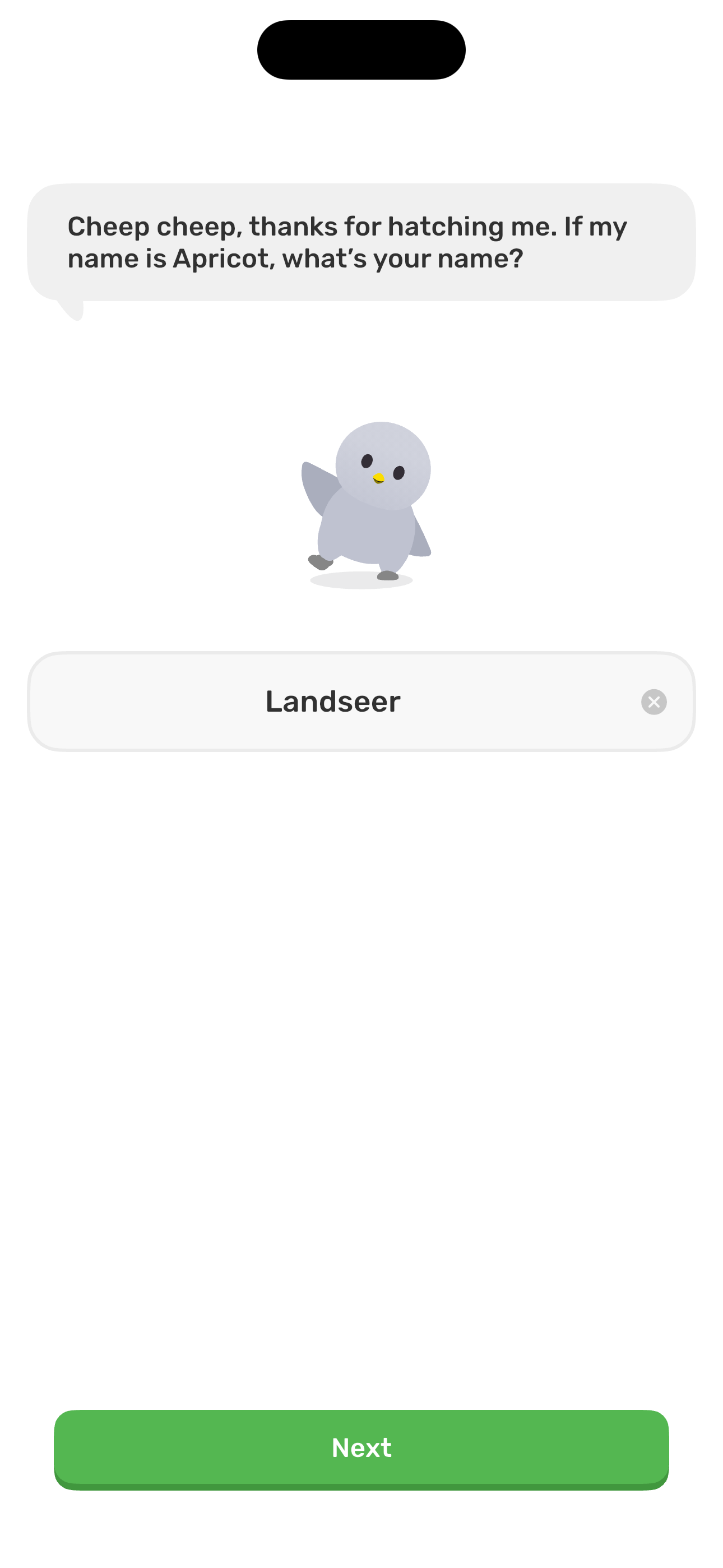
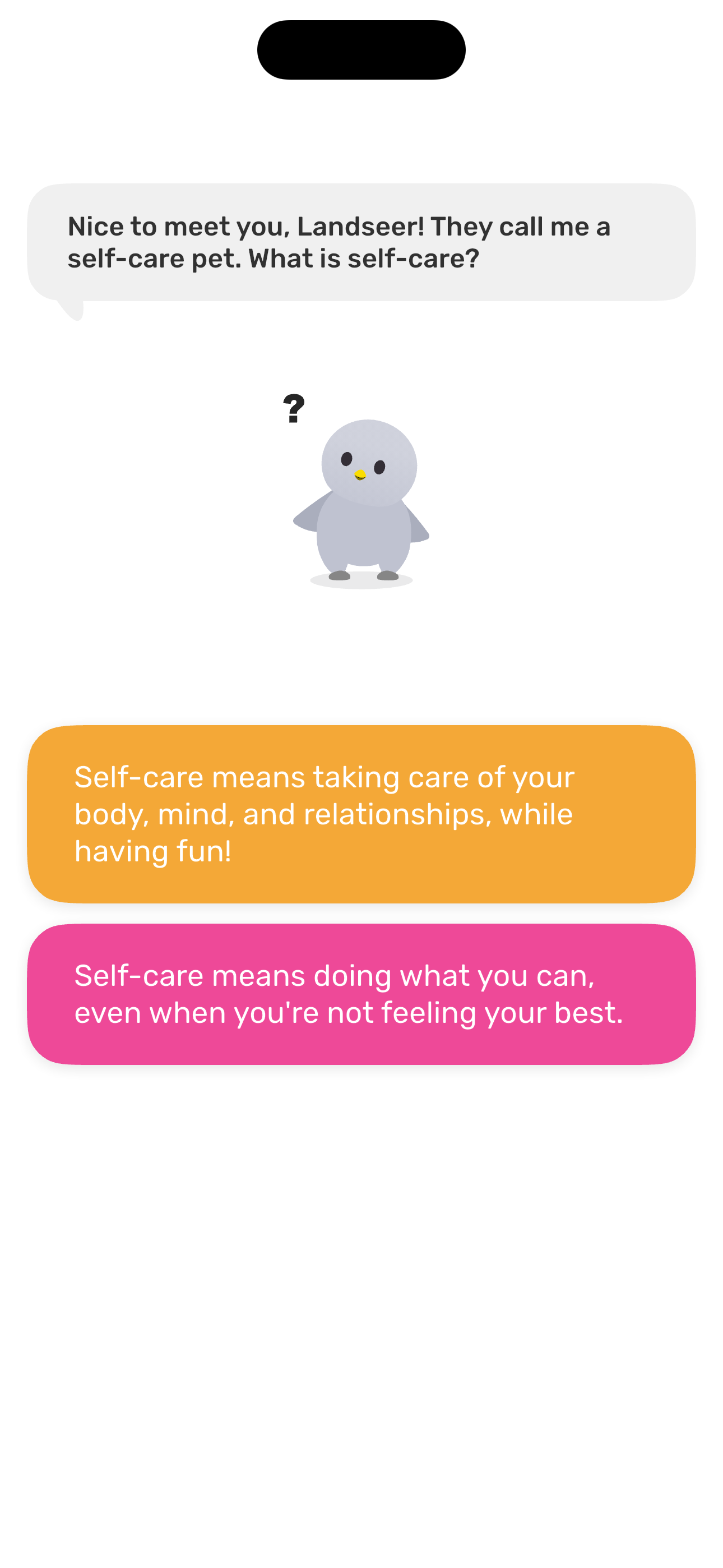
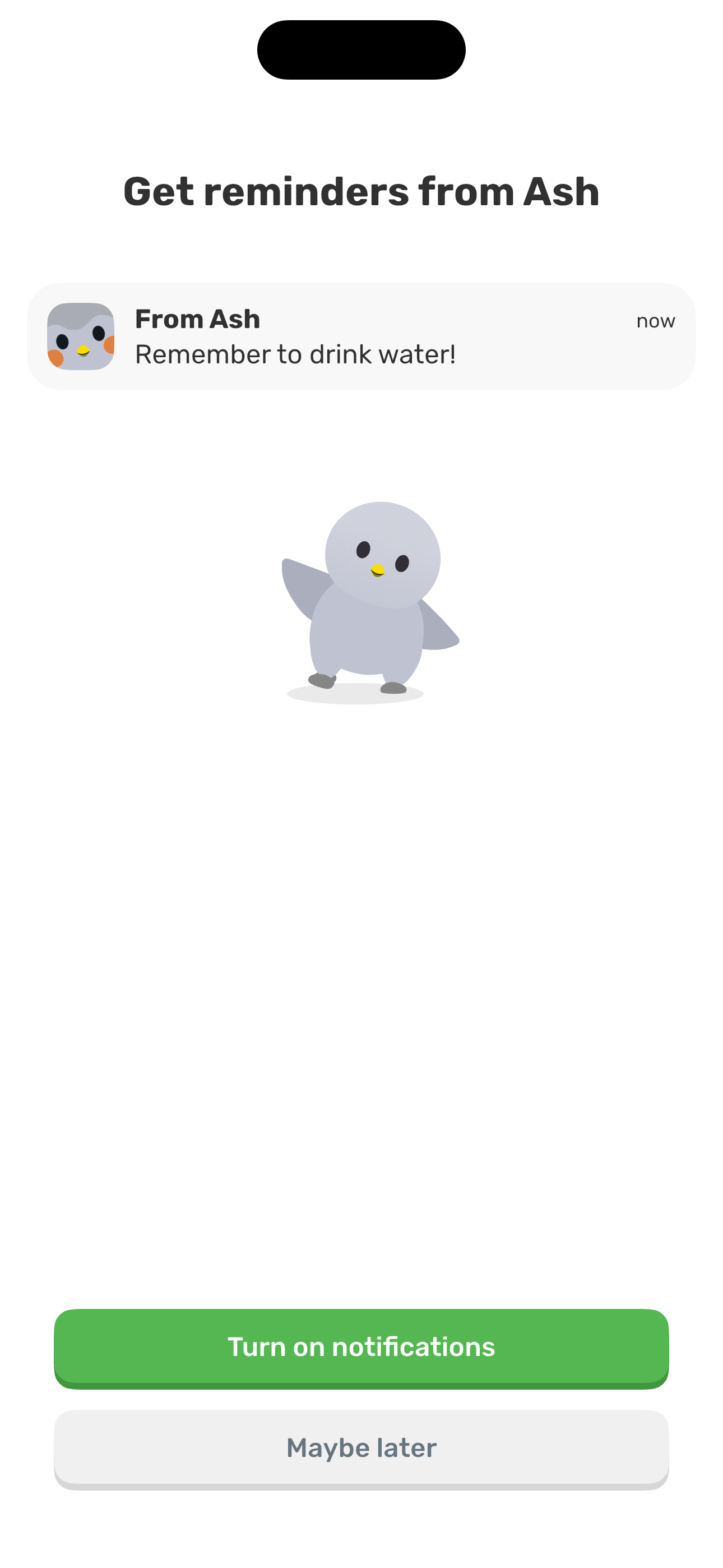
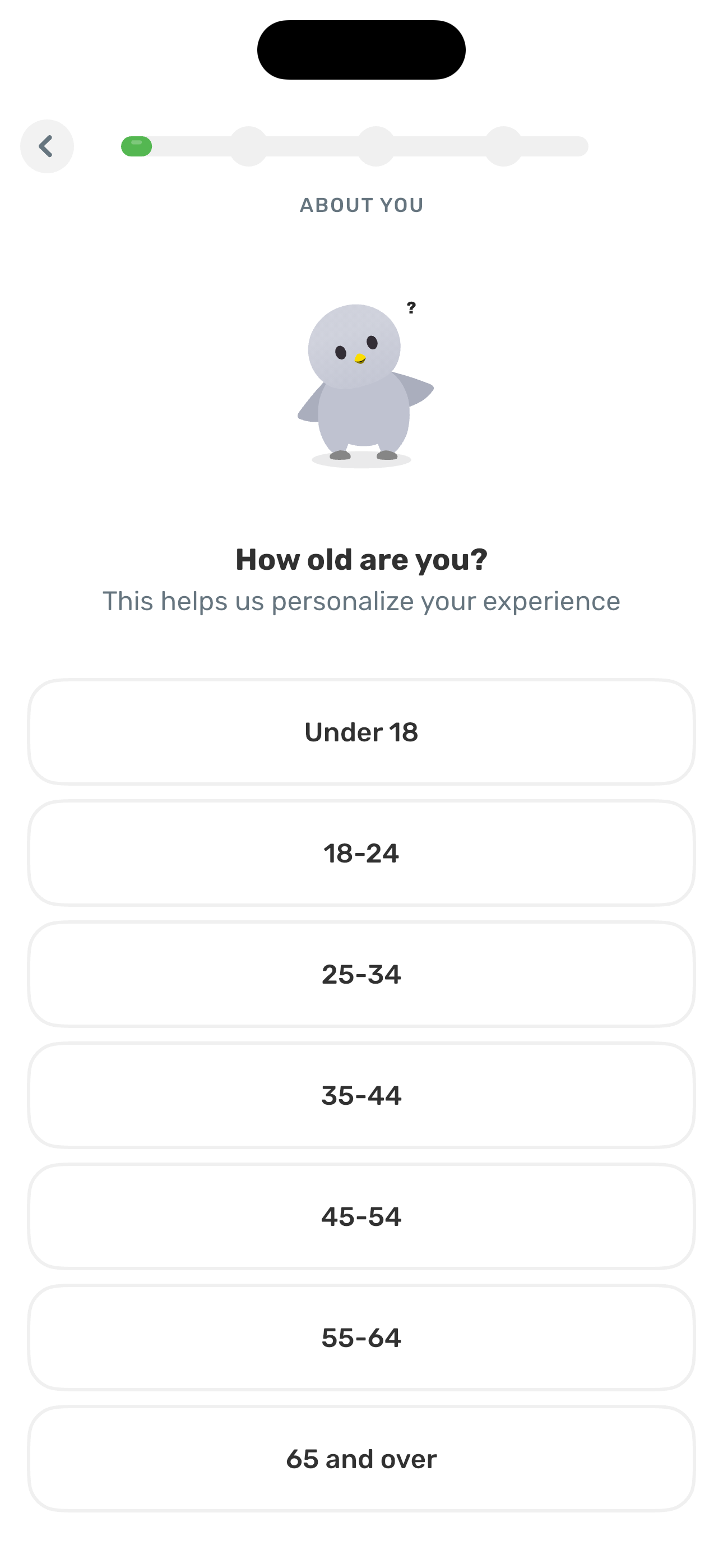
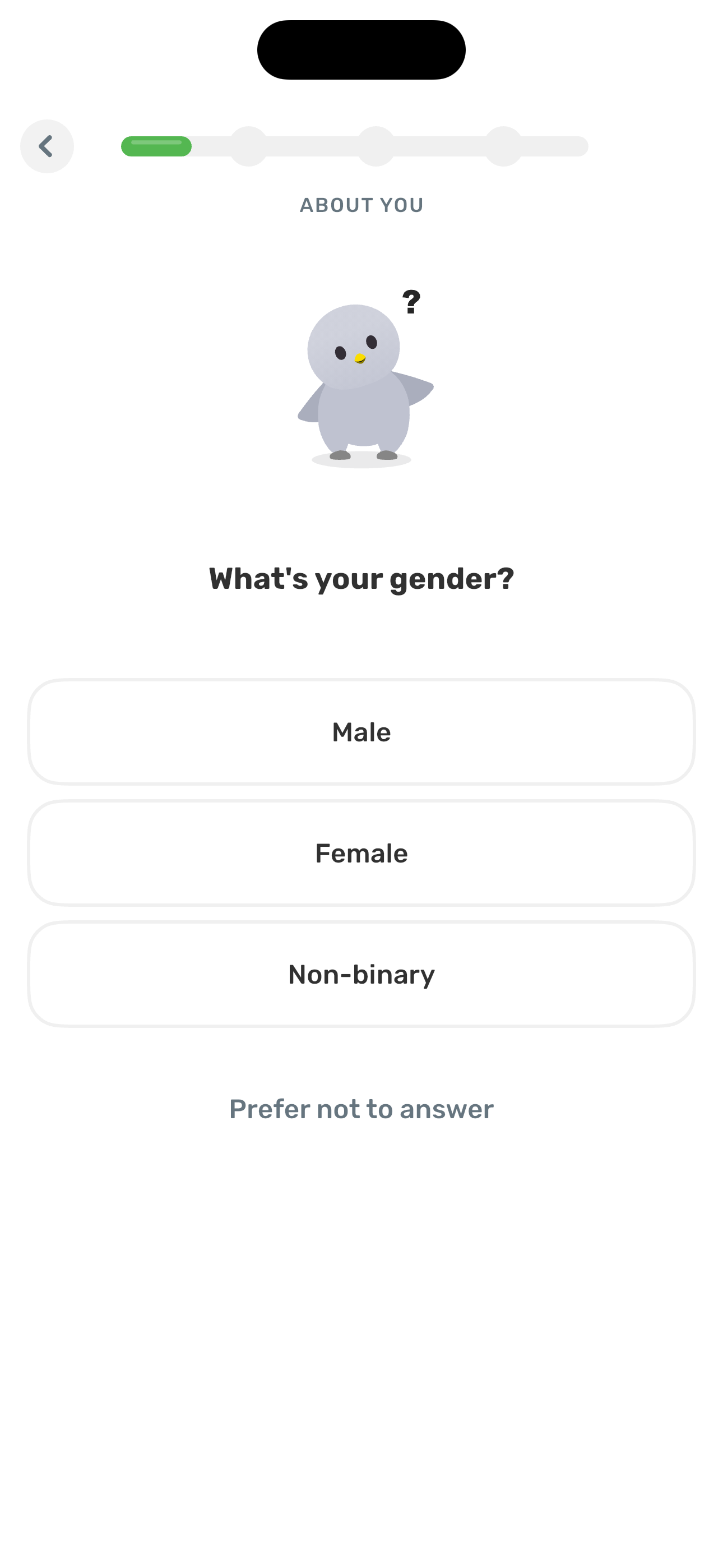
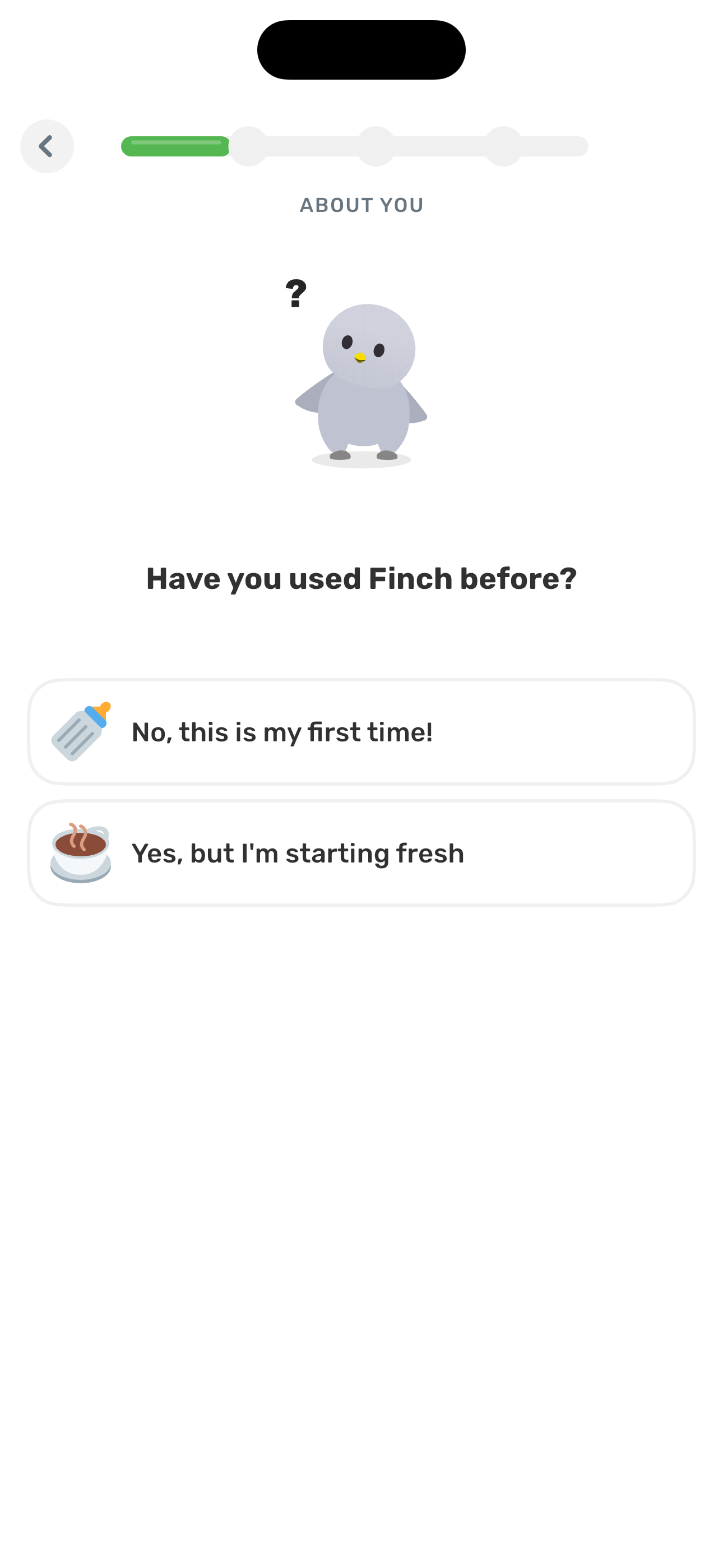
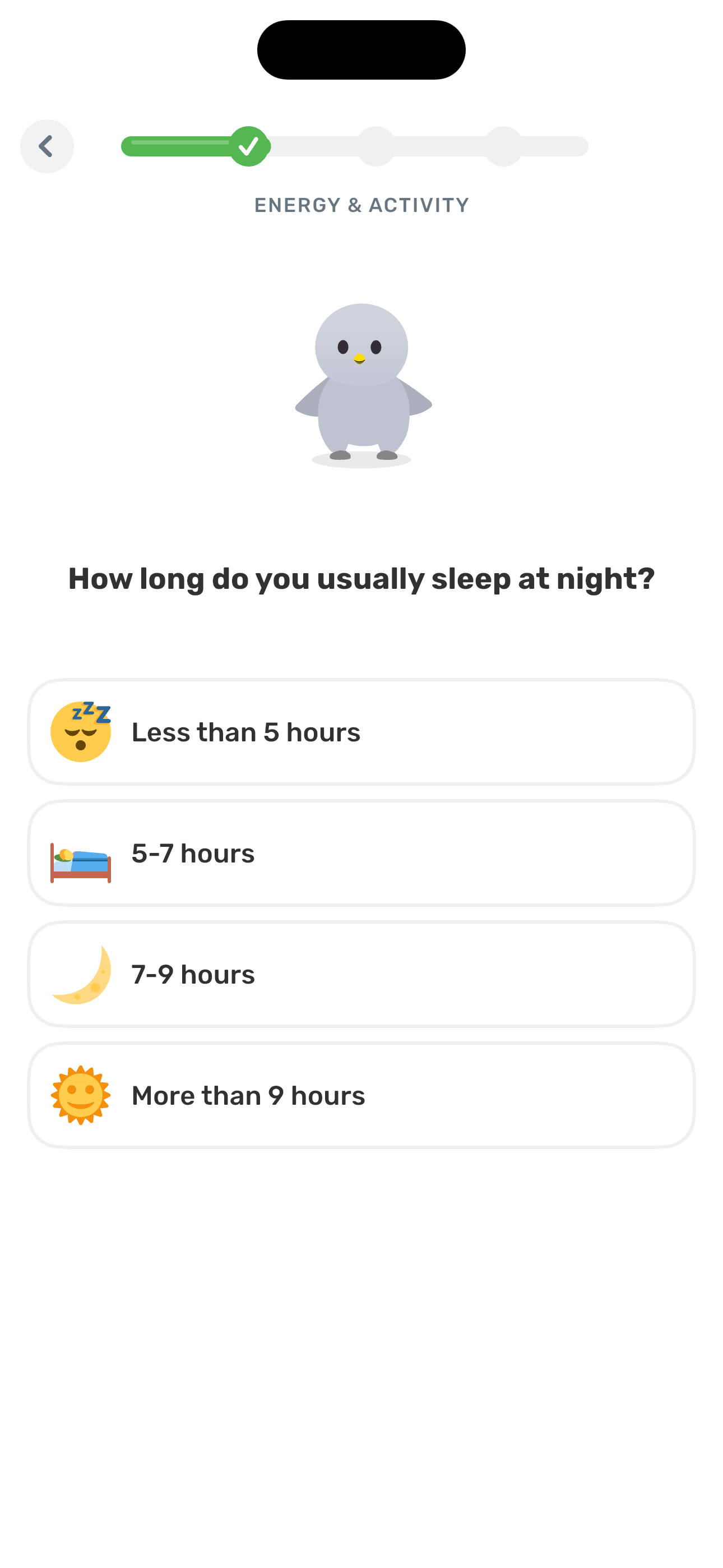
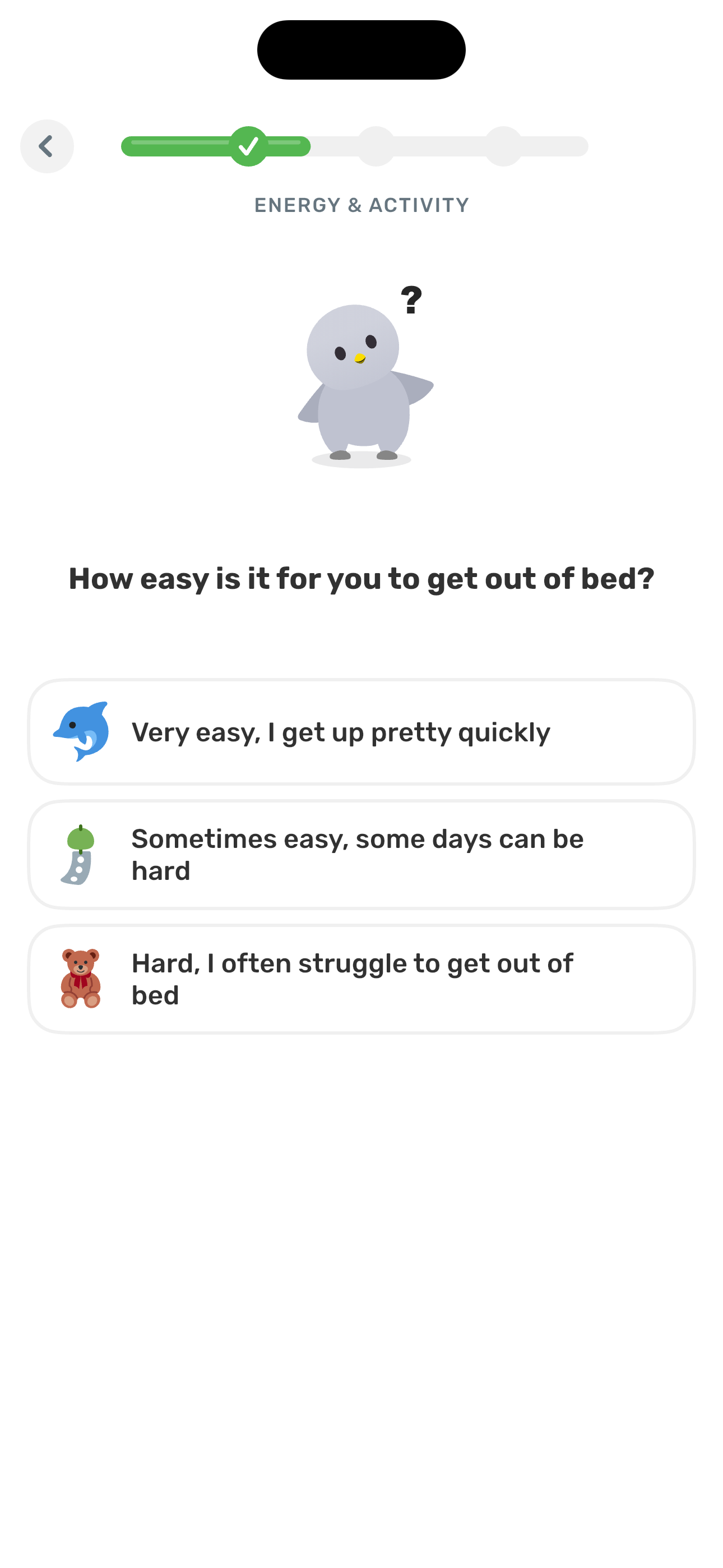
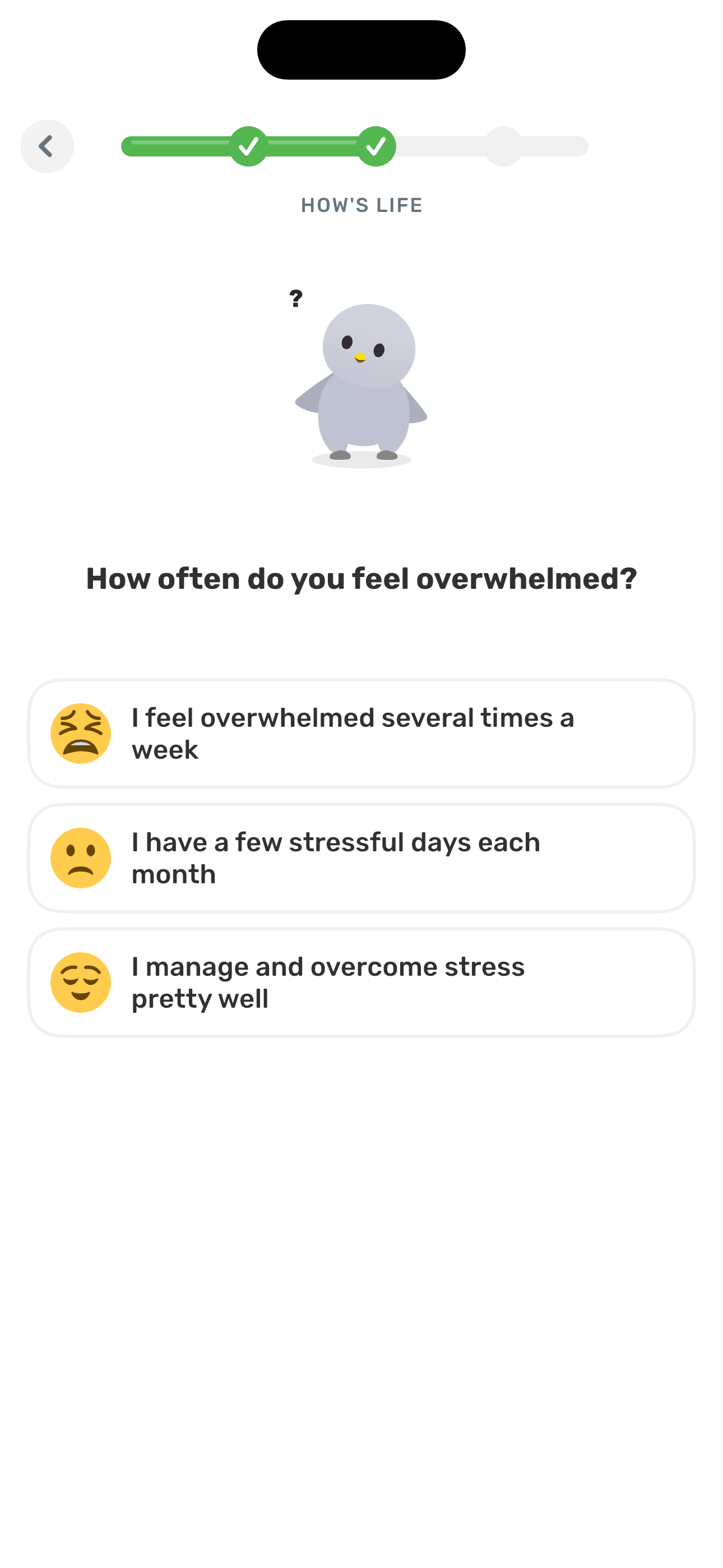
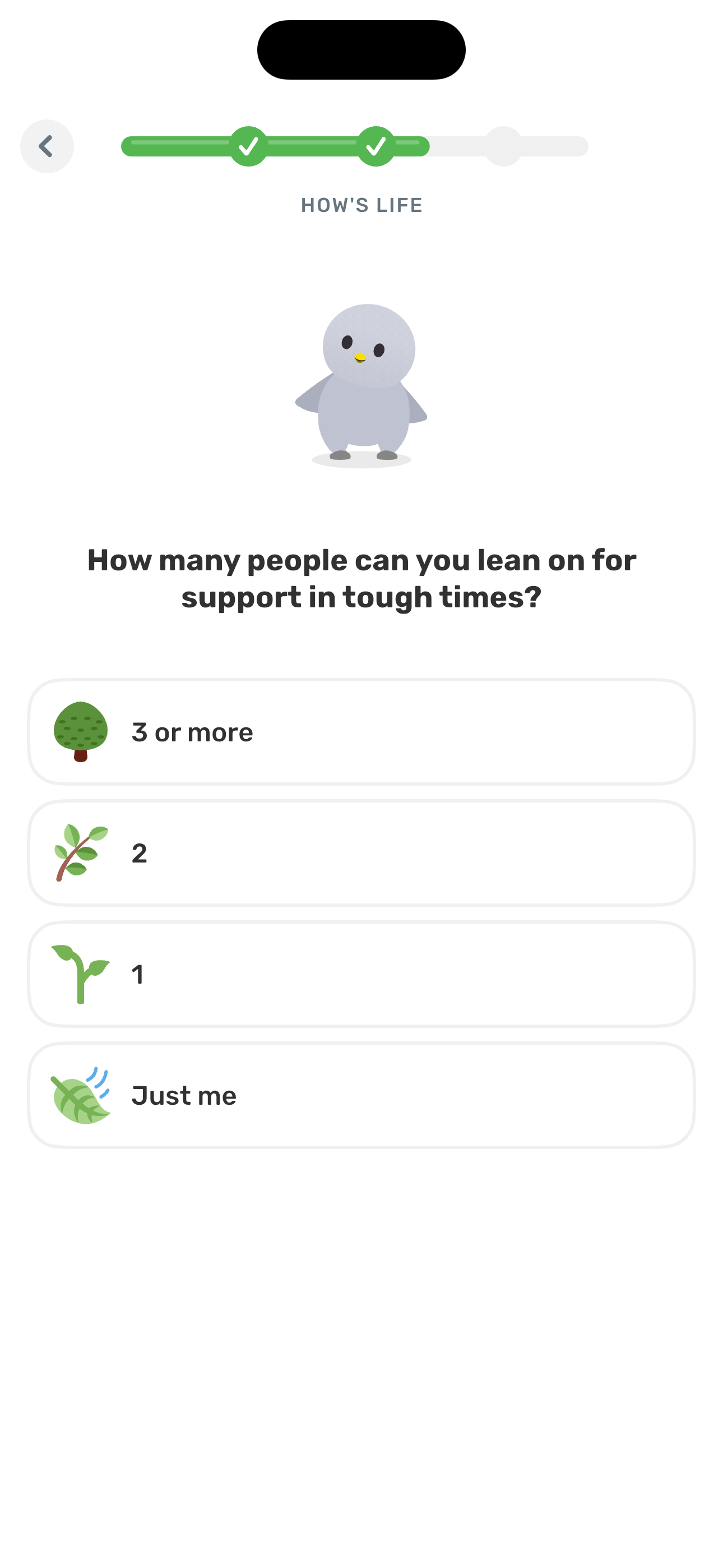
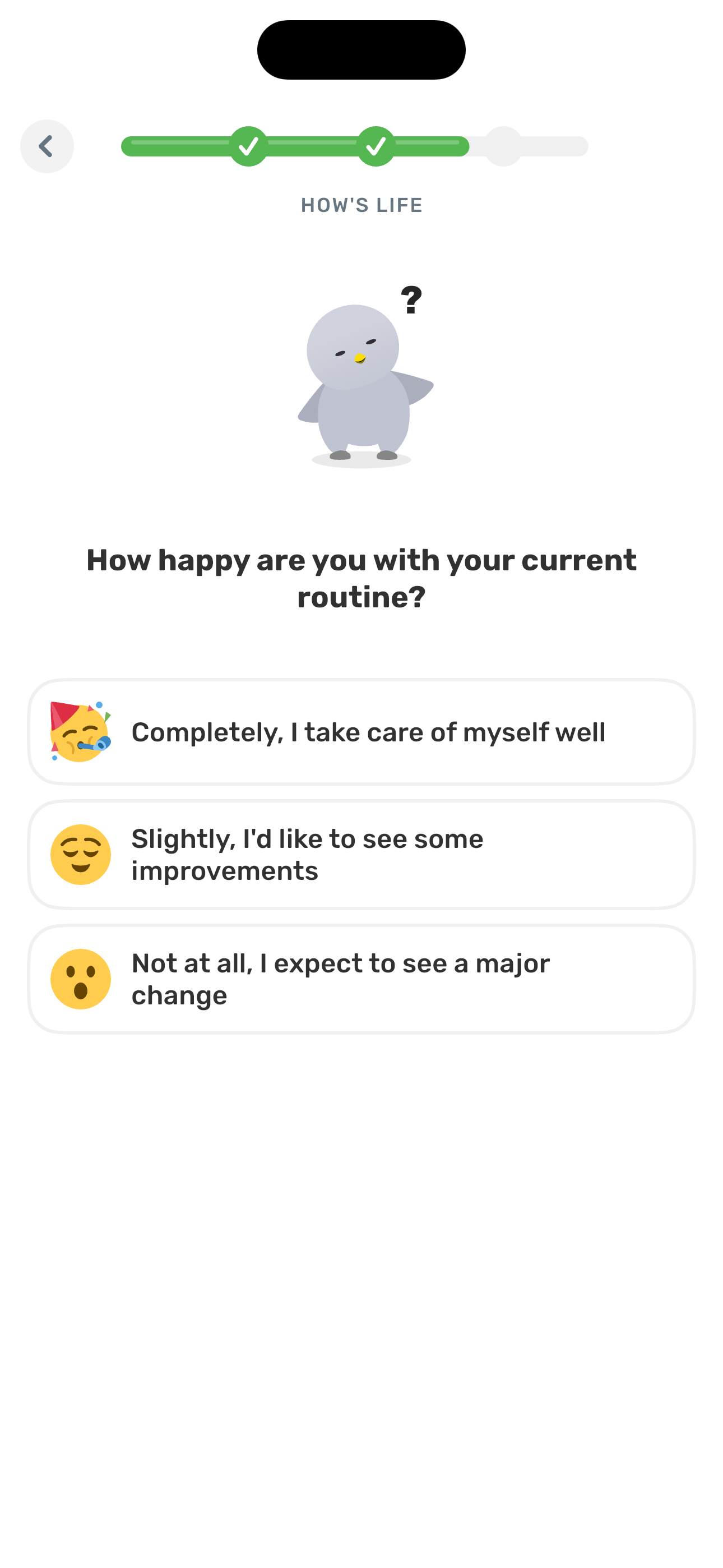
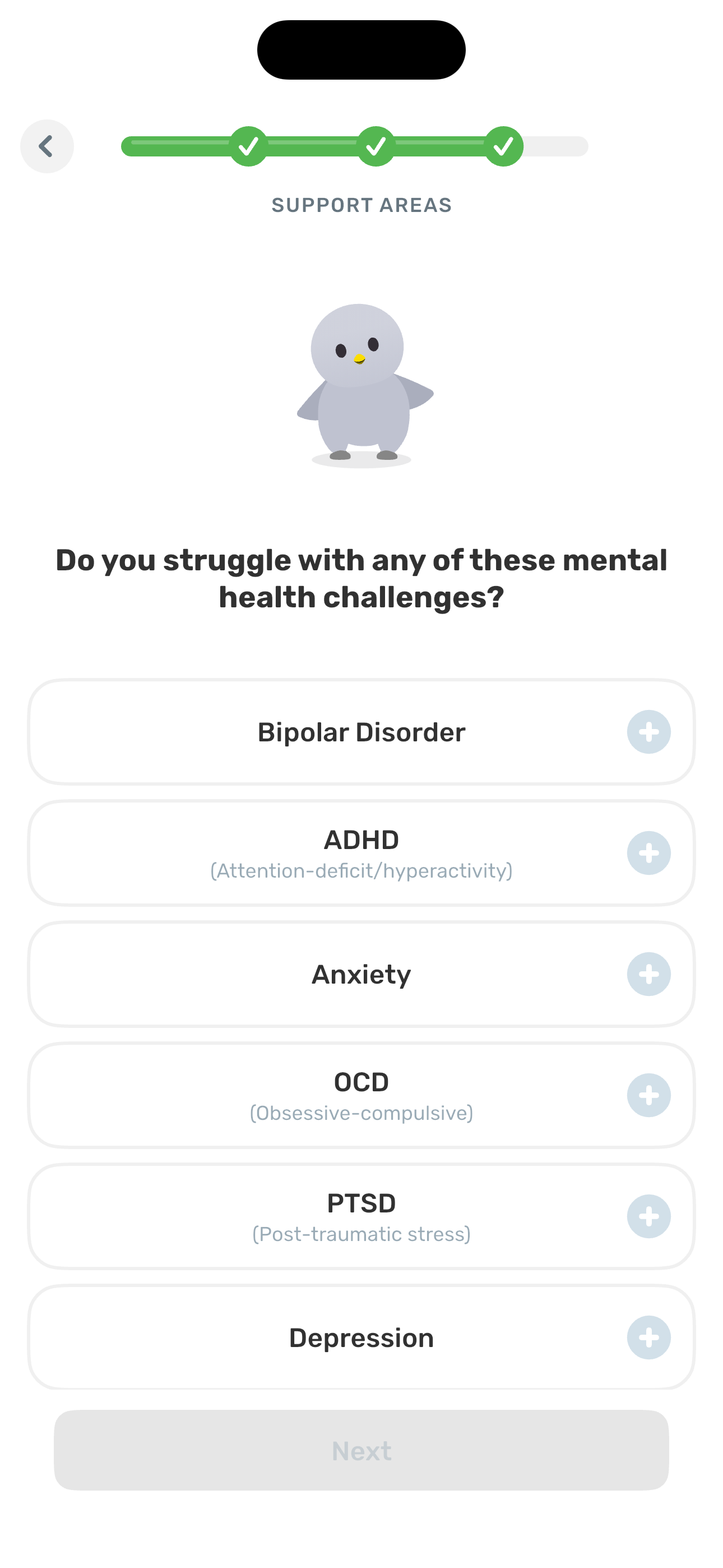
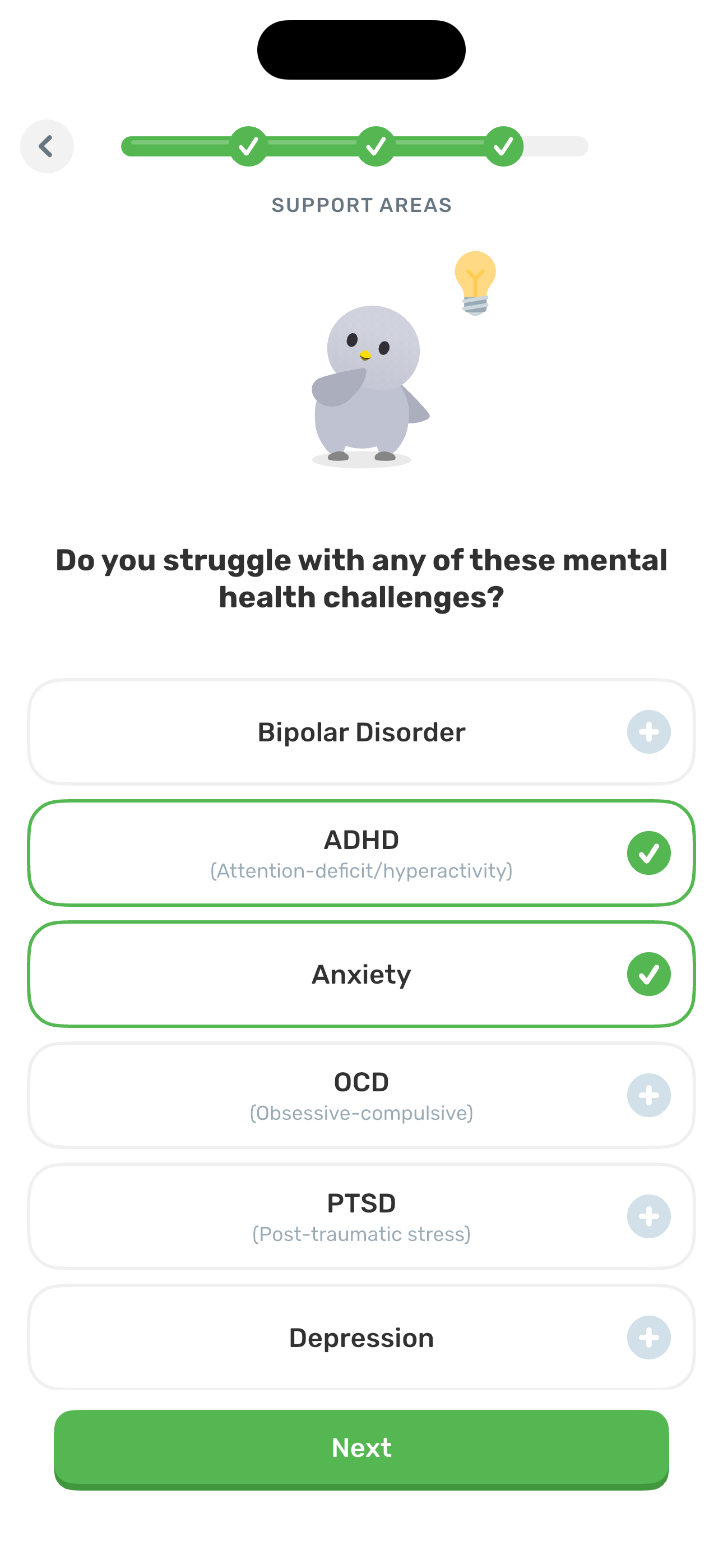
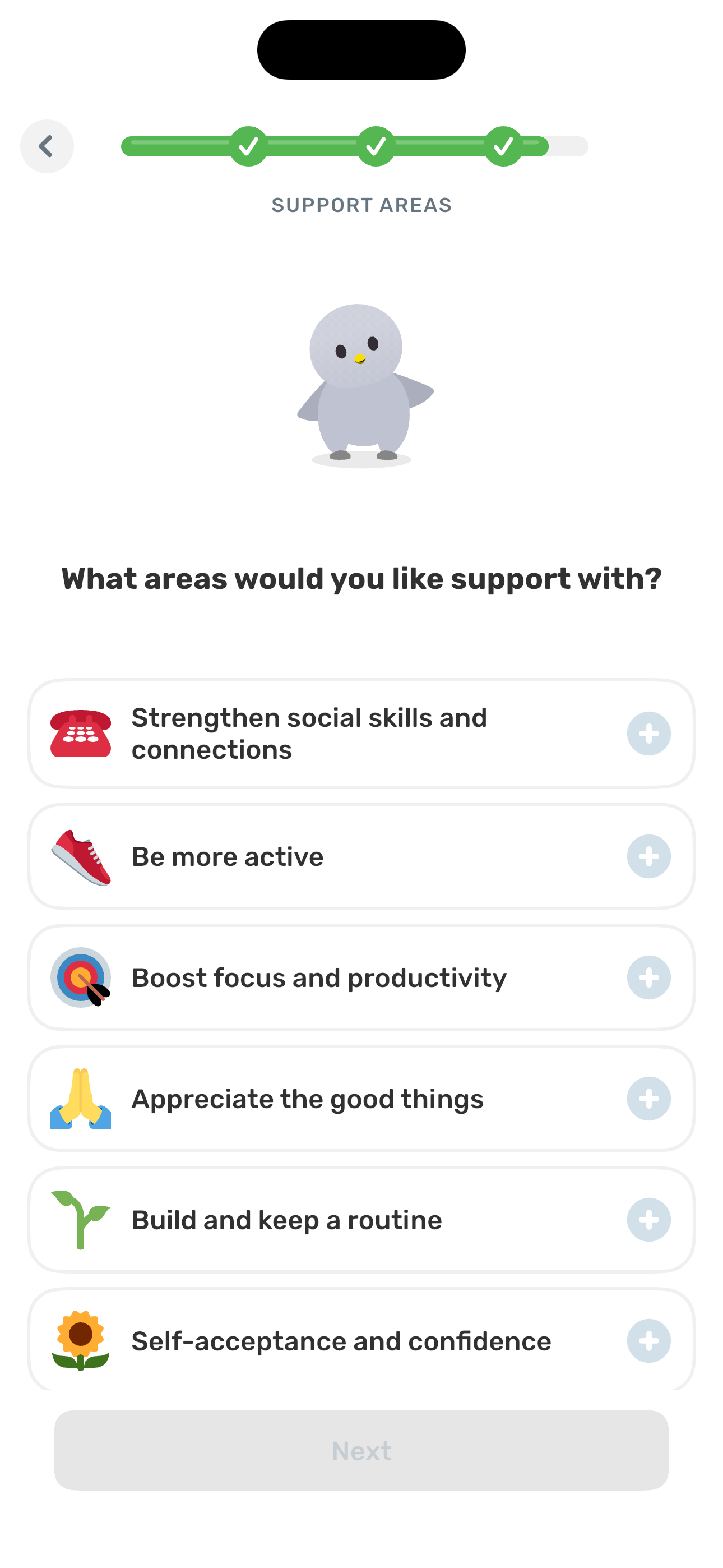
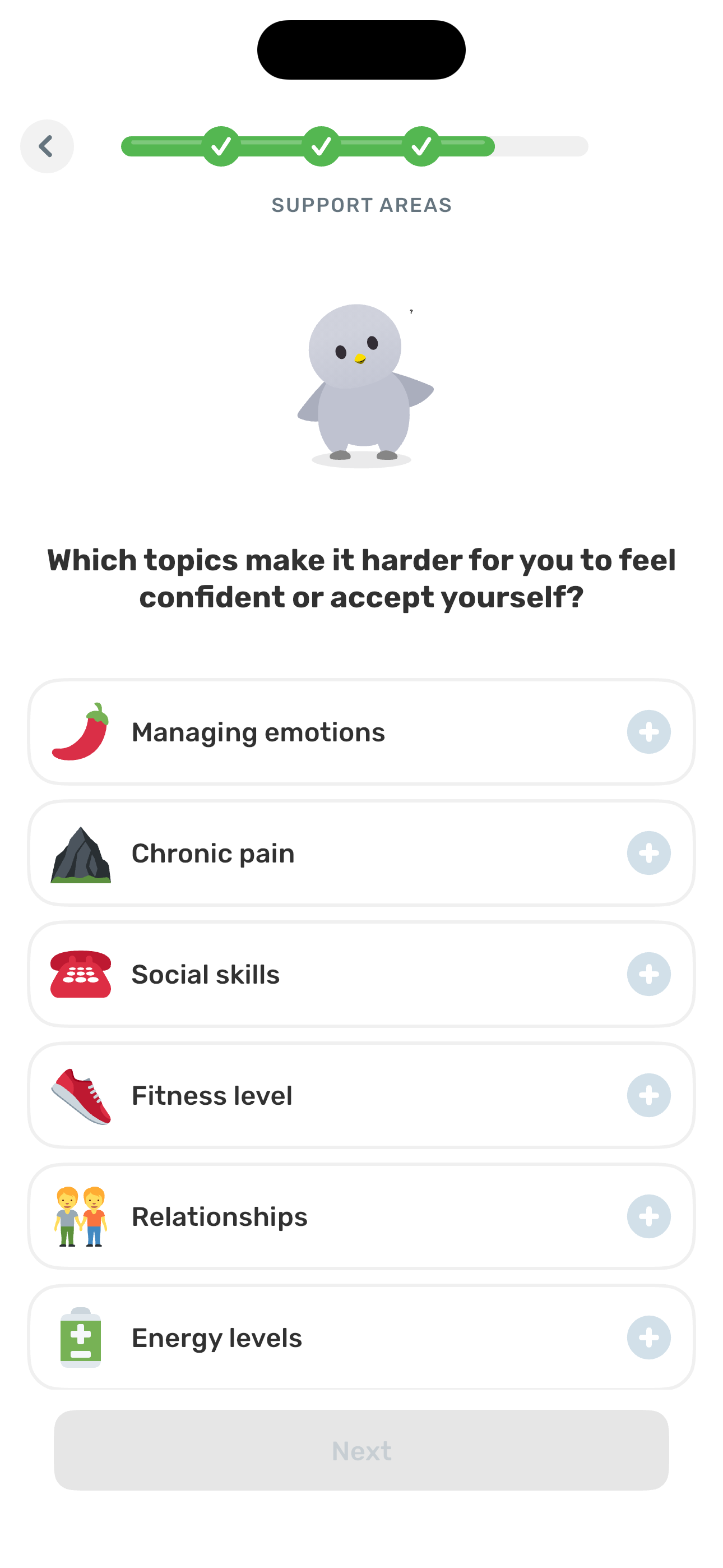
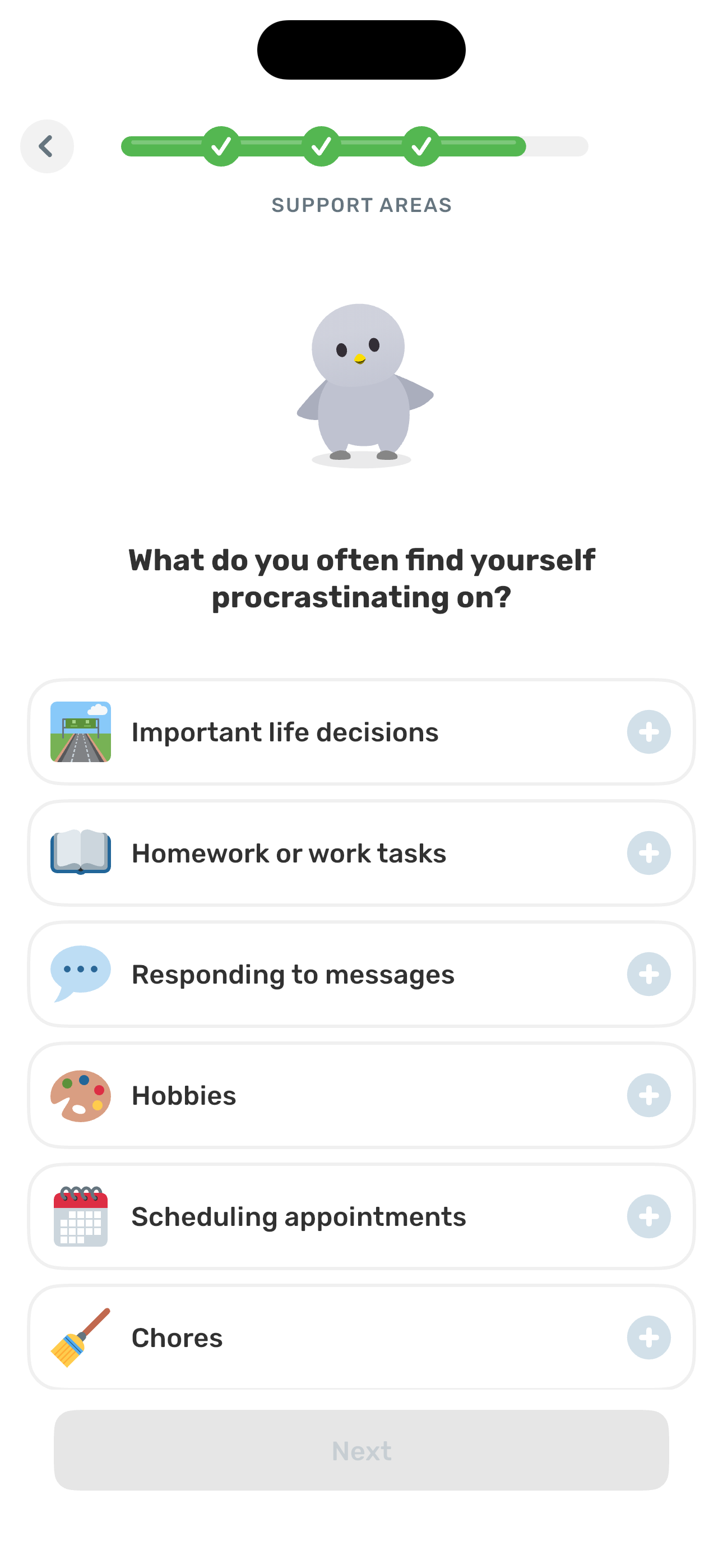
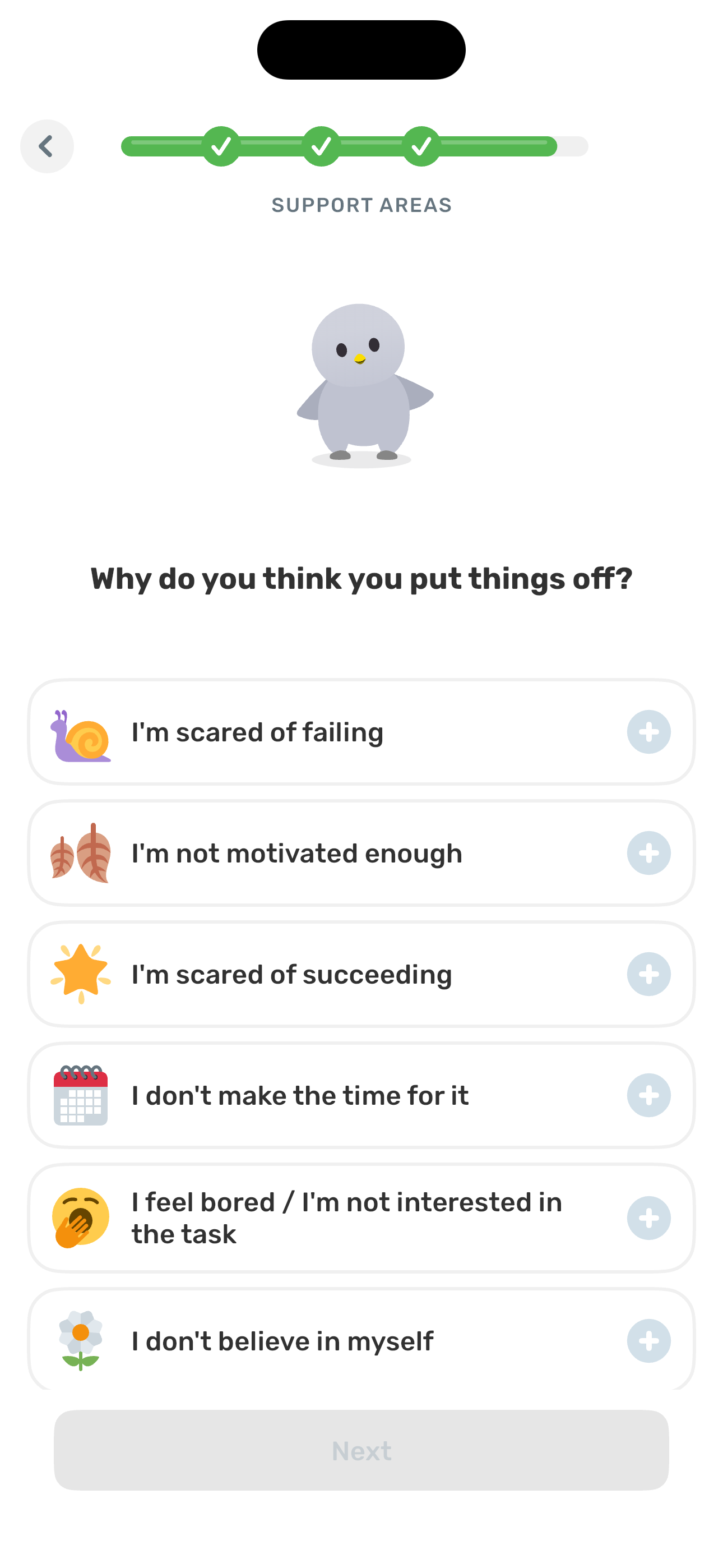
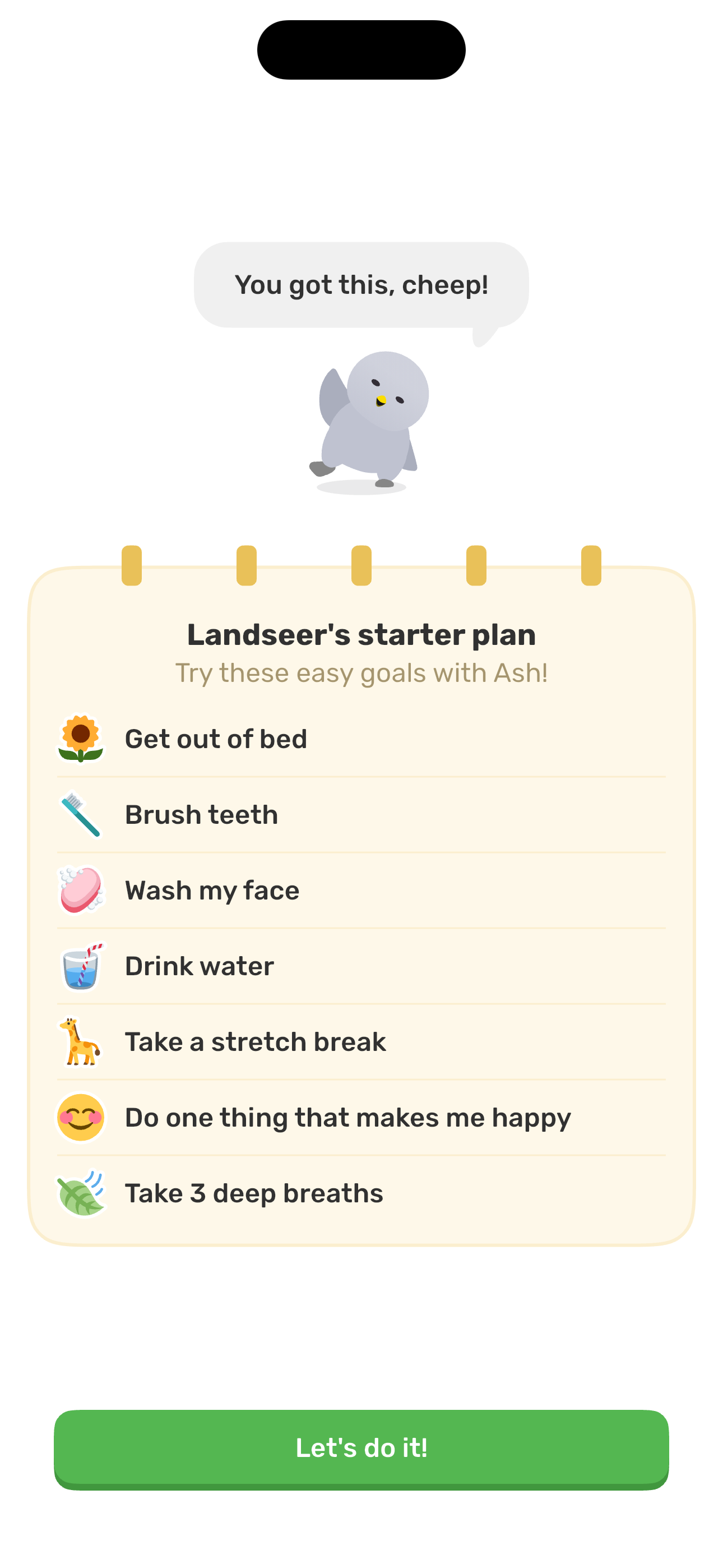
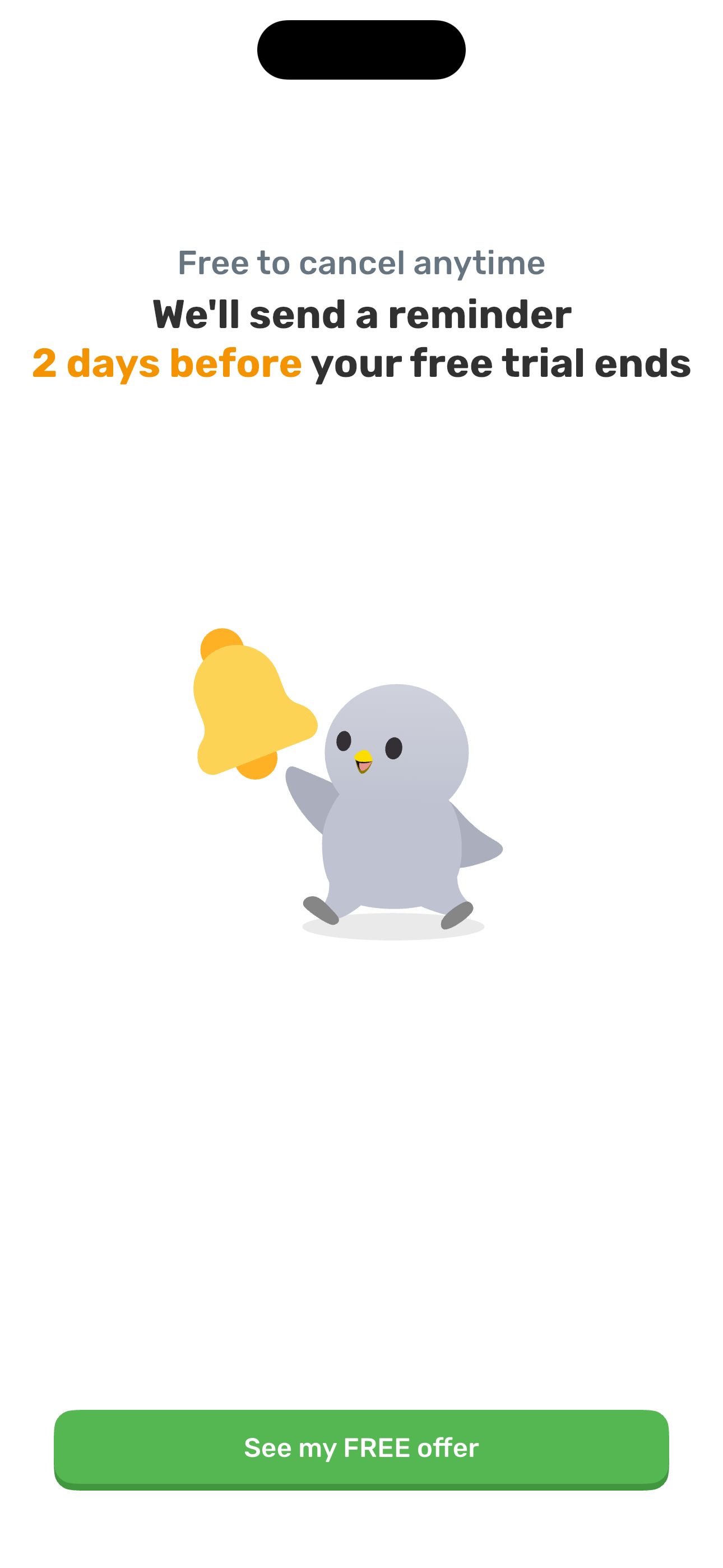
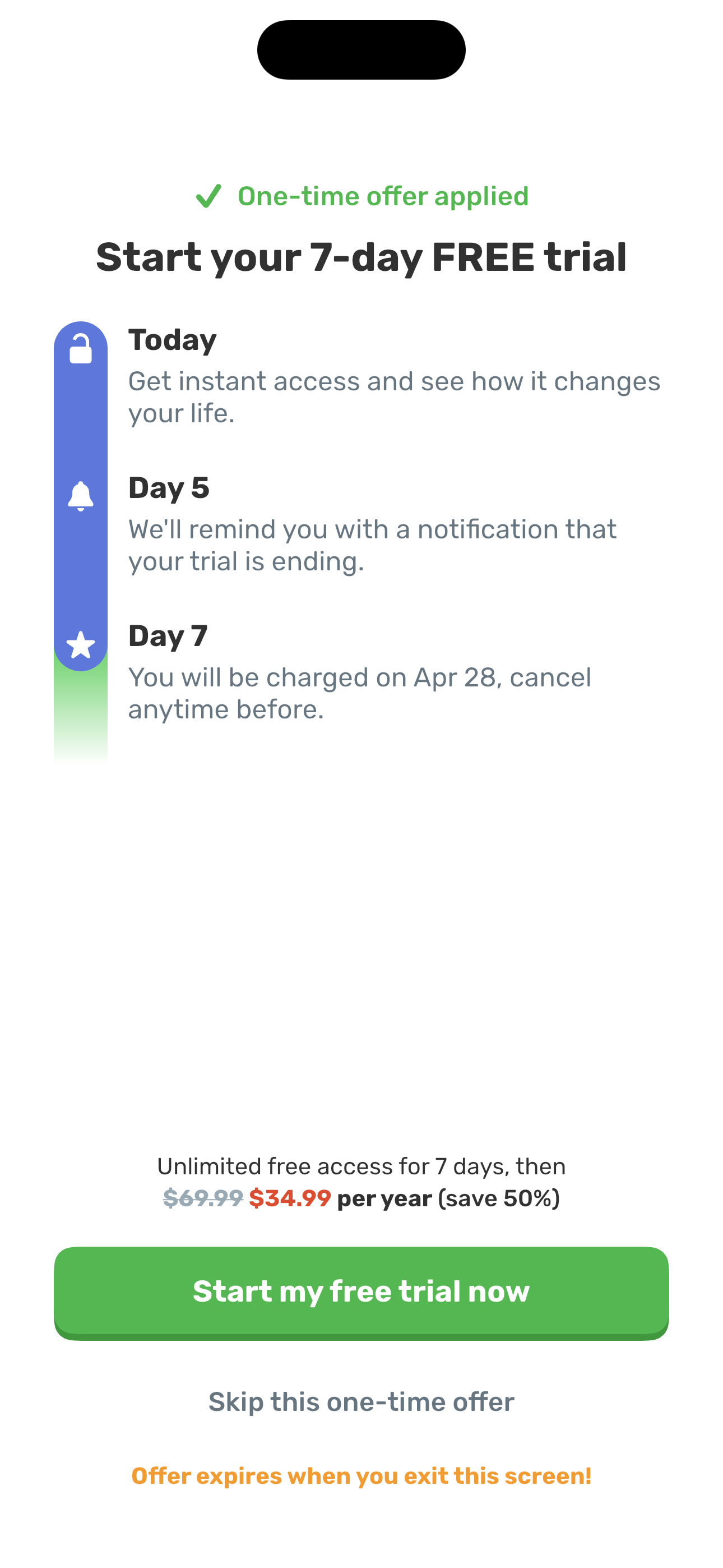
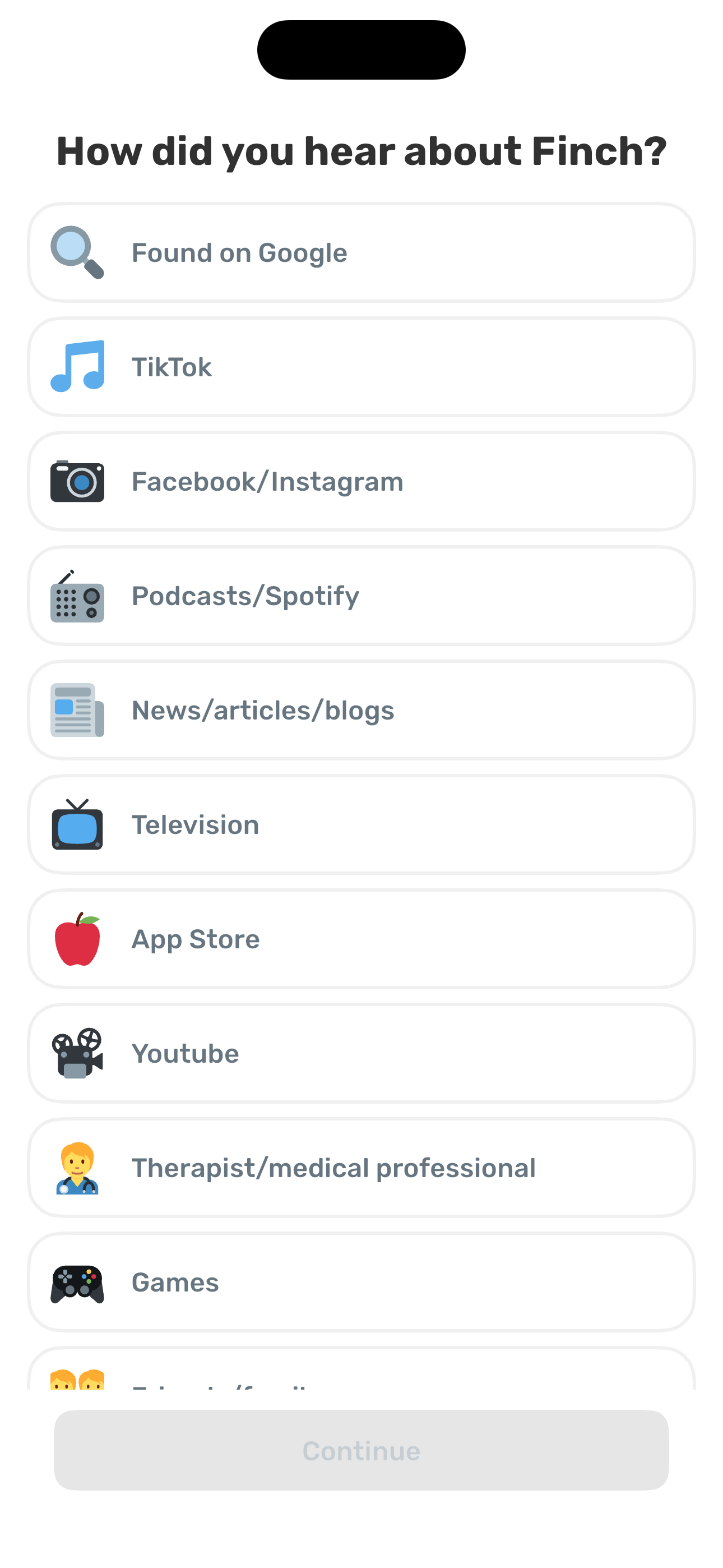
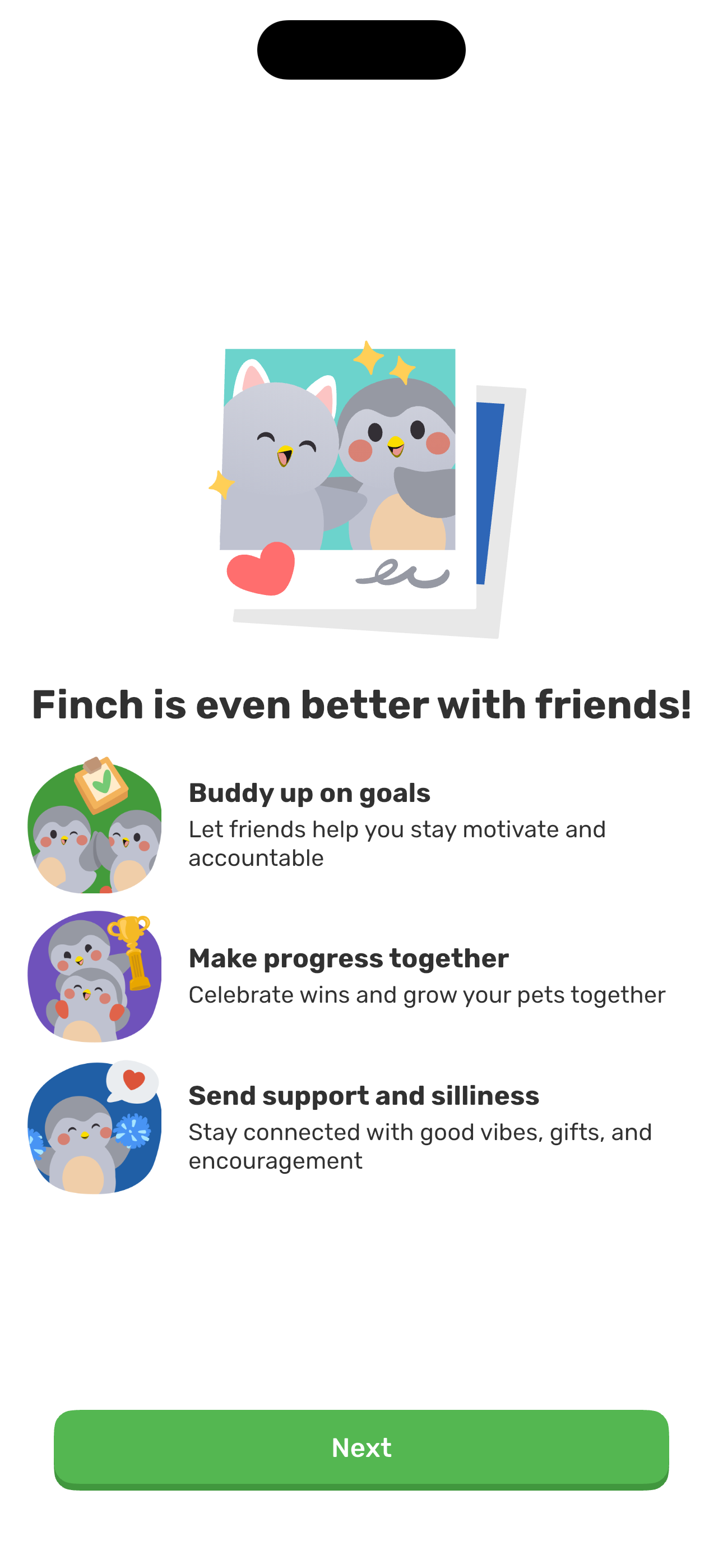
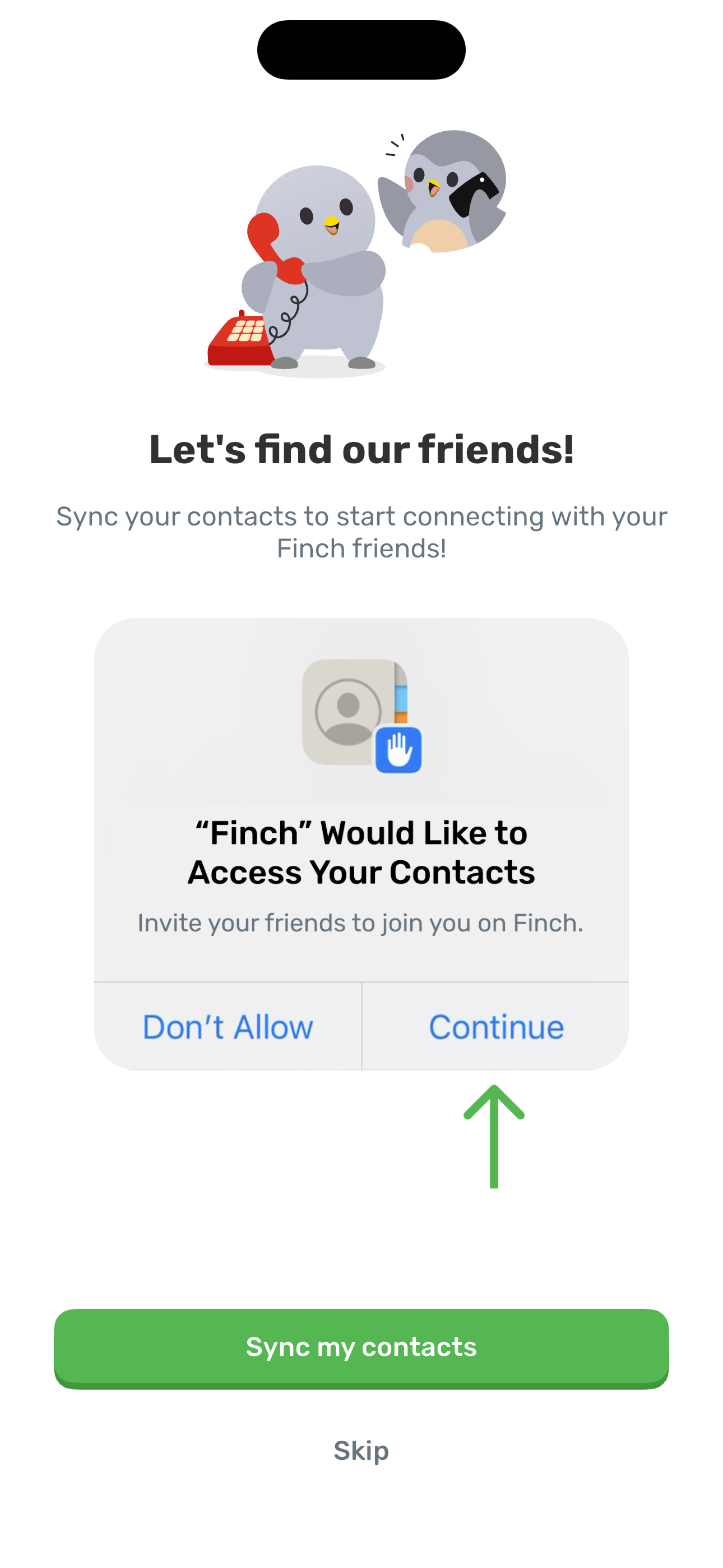
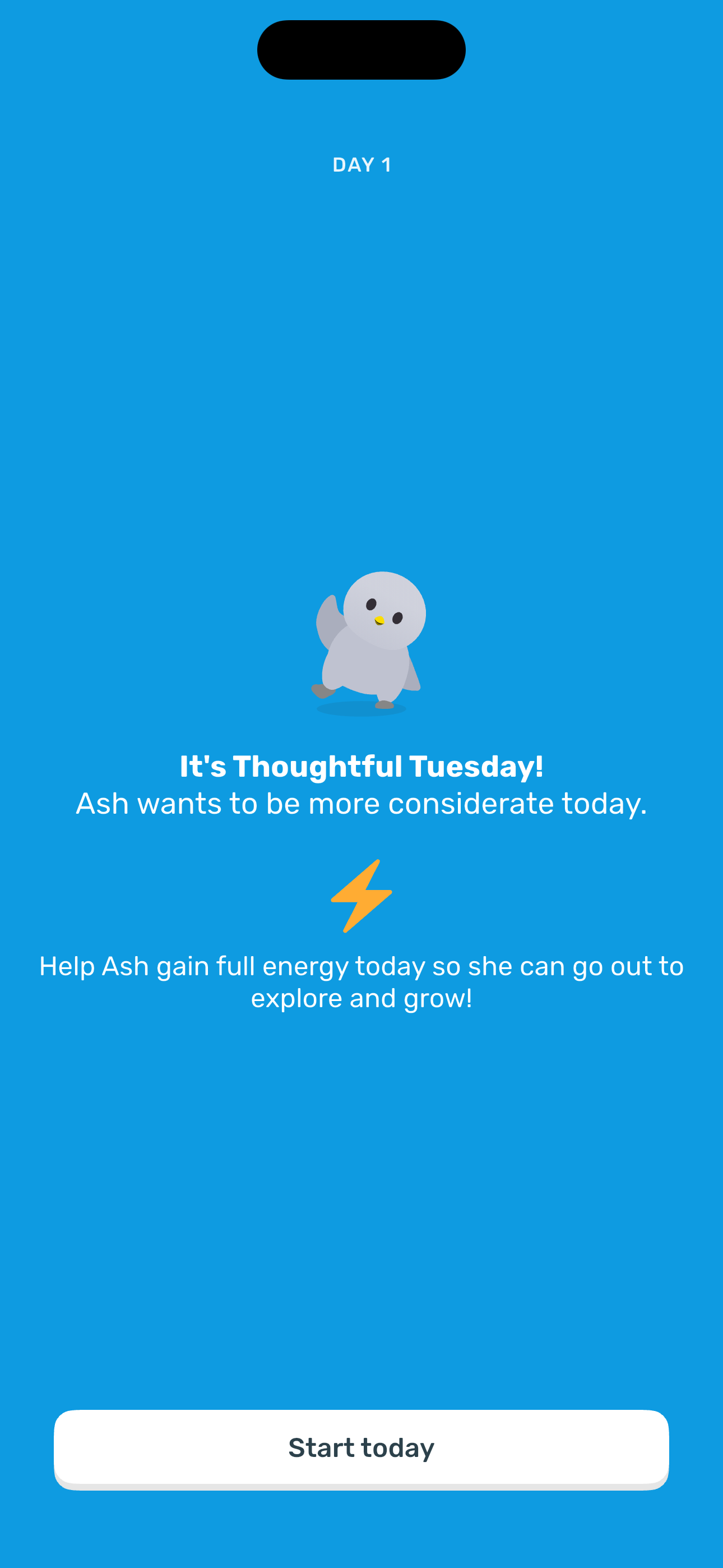
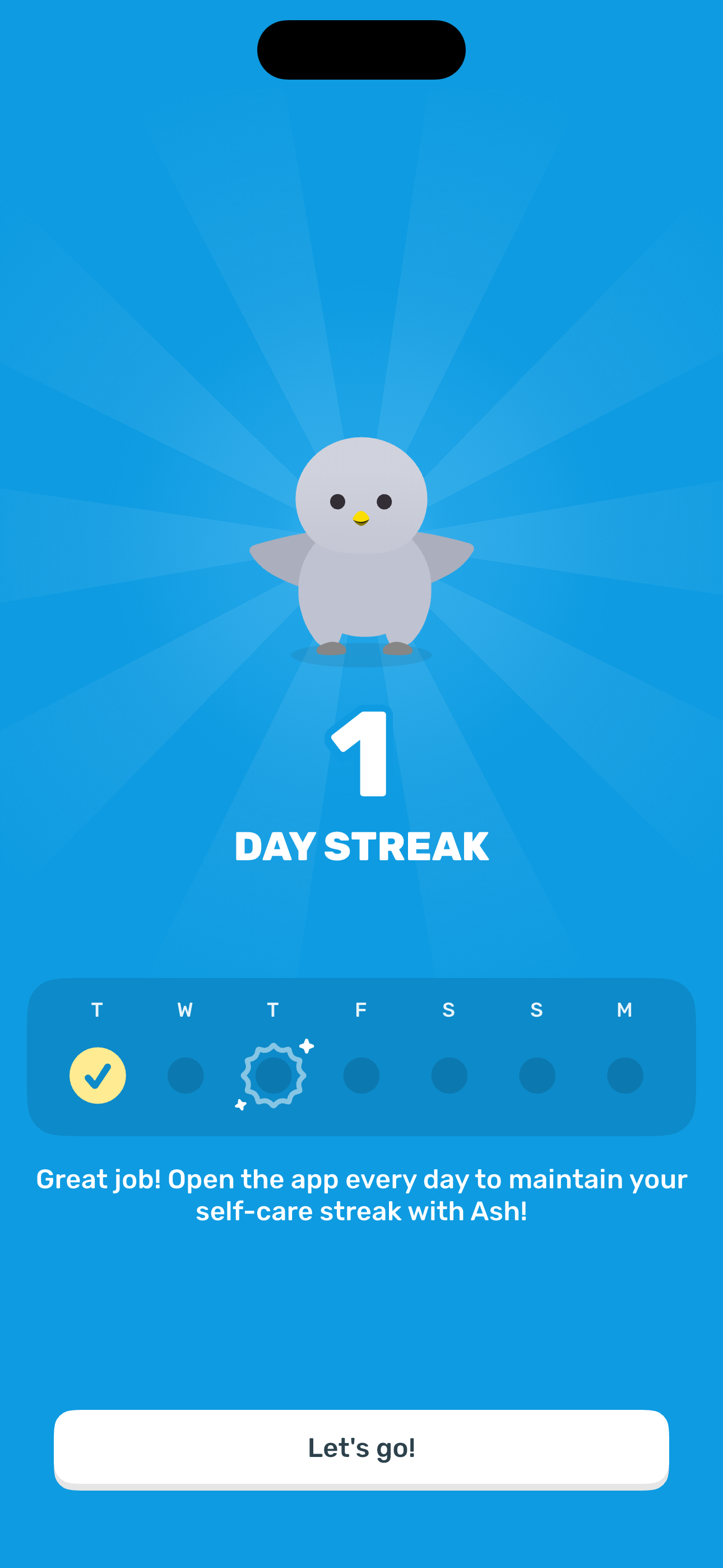
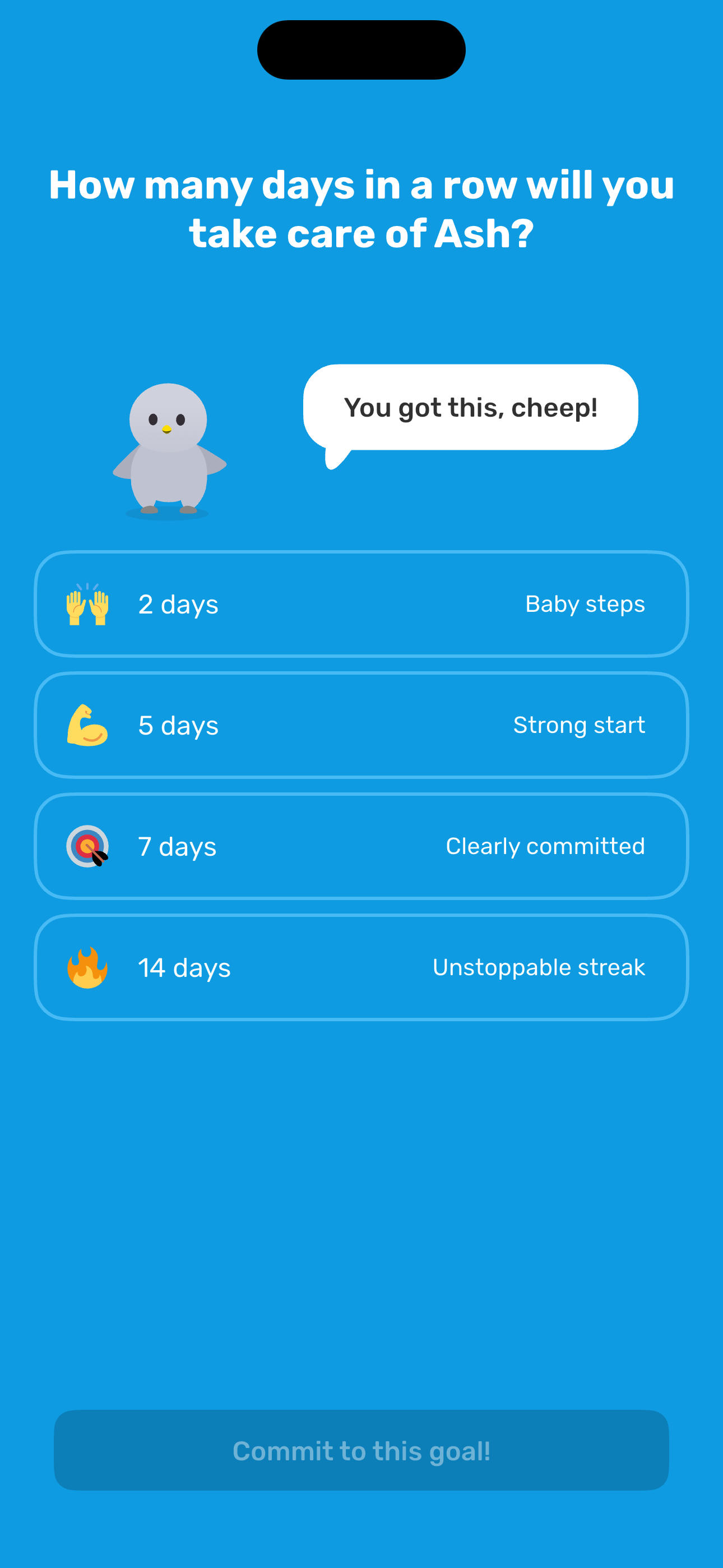
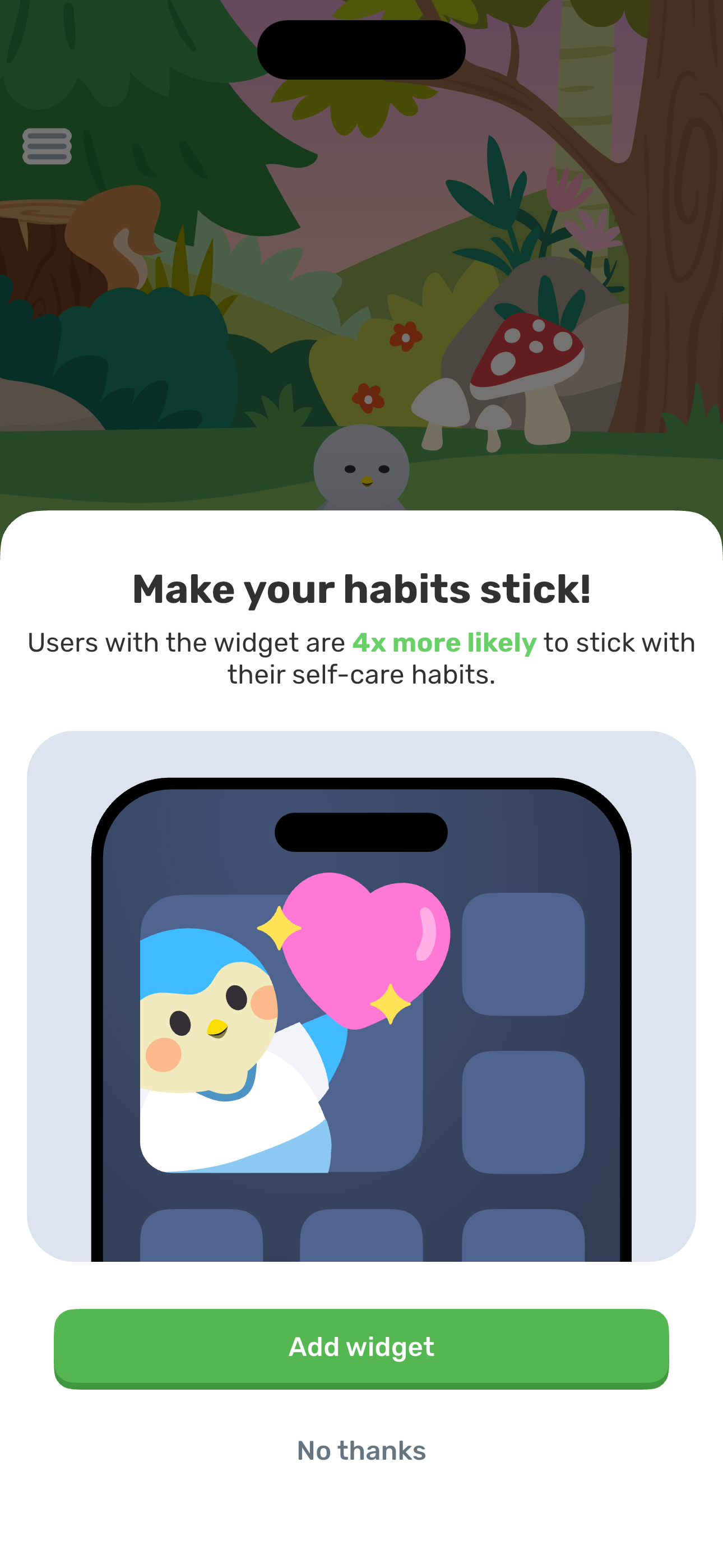
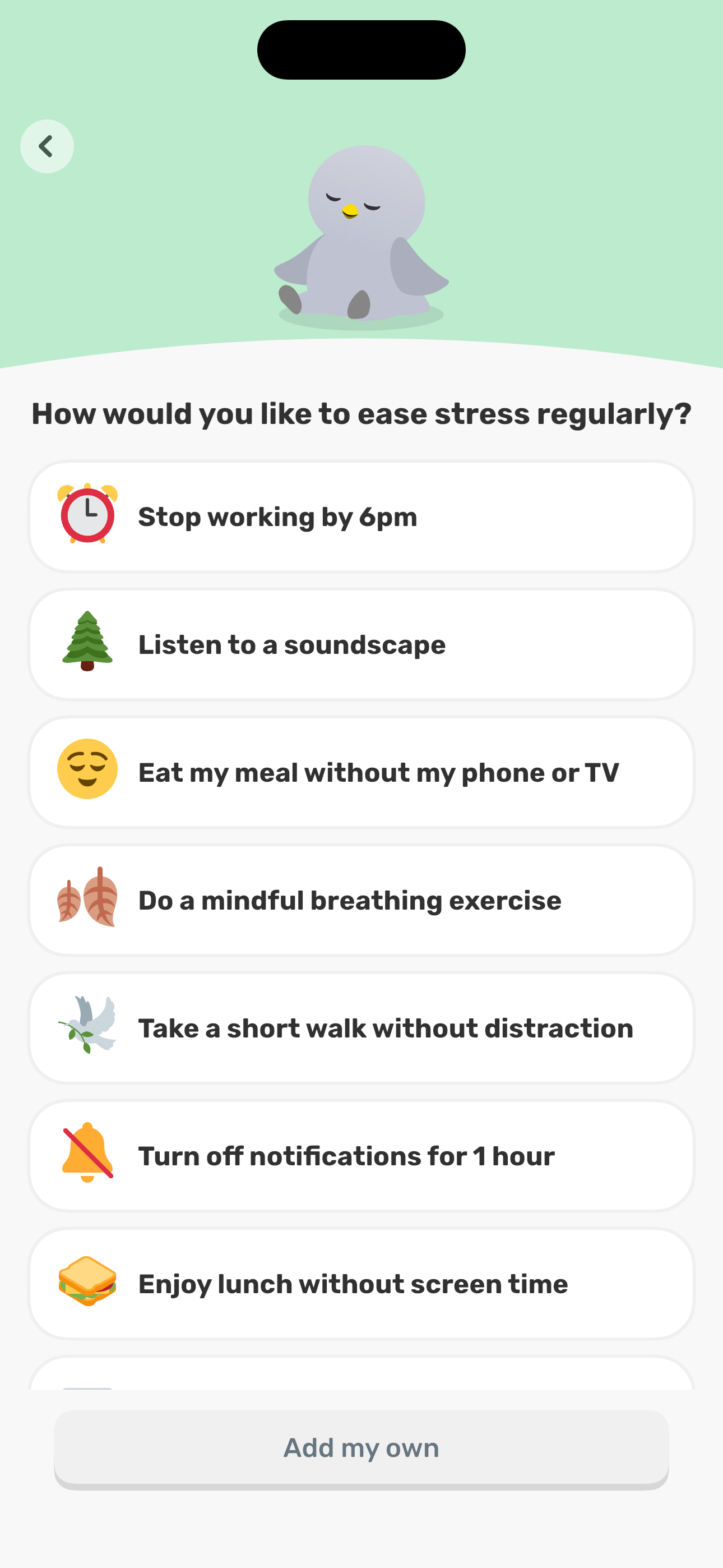
Full first-run flow: welcome → egg picker → phone verify → pronouns + name + trait → self-care primer + quiz → ABOUT YOU / ENERGY / HOW'S LIFE / SUPPORT AREAS survey → paywall → attribution → buddies + contacts prompt → streak commitment → widget prompt → Home.
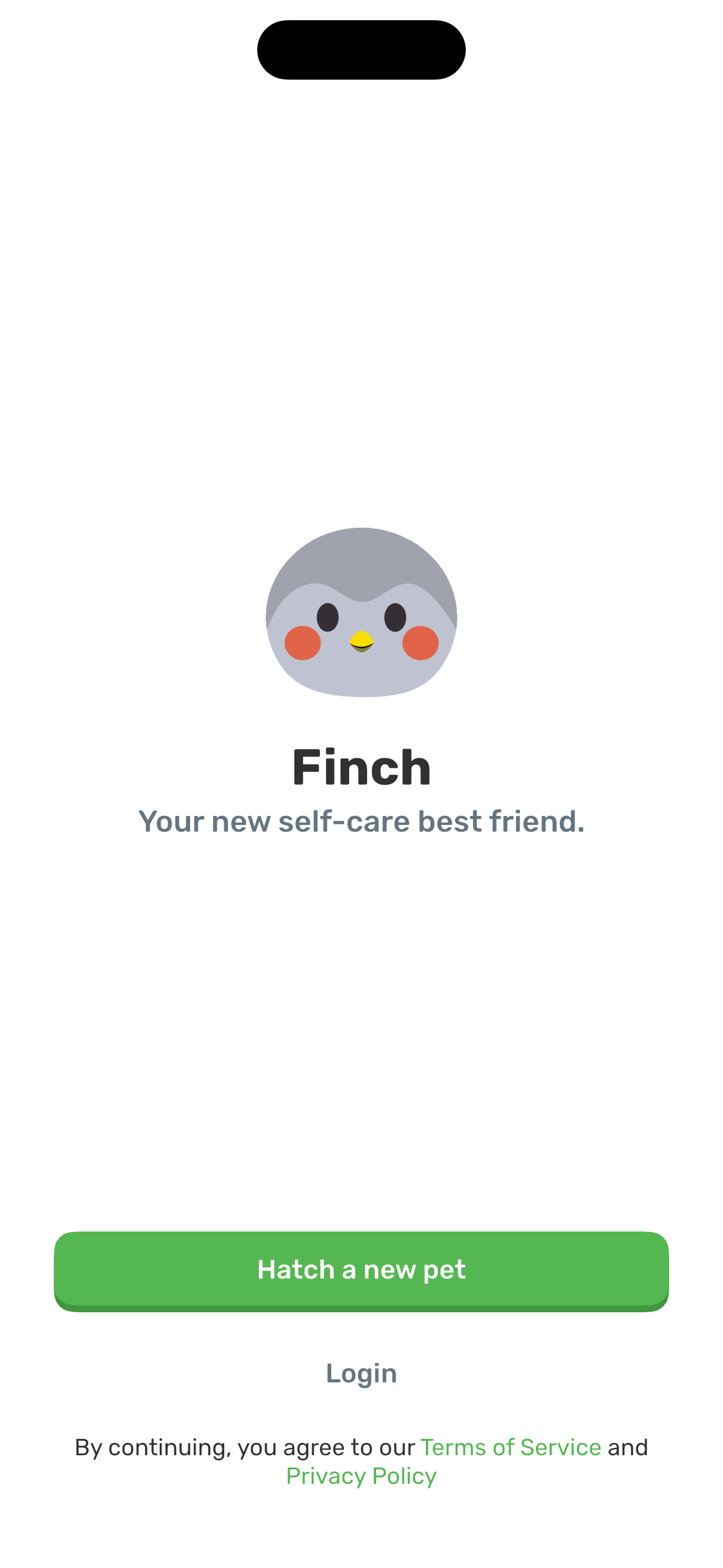
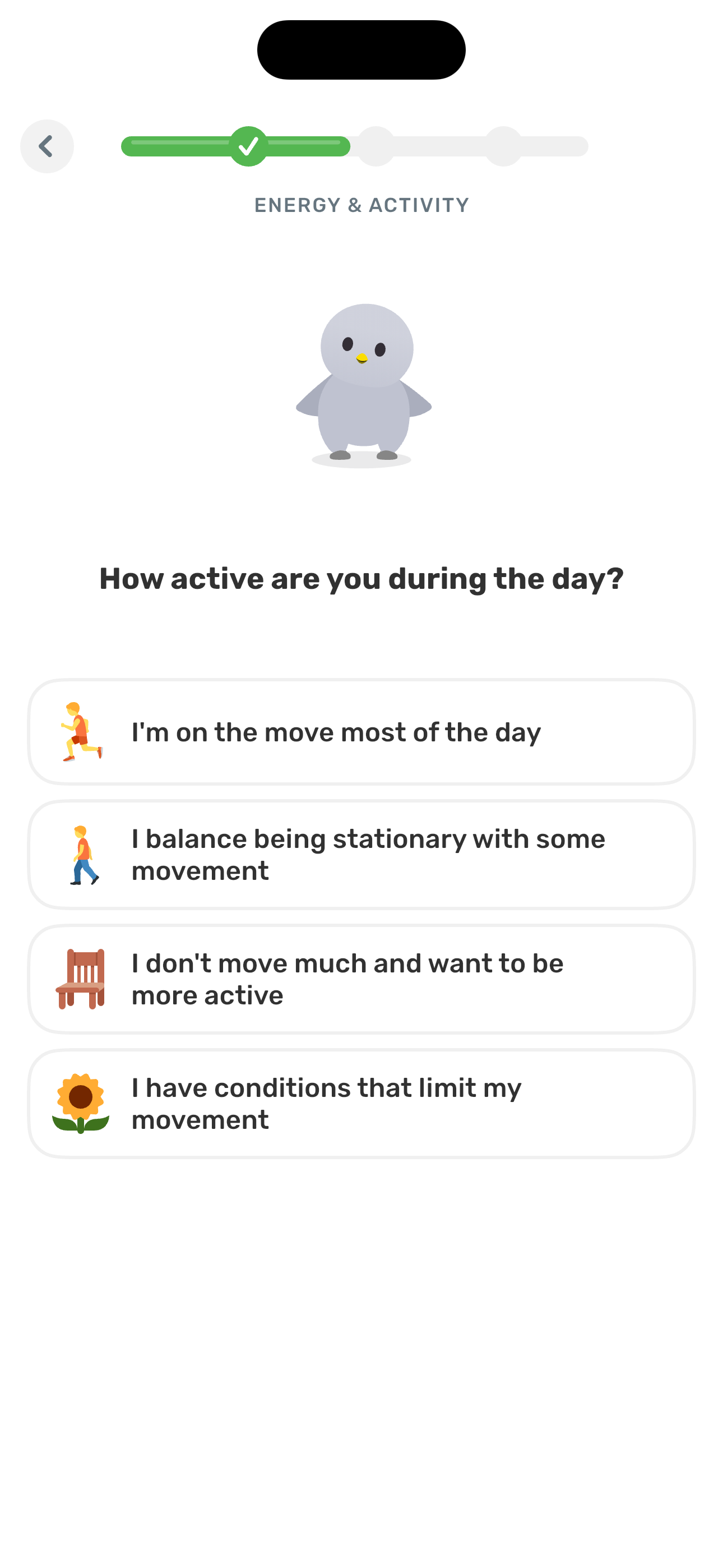
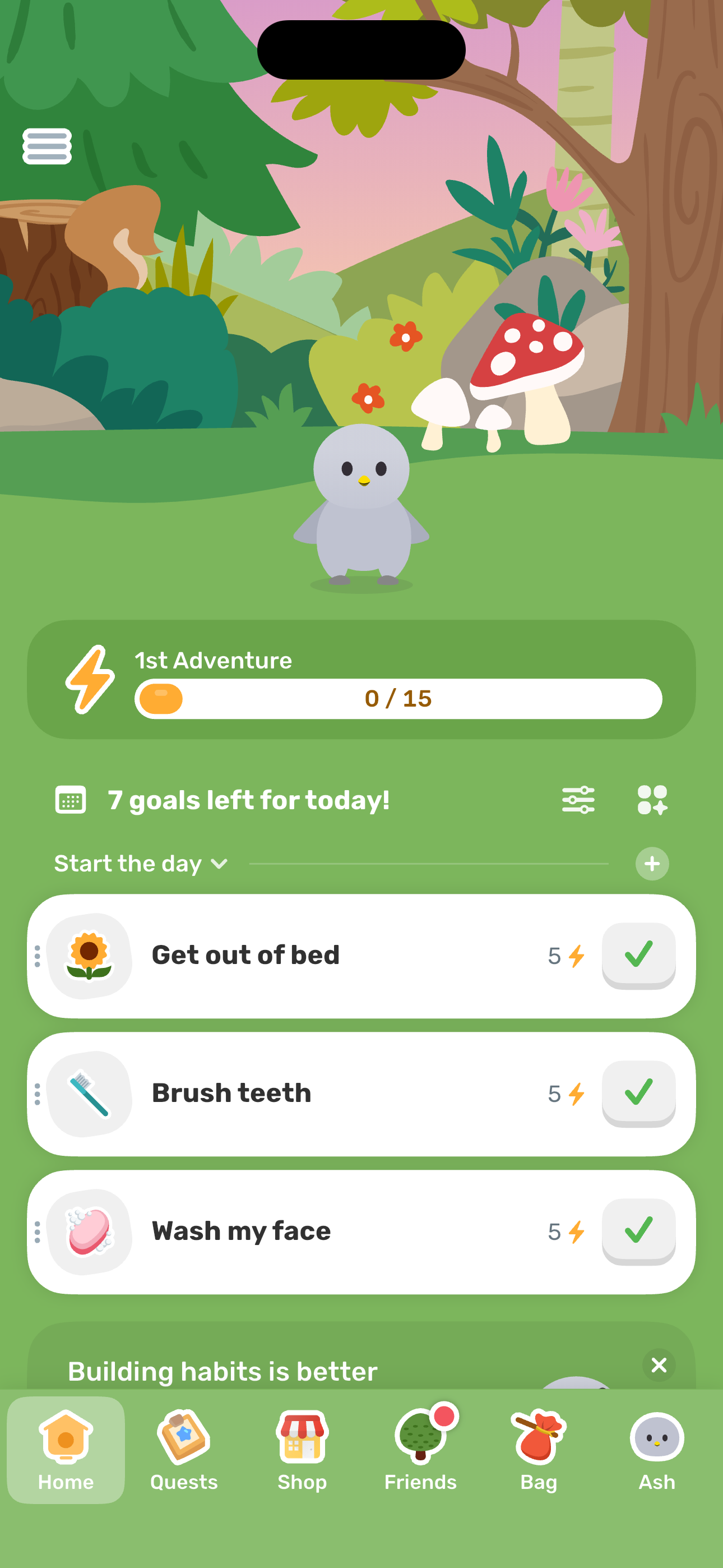
- Welcome: Your new self-care best friend
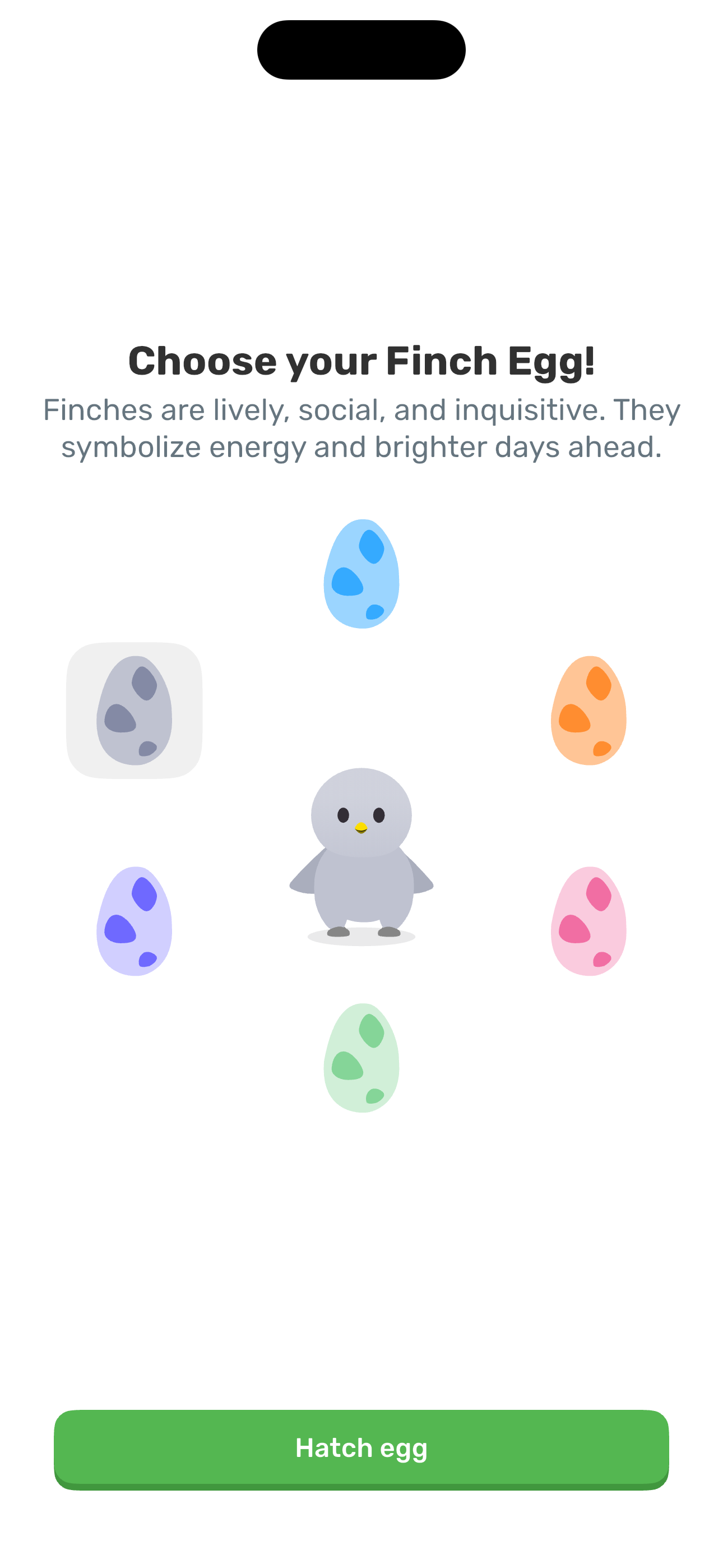
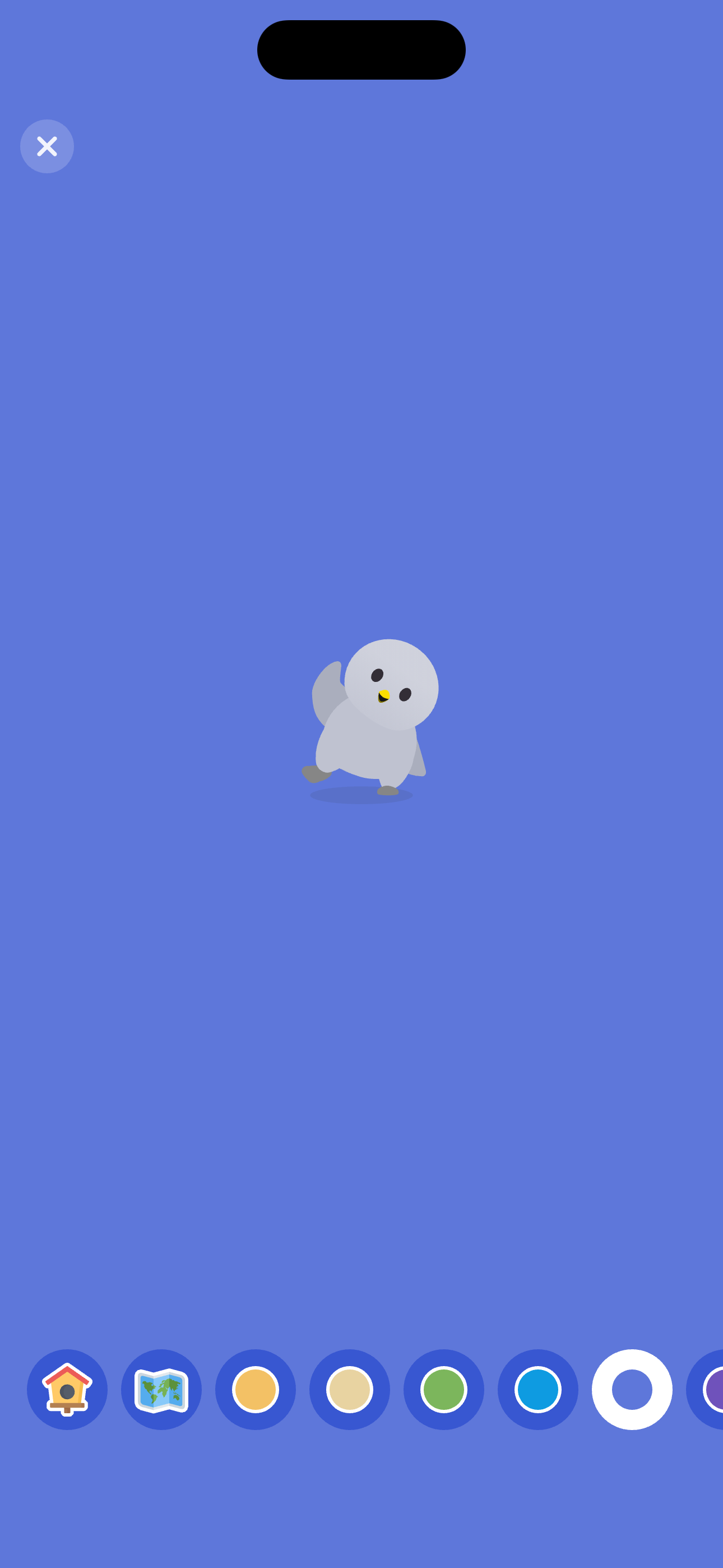
- Choose your Finch Egg: 6-color picker
- Almost ready to hatch: account creation (phone)
- Almost ready to hatch: phone filled (Next enabled)
- Almost ready to hatch: submitting (spinner)
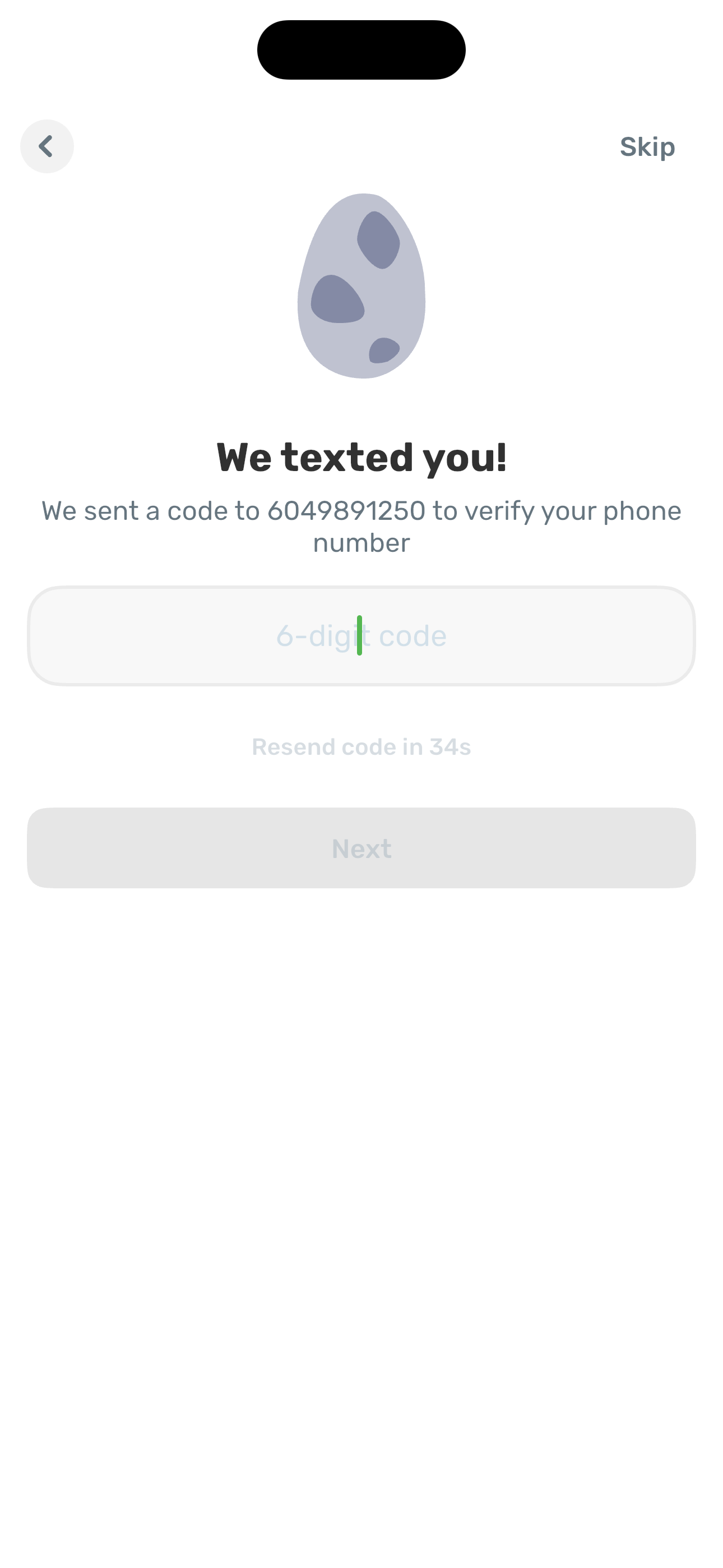
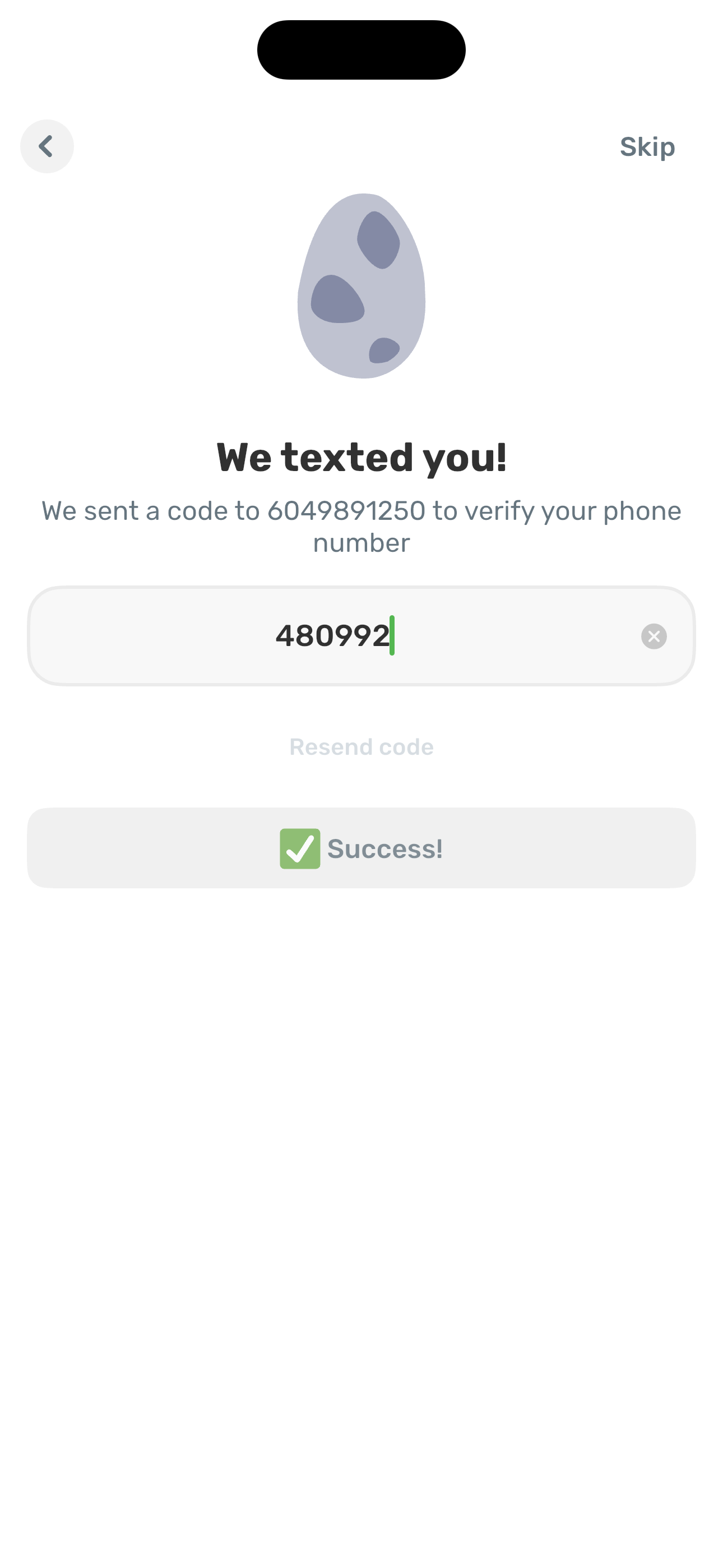
- We texted you: SMS verification (6-digit)
+ 39 more mapped screens in this flow.
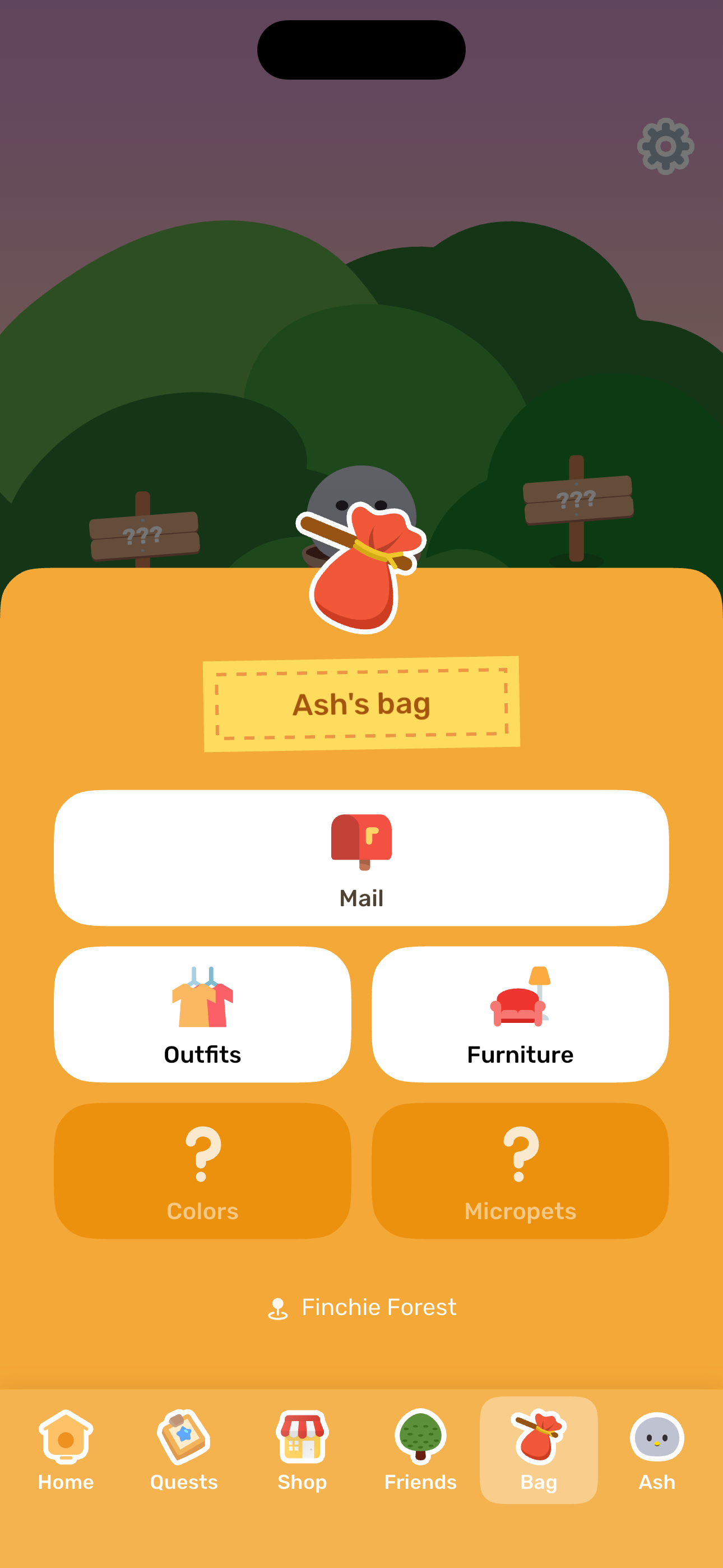
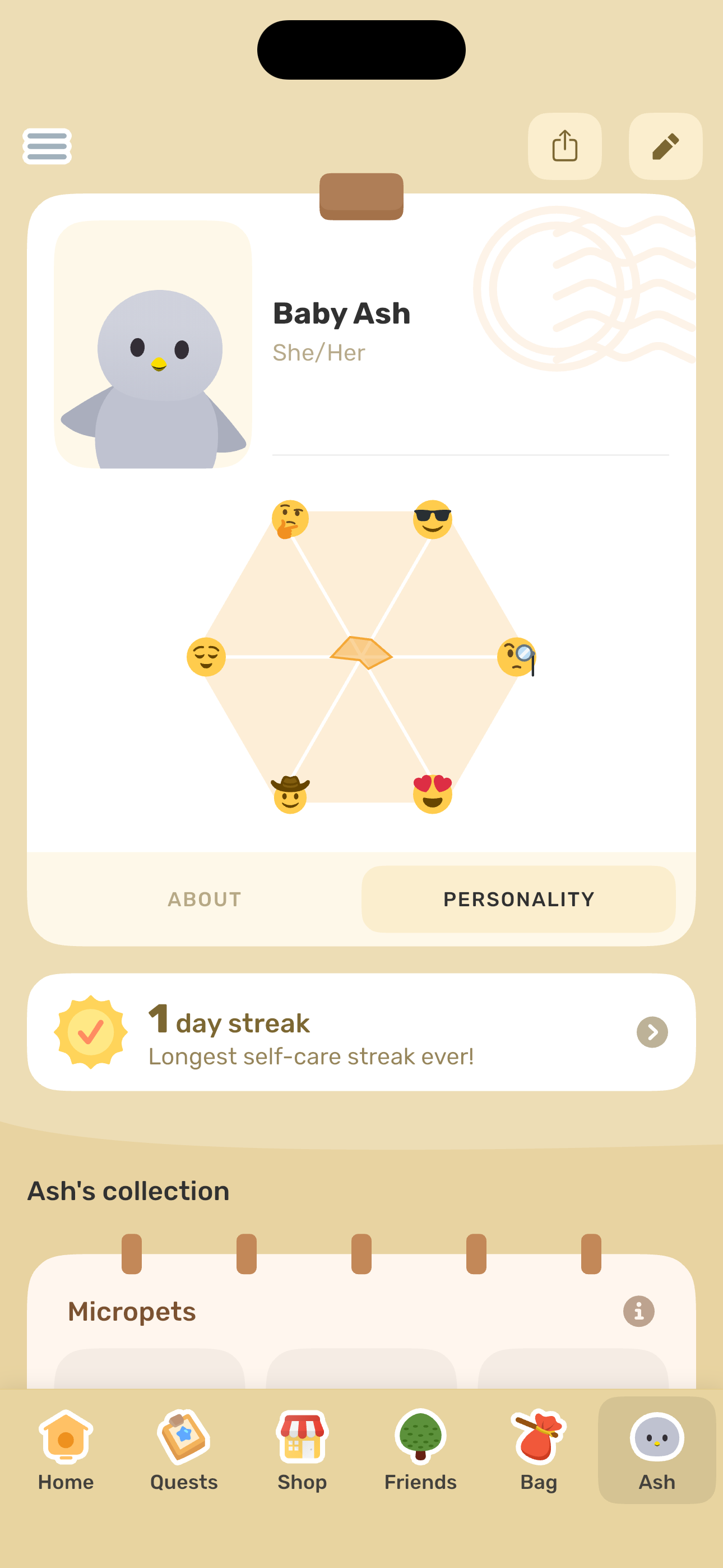
Tour the bottom tabs
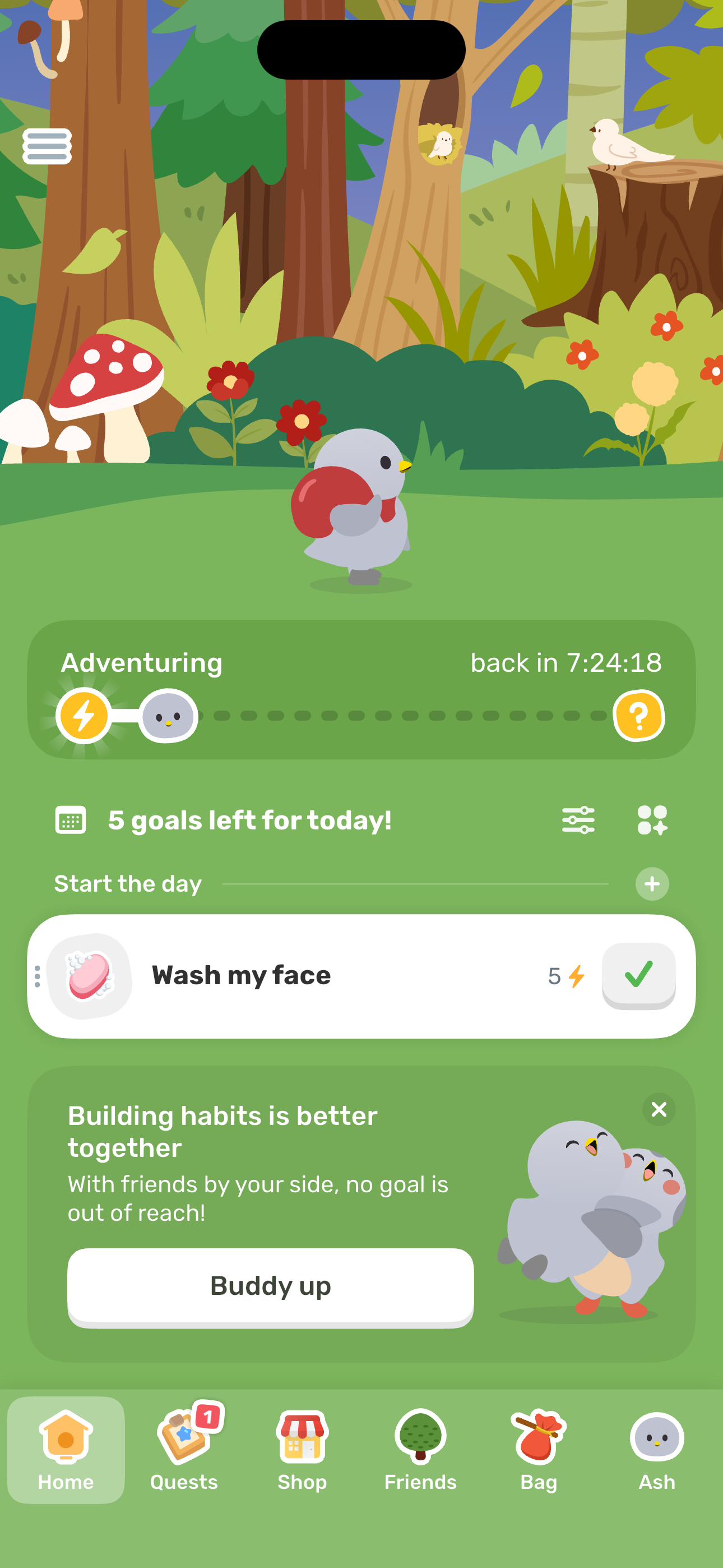
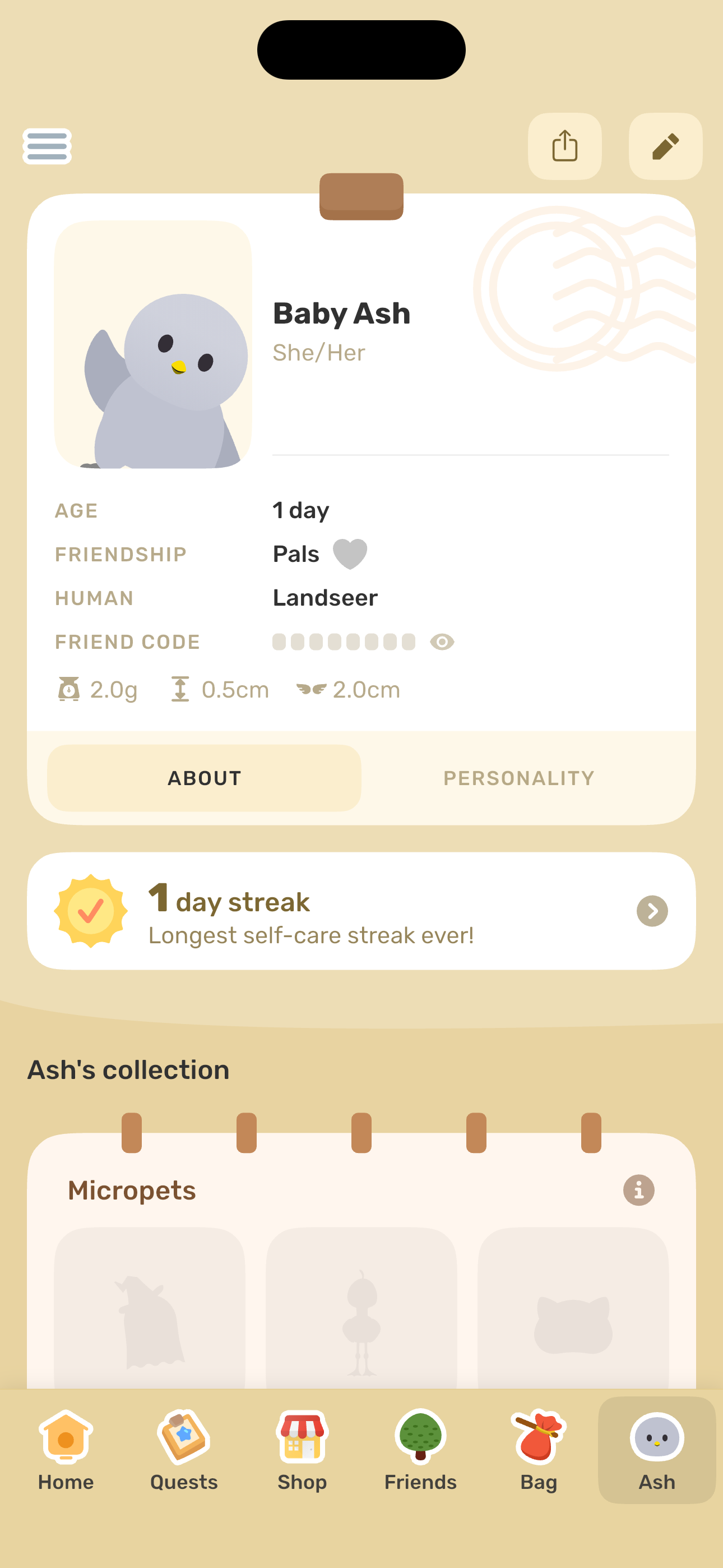
From Home, visit every tab in the bottom nav: Home, Quests, Shop (Outfit store), Friends, Bag, and Ash profile.
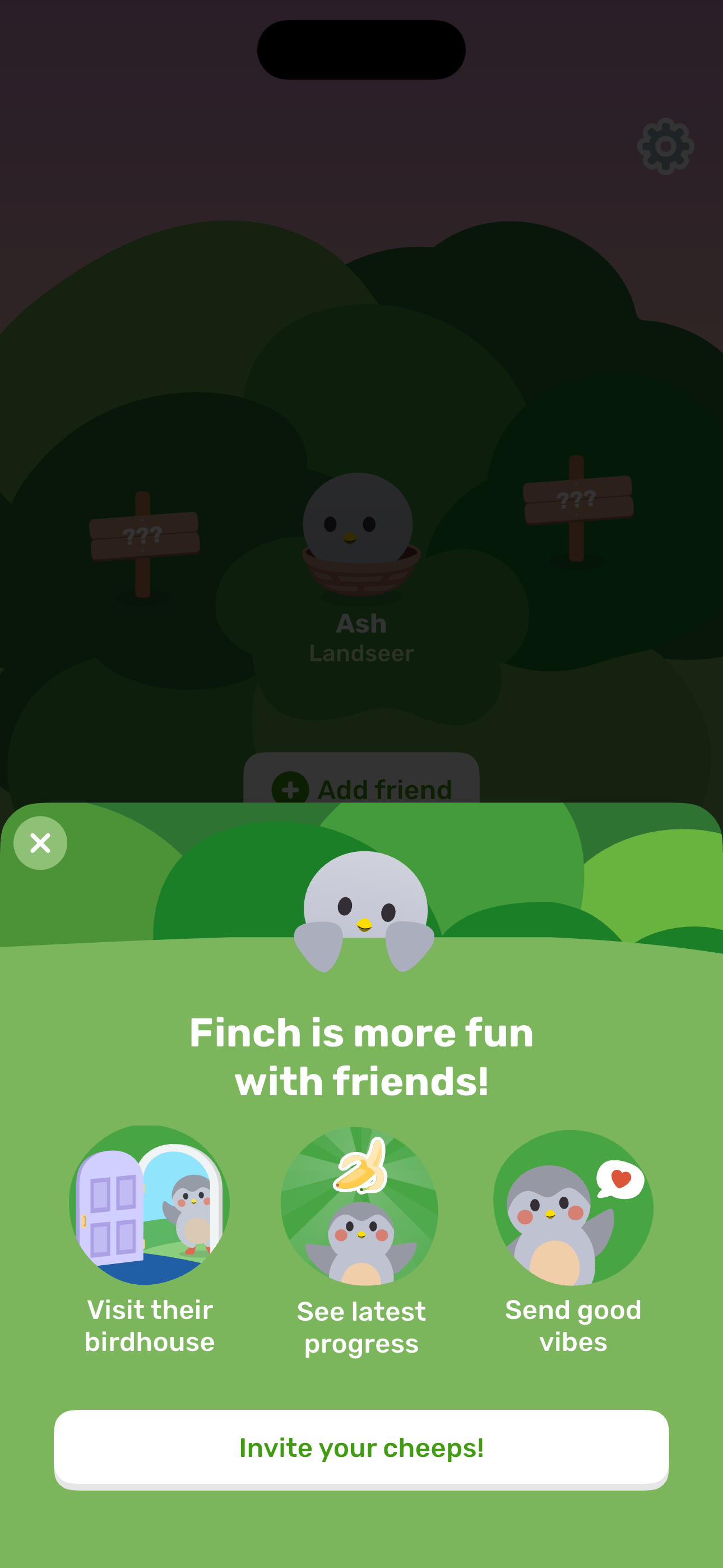
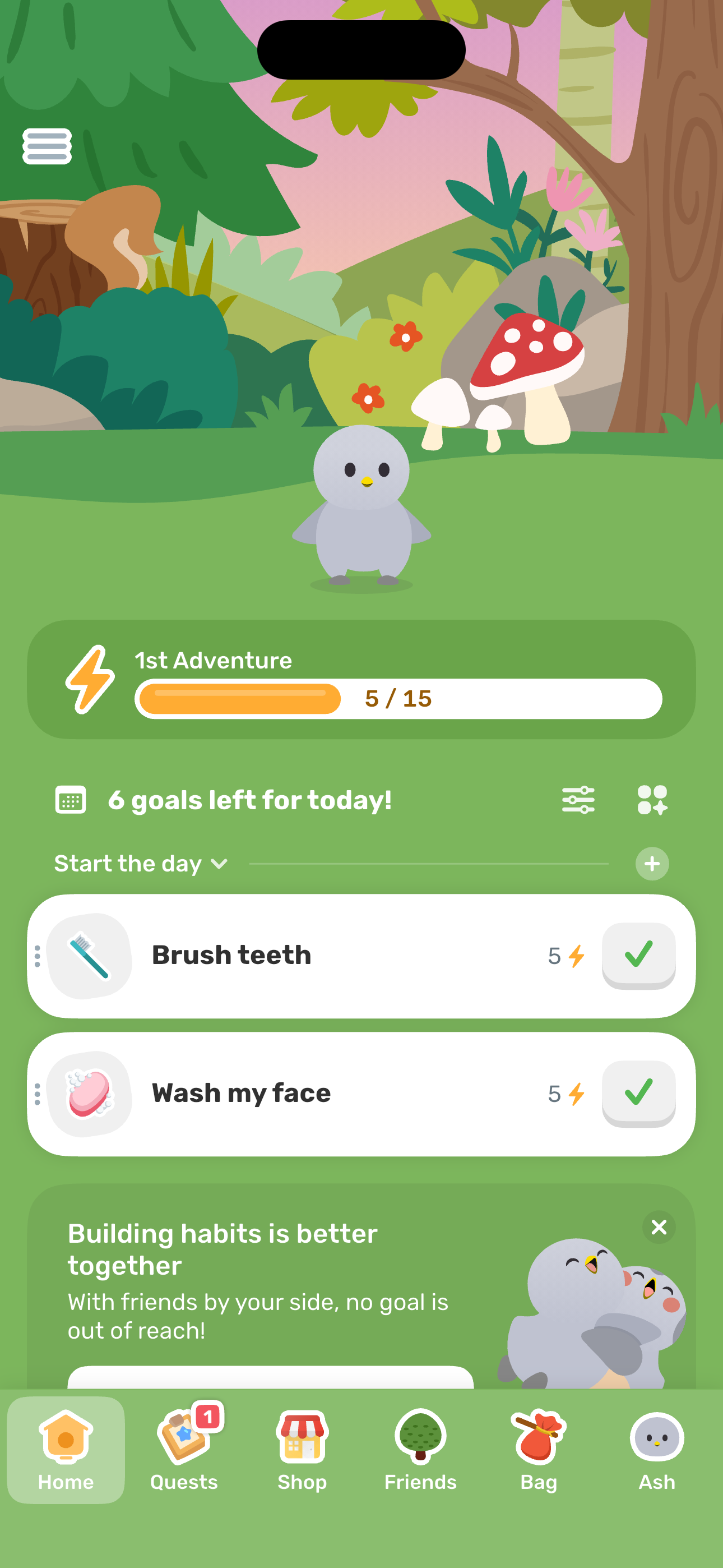
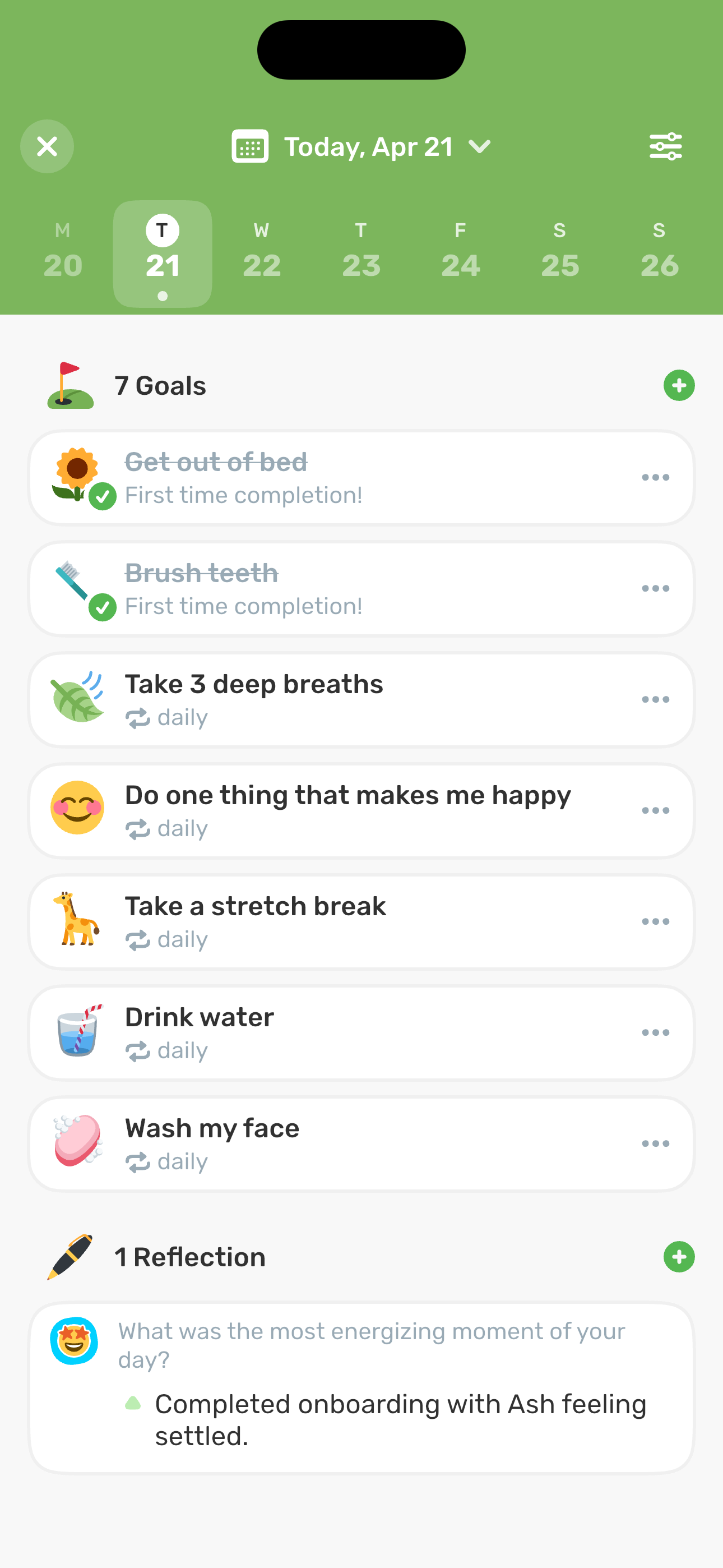
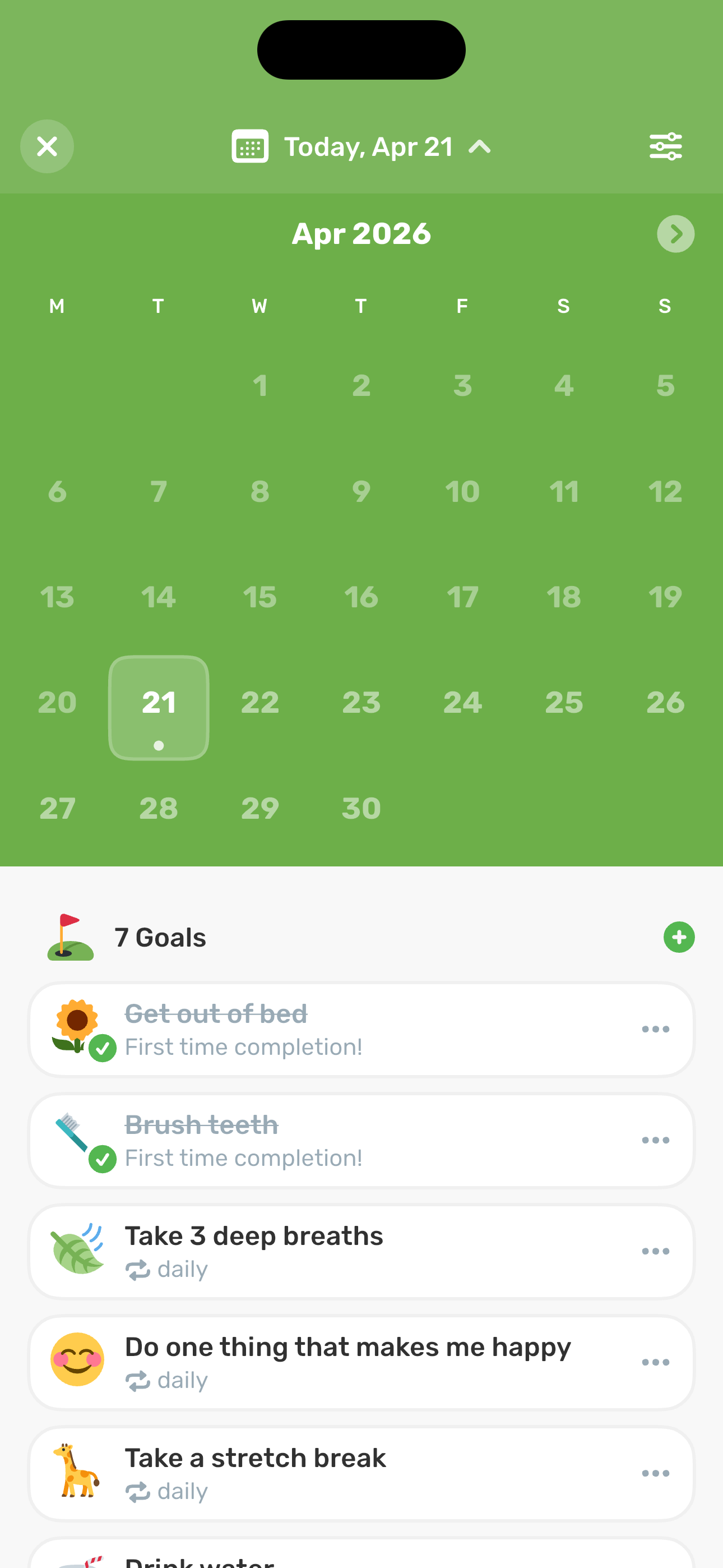
- Home: main dashboard
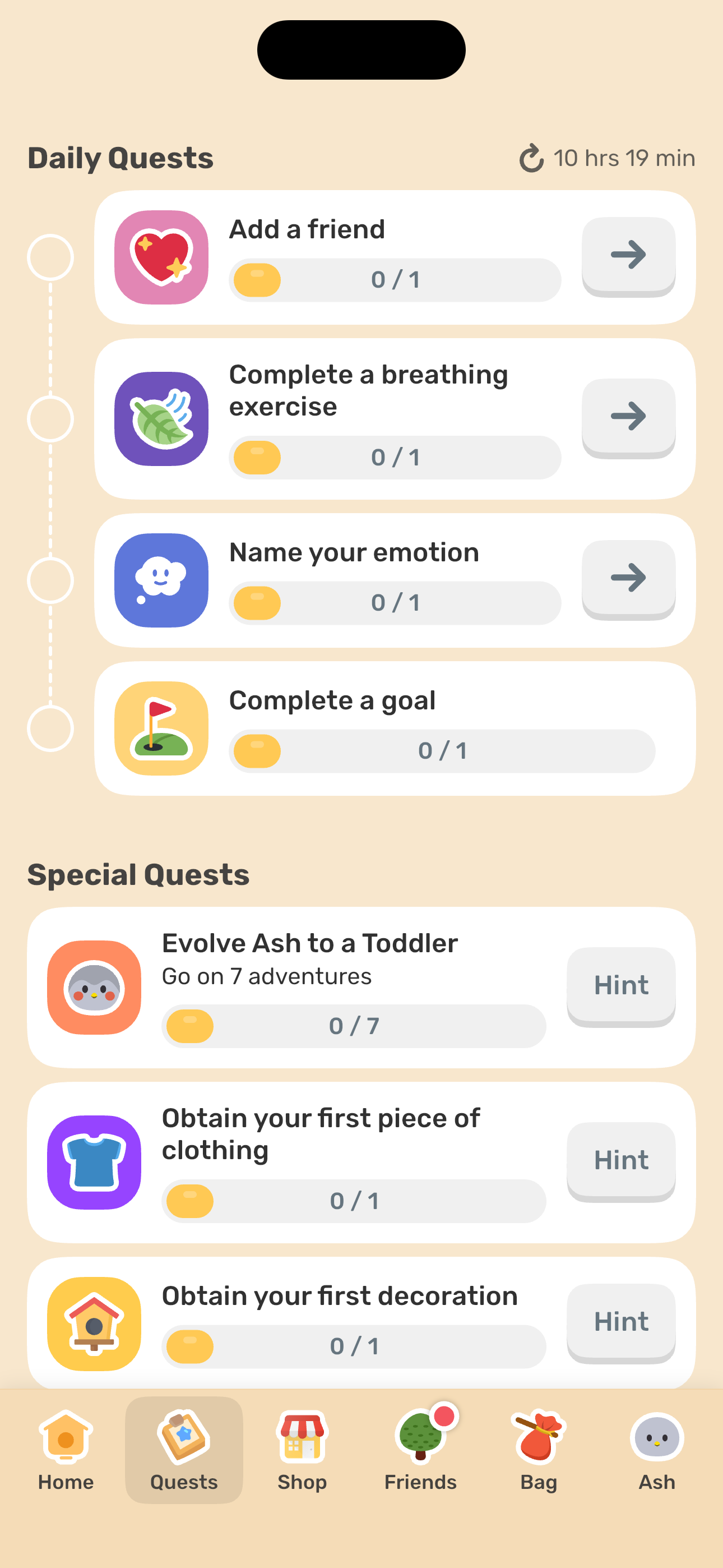
- Quests: daily + special
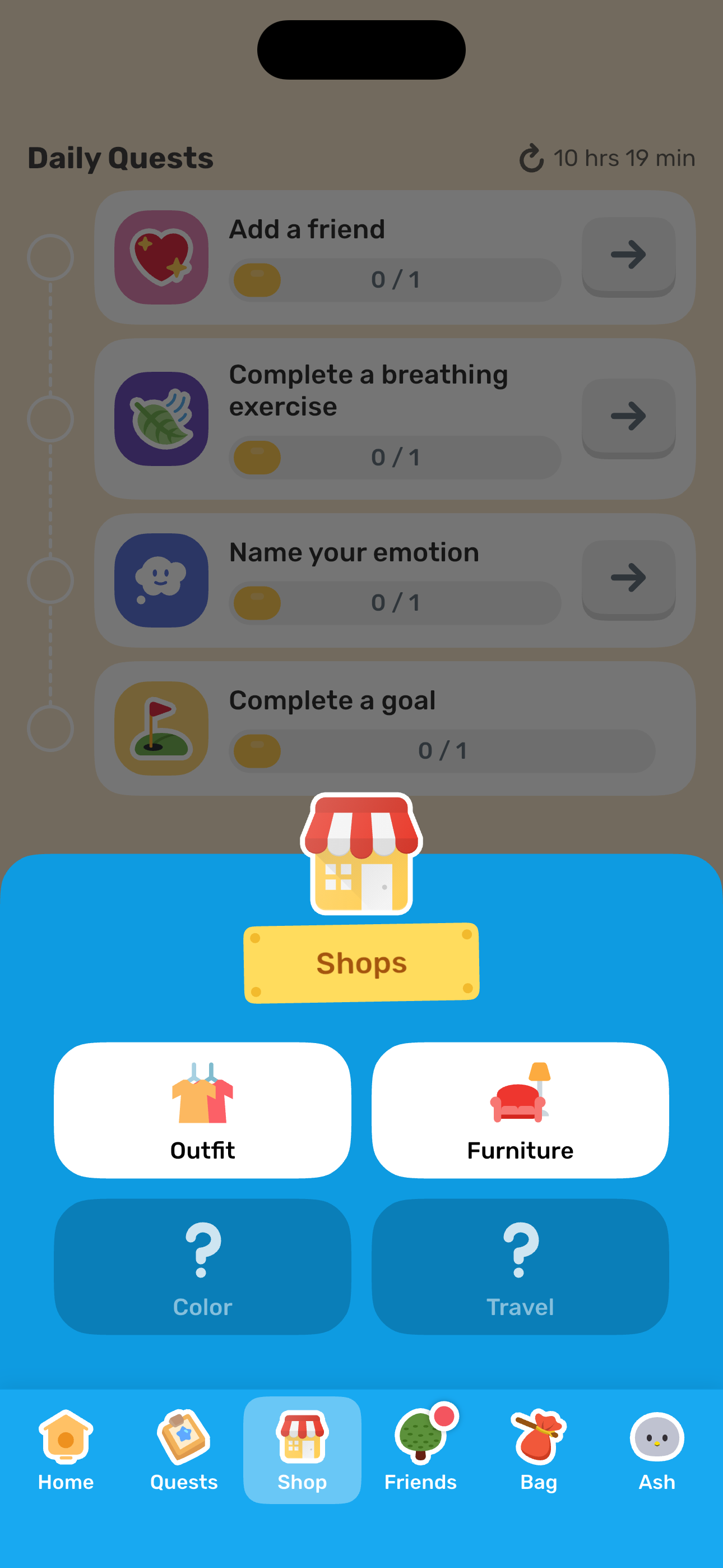
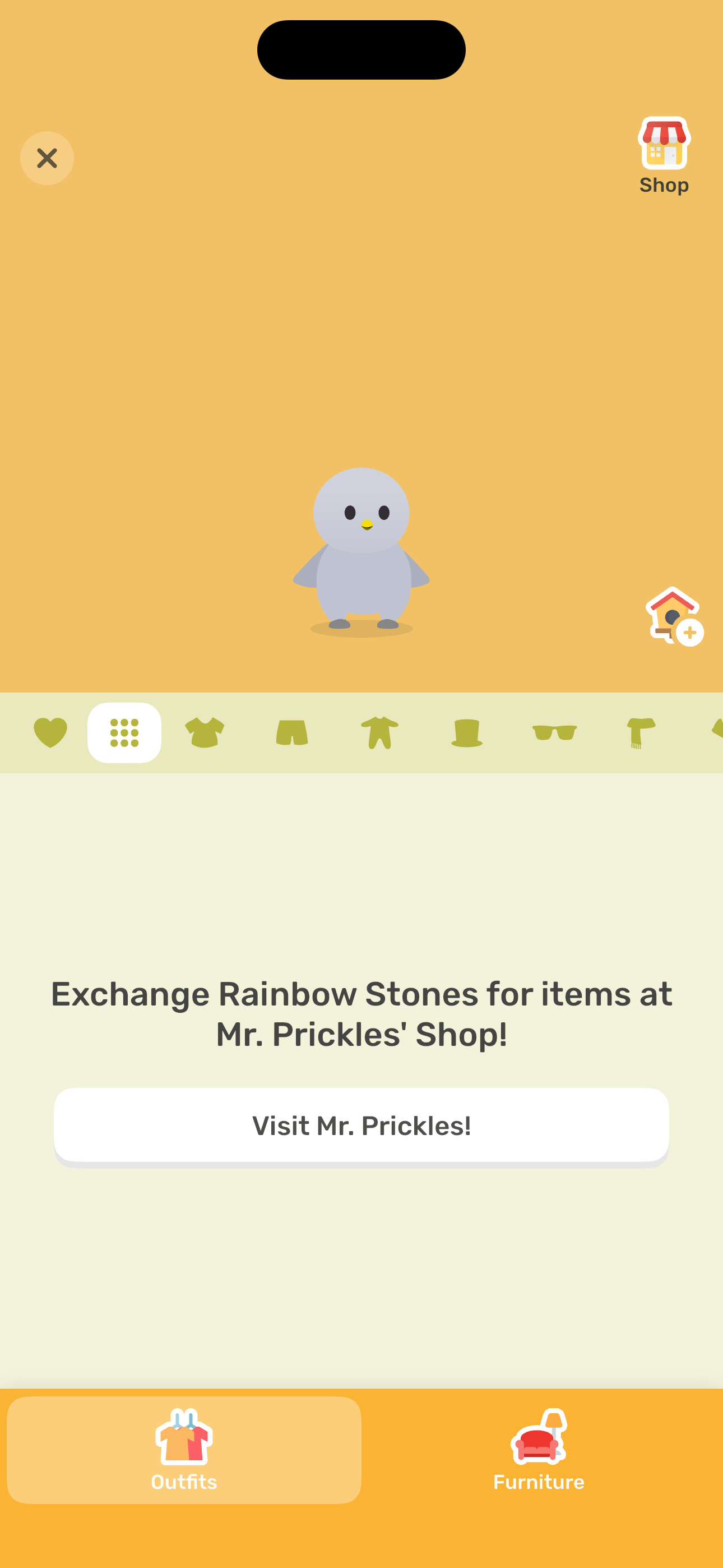
- Shop: category selector sheet
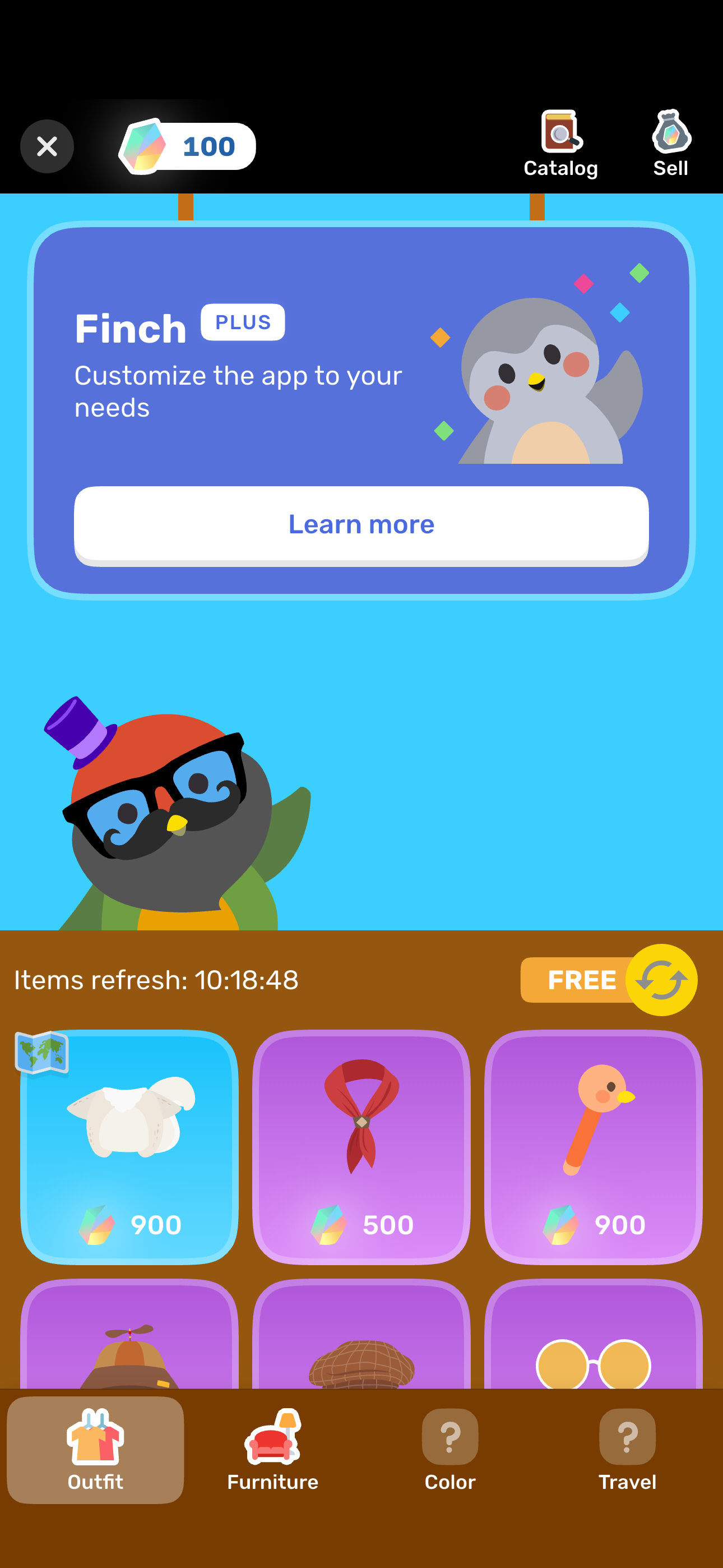
- Outfit shop
- Friends: empty state with coach sheet
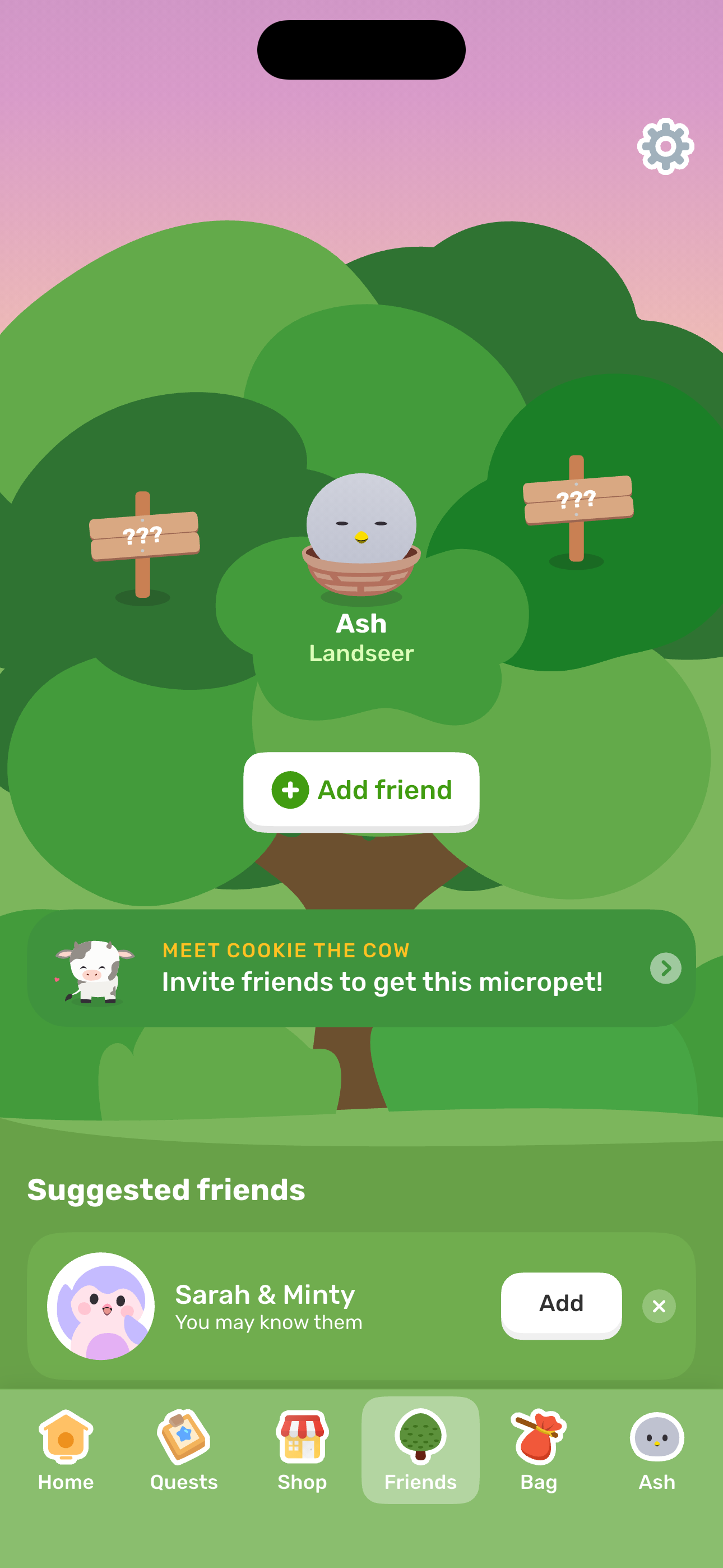
- Friends: main (coach dismissed)
+ 2 more mapped screens in this flow.
Energize Ash to MAX
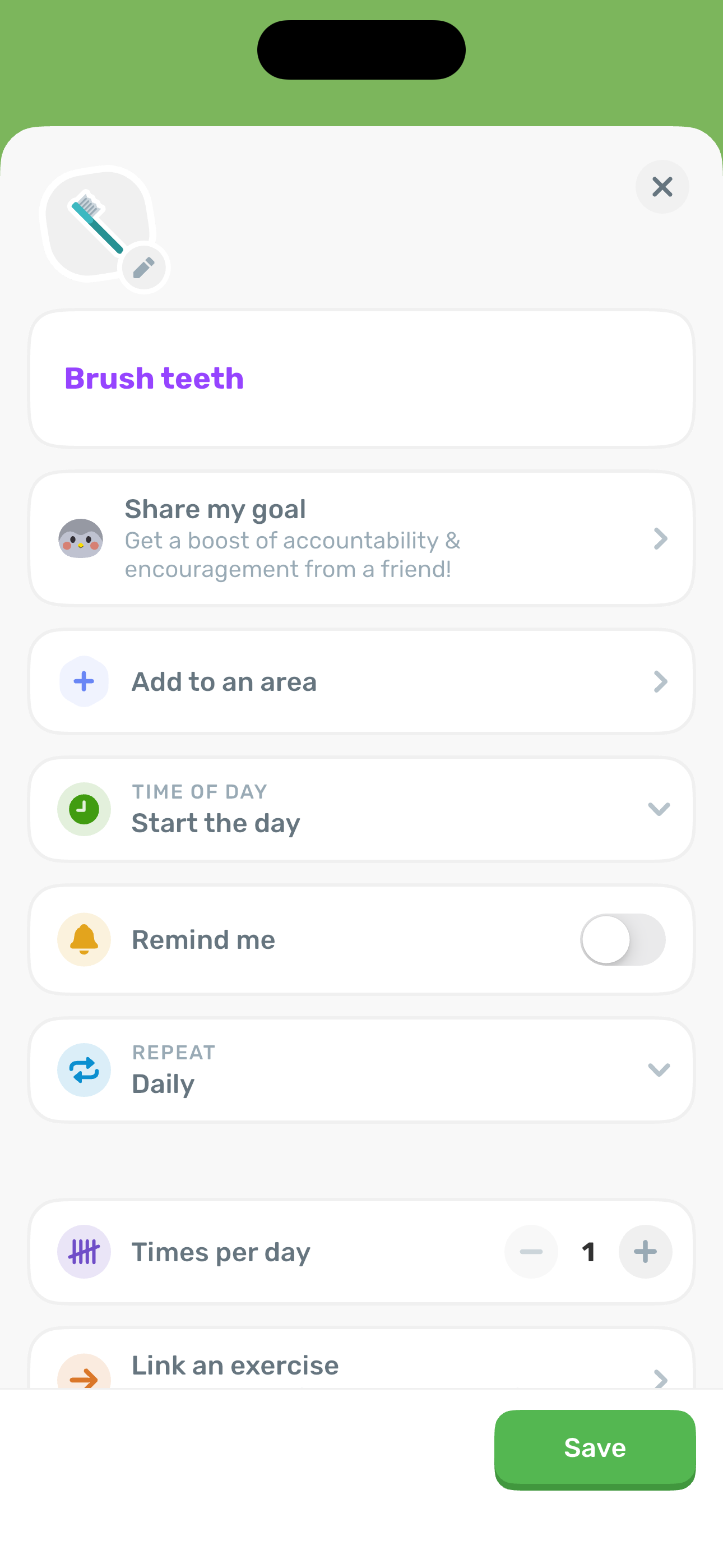
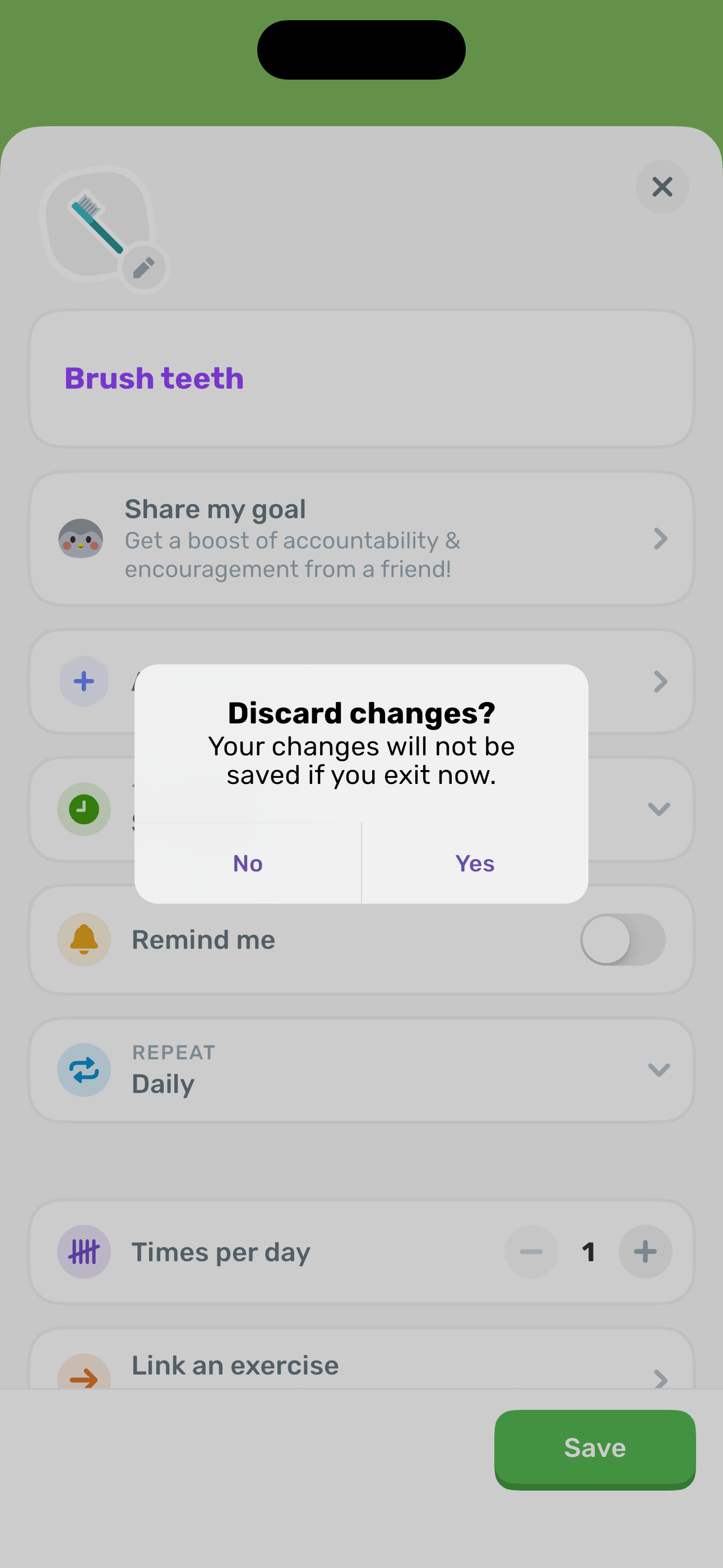
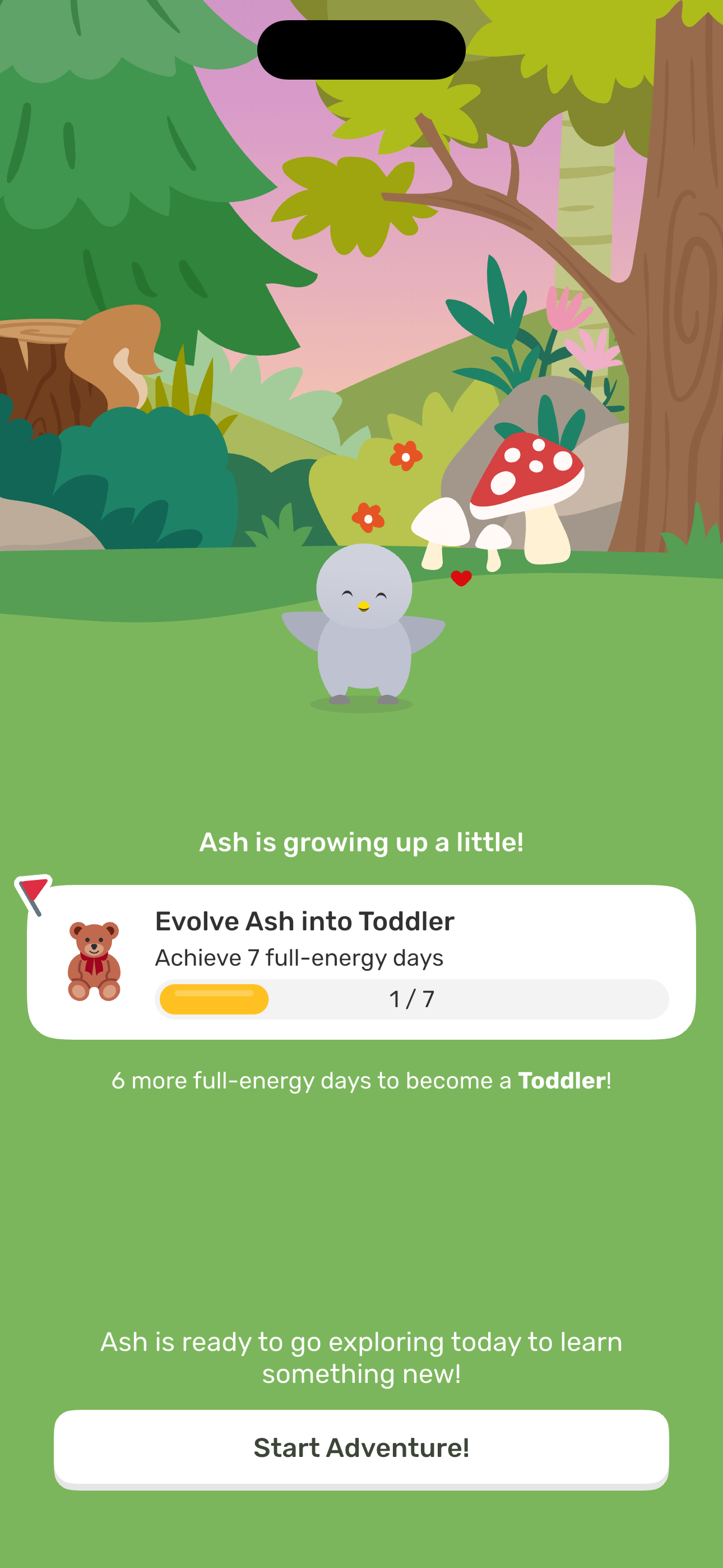
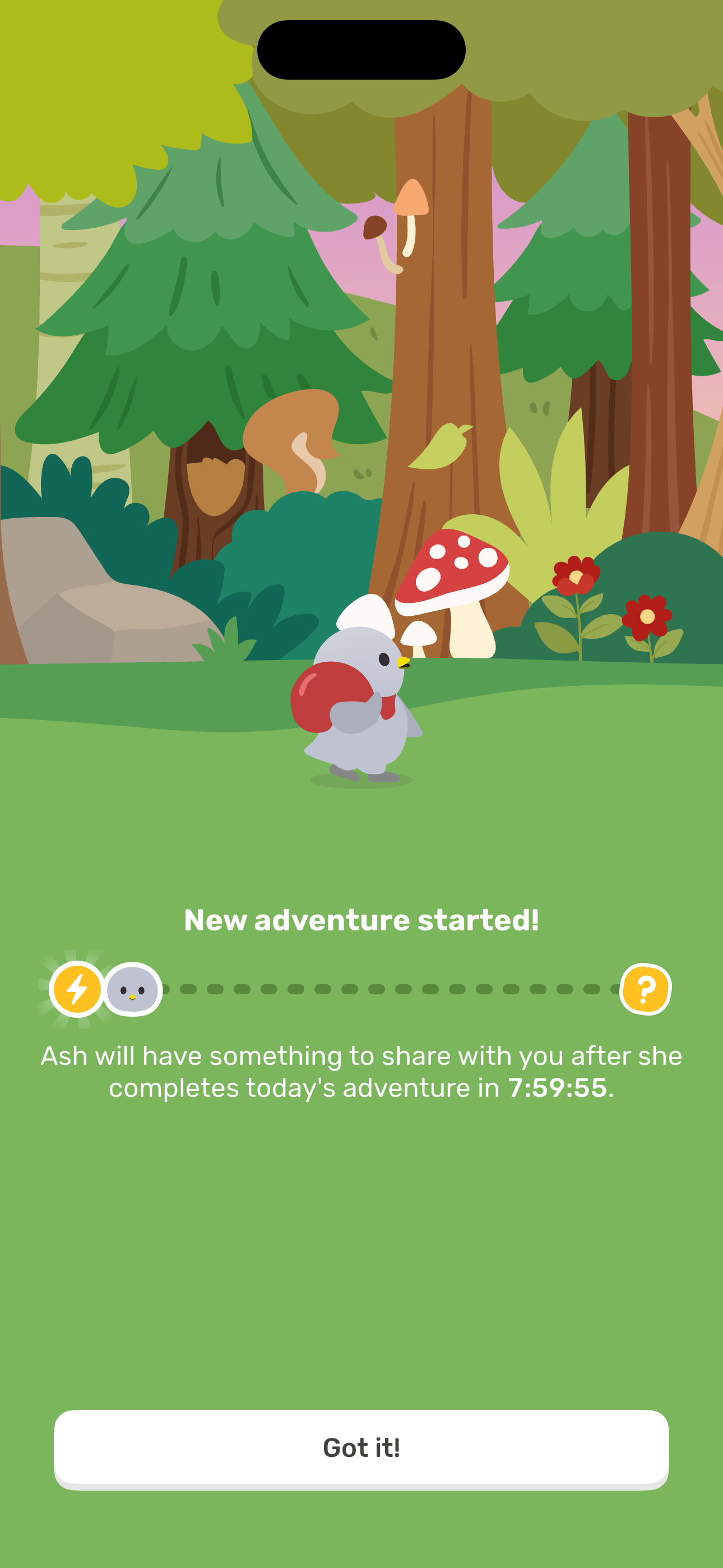
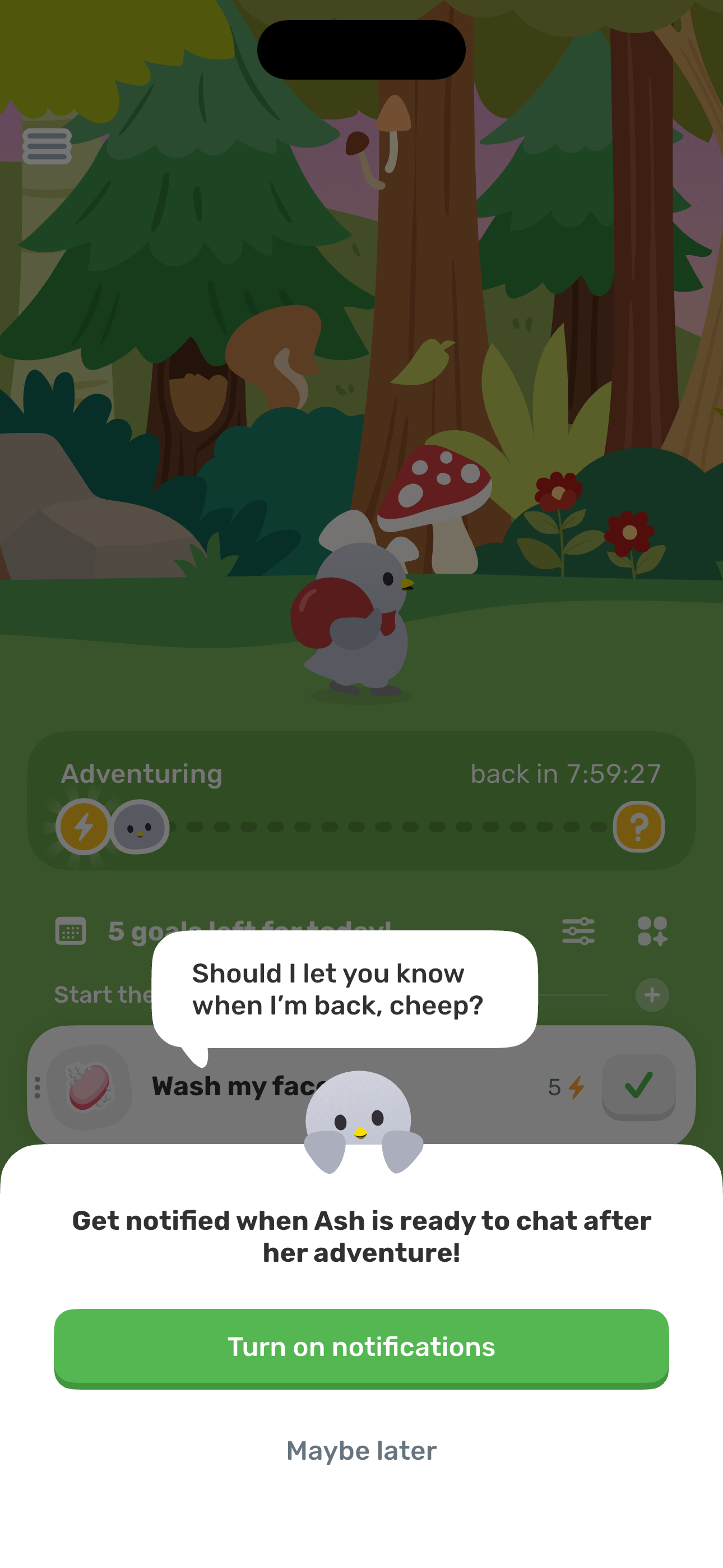
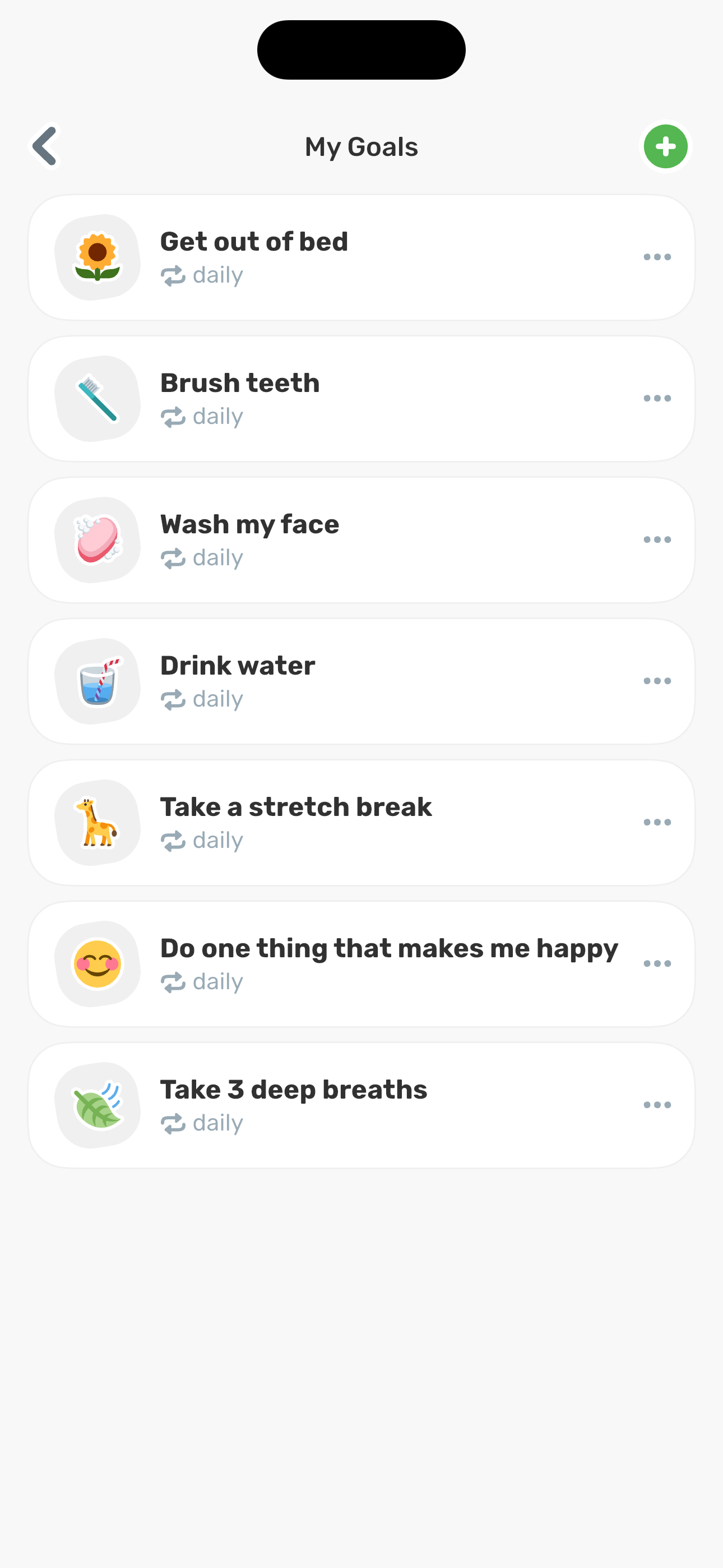
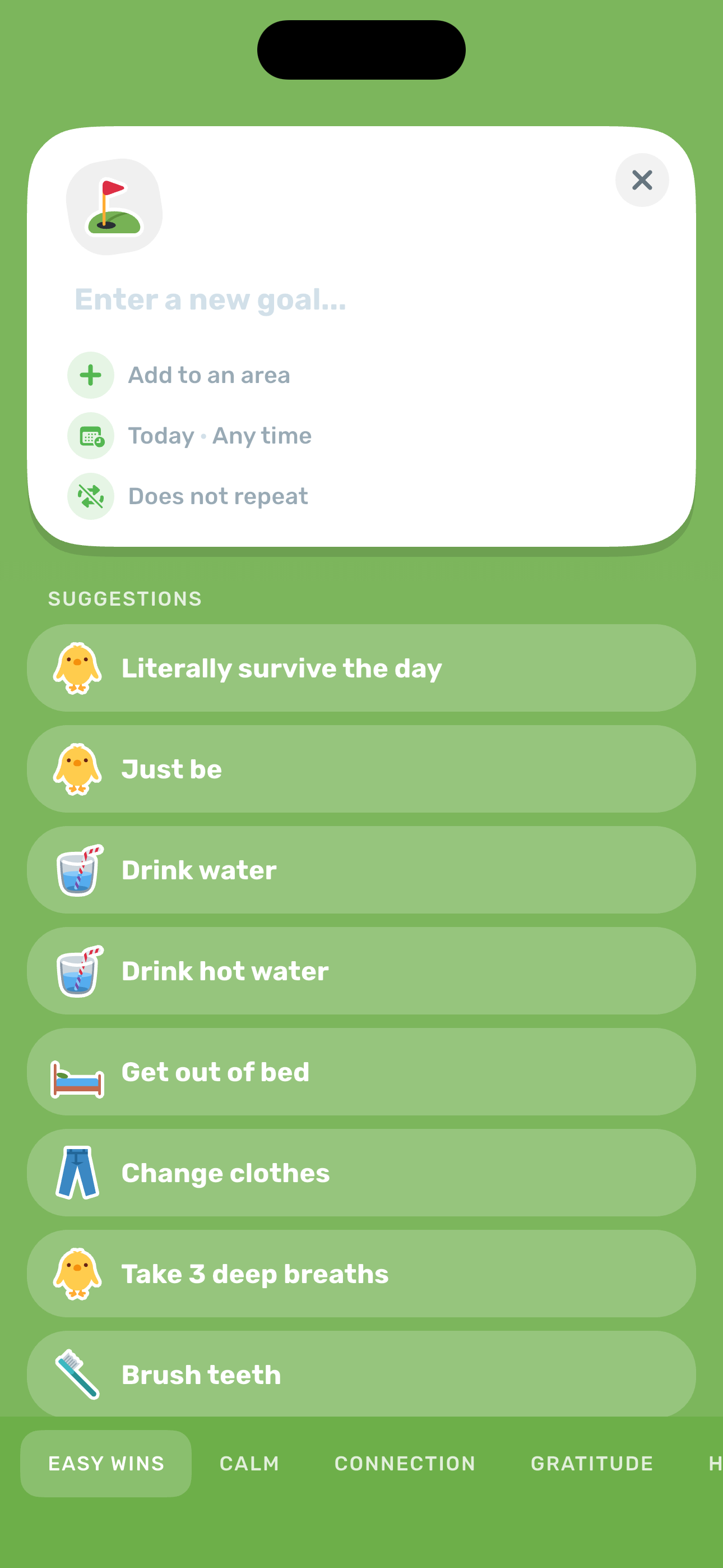
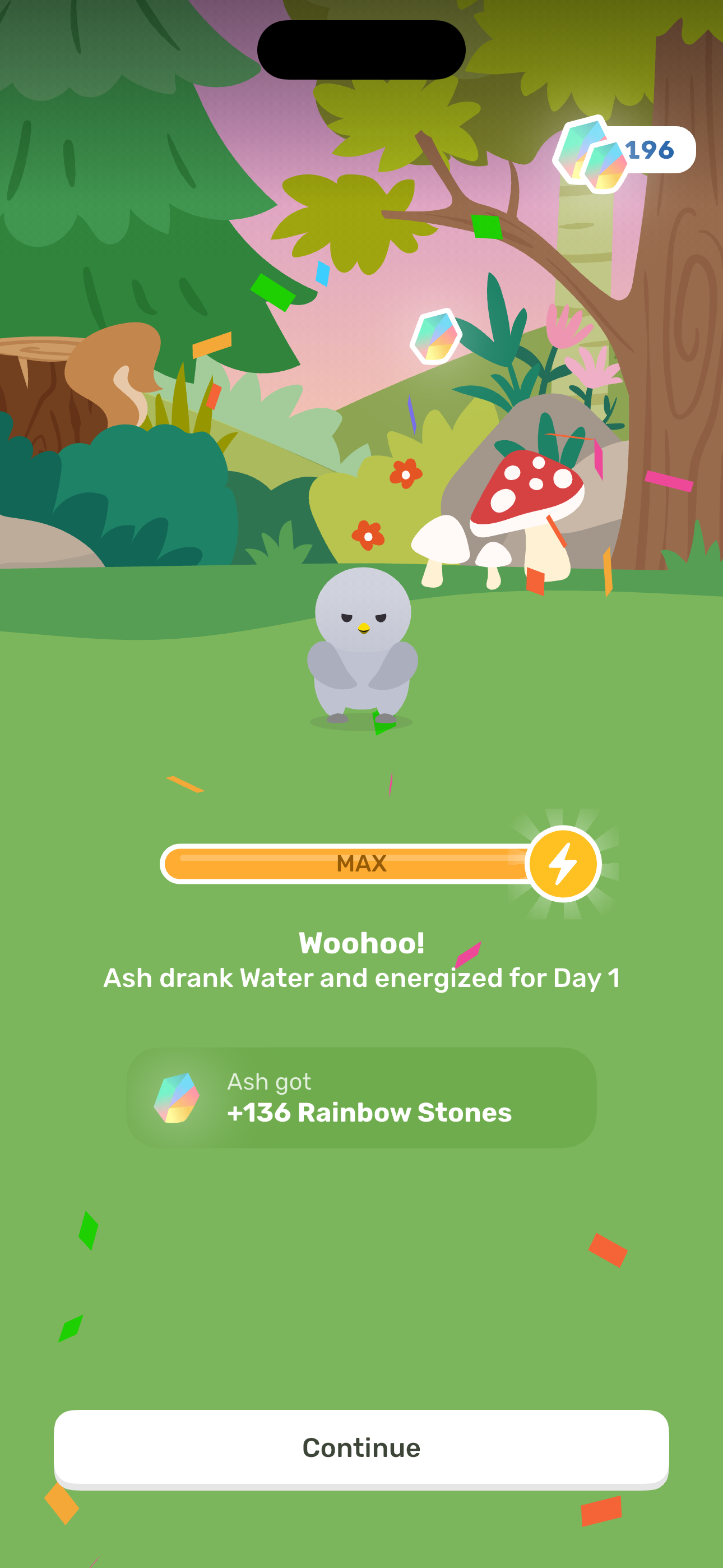
Check off daily goals, inspect the goal action sheet + editor, fill the energy bar, trigger the MAX reward, see the Toddler evolution progress, kick off today's adventure, and handle the post-adventure notifications prompt.
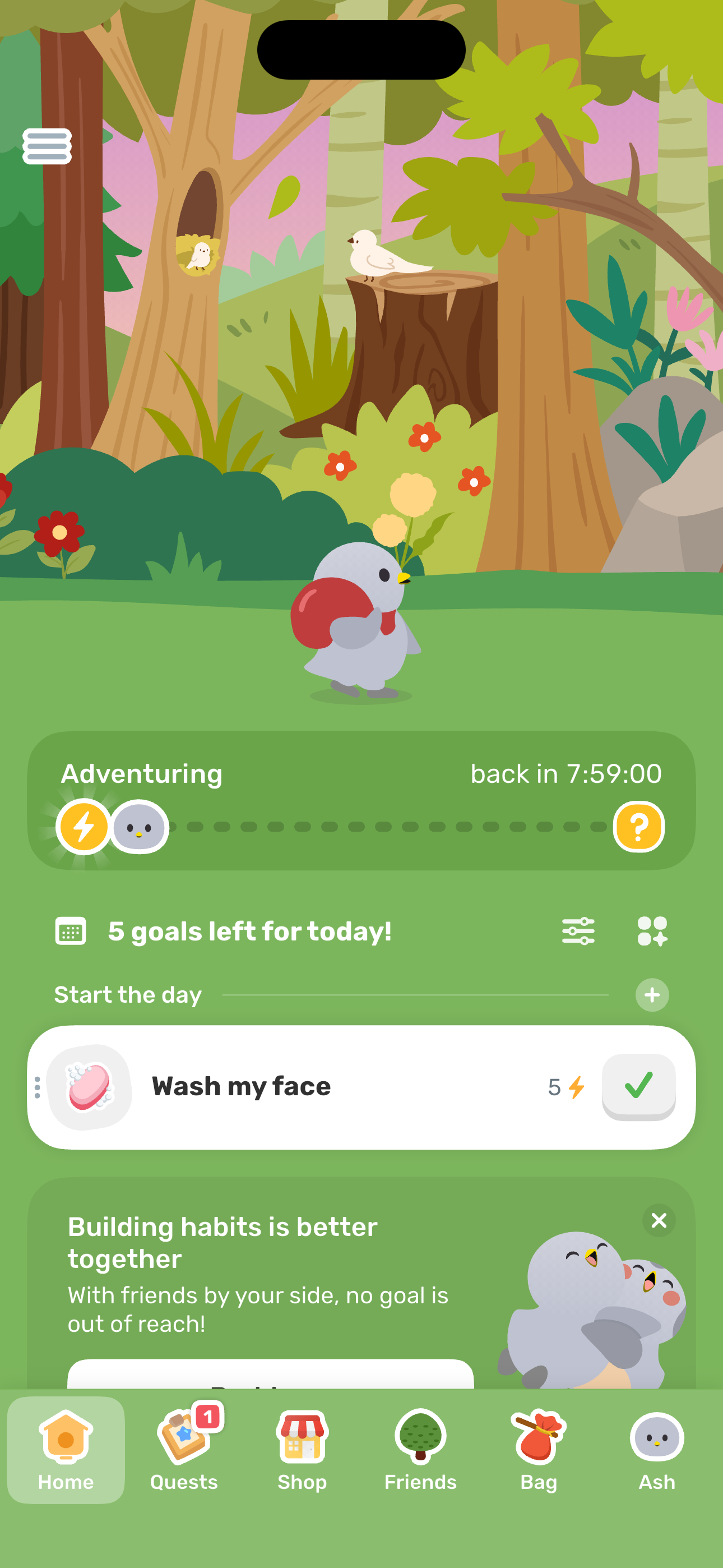
- Home: main dashboard
- Home: after first goal completion
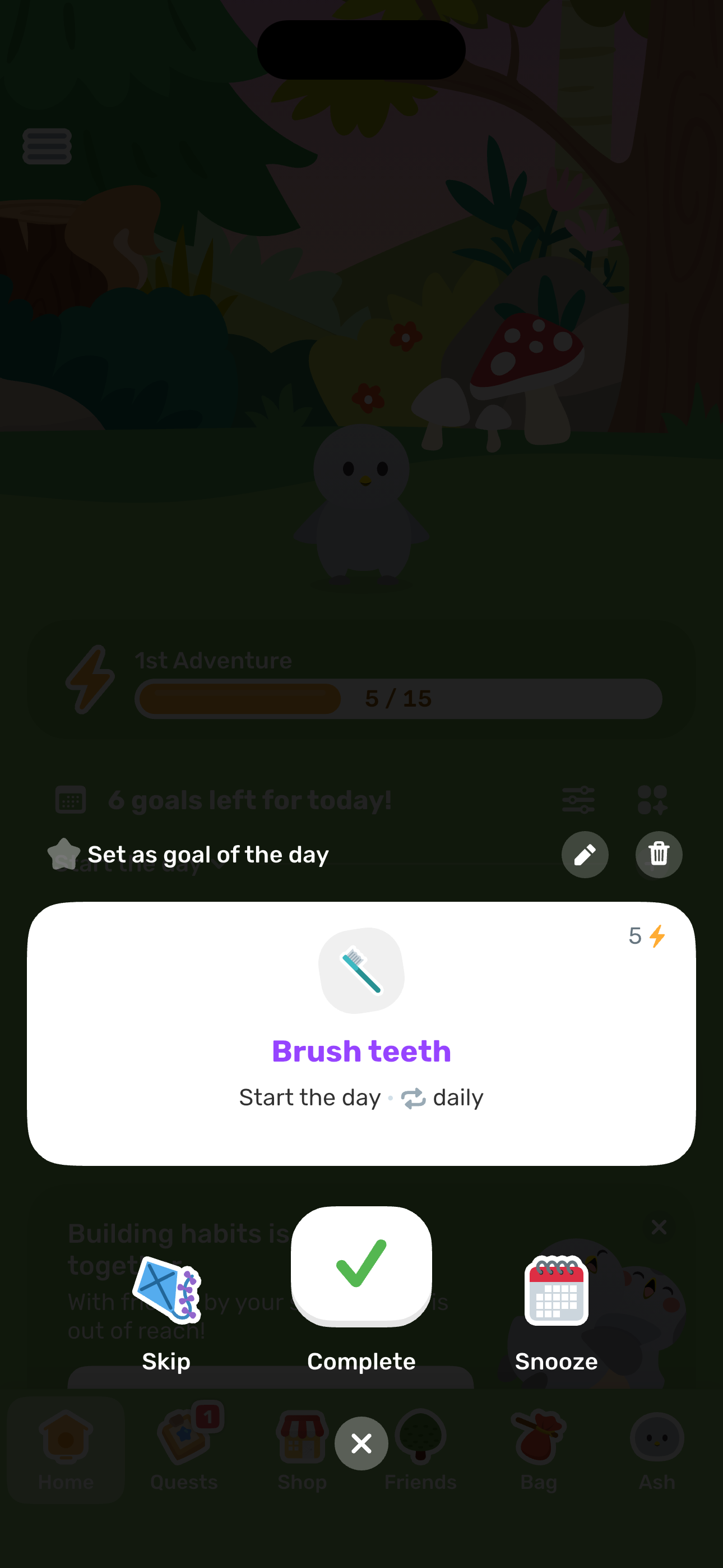
- Goal tap: action sheet
- Goal edit sheet
- Goal edit: Discard changes dialog
- Reward: Ash energized to MAX
+ 4 more mapped screens in this flow.
Write a reflection
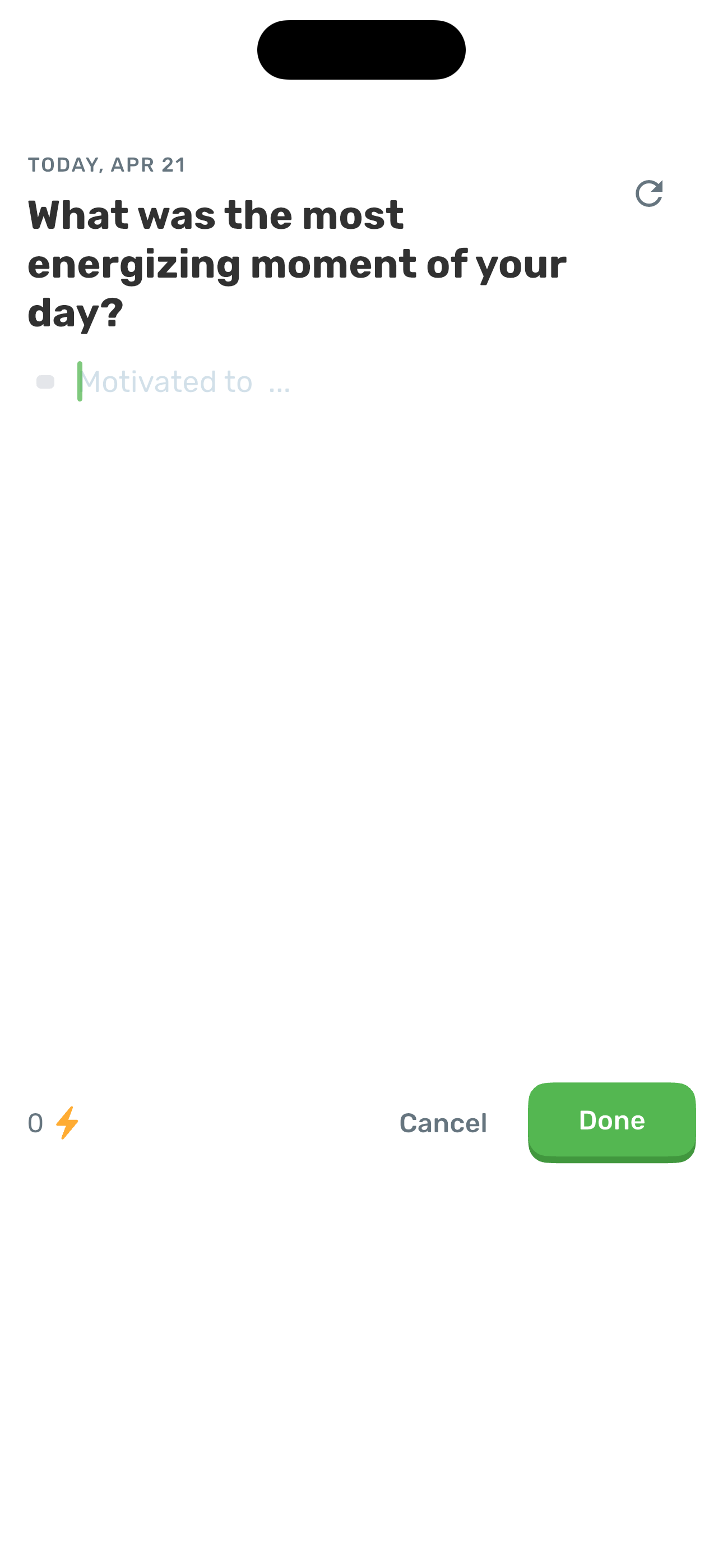
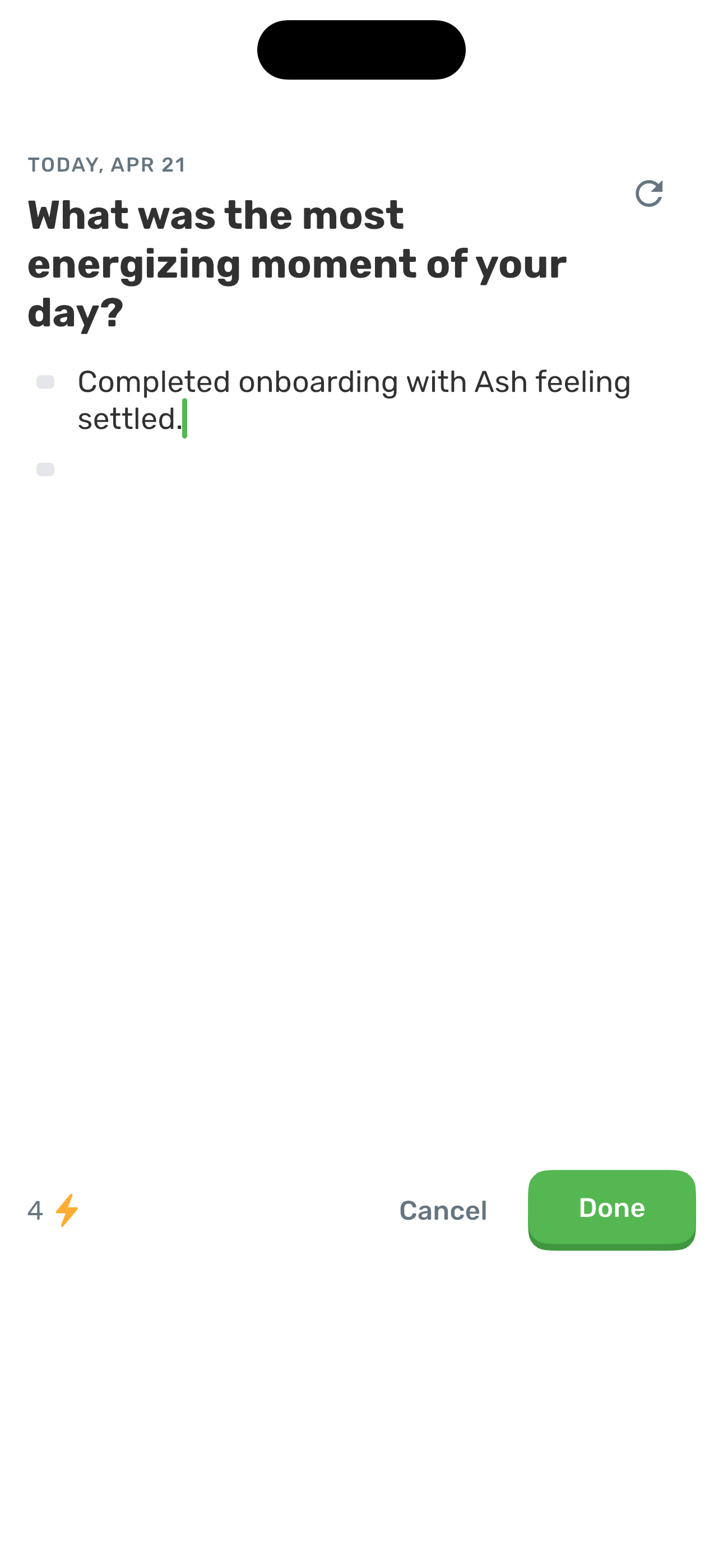
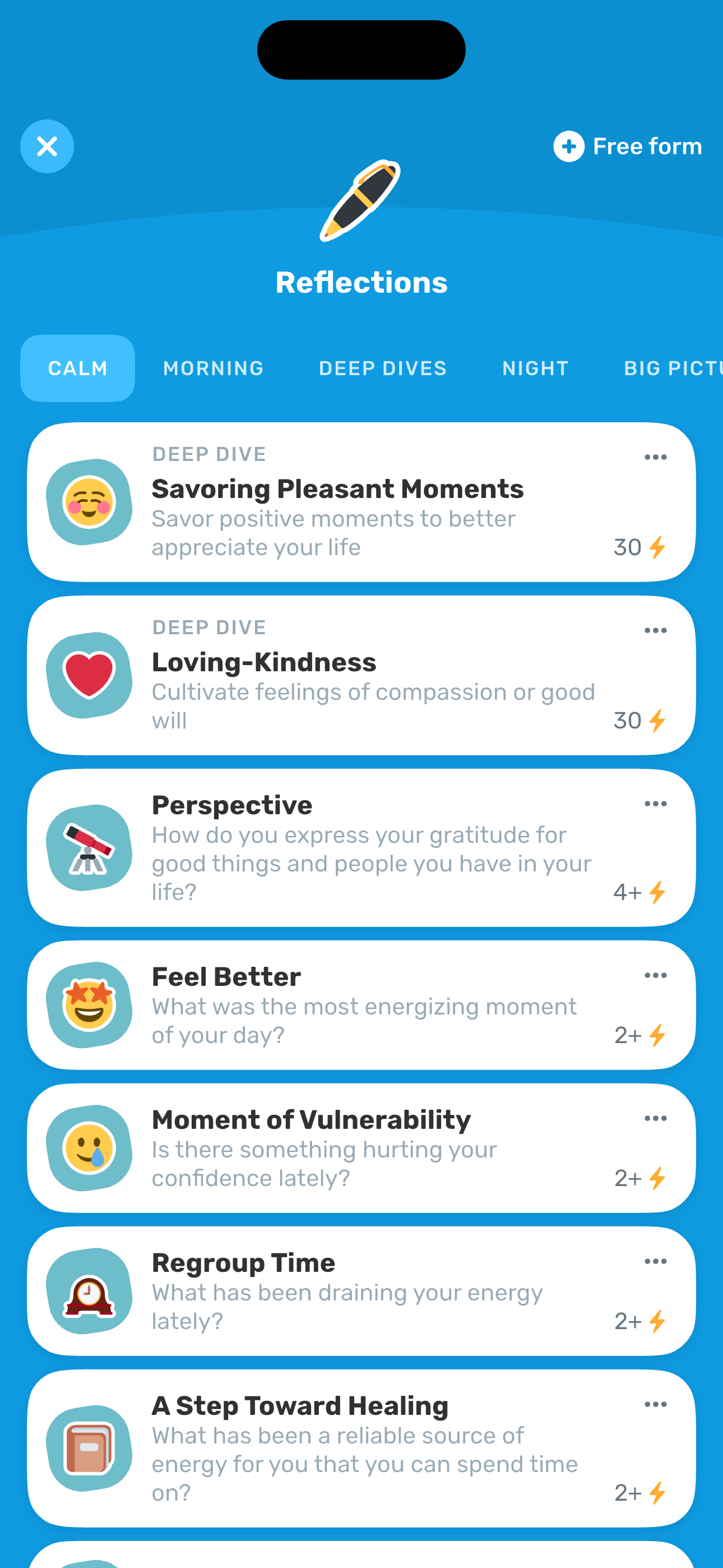
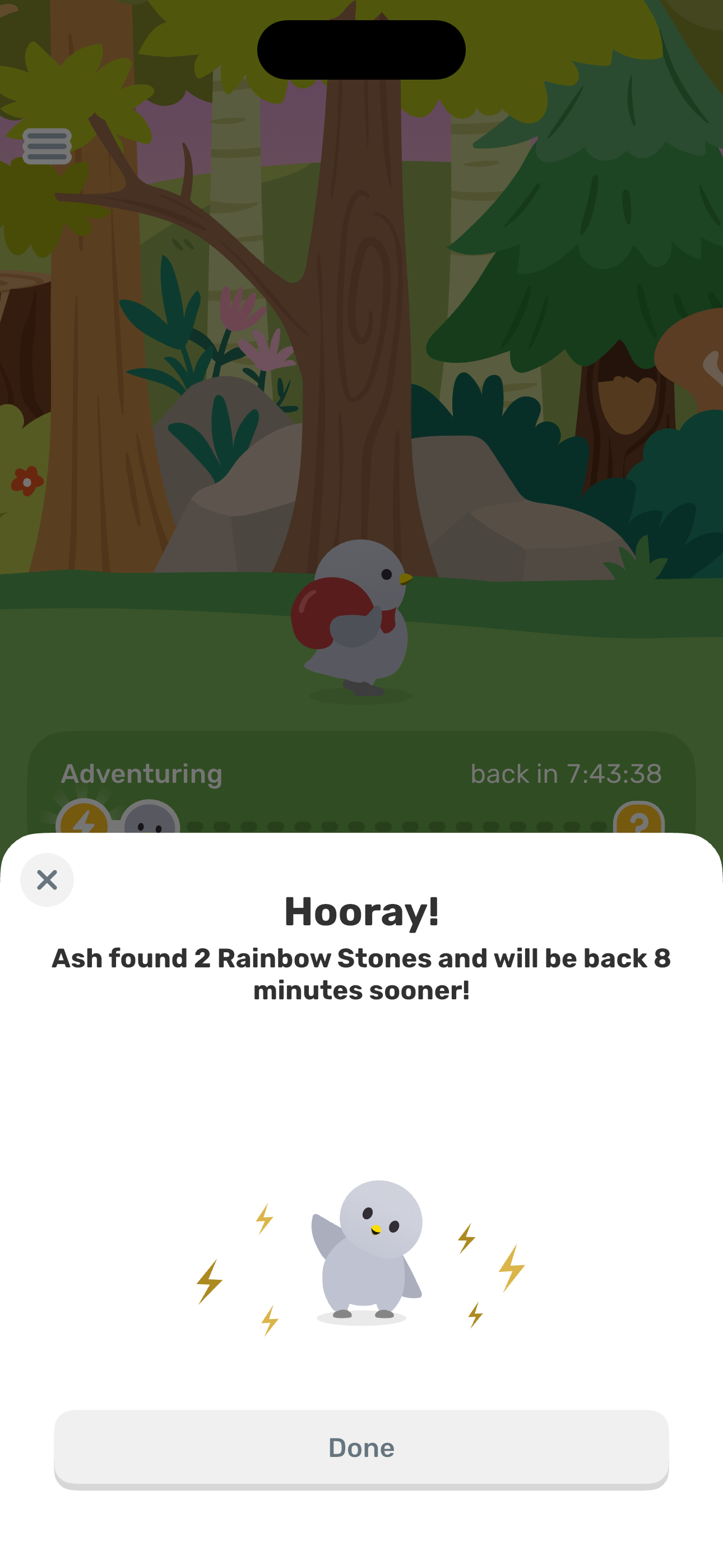
From the hamburger drawer, open Activities, pick a Reflections prompt, type an entry, save, and land on the reward sheet where Ash finds Rainbow Stones and shortens today's adventure.
- Home: with active adventure
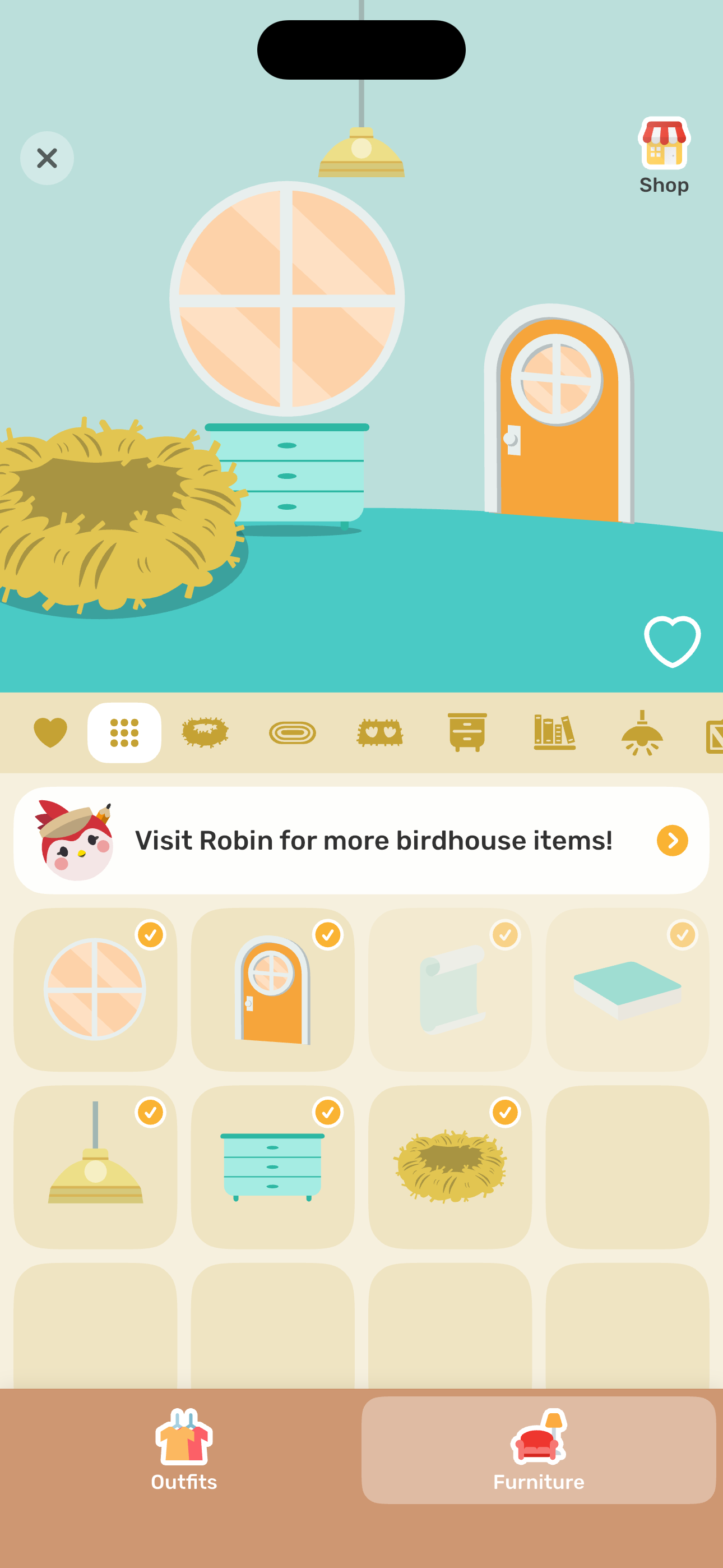
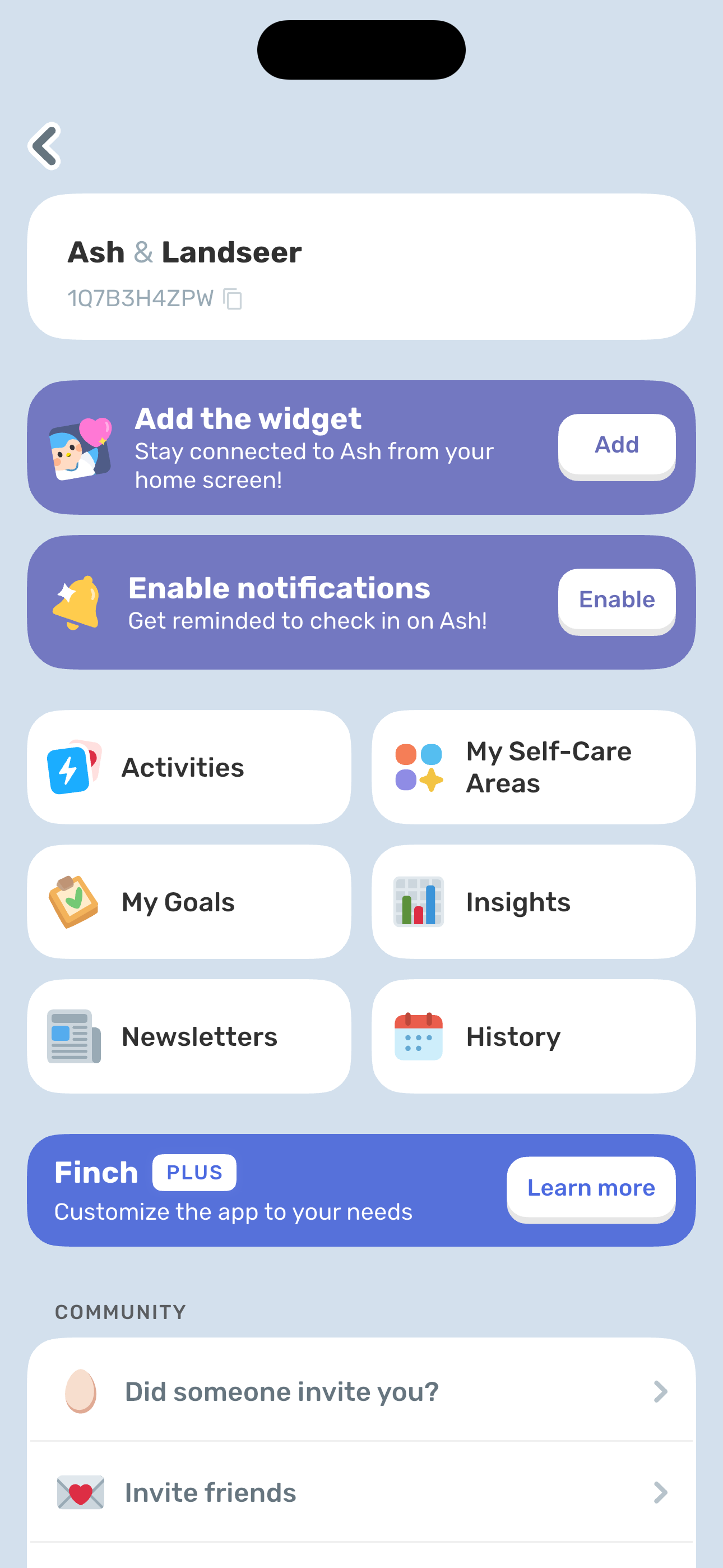
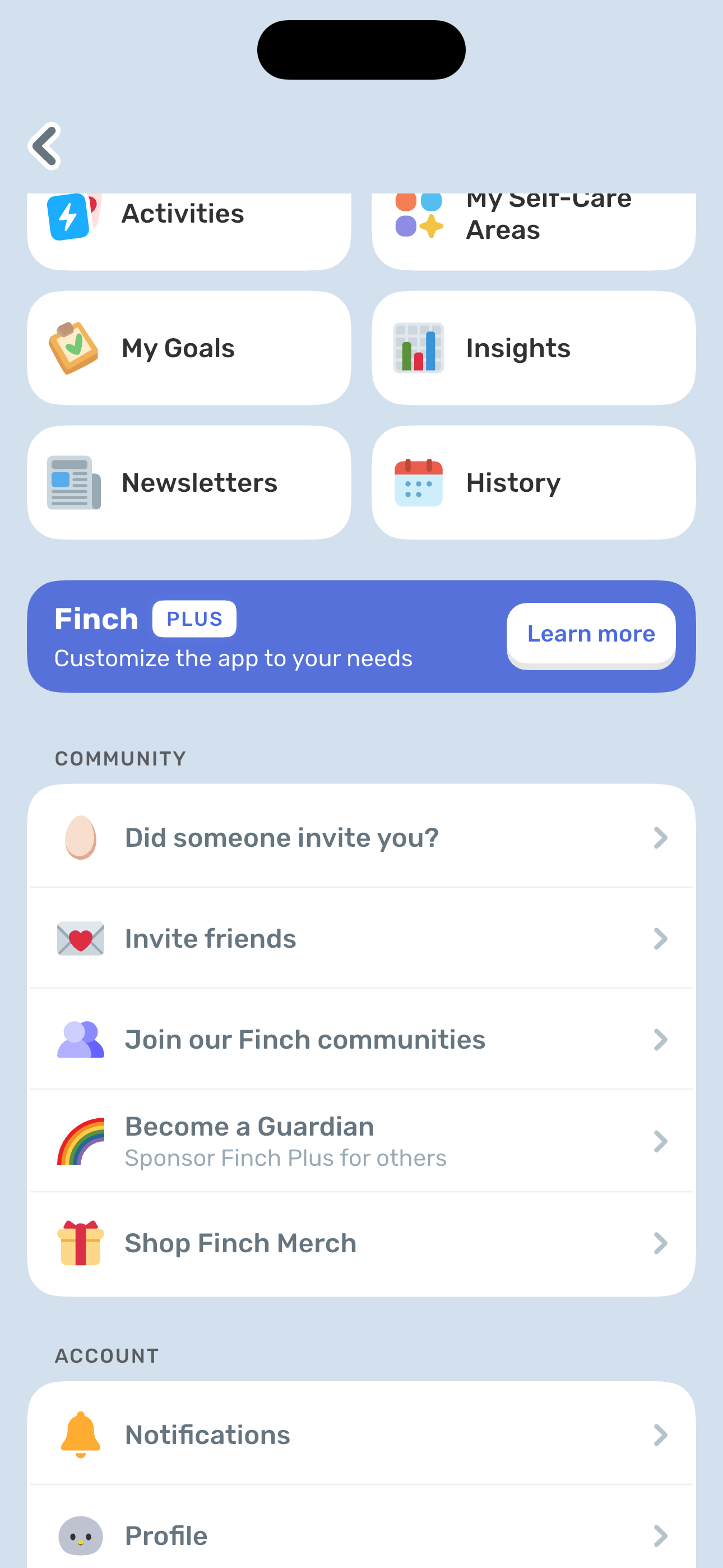
- Hamburger drawer: top (Account + Features)
- Activities hub
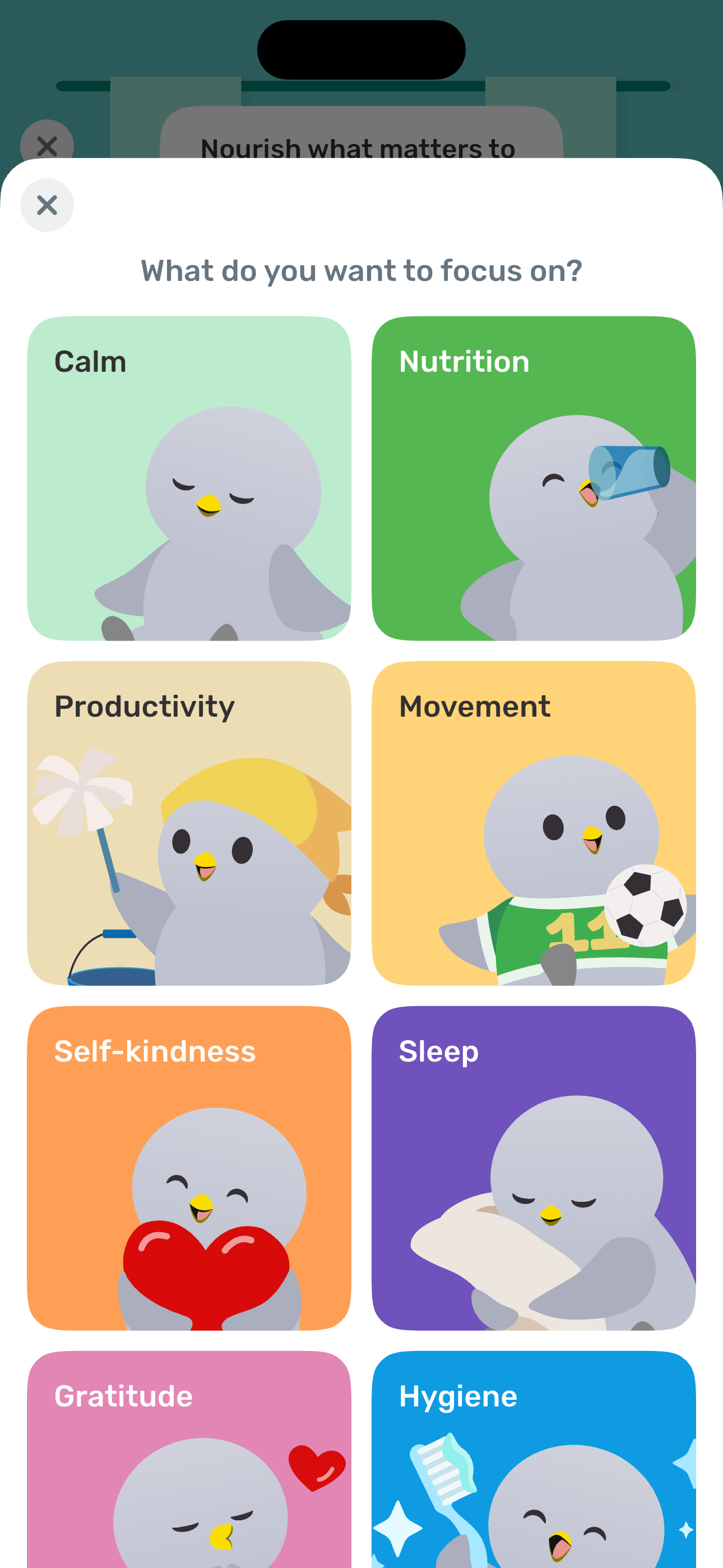
- Reflections: Calm category
- Reflection entry editor
- Reflection editor: filled state
+ 1 more mapped screens in this flow.
Do a Focus breathing session
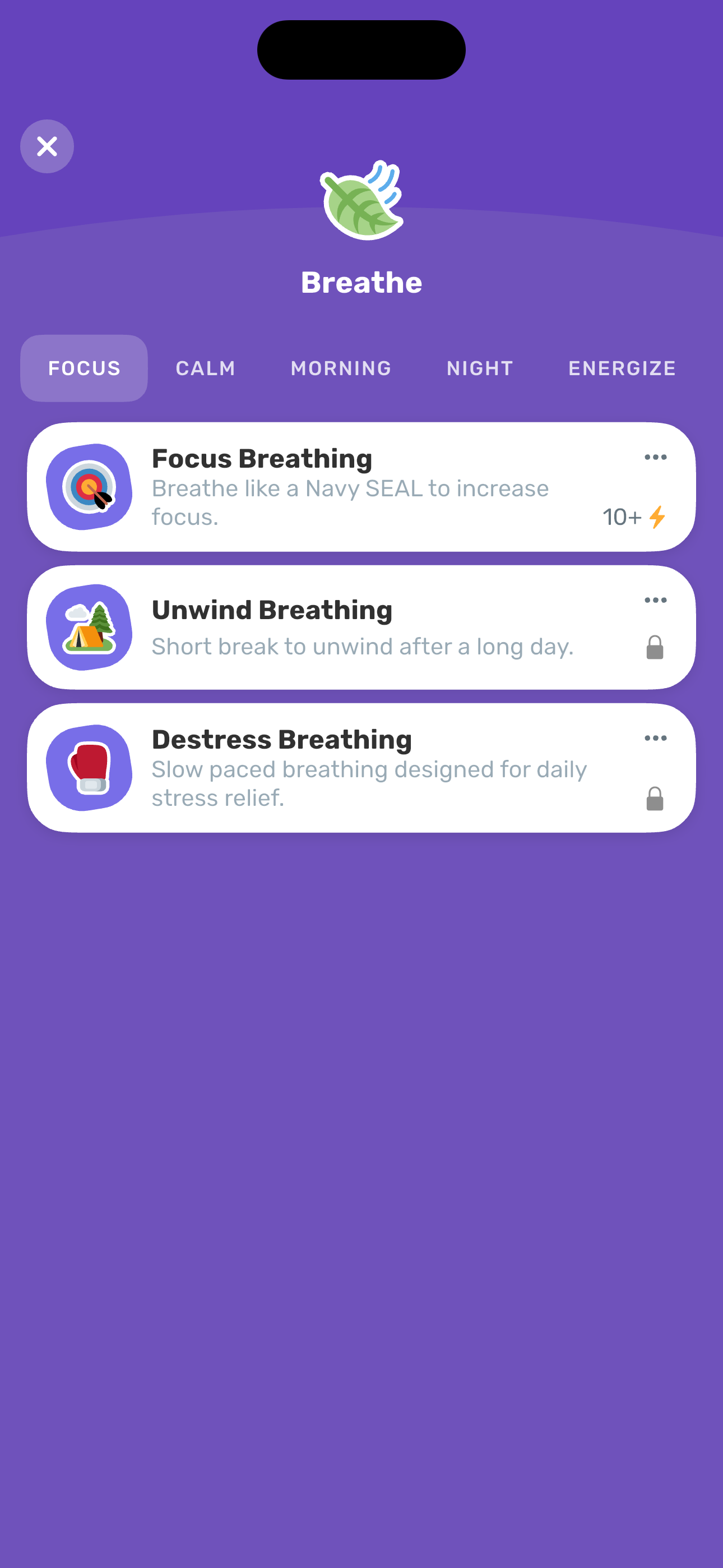
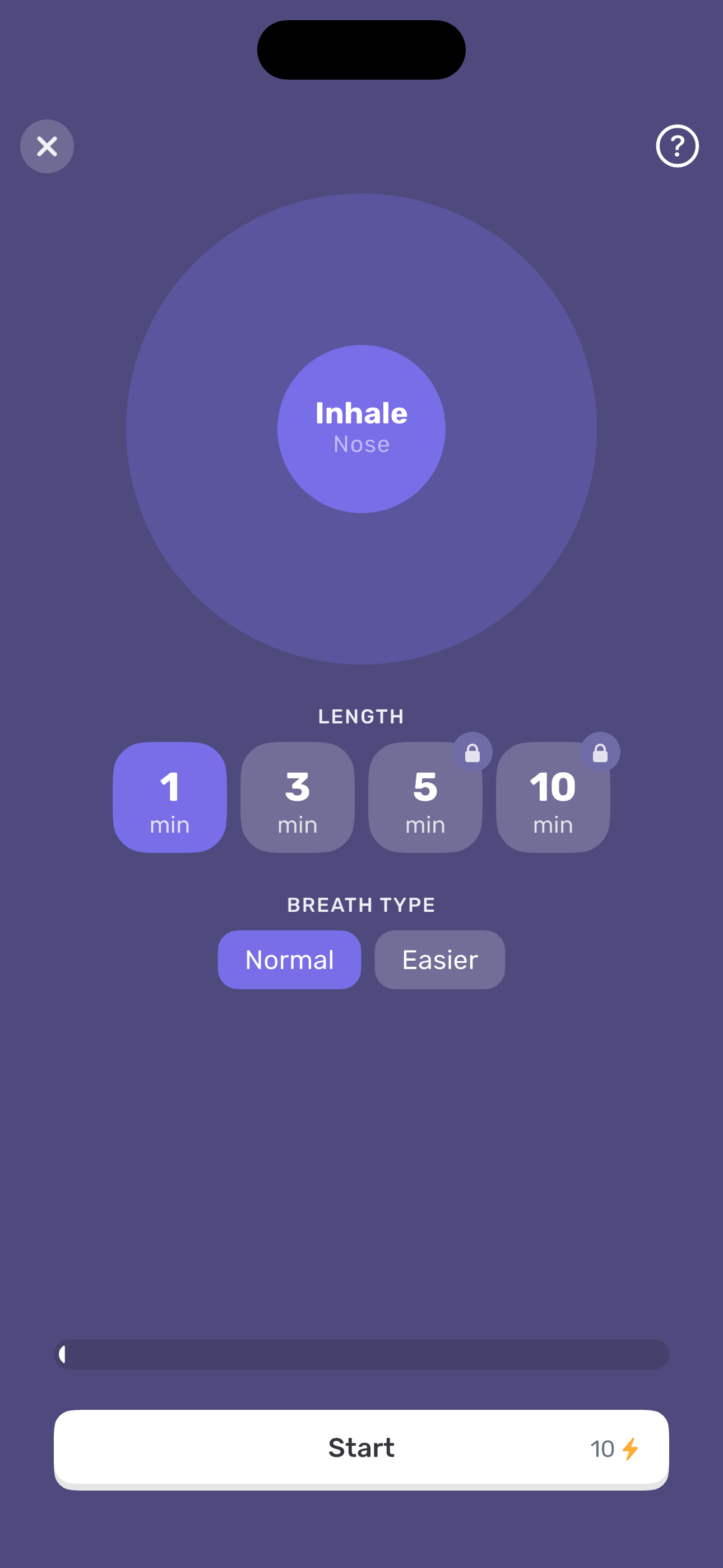
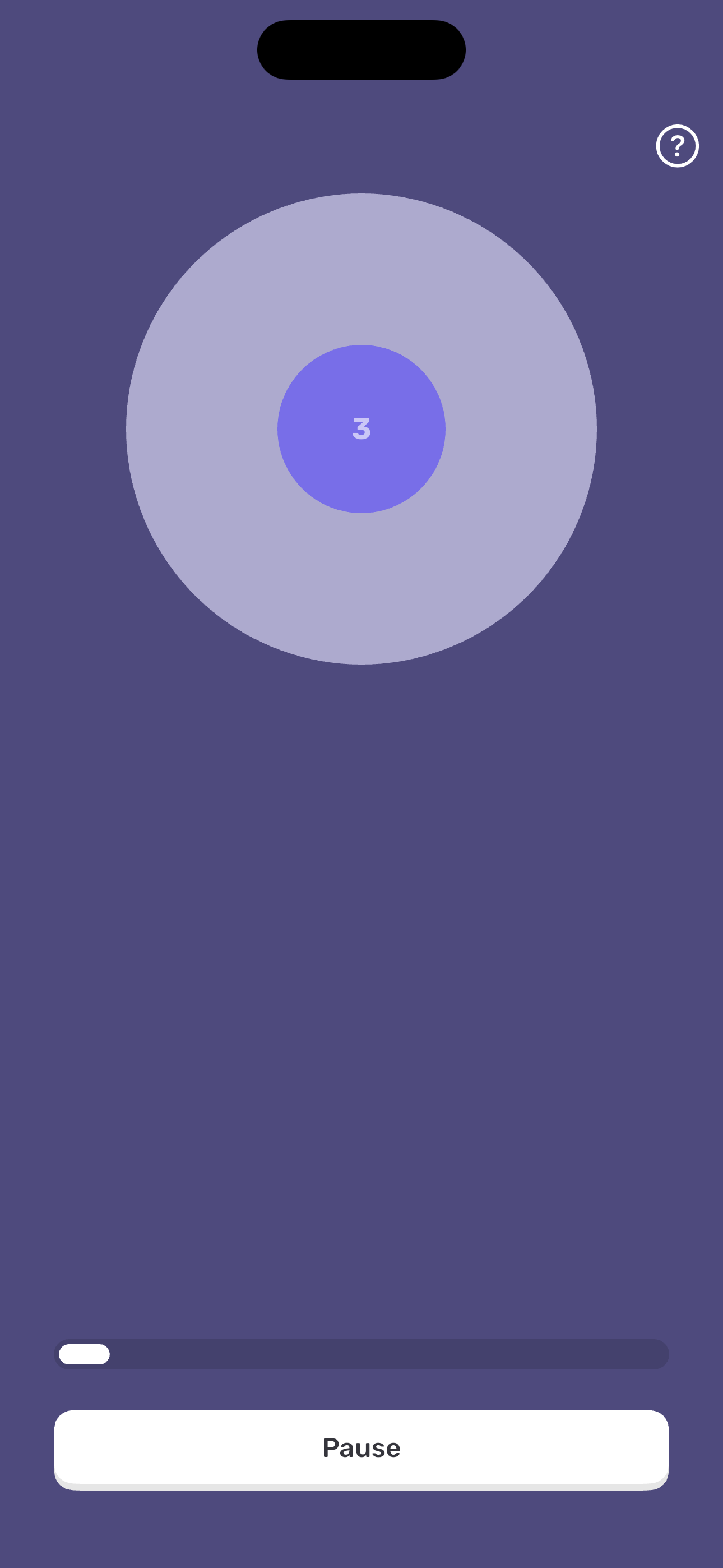
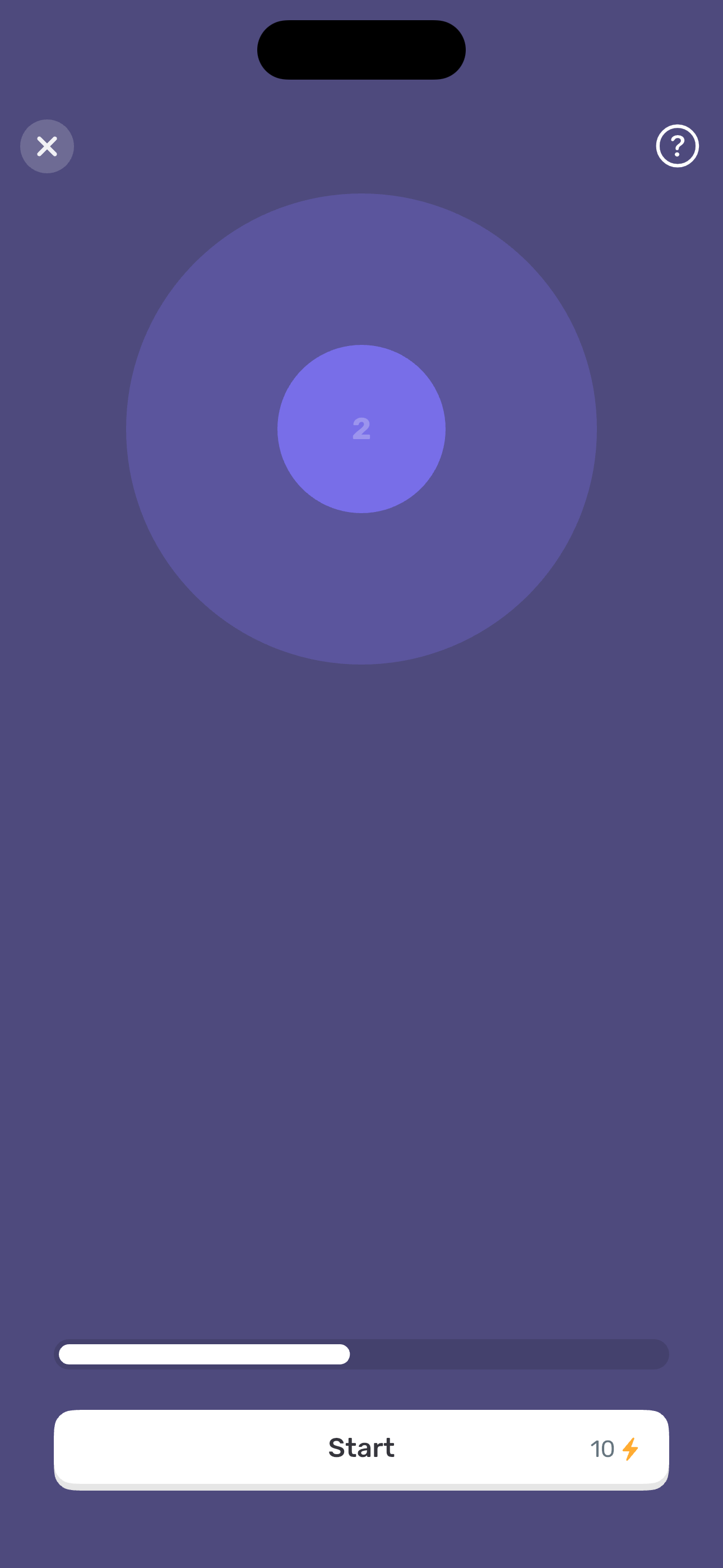
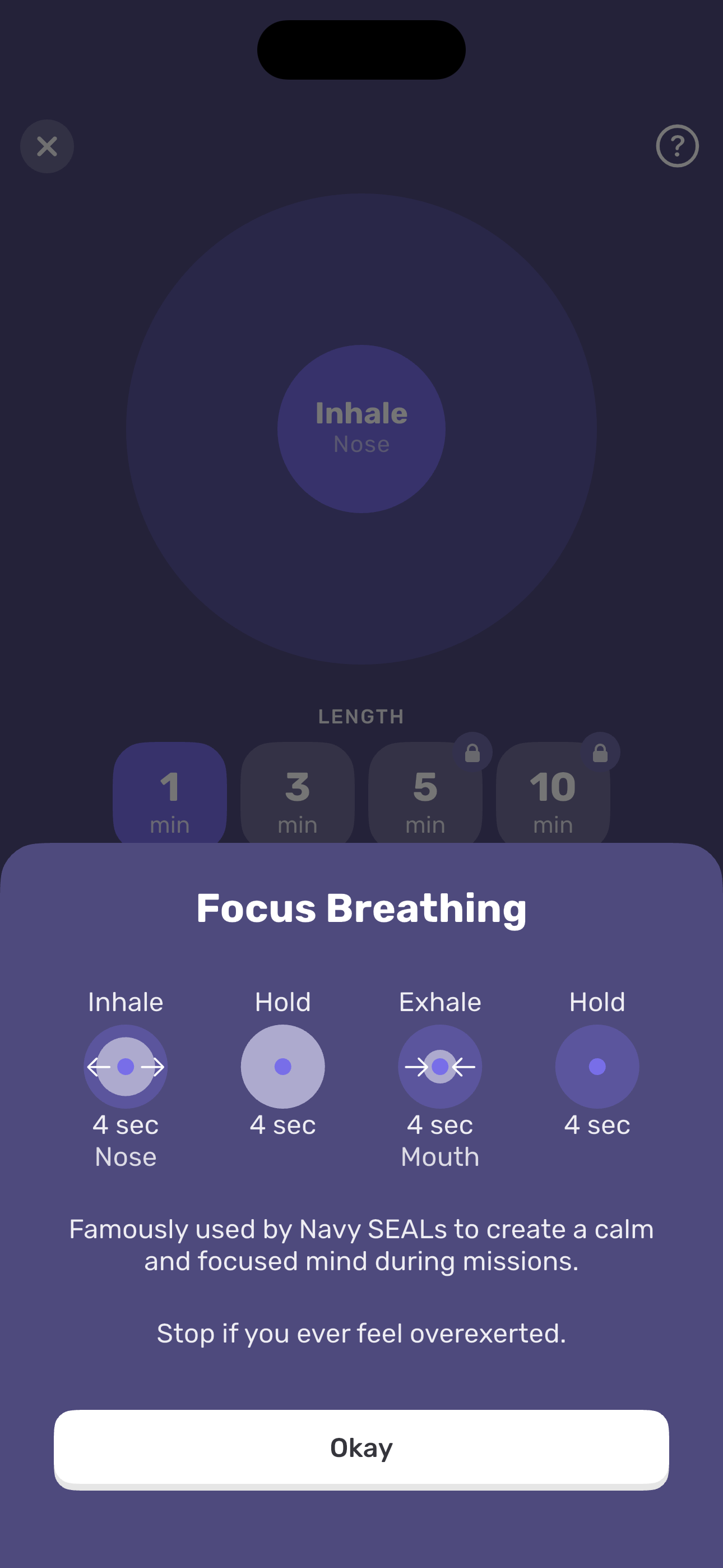
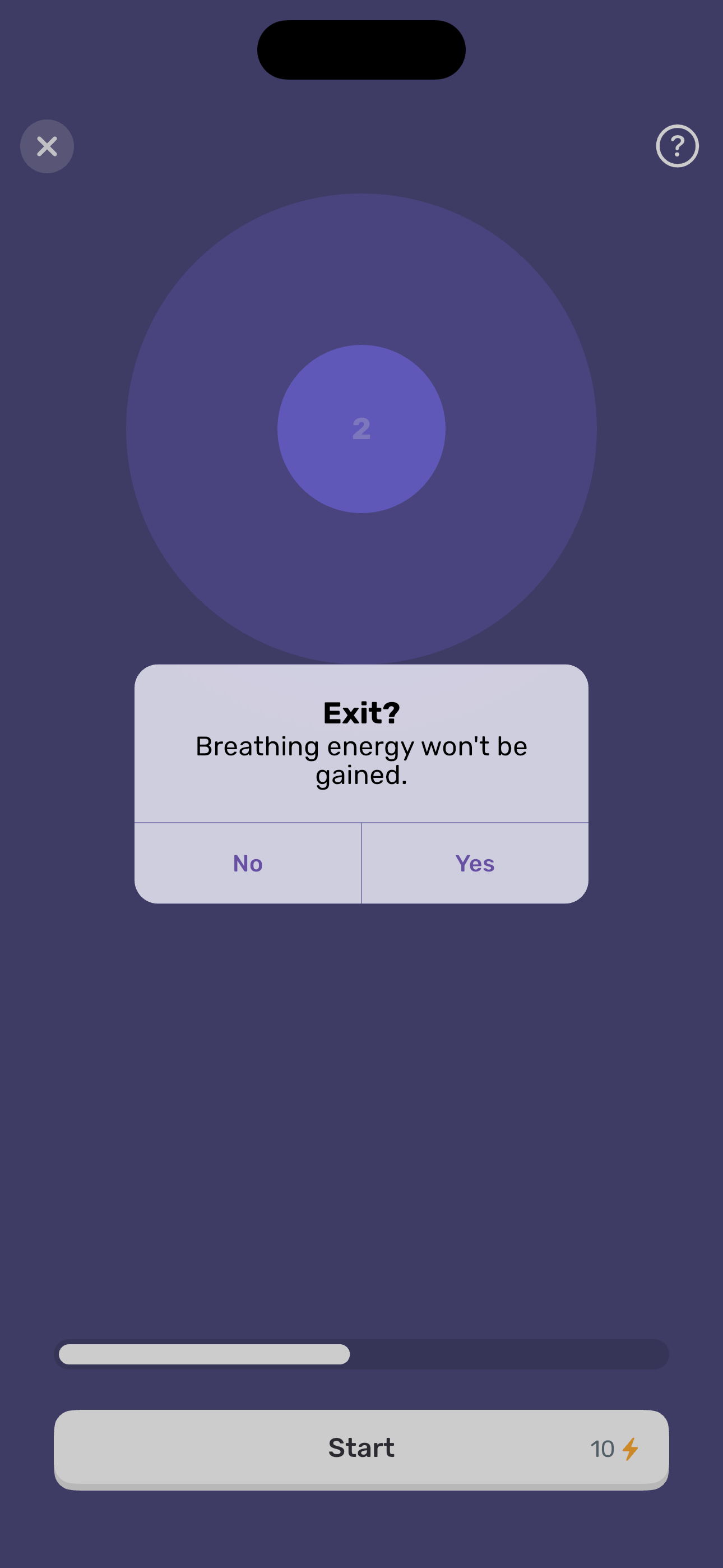
Open Activities > Breathe, pick Focus (4-4-4-4 box breathing), walk the intro → setup → active session → pause → exit confirm.
- Home: with active adventure
- Hamburger drawer: top (Account + Features)
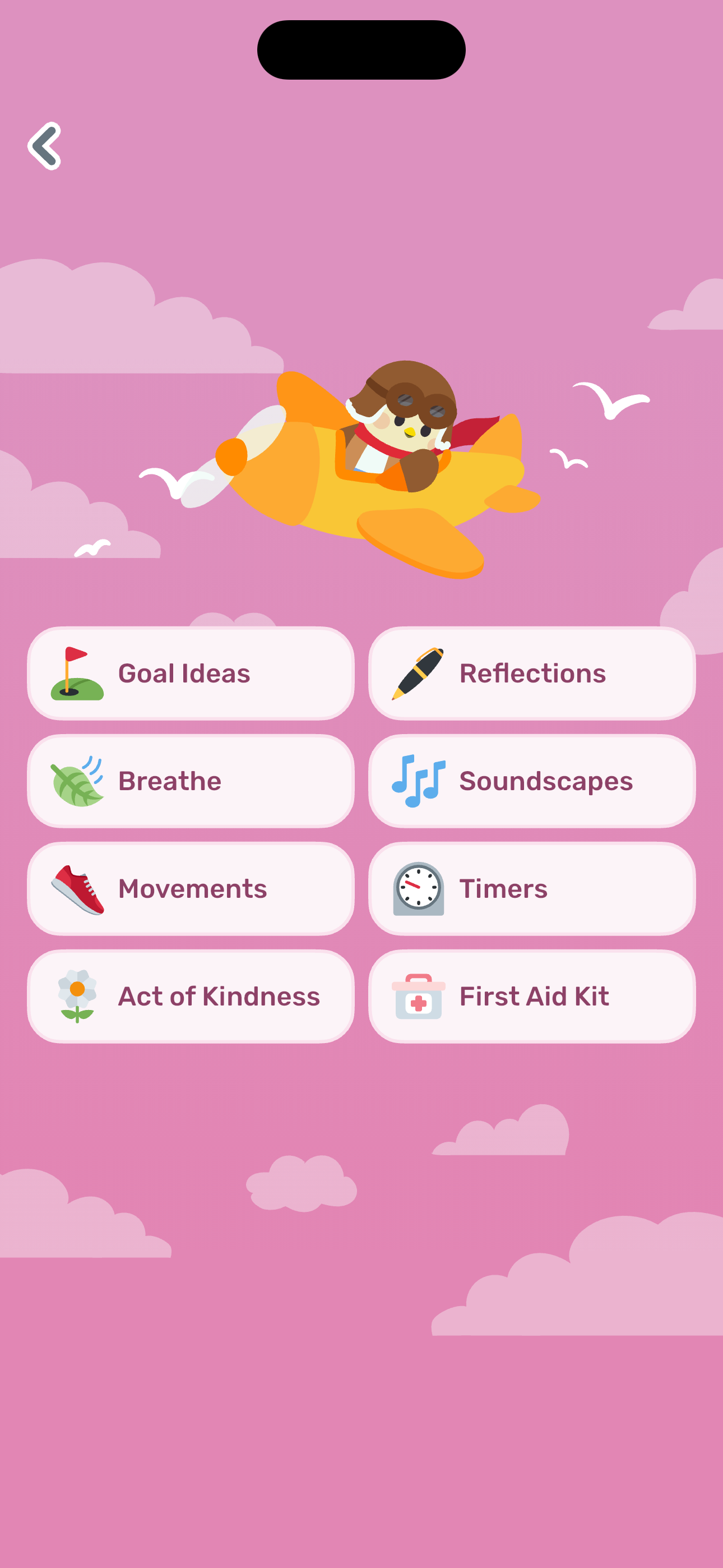
- Activities hub
- Breathe: Focus category
- Focus Breathing: intro modal
- Focus Breathing: setup
+ 3 more mapped screens in this flow.
Browse Calm breathing exercises
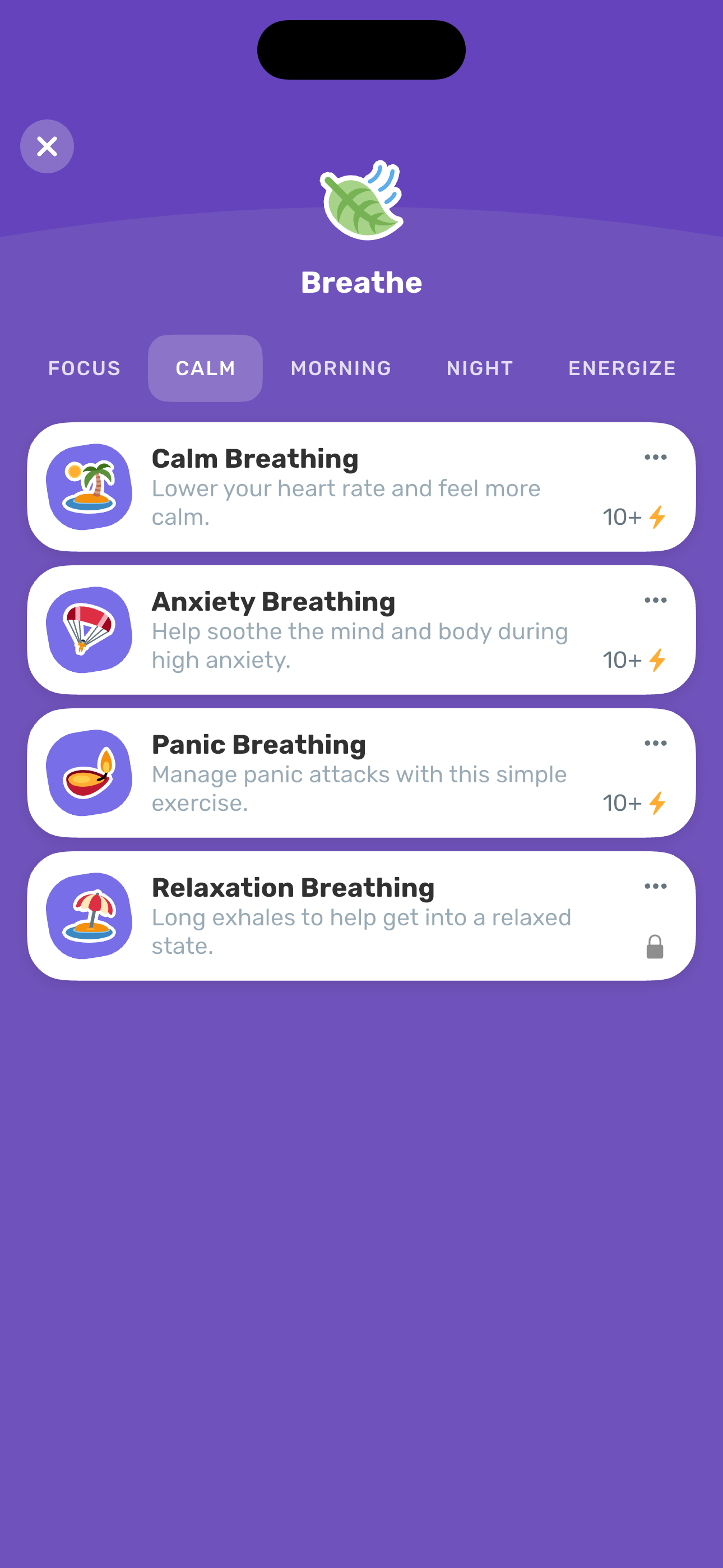
Switch Breathe categories to CALM to see Calm / Anxiety / Panic / Relaxation exercises (most Plus-gated).
- Home: with active adventure
- Hamburger drawer: top (Account + Features)
- Activities hub
- Breathe: Focus category
- Breathe: Calm category
View mood trend
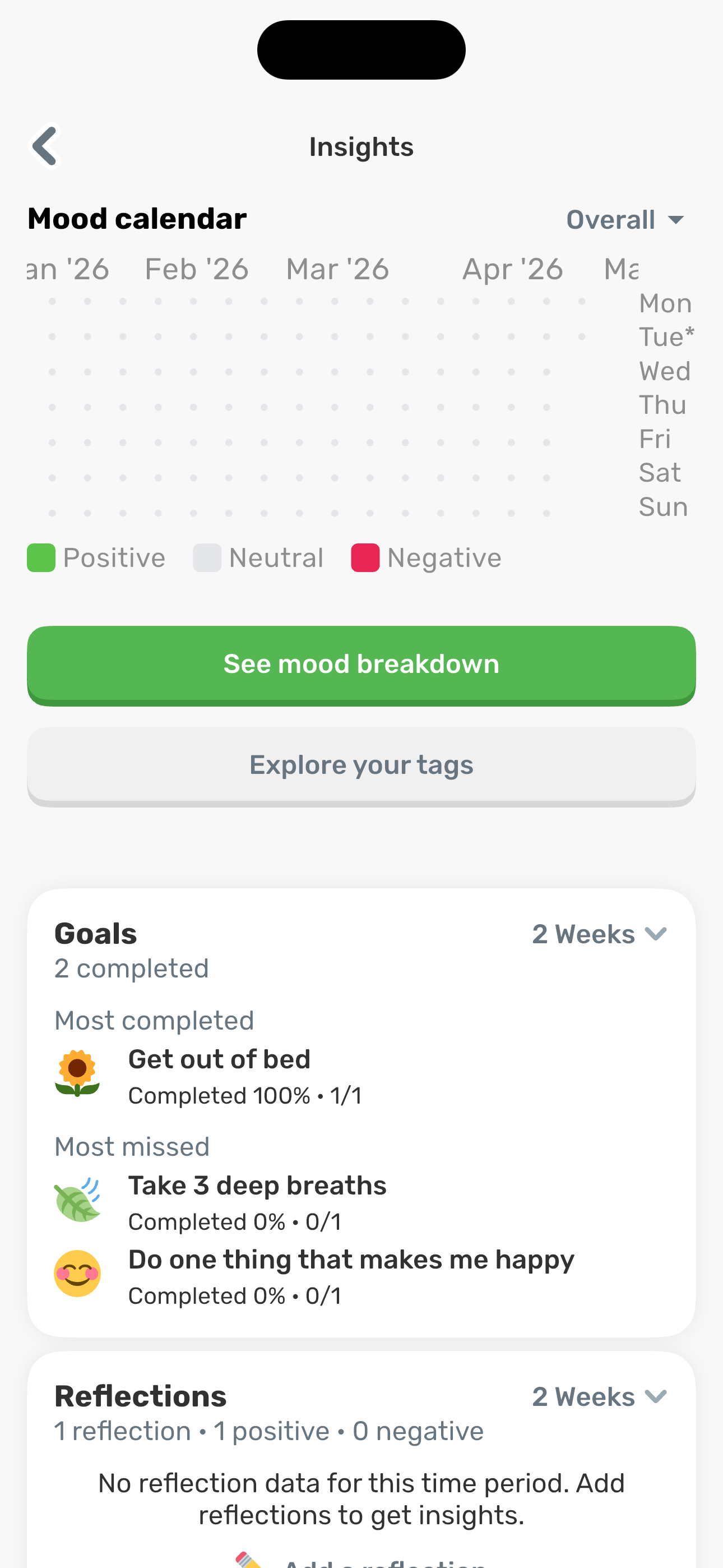
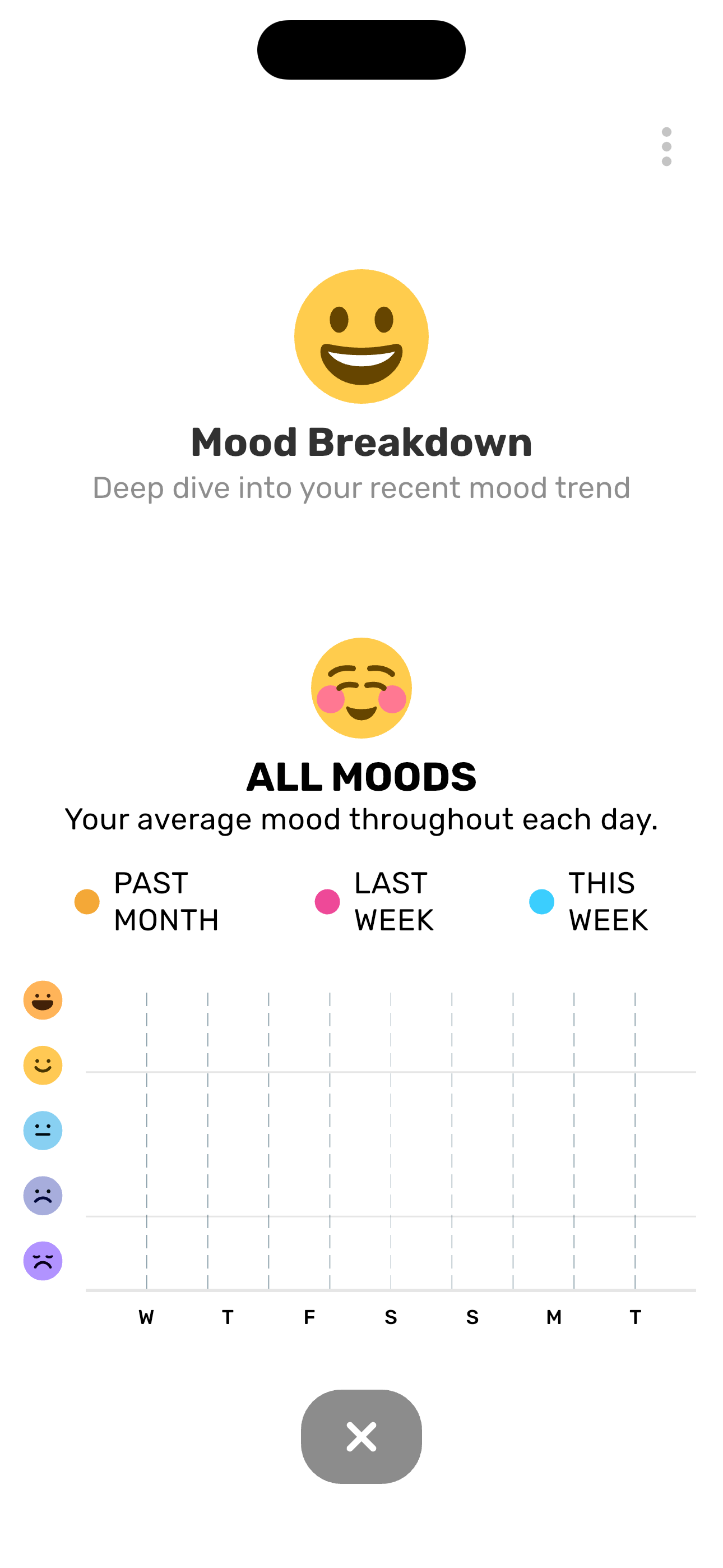
From the drawer, open Insights and drill into the Mood Breakdown chart (past month vs last week vs this week).
- Home: with active adventure
- Hamburger drawer: top (Account + Features)
- Insights: analytics dashboard
- Mood breakdown chart
Explore reflection tags
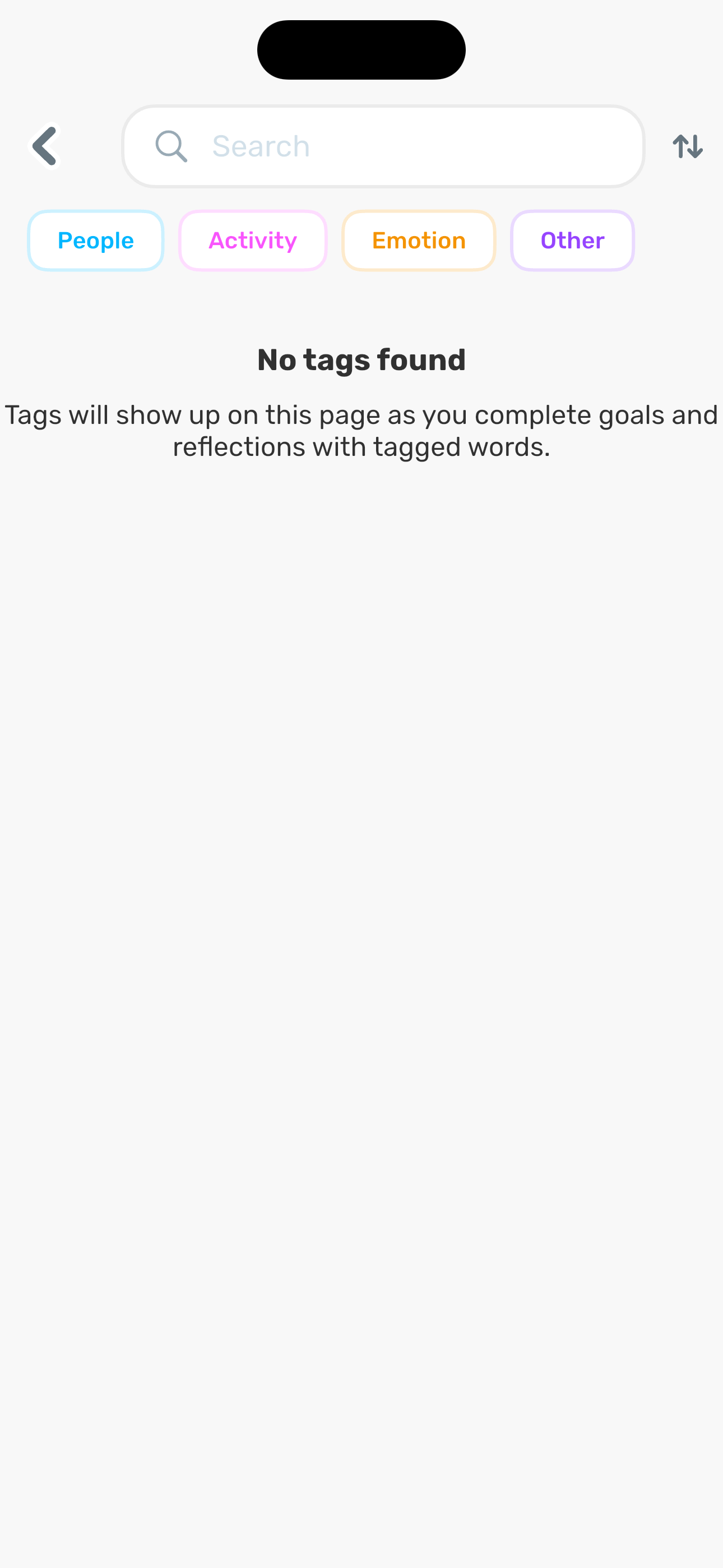
Open Insights and tap Explore your tags to browse People / Activity / Emotion / Other tags extracted from goals and reflections.
- Home: with active adventure
- Hamburger drawer: top (Account + Features)
- Insights: analytics dashboard
- Insights: Tags explorer (empty)
Screen inventory
High-density screens in the Finch app
UI inventory
Interface elements found by Atlas
Related maps