Start Free Get a Demo

Revyl Atlas report

Whop app screen map and user flows

Revyl Atlas mapped 129 iOS app screens, 154 transitions, 31 user paths, and 930 UI elements in Whop. Use this report for mobile UX research, QA coverage planning, competitive teardown work, and AI agent navigation context.

129Screens
154Transitions
31User paths
930UI elements

Research uses

What this Whop app map helps teams inspect

UX teardown Compare how Whop moves users through entry screens, decision points, modals, detail pages, and conversion paths.
QA coverage Use the mapped screens and transitions to identify high-risk branches, repeated states, dead ends, and screens that need regression coverage.
Agent context Give mobile automation agents a concrete screen inventory and path list instead of asking them to infer navigation from scratch.

Key journeys

Whop mobile app user flows

01 Creator 20 screens

Create a whop and its first product

From Business dashboard, walk the full funnel: pick model and industry, name the business, then title / headline / description / category / pricing / apps / media / logo / visibility / preview for the first product. Finish lands on the new whop with a share sheet.
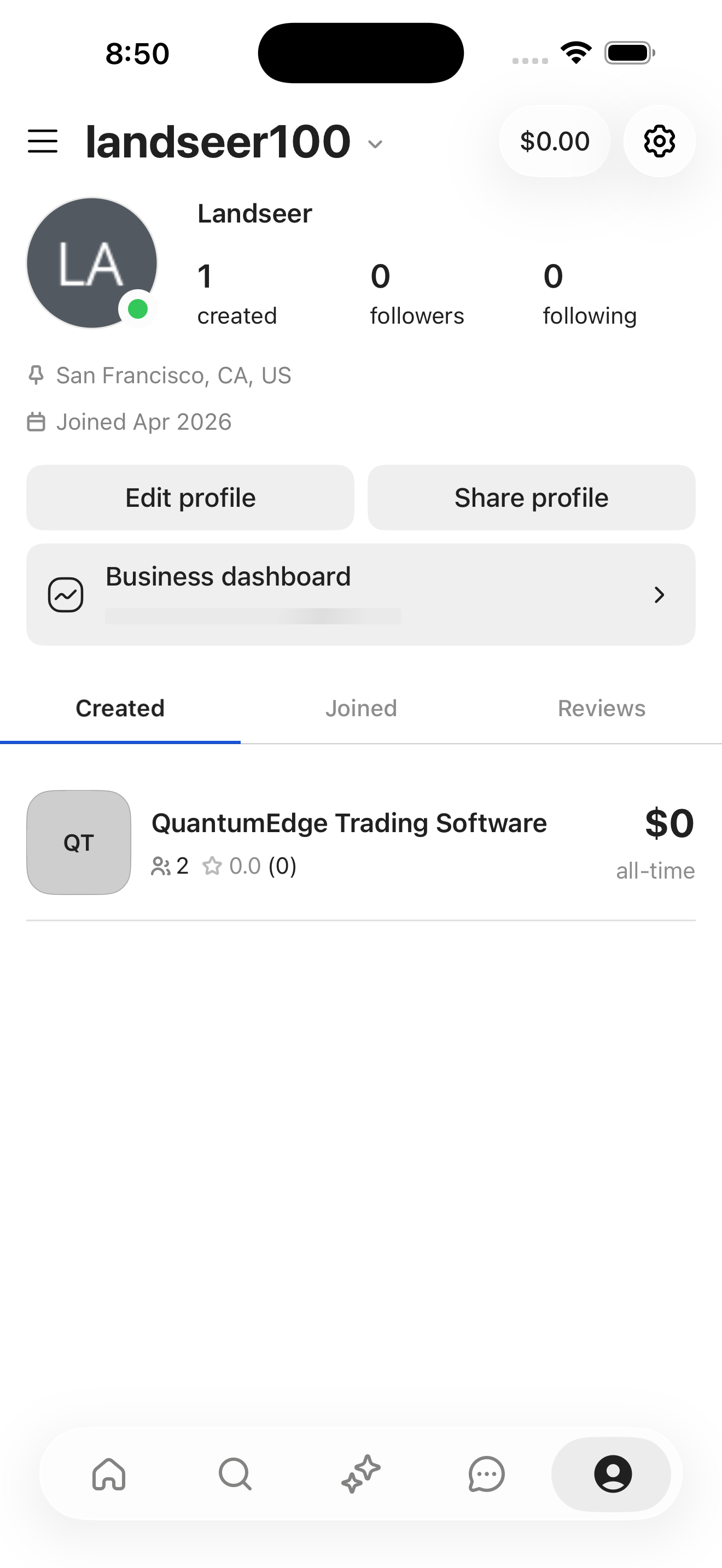
Whop Profile — landseer100 screen in Create a whop and its first product flow
Profile — landseer100
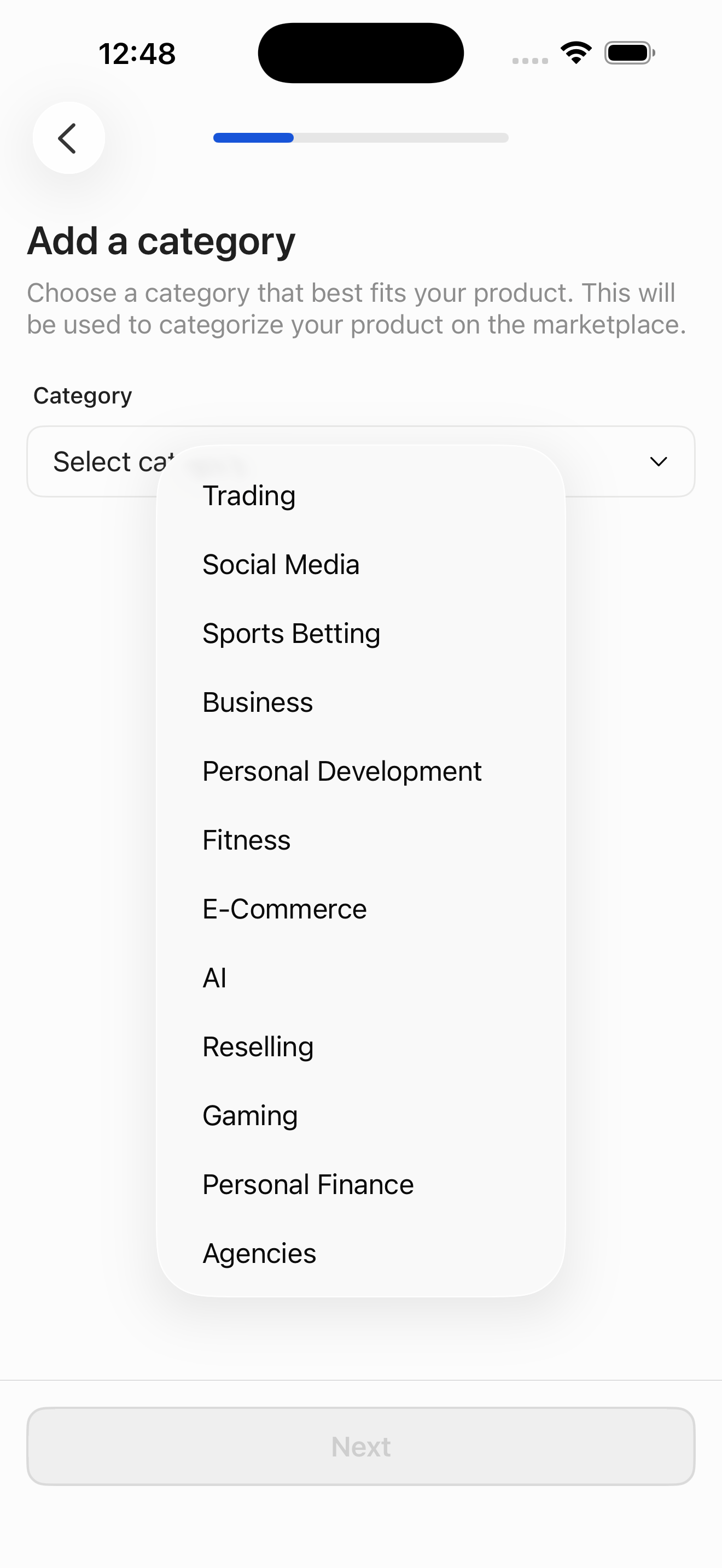
Whop Category picker dropdown screen in Create a whop and its first product flow
Category picker dropdown
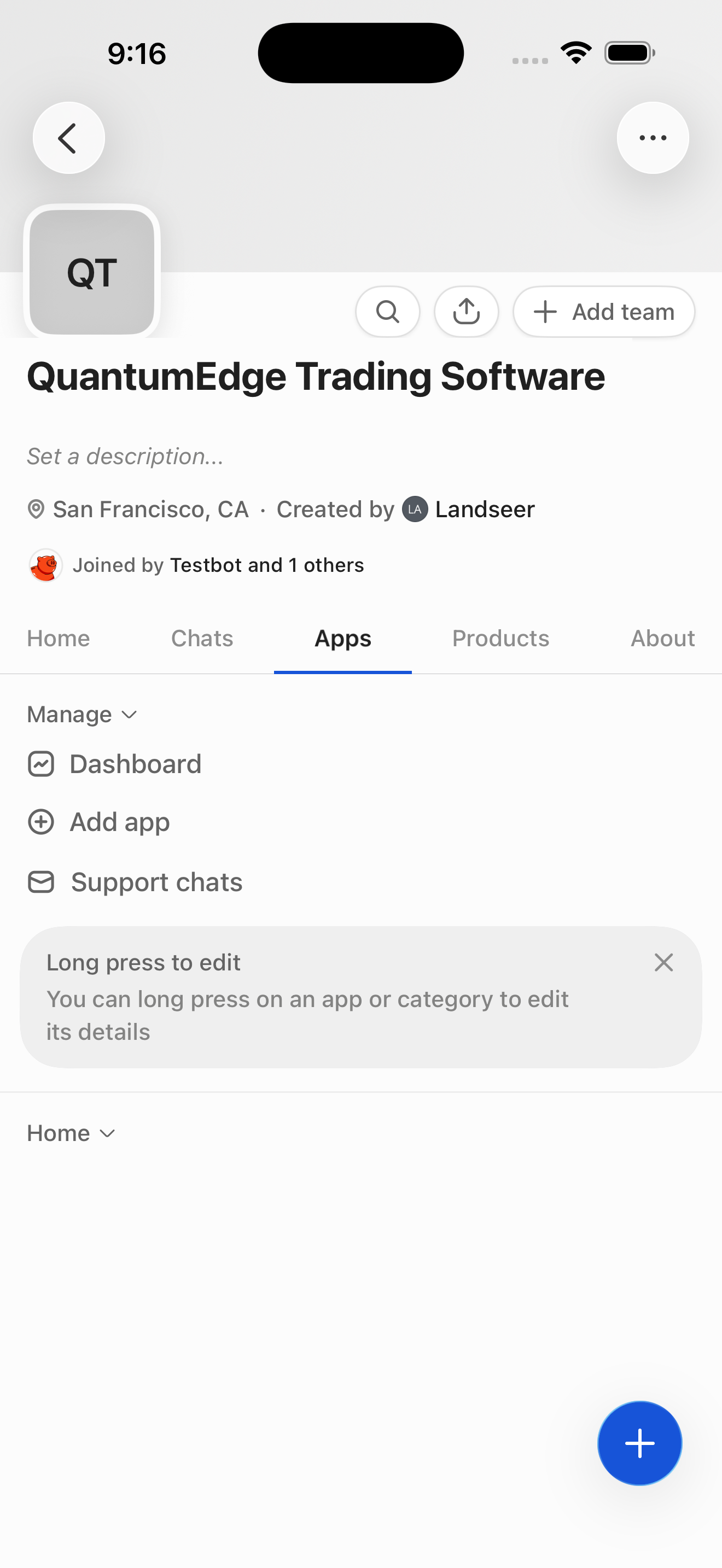
Whop QuantumEdge Whop — Apps tab (owner view) screen in Create a whop and its first product flow
QuantumEdge Whop — Apps tab (owner view)
  1. Profile — landseer100
  2. Whop Dashboard — analytics + manage (QuantumEdge)
  3. Create Whop — step 1: choose business model
  4. Create Whop — step 2: choose industry
  5. Create Whop — step 3: name + country
  6. Kickstart your first product (intro)

+ 14 more mapped screens in this flow.

02 Onboarding 5 screens

Sign in + reach home

Email OTP login into the authenticated home feed.
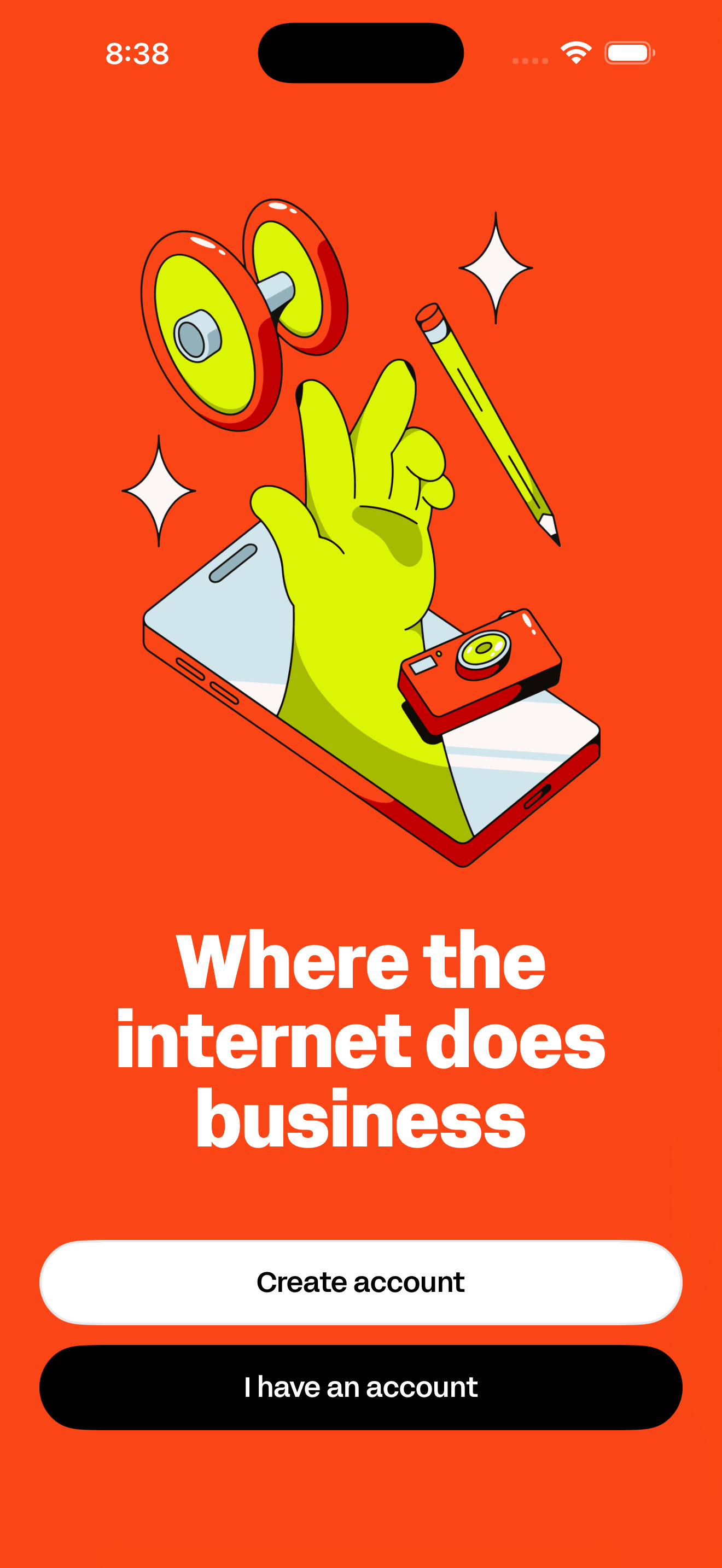
Whop Welcome — Where the internet does business screen in Sign in + reach home flow
Welcome — Where the internet does business
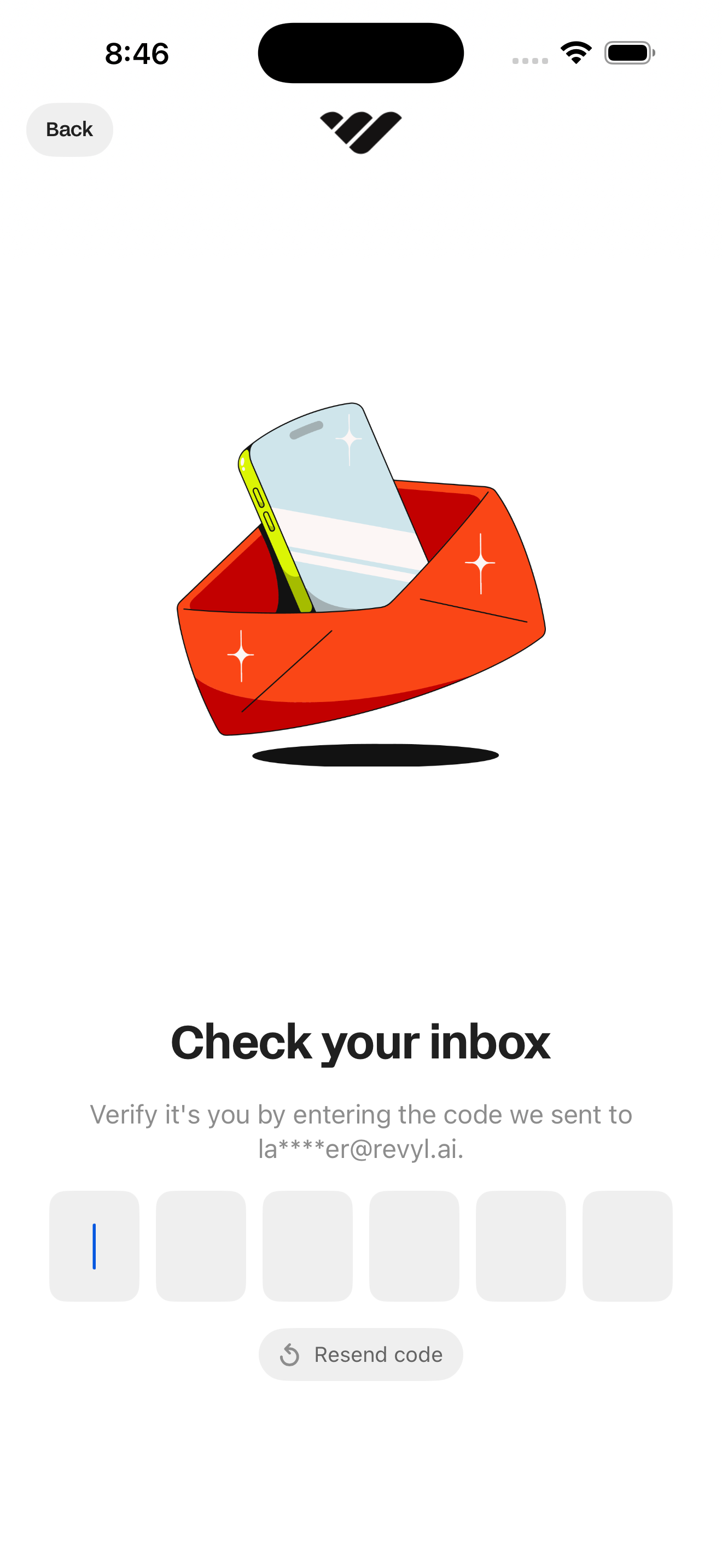
Whop Log in — Check your inbox (6-digit code) screen in Sign in + reach home flow
Log in — Check your inbox (6-digit code)
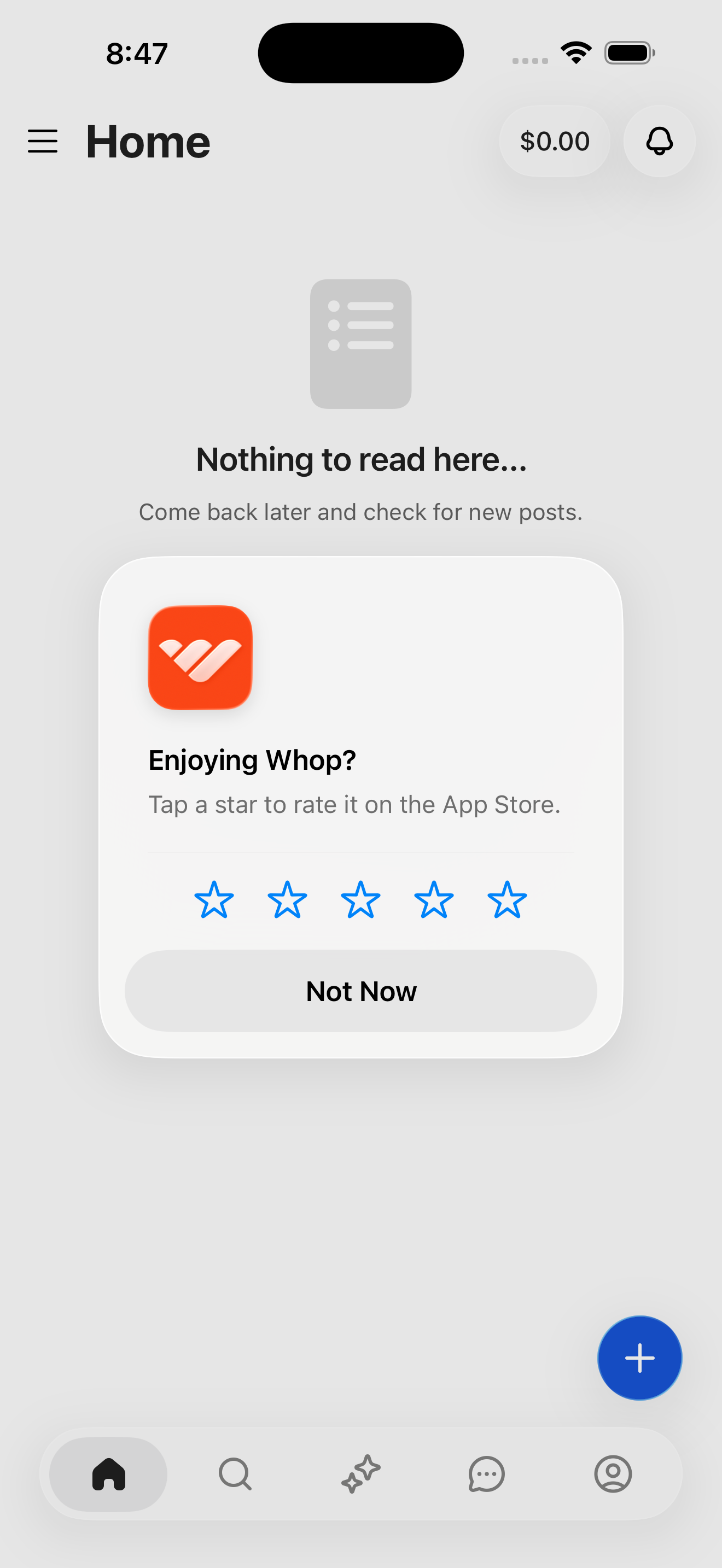
Whop Home (empty feed) screen in Sign in + reach home flow
Home (empty feed)
  1. Welcome — Where the internet does business
  2. Log in — Email entry
  3. Log in — Check your inbox (6-digit code)
  4. Onboarding — Turn on notifications
  5. Home (empty feed)
03 Onboarding 2 screens

Create a new Whop account

Alternate entry via Create account CTA on the welcome screen.
Whop Welcome — Where the internet does business screen in Create a new Whop account flow
Welcome — Where the internet does business
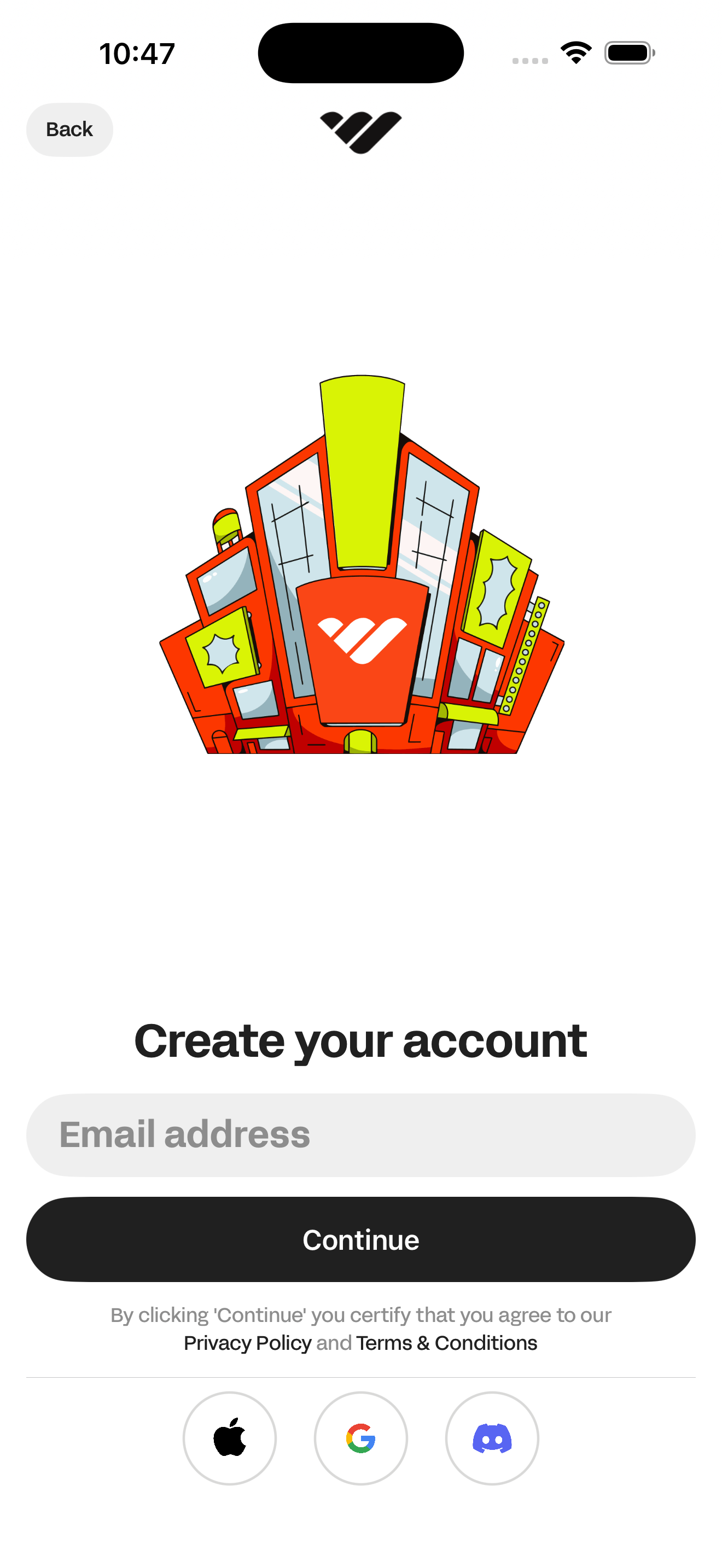
Whop Create your account — Email entry screen in Create a new Whop account flow
Create your account — Email entry
  1. Welcome — Where the internet does business
  2. Create your account — Email entry
04 Discover 4 screens

Join a public whop

Find a verified business on Discover and join its community.
Whop Home (empty feed) screen in Join a public whop flow
Home (empty feed)
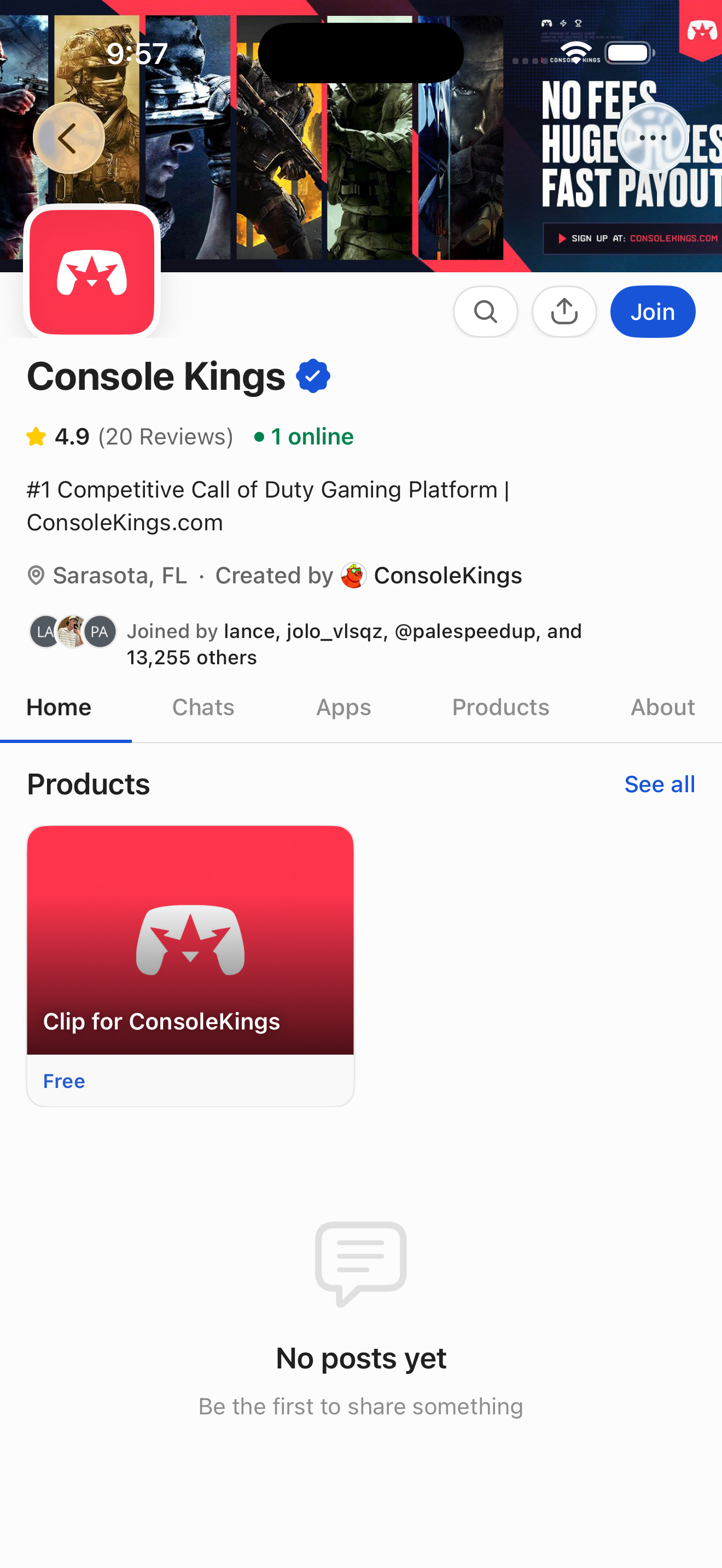
Whop Console Kings — public store page (visitor view) screen in Join a public whop flow
Console Kings — public store page (visitor view)
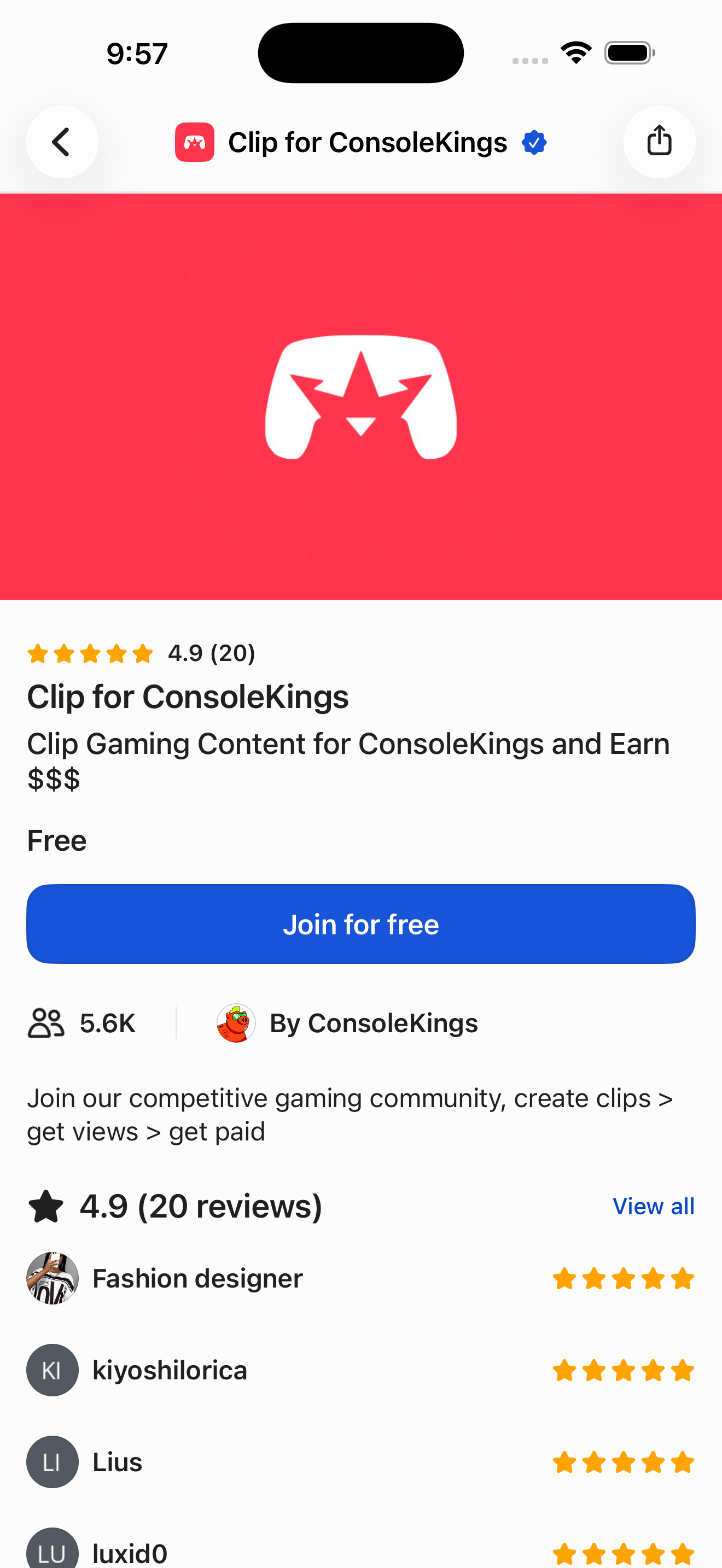
Whop Product detail — Clip for ConsoleKings screen in Join a public whop flow
Product detail — Clip for ConsoleKings
  1. Home (empty feed)
  2. Discover — browse Whops + search
  3. Console Kings — public store page (visitor view)
  4. Product detail — Clip for ConsoleKings
05 Discover 5 screens

Read product reviews before joining

Open a product page and drill into the full reviews sheet.
Whop Home (empty feed) screen in Read product reviews before joining flow
Home (empty feed)
Whop Console Kings — public store page (visitor view) screen in Read product reviews before joining flow
Console Kings — public store page (visitor view)
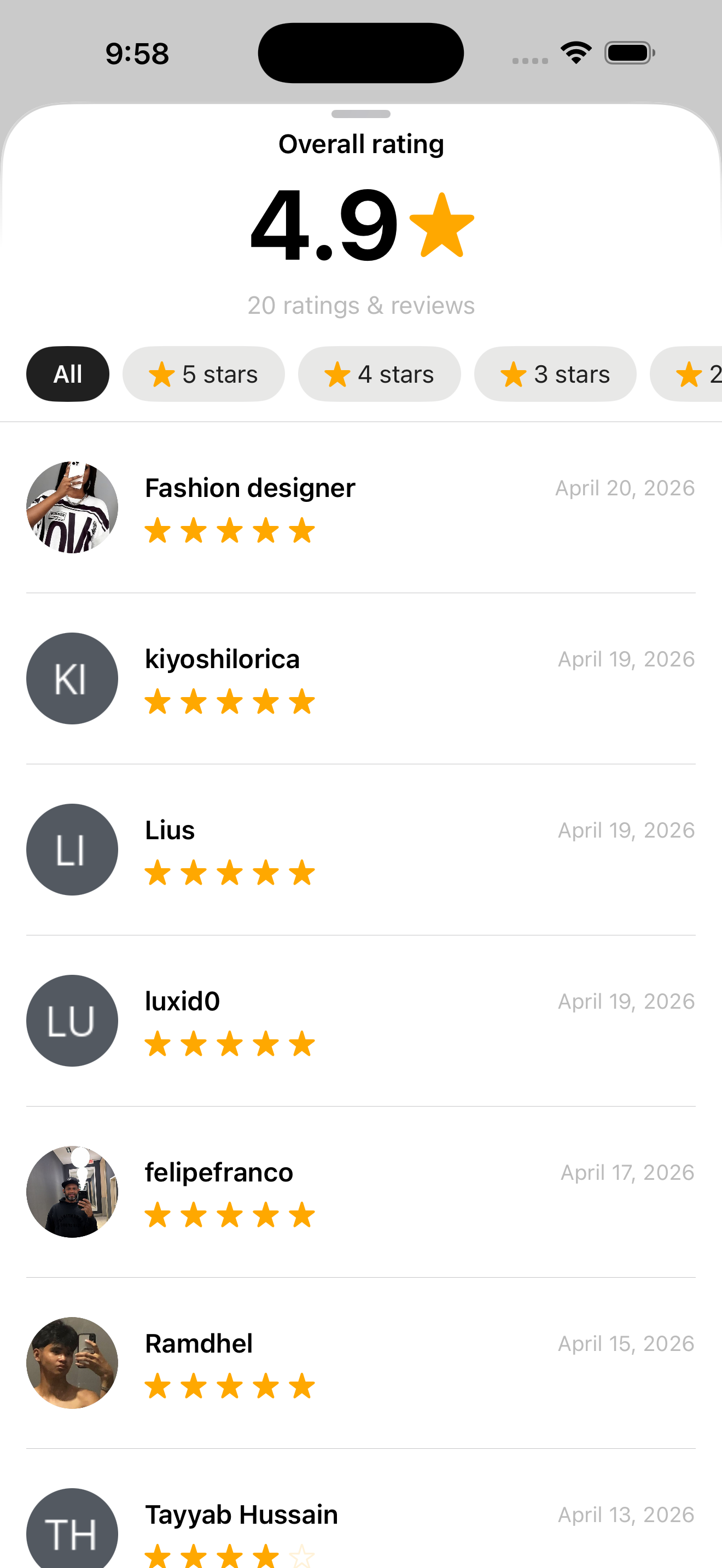
Whop Product reviews sheet (Overall rating + filters + list) screen in Read product reviews before joining flow
Product reviews sheet (Overall rating + filters + list)
  1. Home (empty feed)
  2. Discover — browse Whops + search
  3. Console Kings — public store page (visitor view)
  4. Product detail — Clip for ConsoleKings
  5. Product reviews sheet (Overall rating + filters + list)
06 Discover 4 screens

Browse bounty campaigns

From Discover, open Content Rewards and drill into a campaign.
Whop Home (empty feed) screen in Browse bounty campaigns flow
Home (empty feed)
Whop Content rewards (Bounties home feed) screen in Browse bounty campaigns flow
Content rewards (Bounties home feed)
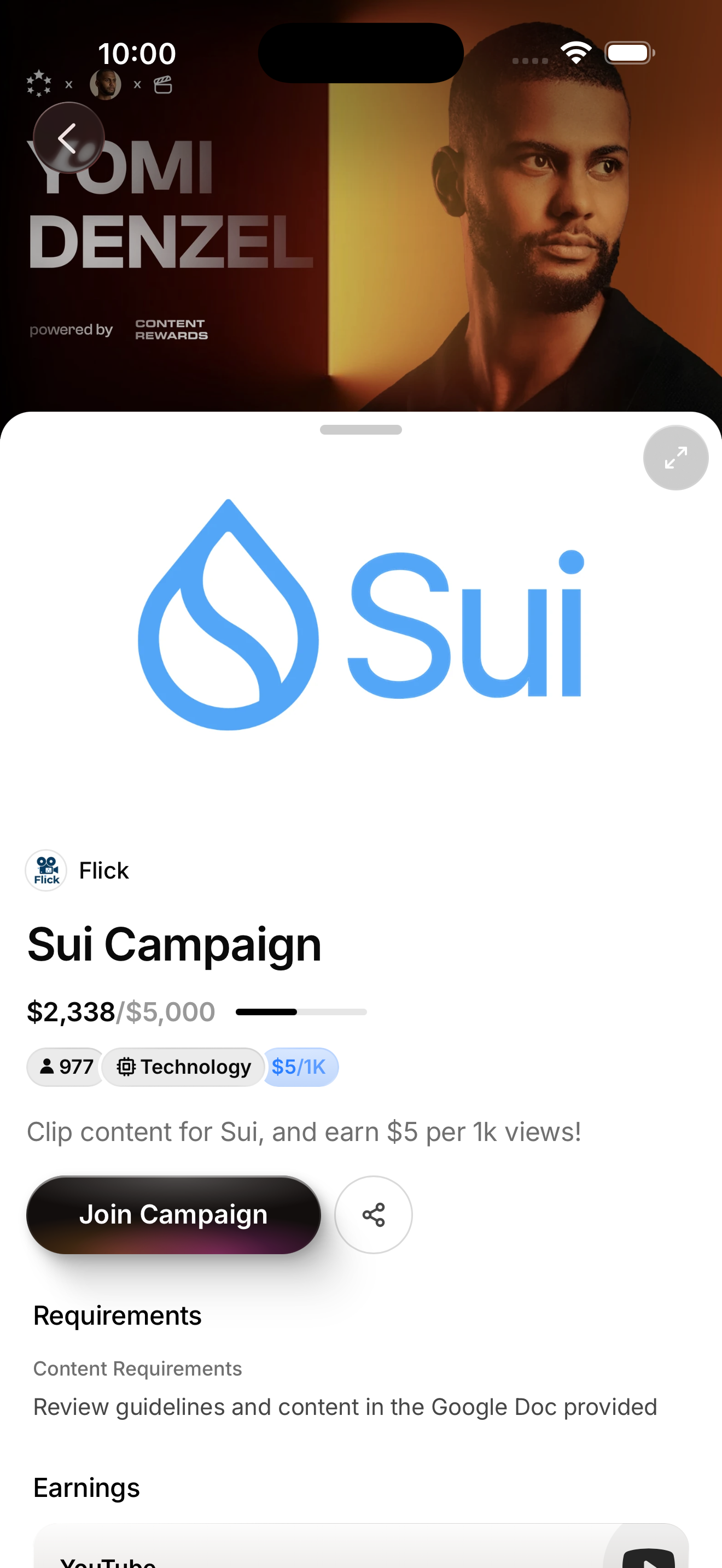
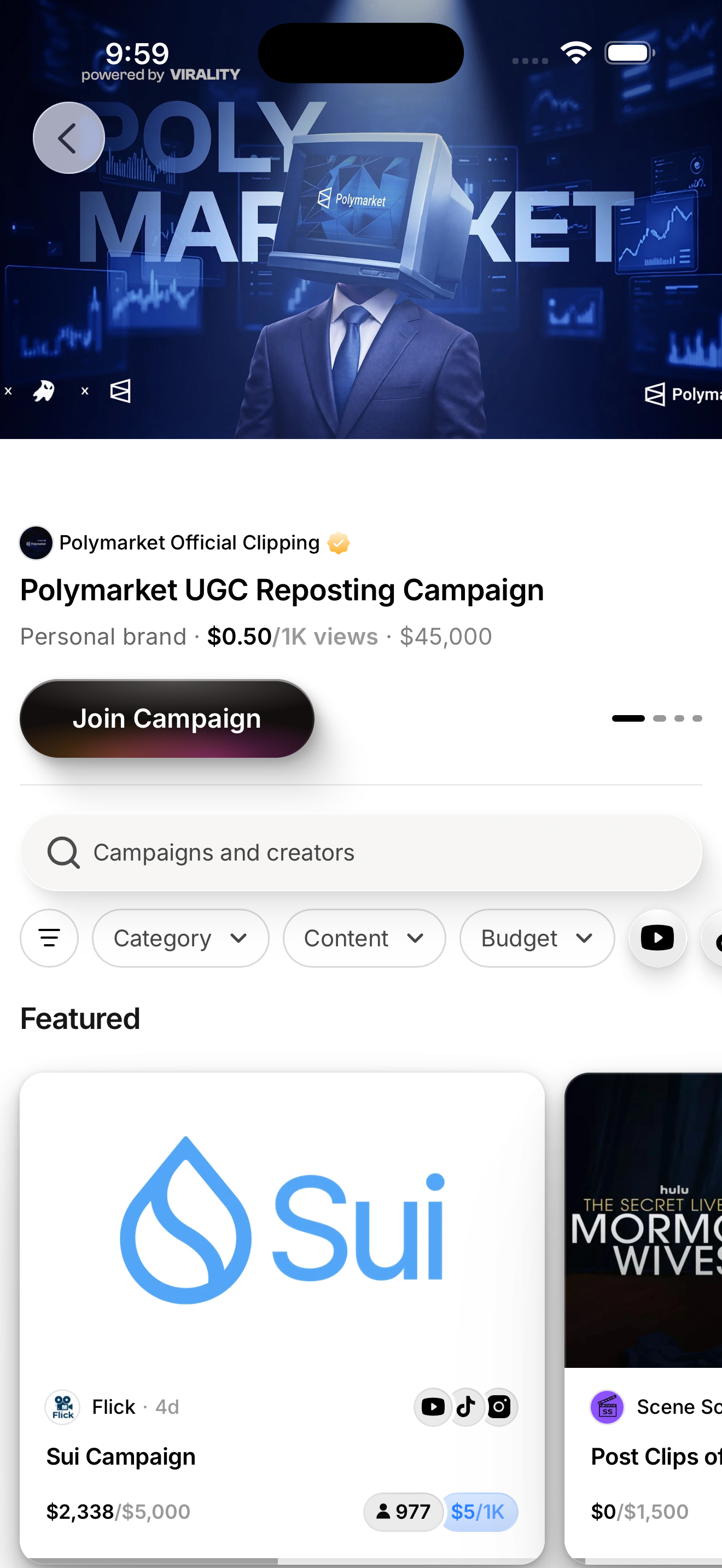
Whop Sui Campaign — bounty detail sheet screen in Browse bounty campaigns flow
Sui Campaign — bounty detail sheet
  1. Home (empty feed)
  2. Discover — browse Whops + search
  3. Content rewards (Bounties home feed)
  4. Sui Campaign — bounty detail sheet
07 Discover 3 screens

Search Whops

Active search on Discover with trending suggestions.
Whop Home (empty feed) screen in Search Whops flow
Home (empty feed)
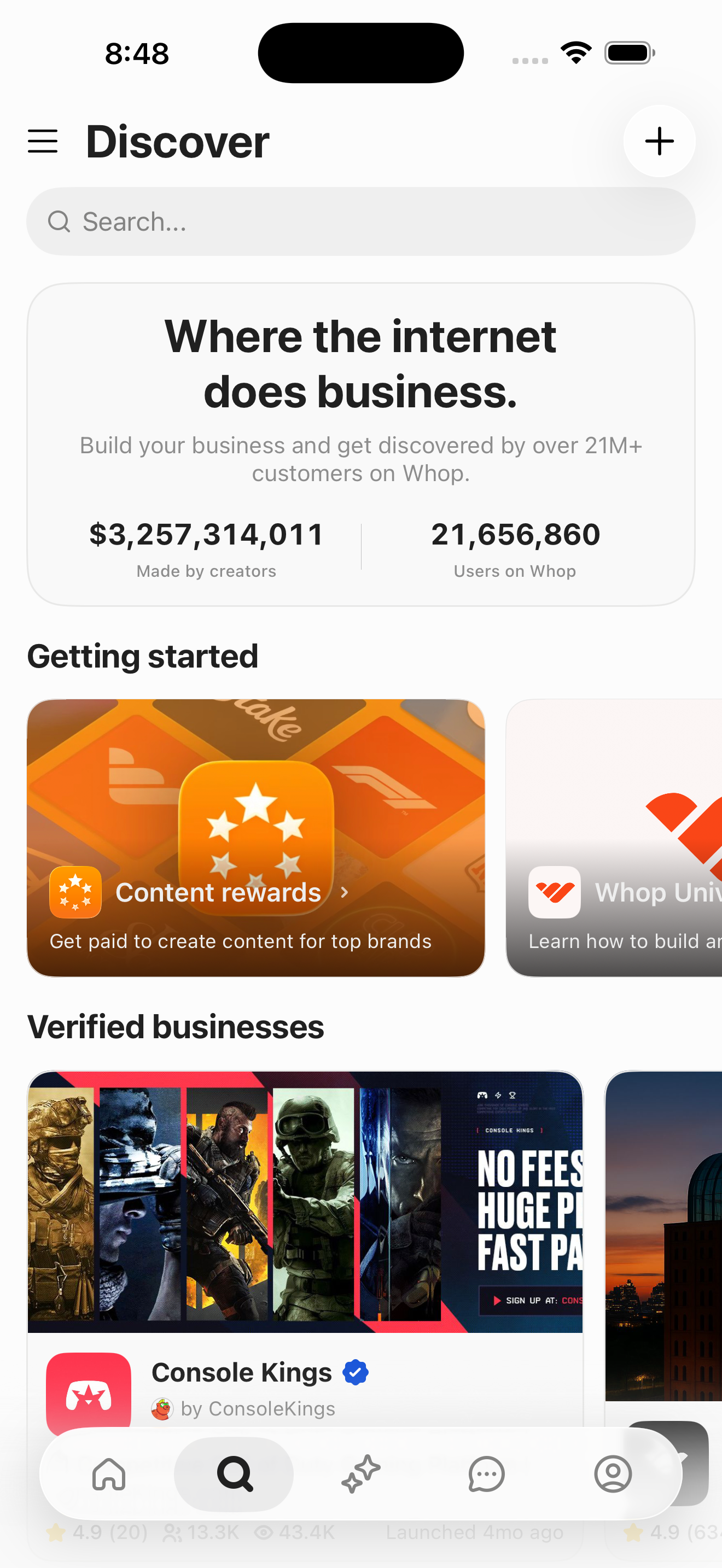
Whop Discover — browse Whops + search screen in Search Whops flow
Discover — browse Whops + search
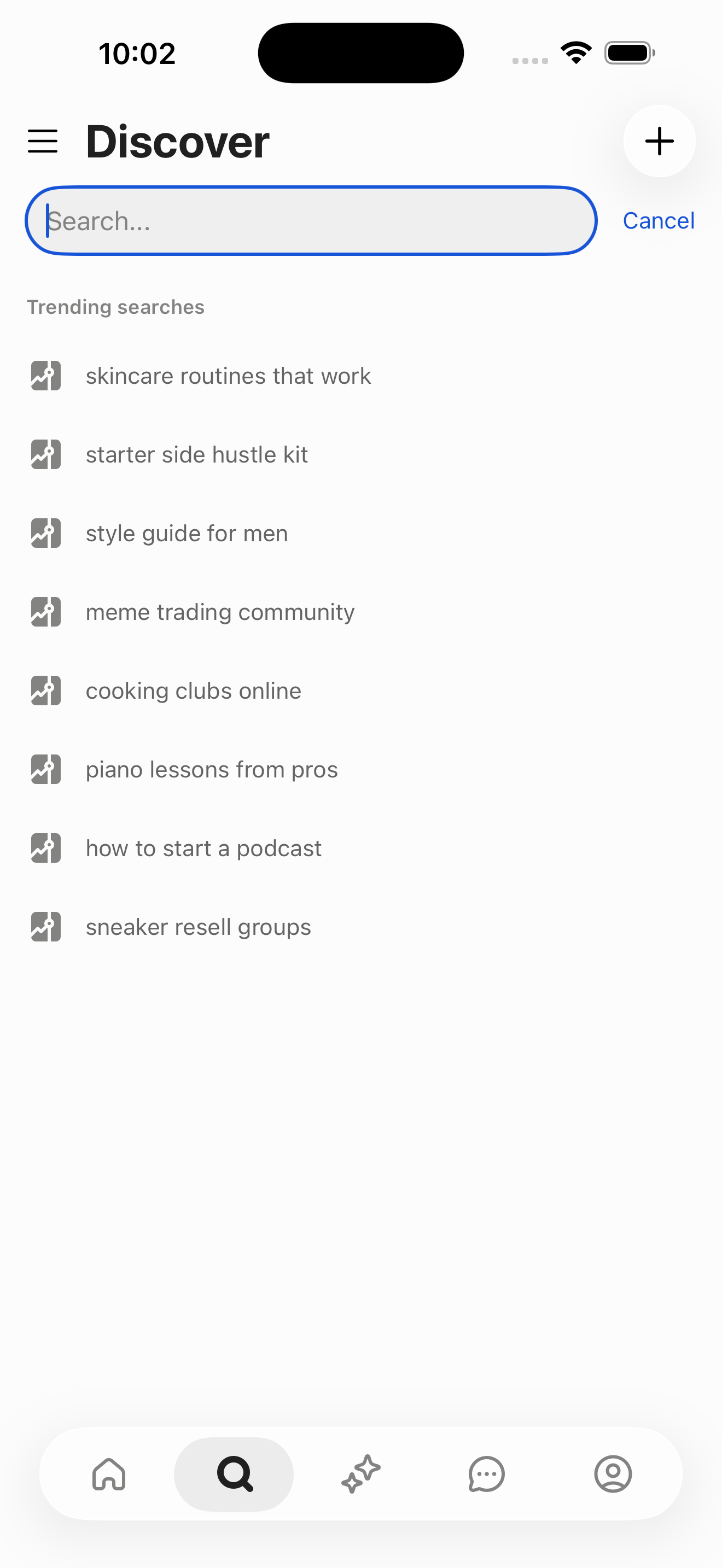
Whop Discover Search — active (trending suggestions) screen in Search Whops flow
Discover Search — active (trending suggestions)
  1. Home (empty feed)
  2. Discover — browse Whops + search
  3. Discover Search — active (trending suggestions)
08 Community 5 screens

Read a post with replies

Navigate from Joined whops into Whop AI and open a poll-post thread.
Whop Home (empty feed) screen in Read a post with replies flow
Home (empty feed)
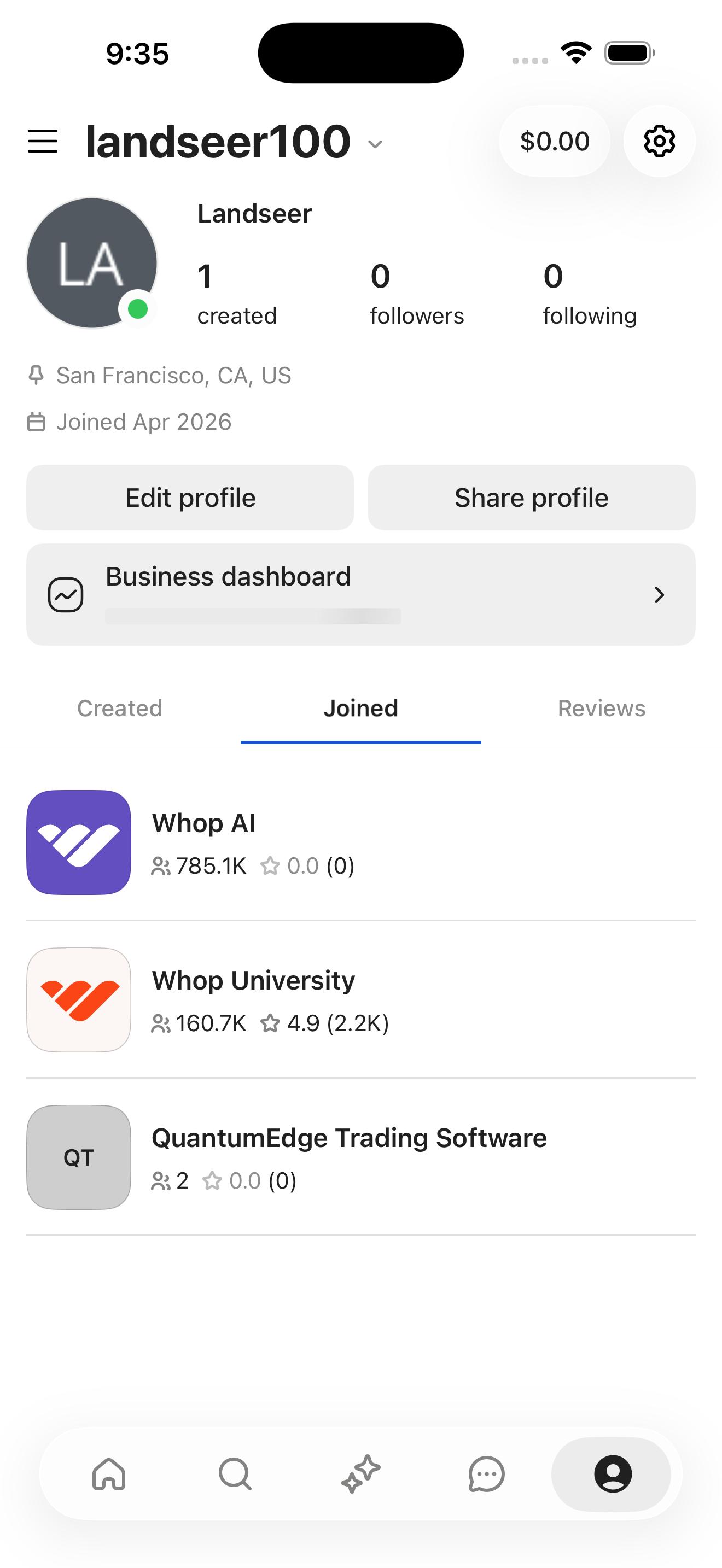
Whop Profile — Joined whops screen in Read a post with replies flow
Profile — Joined whops
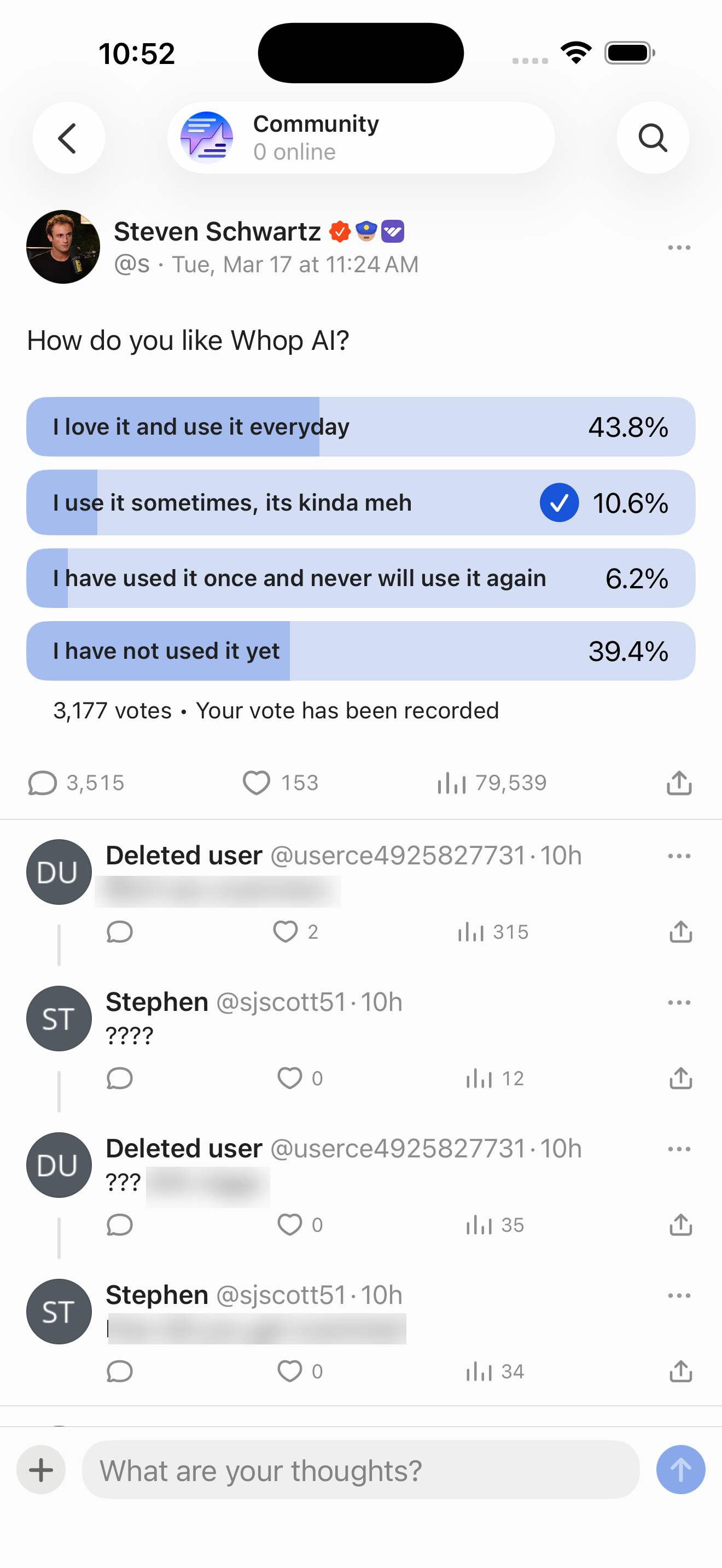
Whop Post detail — threaded replies (Community view) screen in Read a post with replies flow
Post detail — threaded replies (Community view)
  1. Home (empty feed)
  2. Profile — landseer100
  3. Profile — Joined whops
  4. Whop AI — Home tab (dark theme + poll post)
  5. Post detail — threaded replies (Community view)

Screen inventory

High-density screens in the Whop app

UI inventory

Interface elements found by Atlas

356button144icon144list item84tab63text56input43link33card

Related maps

More mobile app screen maps