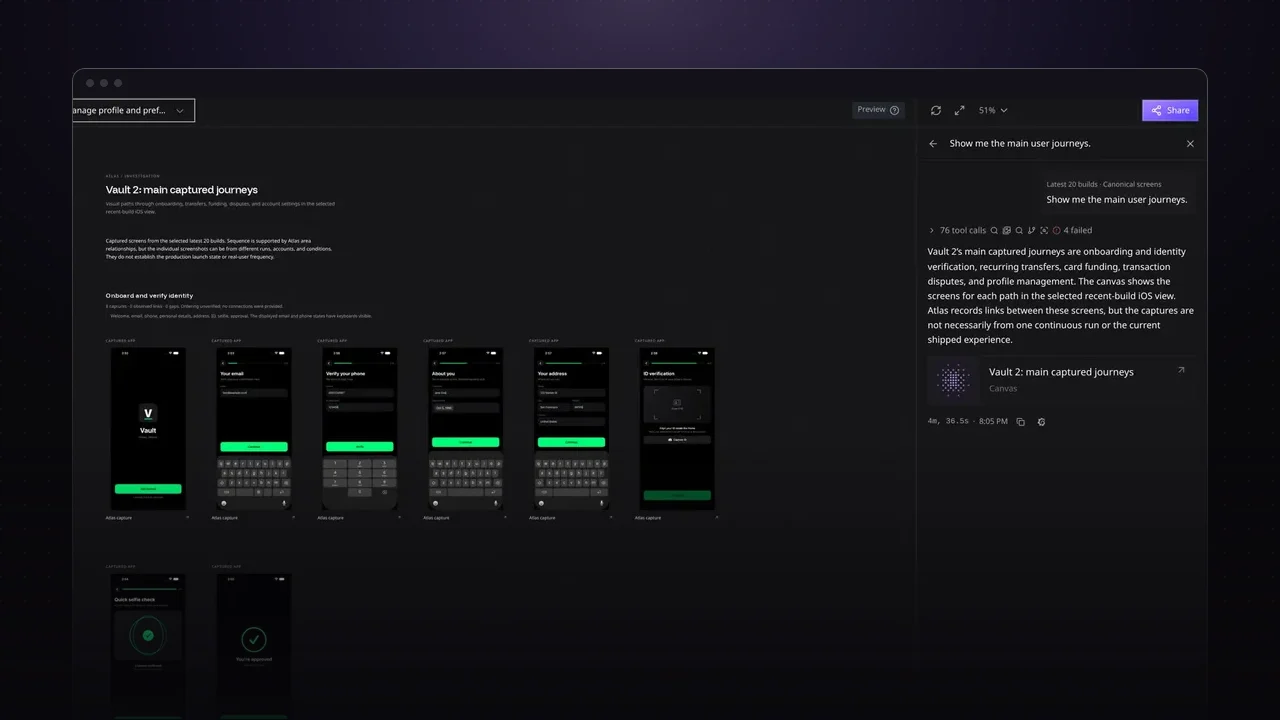
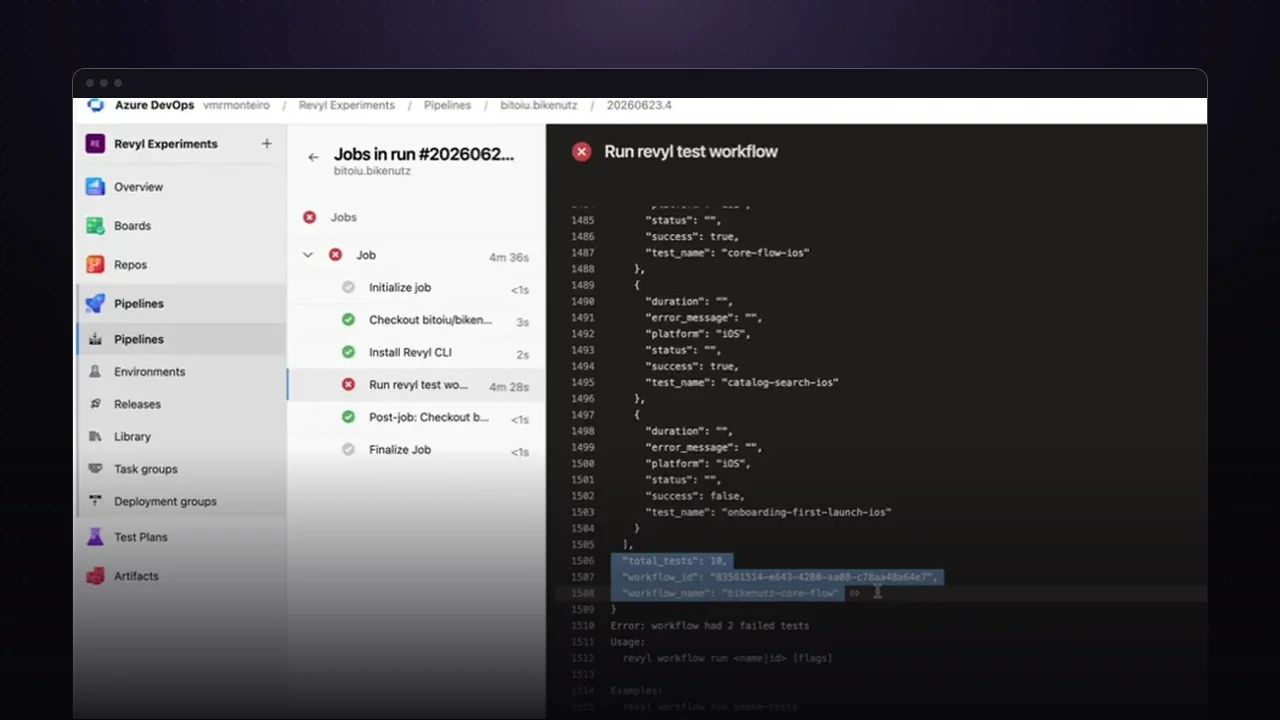
Atlas is a living map of your mobile app. It’s built from what agents actually see on real devices, so you get every screen, how the screens connect, and how all of that changes from build to build. This walkthrough covers the map itself, how explorations keep it current, and how a coding agent can use it through the Revyl CLI.
See how your app fits together
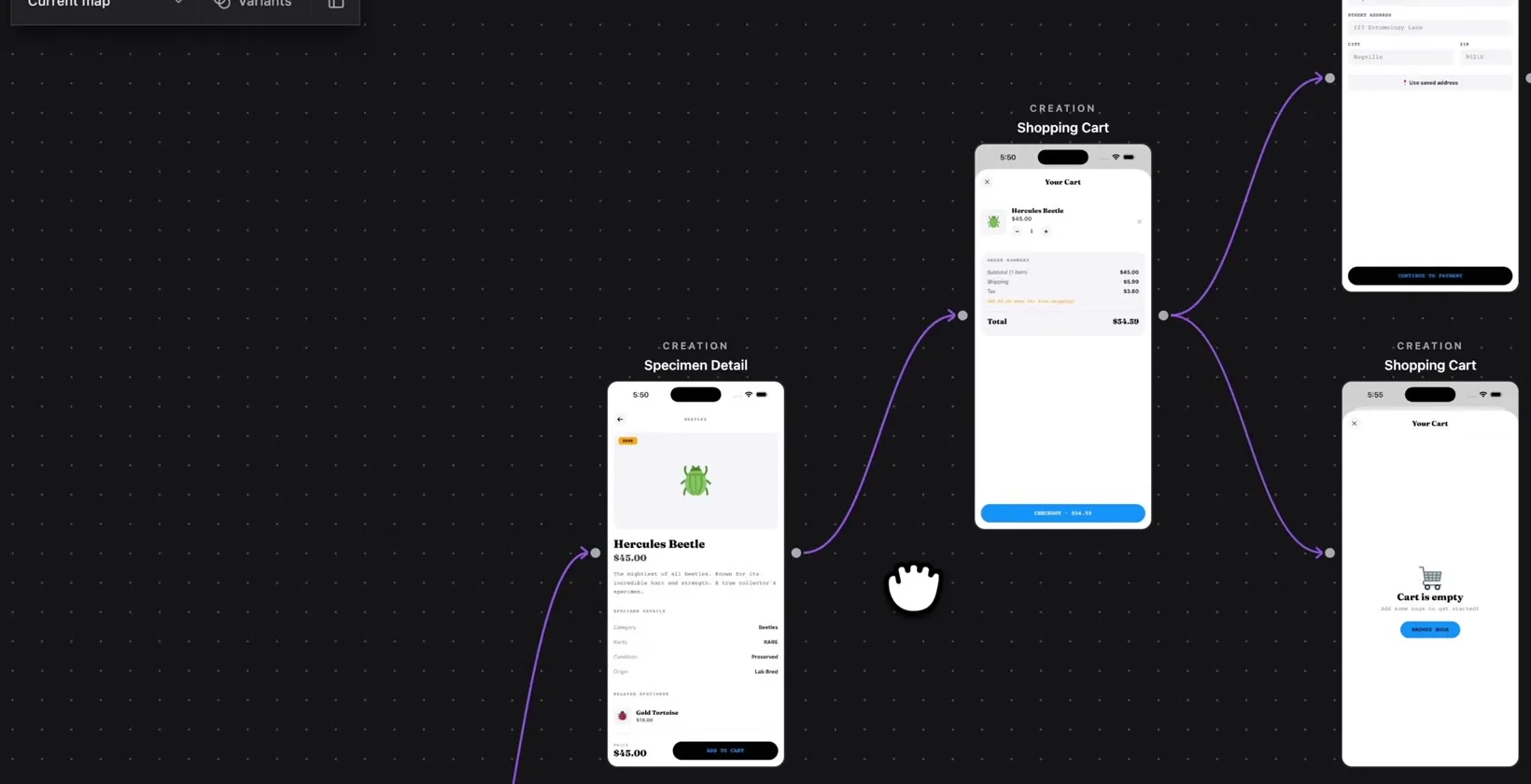
The map lays out each screen and the transitions between them, like a checkout that runs from the cart through shipping, payment, and order review. Click a screen to see every time it was observed and its variants, such as the sign-in screen with the keyboard open. Graph, grid, and flow views show the same app for engineers, designers, and product, and comments mode lets anyone pin feedback to a screen.
Keep it current with explorations
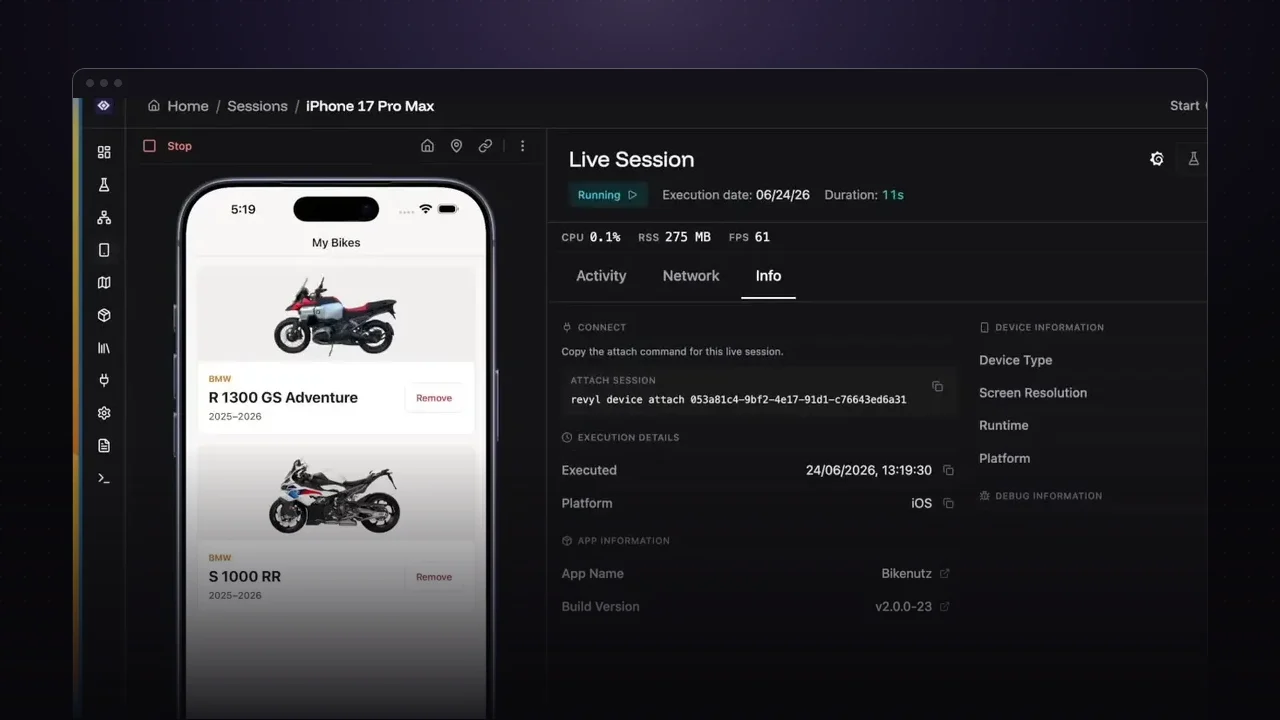
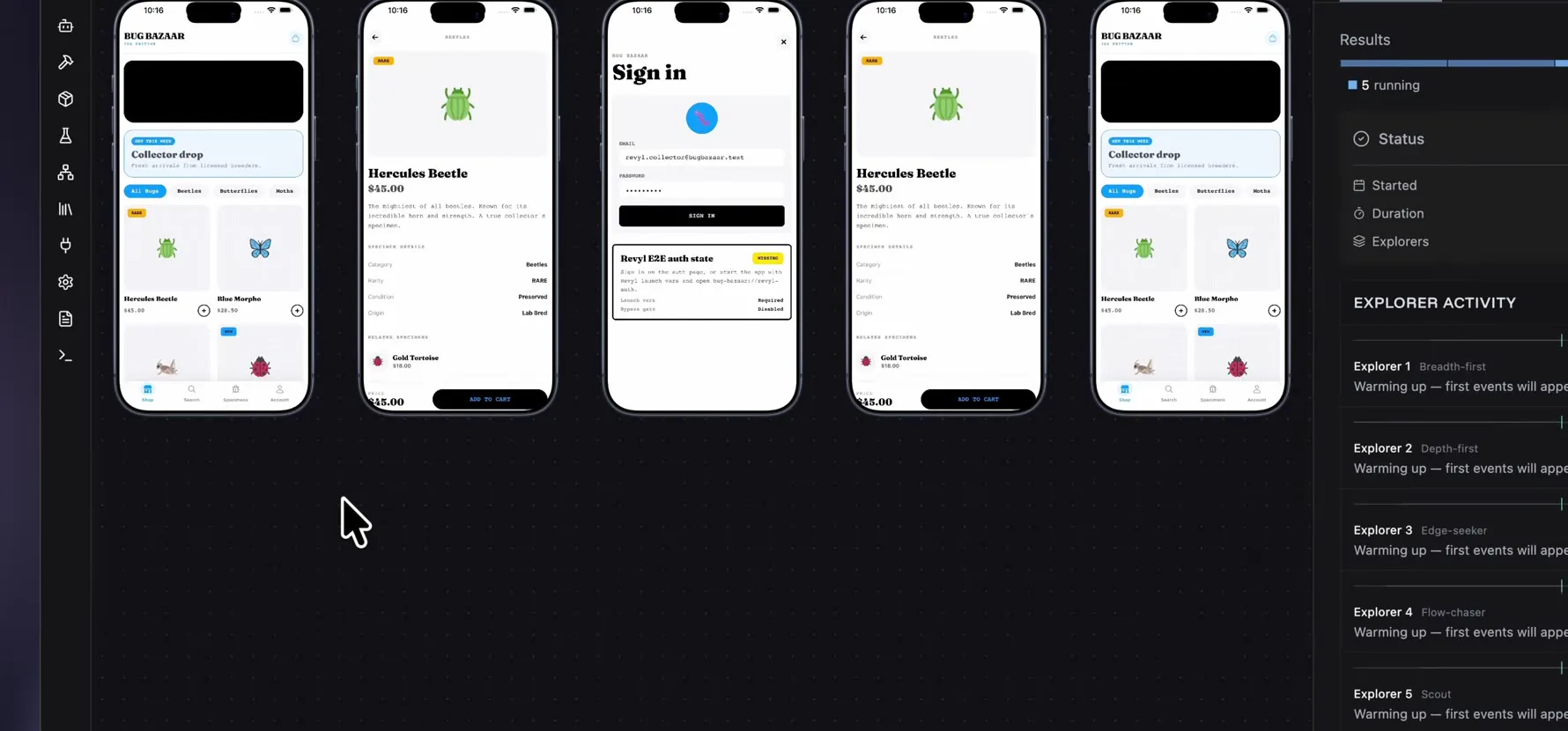
Explorations are agents that drive Revyl phones through your app to map it. Start a few on a new build, for example before a release, and when they finish everything they saw goes into Atlas. Any screen also links back to the session it was captured in.
Compare iOS and Android from the CLI
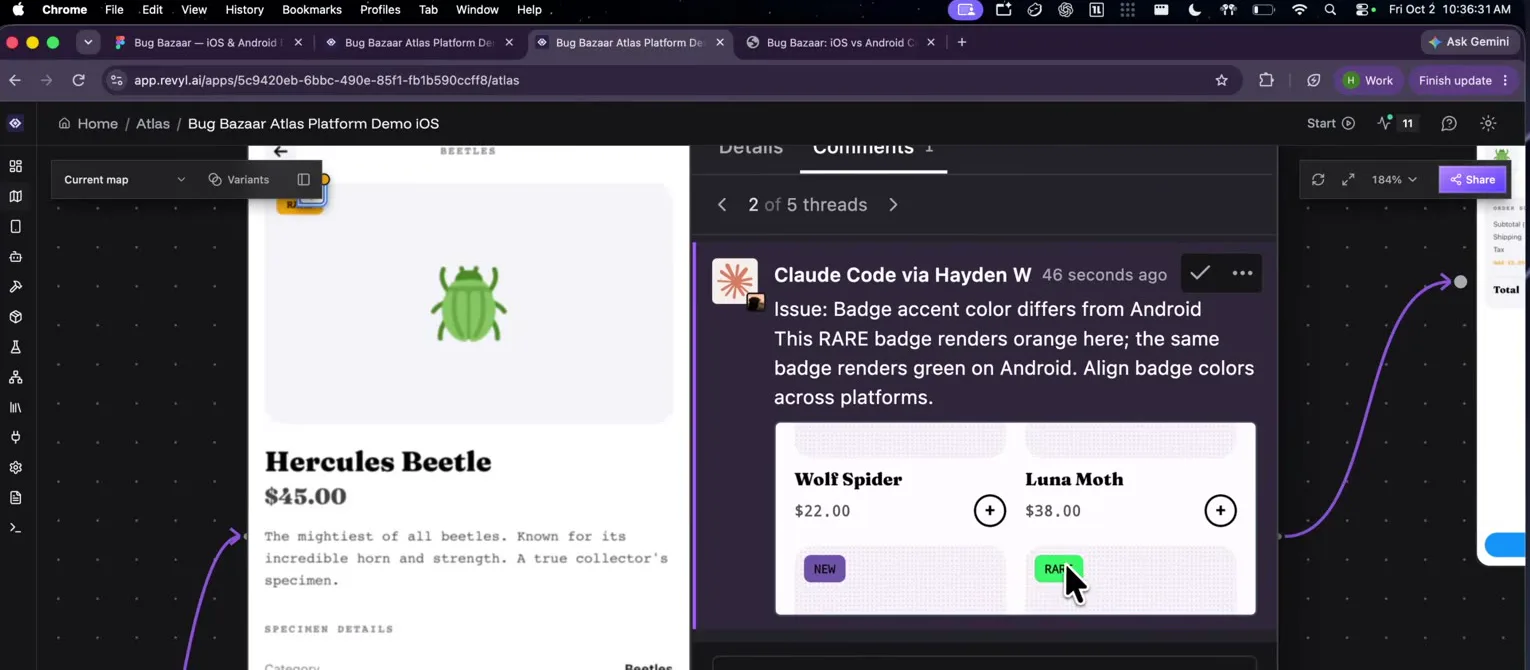
With the Revyl CLI installed, you can ask a coding agent like Claude Code to compare the Android and iOS versions of your app. In the video, Claude reads both Atlases and leaves comments on the screens where the platforms drift, such as a RARE badge that renders orange on iOS and green on Android.
Check the build against Figma
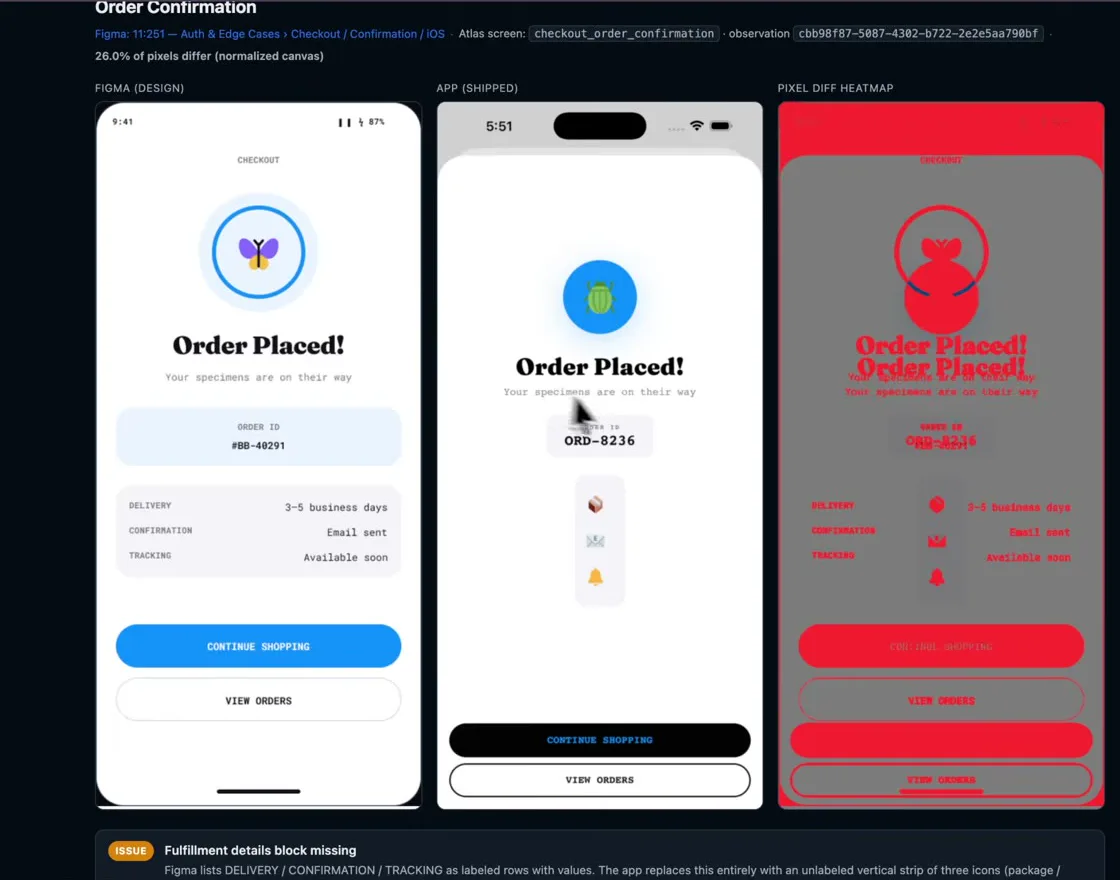
Give the agent a Figma link and ask it to look for drift. It compares the design frames with the captured screens, writes a local report with a pixel diff for each one, and adds blocking issues to Atlas as comments.
Try it on your app
- Upload a build to Revyl and run an exploration to map it.
- Open Atlas and browse the map, flows, and screen details.
- Install the Revyl CLI and ask your coding agent to compare platforms or a Figma file against your Atlas.