01
Explore: Logged Out (Home tab)
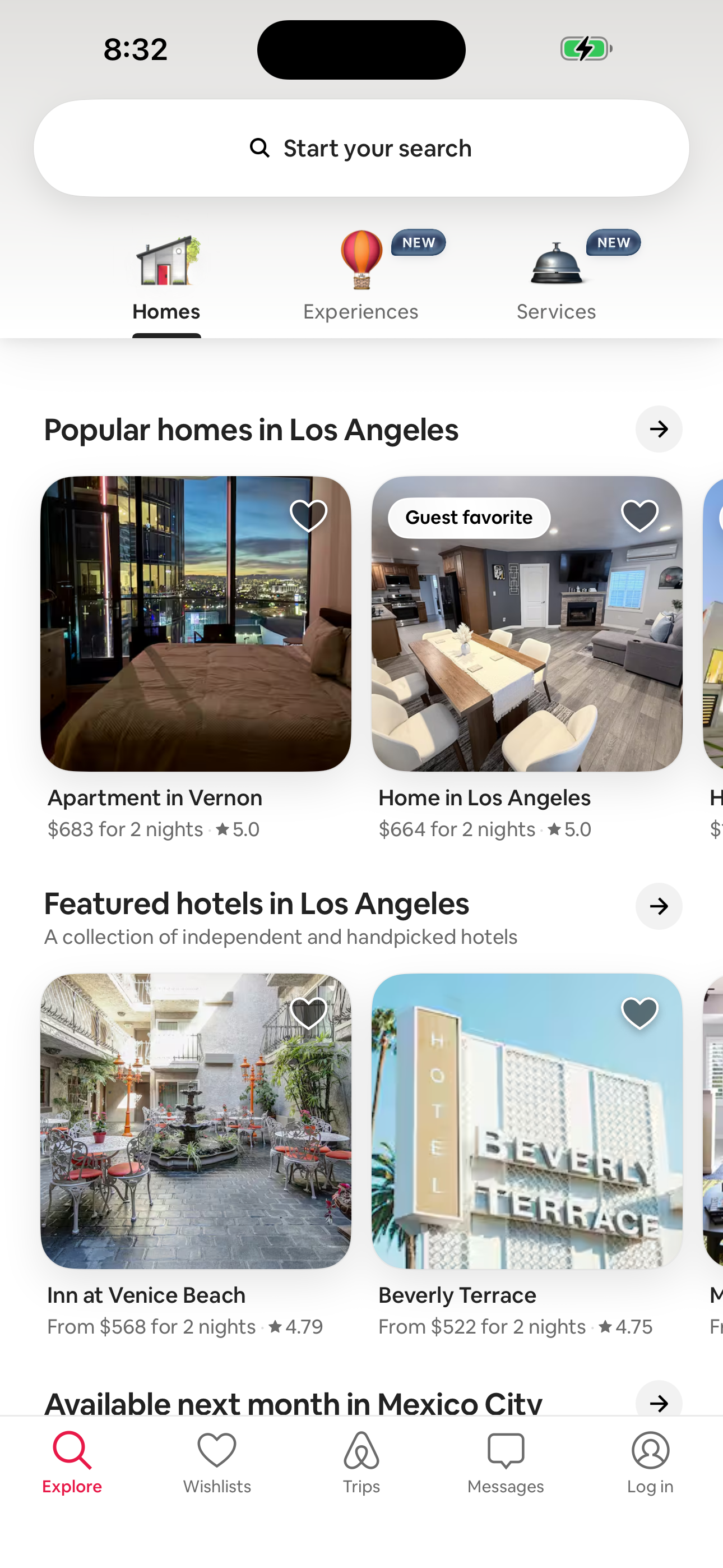
Step 1 in the Airbnb Explore: Logged Out (Home tab) to Log in or sign up: bottom sheet flow. Atlas detected 17 UI elements on this screen.
 Revyl
Revyl Revyl Atlas flow
Airbnb's explore: logged out (home tab) to log in or sign up: bottom sheet flow moves users from Explore: Logged Out (Home tab) to Log in or sign up: bottom sheet across 3 mapped iOS app screens. Use this path for mobile UX teardown work, QA coverage planning, and AI agent navigation context.
Research notes
Screen path
This page is a crawlable breakdown of one real mobile journey. The screenshots, step labels, and element counts make the Airbnb Explore: Logged Out (Home tab) to Log in or sign up: bottom sheet path easier to compare against competing apps, reproduce during QA planning, and reuse as structured navigation context for app automation.
Step 1 in the Airbnb Explore: Logged Out (Home tab) to Log in or sign up: bottom sheet flow. Atlas detected 17 UI elements on this screen.
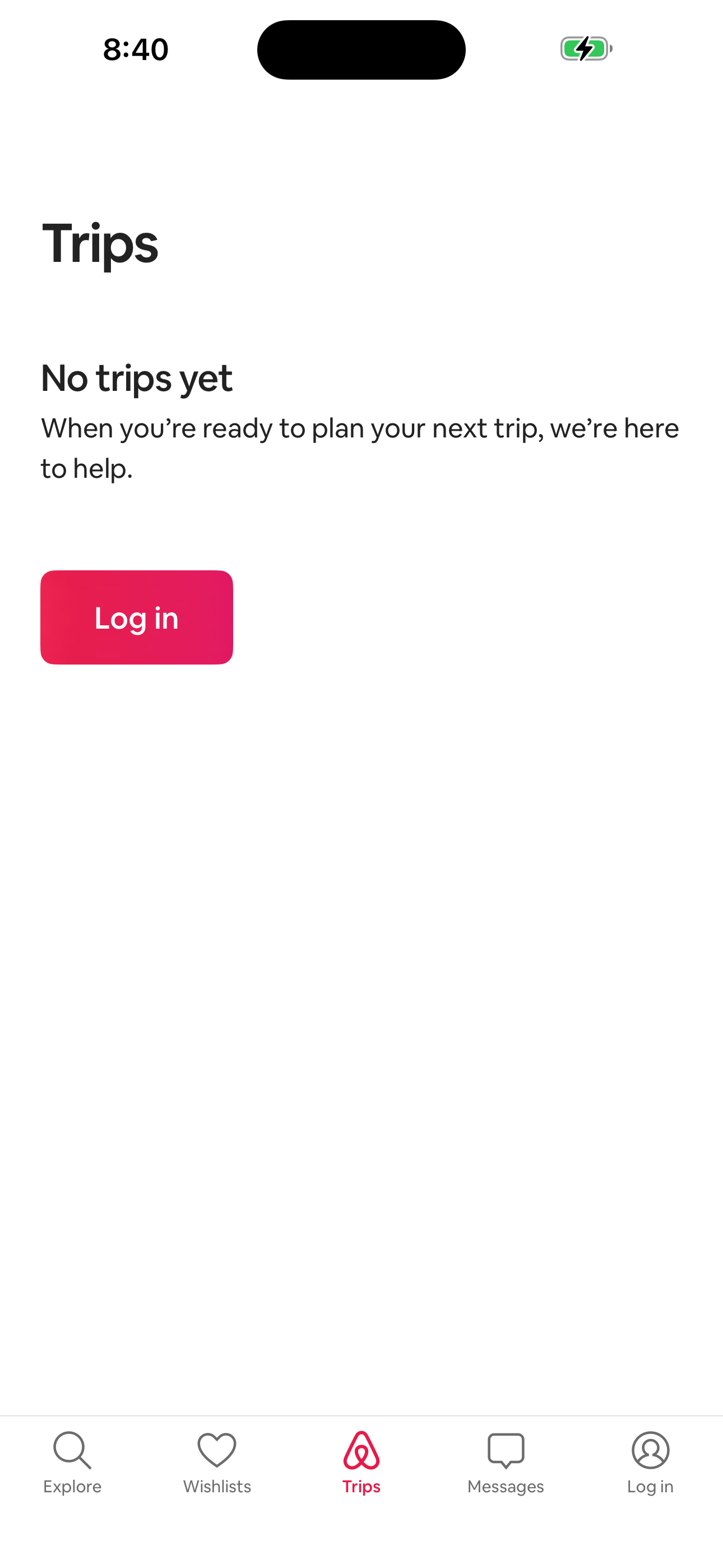
Step 2 in the Airbnb Explore: Logged Out (Home tab) to Log in or sign up: bottom sheet flow. Atlas detected 6 UI elements on this screen.
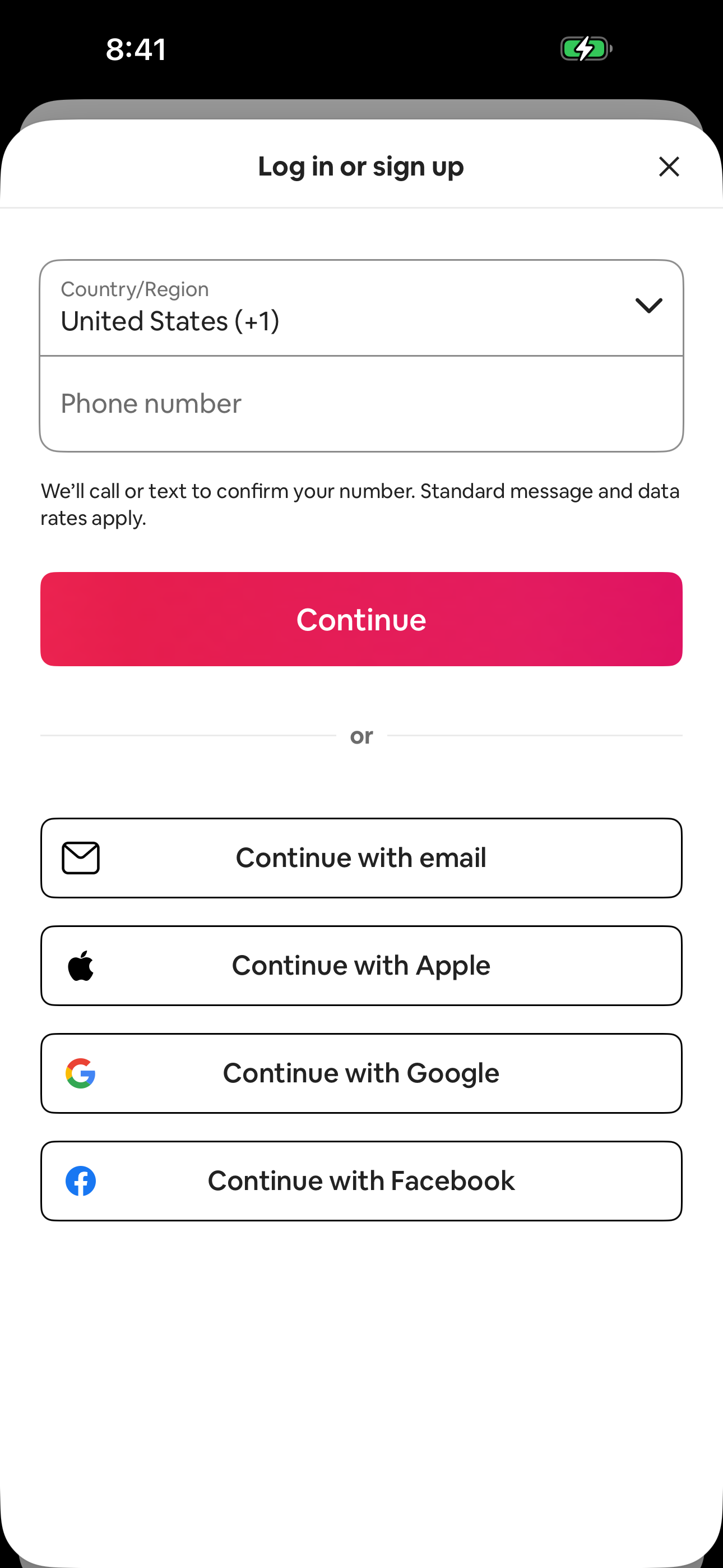
Step 3 in the Airbnb Explore: Logged Out (Home tab) to Log in or sign up: bottom sheet flow. Atlas detected 8 UI elements on this screen.
How to use it
Related flows