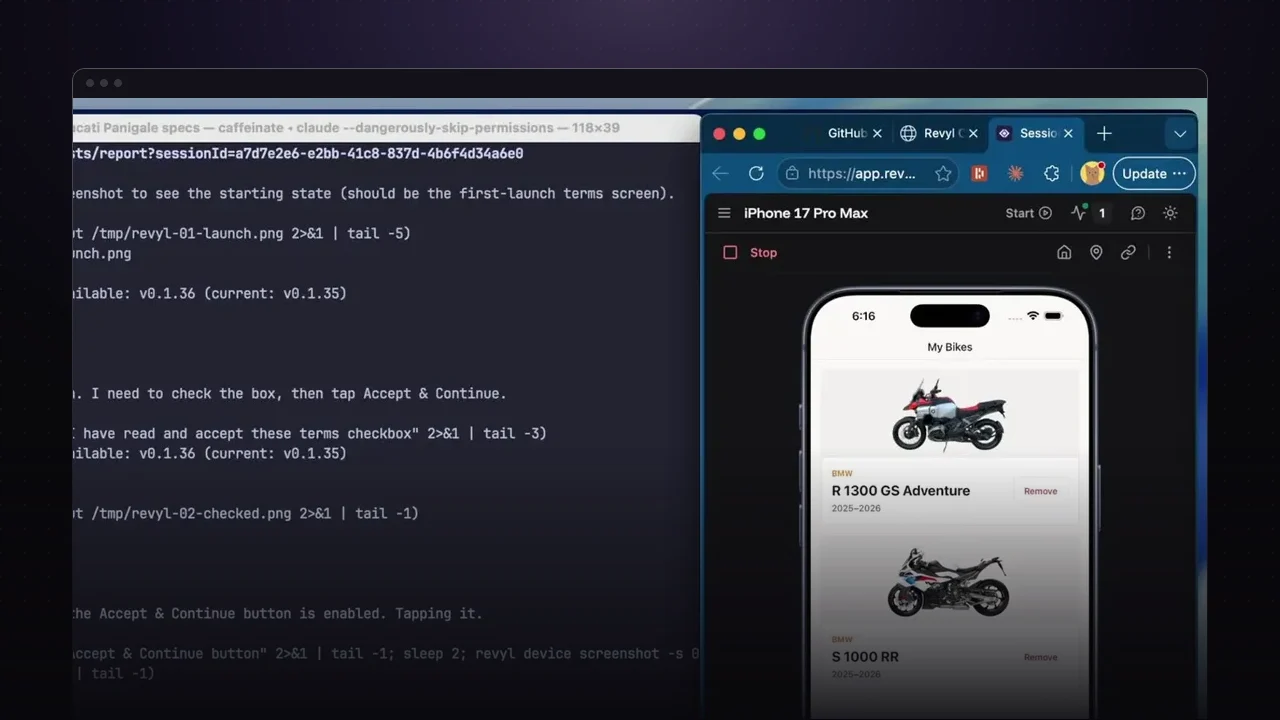
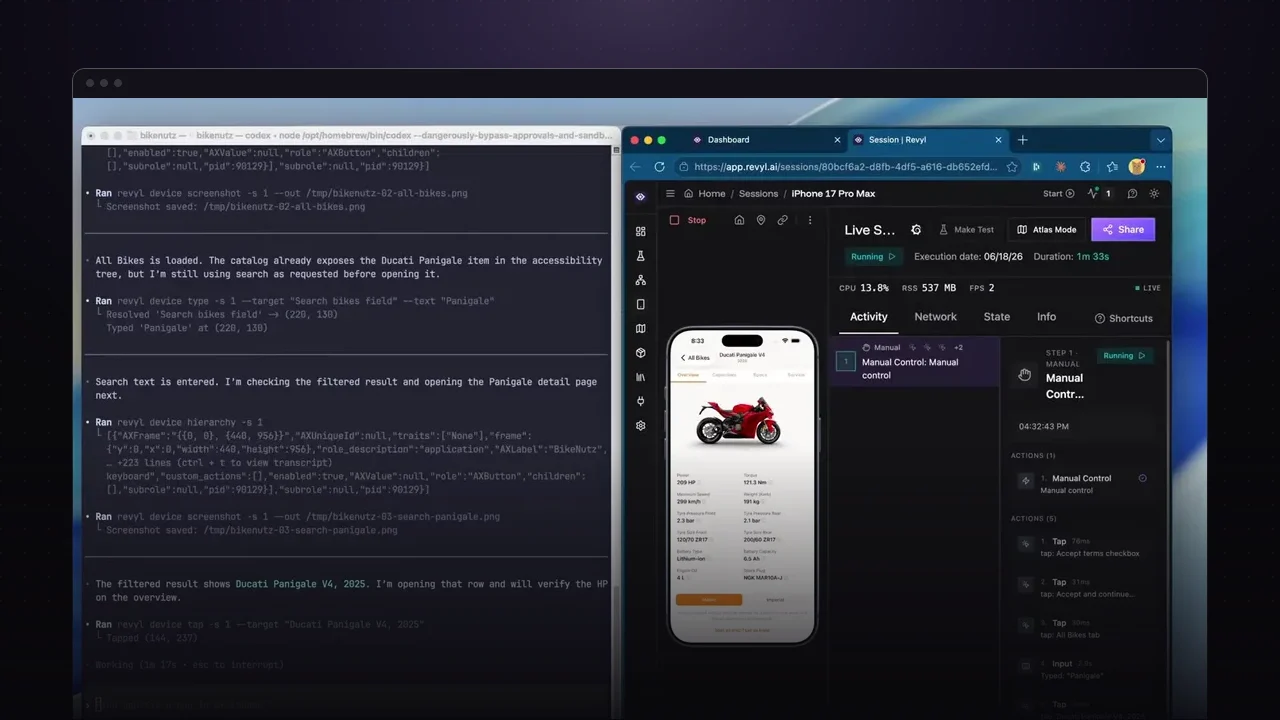
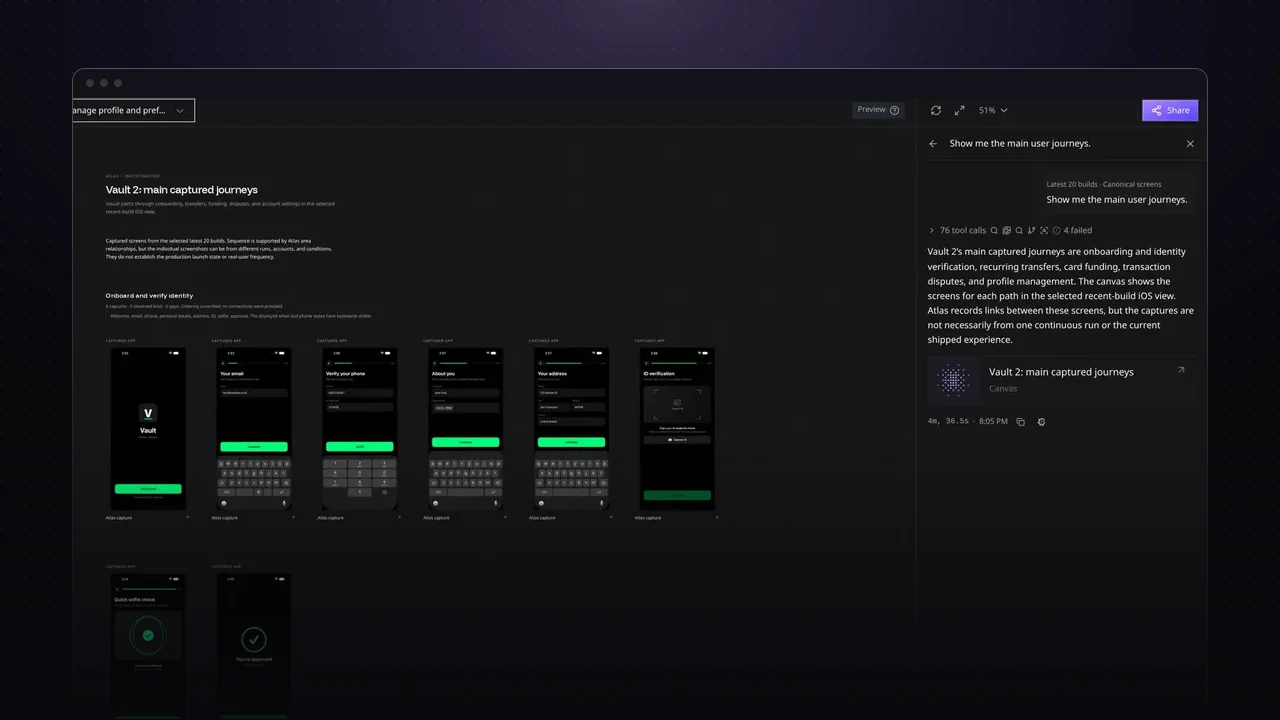
Grok Build can work with Revyl’s cloud runtimes once you add Revyl as a custom connector. That one connection gives Grok iOS and Android devices as well as macOS and Linux sandboxes, all aggregated in Revyl’s runtime ontology layer, with horizontally scaled Mac infrastructure behind them. The results don’t come back as walls of text: the Atlas map and live devices open right inside the chat.
Add Revyl as a custom connector
Go to grok.com/connectors, click New Connector, and choose Custom. Enter Revyl’s MCP server URL, then sign in to Revyl and pick the organization Grok should use when it asks.
https://backend.revyl.ai/api/v1/mcpRevyl then shows up under Plugins in the Grok sidebar, and any chat can call it.
Open your app’s Atlas map
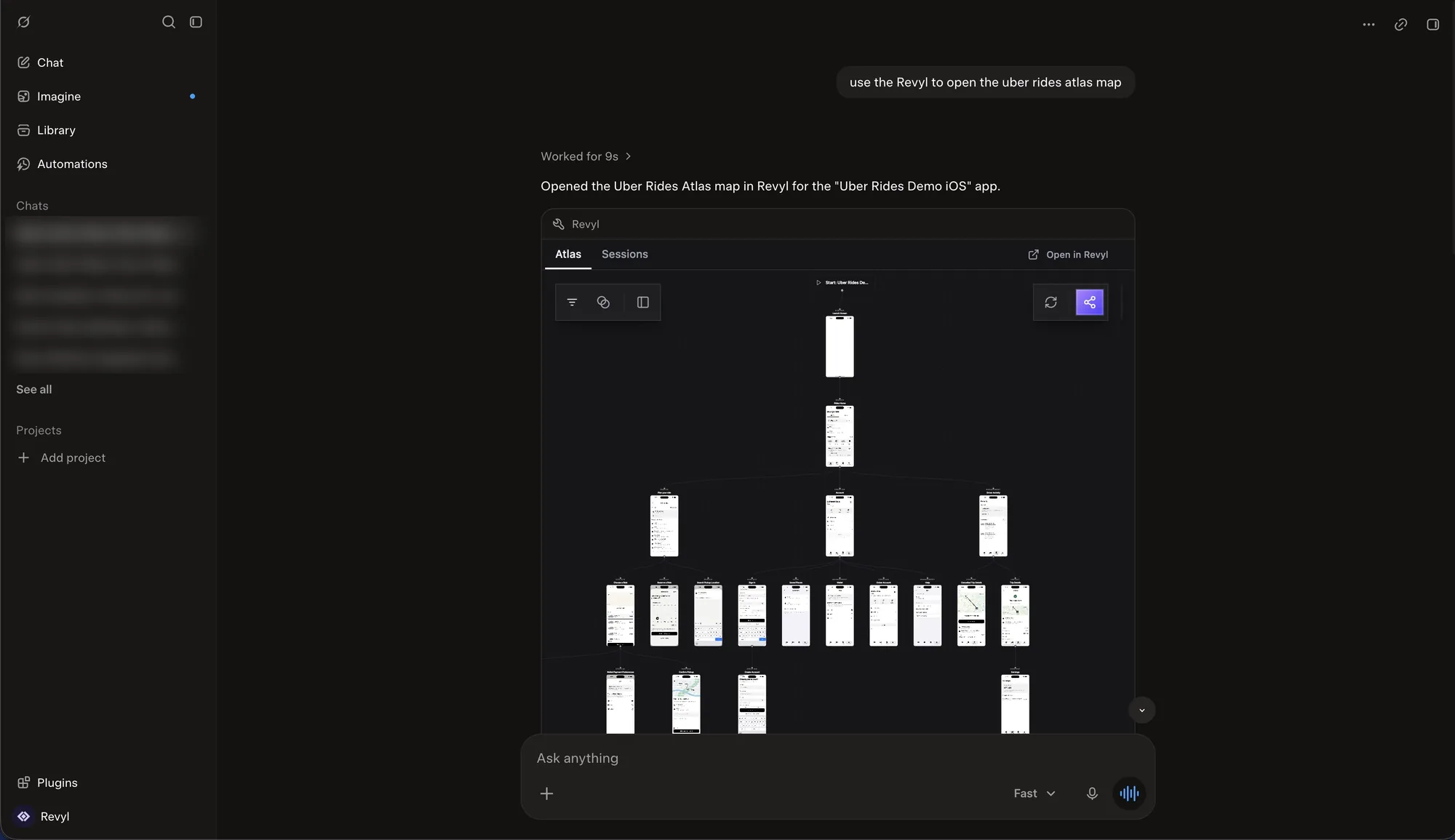
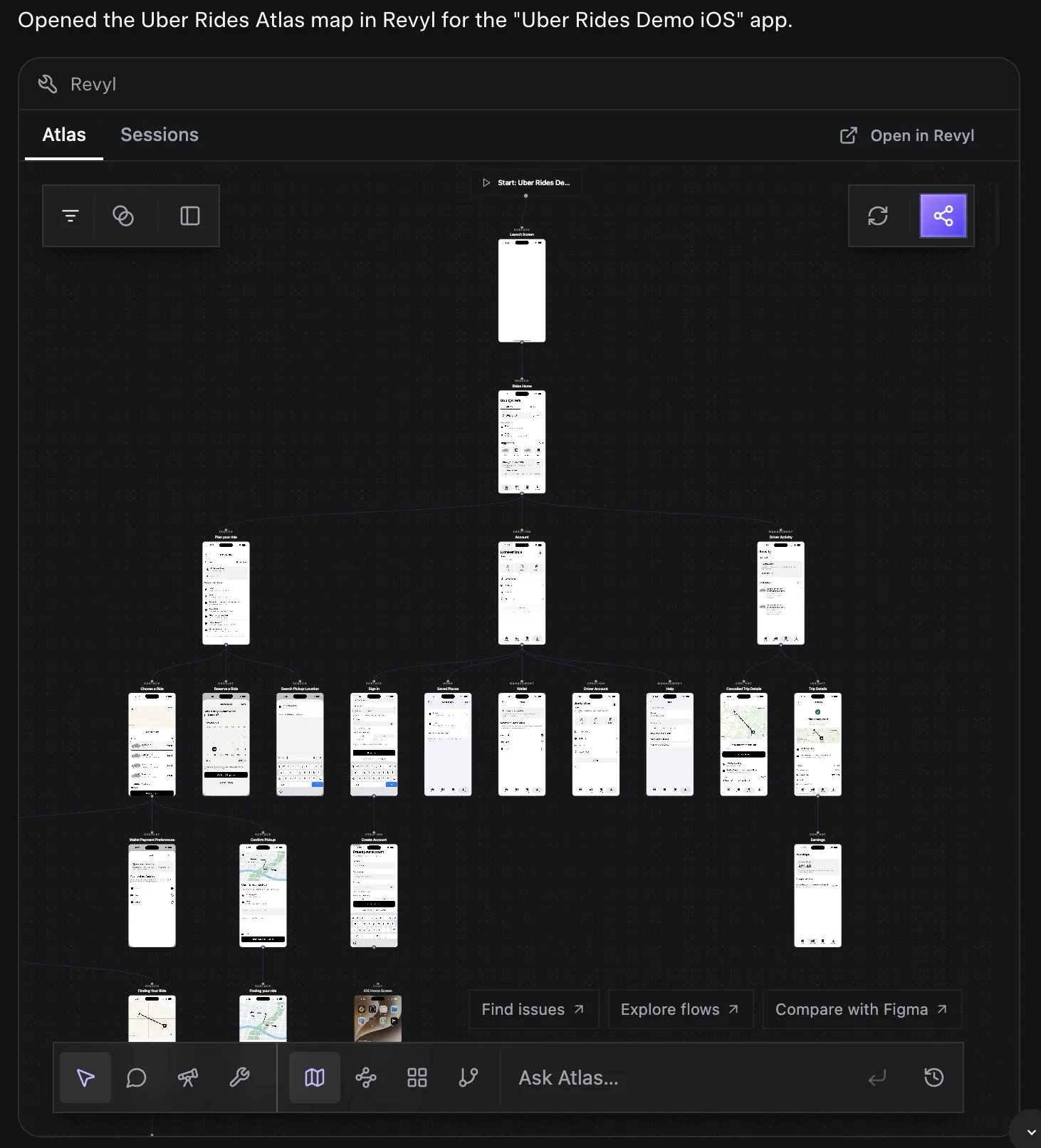
The Atlas map is the easiest way to digest everything those runtimes capture. Ask “Use Revyl to open the Uber Rides Atlas map.” Grok finds the app and embeds its map in the answer, with Atlas and Sessions tabs, an Open in Revyl link, and the same Find issues, Explore flows, and Compare with Figma actions you get in Revyl.
Spin up a live device
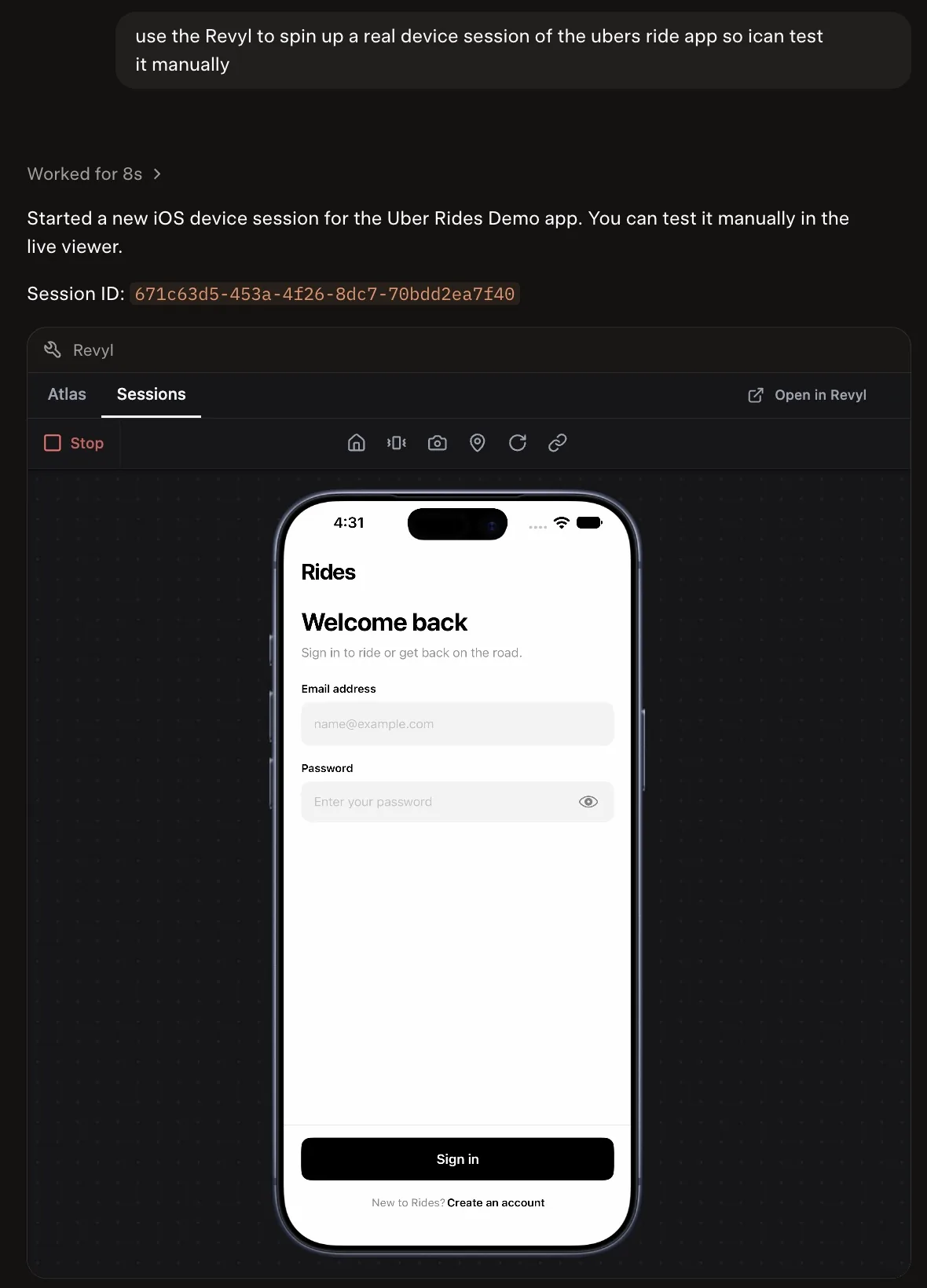
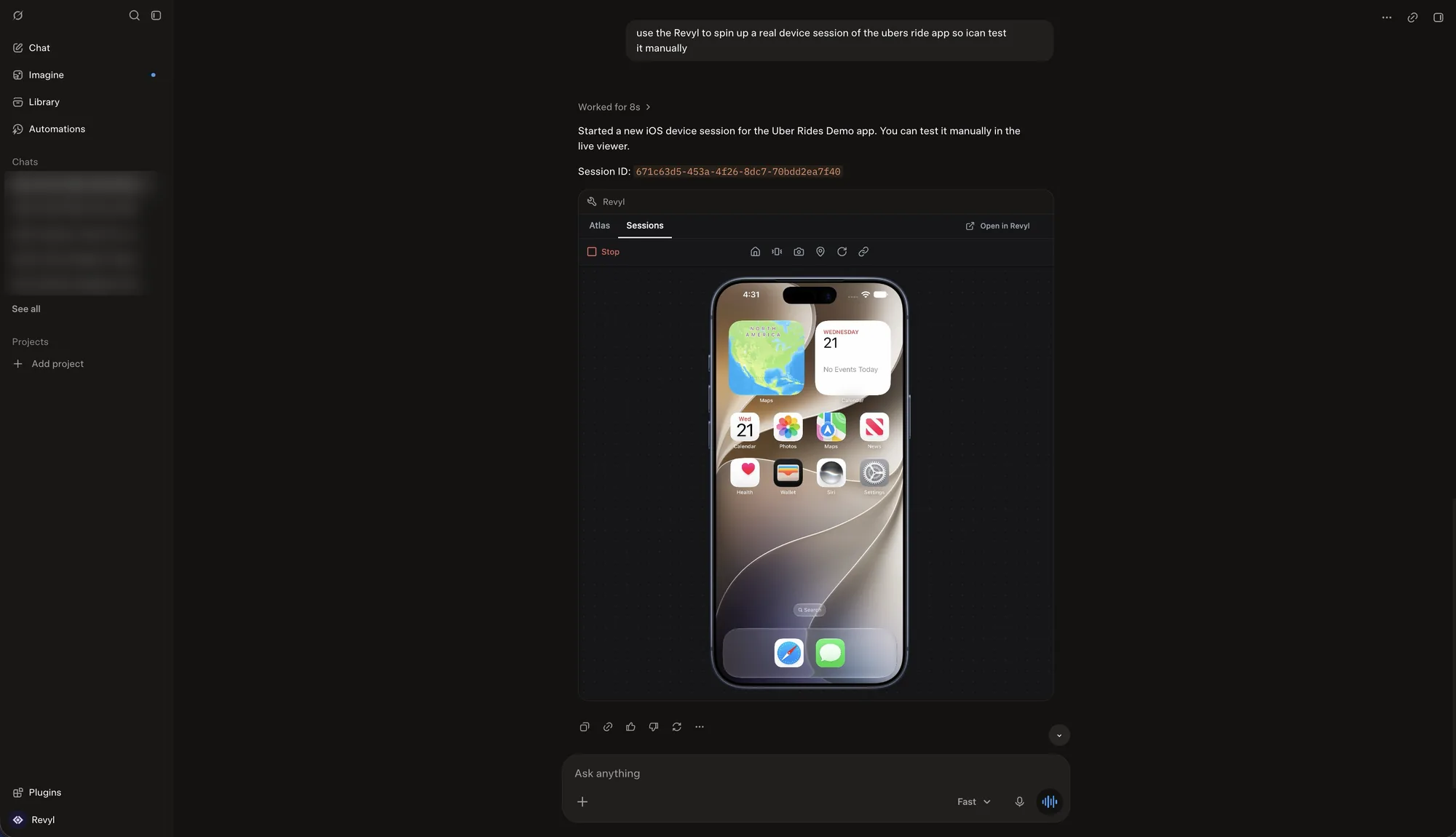
Ask “Use Revyl to spin up a real device session of the Uber Rides app so I can test it manually.” Grok starts a cloud iOS device with the app installed, gives you the session ID, and embeds the live screen in the Sessions tab.
Test by hand or with an agent
The embed is the device itself, so you can click through the app right there, or keep asking Grok to work with the same session. The bar above the screen has Stop, plus controls to go home, shake the device, take a screenshot, set a location, rotate, and open a deep link.
Try it on your app
- Add Revyl as a custom connector in Grok with
https://backend.revyl.ai/api/v1/mcp, and sign in. - Ask Grok to open your app’s Atlas map, then start from Find issues, Explore flows, or Compare with Figma.
- Ask for a live device when you want to test a build, and press Stop when you’re done.
Device sessions use your organization’s device time, so stop each one when you finish. To use Revyl from Cursor, Claude Code, Codex, or the CLI instead, see the MCP setup guide.