LinkedIn View post detail flow
One step on iOS with no screens in between.
- Screens
- 2
- Platform
- iOS
- Starts at
- Home Feed
- Ends at
- Post Detail
LinkedIn · View post detail
2 screens
Screen path
LinkedIn View post detail step by step
A crawlable breakdown of one real LinkedIn journey. Each step lists the screen, the UI Atlas detected on it and the action that leads on, so you can compare it with other apps, plan QA coverage or hand it to an agent as navigation context.
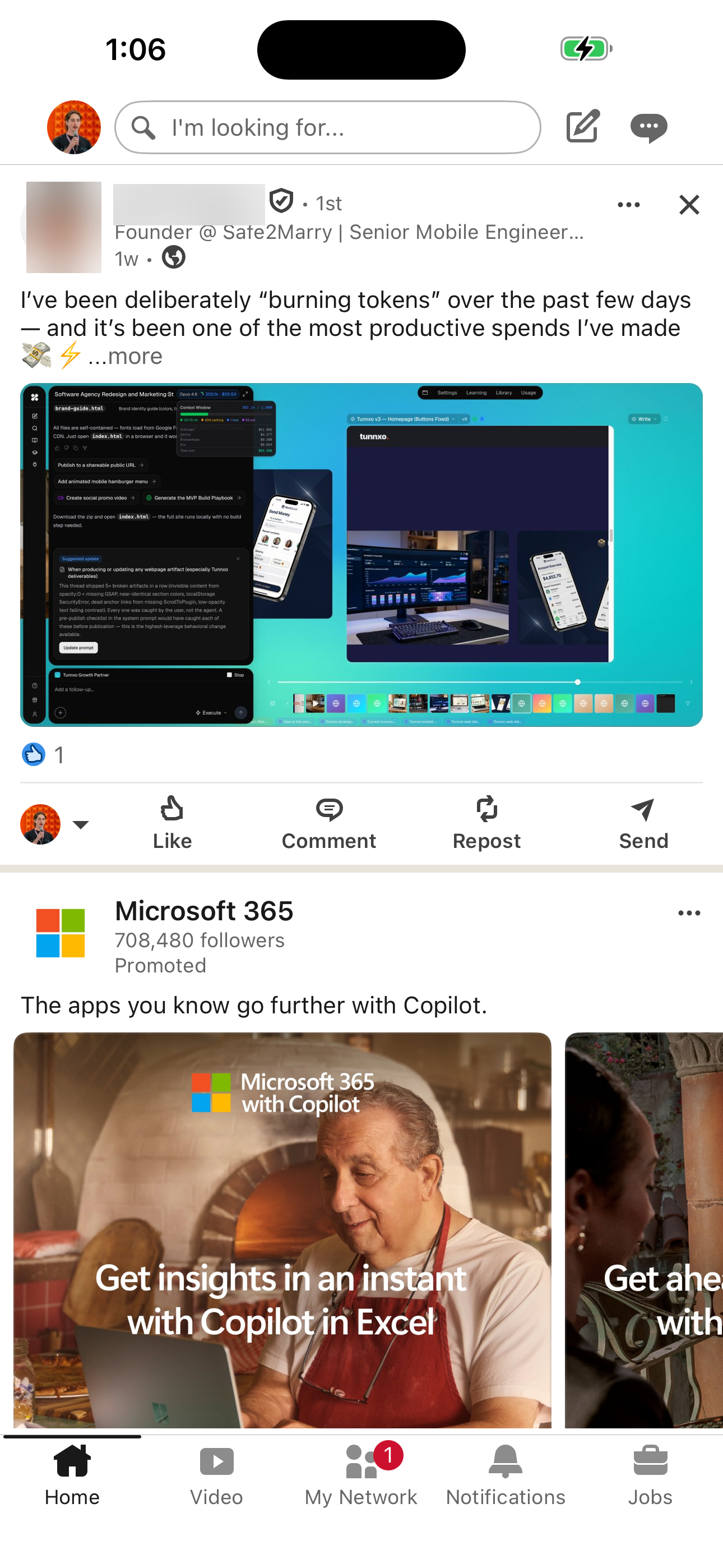 Step 01
Home Feed
Step 1 in the LinkedIn View post detail flow. Atlas detected 14 UI elements on this screen.
- Search bar
- Messaging
- Post author name
- Post more menu
- Post dismiss
- Like
- Comment
- Repost
Next: tap post body or 'see more'
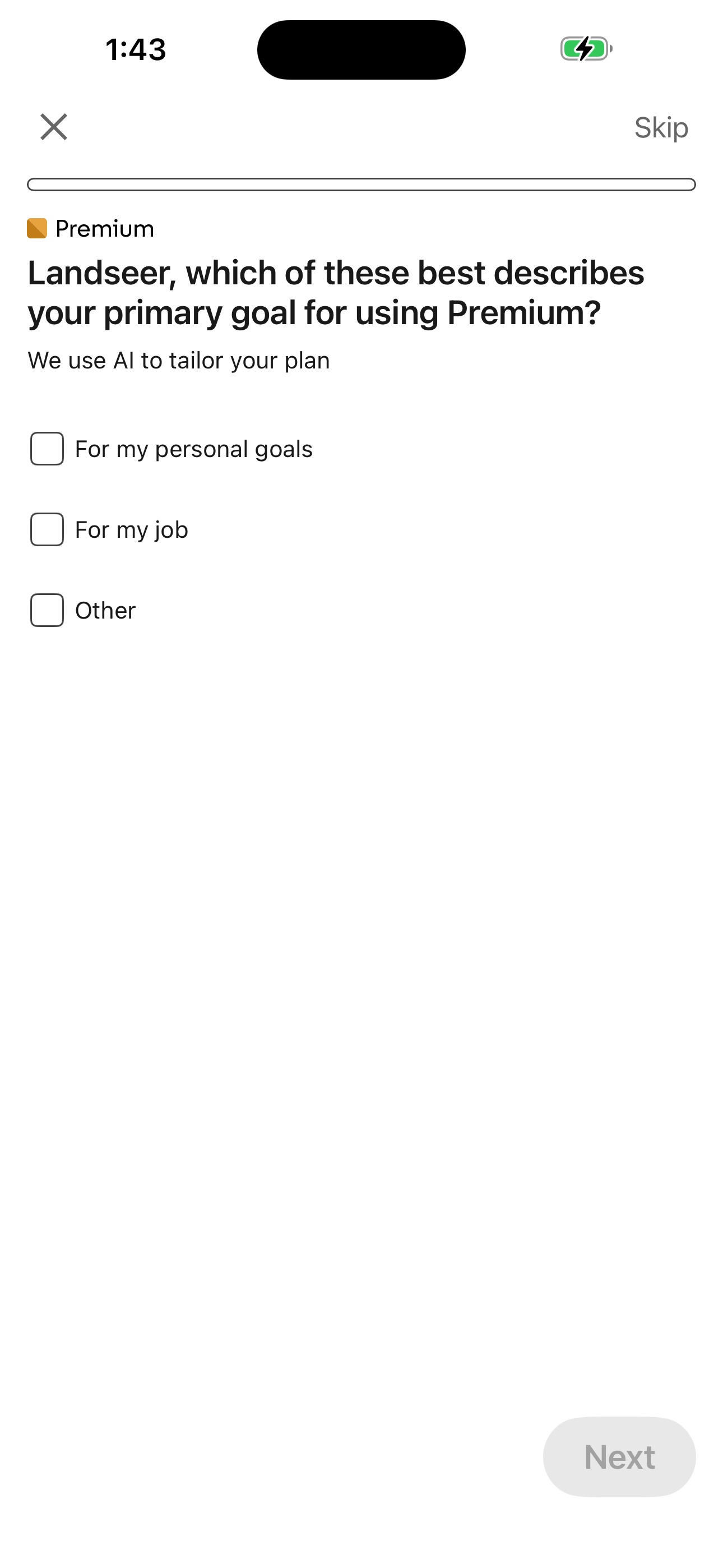 Step 02
Post Detail
Step 2 in the LinkedIn View post detail flow. Atlas detected 8 UI elements on this screen.
- Back arrow
- Author header
- Author overflow ...
- X dismiss
- Post body text
- Embed
- Add a comment
- Avatar
Research notes
Why the LinkedIn View post detail flow matters
One observed path answers three questions: how the app routes people, what to test and what an agent needs to know.
Navigation pattern
This flow shows how LinkedIn carries a user from Home Feed to Post Detail across real app states.
Testing coverage
The screen path gives QA and product teams concrete screens to verify, including visible UI density, transition order and repeated mobile states.
Agent grounding
Atlas makes this journey usable as navigation context for AI agents that need to understand the app before executing mobile tasks.
Want more maps?
The full Atlas gallery and private app maps are included on Free.
How to use it
Apply this flow to product and testing work
For product research
Use the ordered path to see which screens appear before and after key actions, how much interface the user faces, and where the app adds extra decisions or interruptions.
For QA planning
Turn each screen in the path into a coverage checkpoint. The sequence helps teams verify expected states, transitions and UI inventory without rediscovering the journey by hand.
FAQ
Questions about this flow
What screens are in the LinkedIn View post detail flow?
This Atlas flow includes Home Feed, Post Detail.
What can teams learn from this LinkedIn flow?
The flow helps teams inspect real mobile app navigation, compare product patterns, plan QA coverage, and give AI agents reliable app context.
Related flows
More LinkedIn mobile app journeys
Build your runtime source of truth
Connect Revyl tests and live sessions, observe your app in motion, and turn those runs into an Atlas map.