Why Revyl Tests by Sight
Revyl Team
 Revyl
Revyl 
Every automated test has to answer one question first: where is the thing I want to tap? Most mobile test tools answer it by reading the app’s accessibility tree. Revyl answers it by looking at the screen. This post is why.
There are only two places to look for a UI element.
The first is the accessibility tree: the structured hierarchy the OS exposes for screen readers and automation. On Android it comes from uiautomator; on iOS it’s the accessibility element tree. Appium, XCUITest, Maestro, and most of the AI testing tools built on top of them locate elements by structured locators like resource-id, xpath, or accessibility label. When the tree is complete and correct, this is fast, exact, and cheap.
The second is the rendered screen: the actual pixels a user sees. Finding an element here means looking at a screenshot and reasoning about what’s on it, the way a person does. It costs more per step, and until recently it wasn’t accurate enough to build a product on.
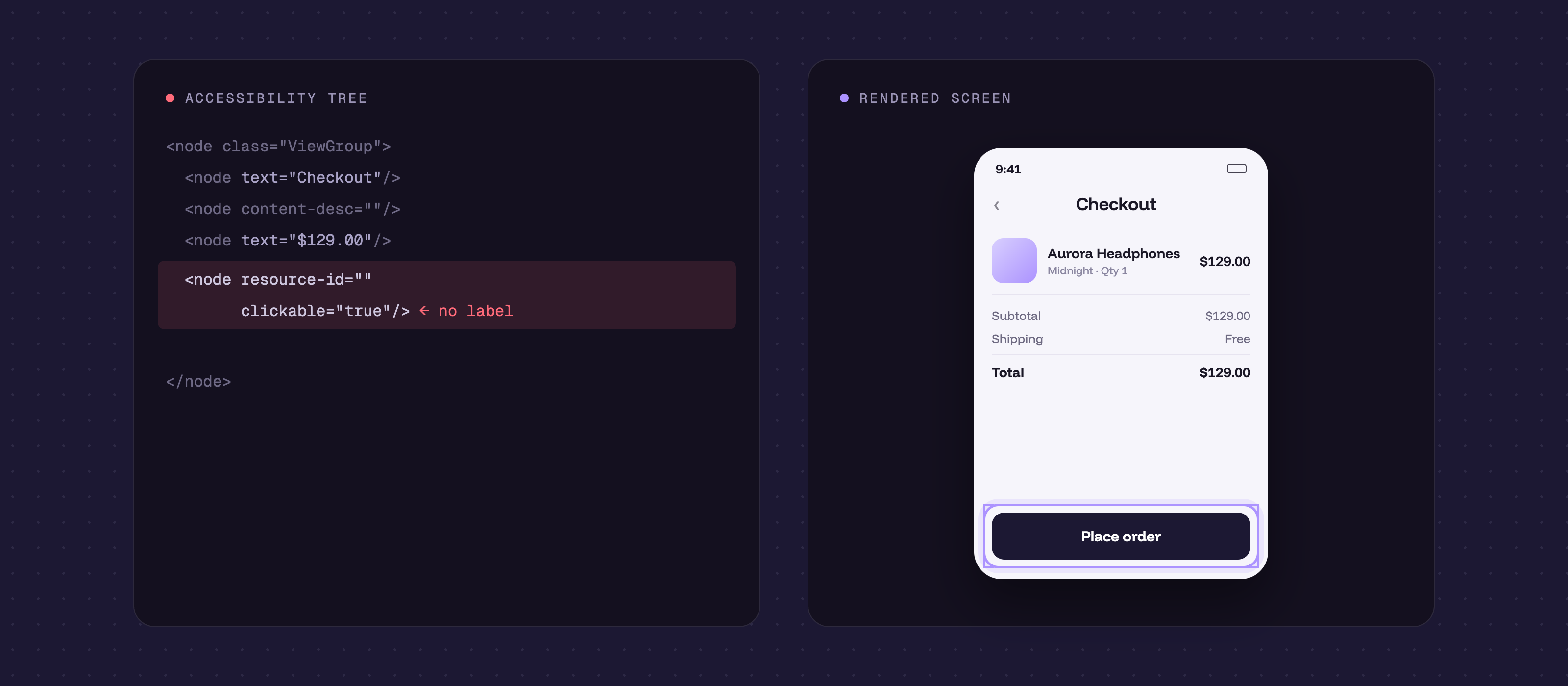
Accessibility tree vs. the rendered screen.
That tradeoff has flipped. UI-grounding vision models are now good enough to locate elements from a screenshot reliably, and the accessibility tree turns out to be far less trustworthy on production apps than its reputation suggests.
The tree describes the app’s structure. It does not describe what’s on the screen, and on modern mobile apps those two things drift apart constantly.
Large parts of the UI aren’t in it.
Flutter, Unity and other game engines, charts, maps, and video draw their UI onto their own canvas instead of building the native view hierarchy a selector reads. There’s still an accessibility tree, but it comes through as a stack of generic, mostly-anonymous android.view.View nodes with no resource-ids to bind to.
Flutter is the clearest case, so we built one: a checkout screen with three fields, Name, Email, and Card number, each labeled the standard Material way, a TextField with InputDecoration(labelText:). Then we tried to write the simplest test there is: type a name, then place the order.
We never annotated a thing by hand, and Flutter still auto-labeled the obvious controls: “Place order”, “Cancel”, and the nav tabs all showed up with a usable label straight from their text. The form was the problem. The three fields came back as empty, identical EditText nodes, flagged NAF (not accessibility friendly), with no label and no resource-id. The “Name”, “Email”, and “Card number” you can read on screen never reached the fields’ nodes, even though labelText is the idiomatic way to set them. A selector can’t tell the three apart or pick one by name; you’re left targeting by position, the first EditText or its raw coordinates, which breaks the moment the layout shifts.
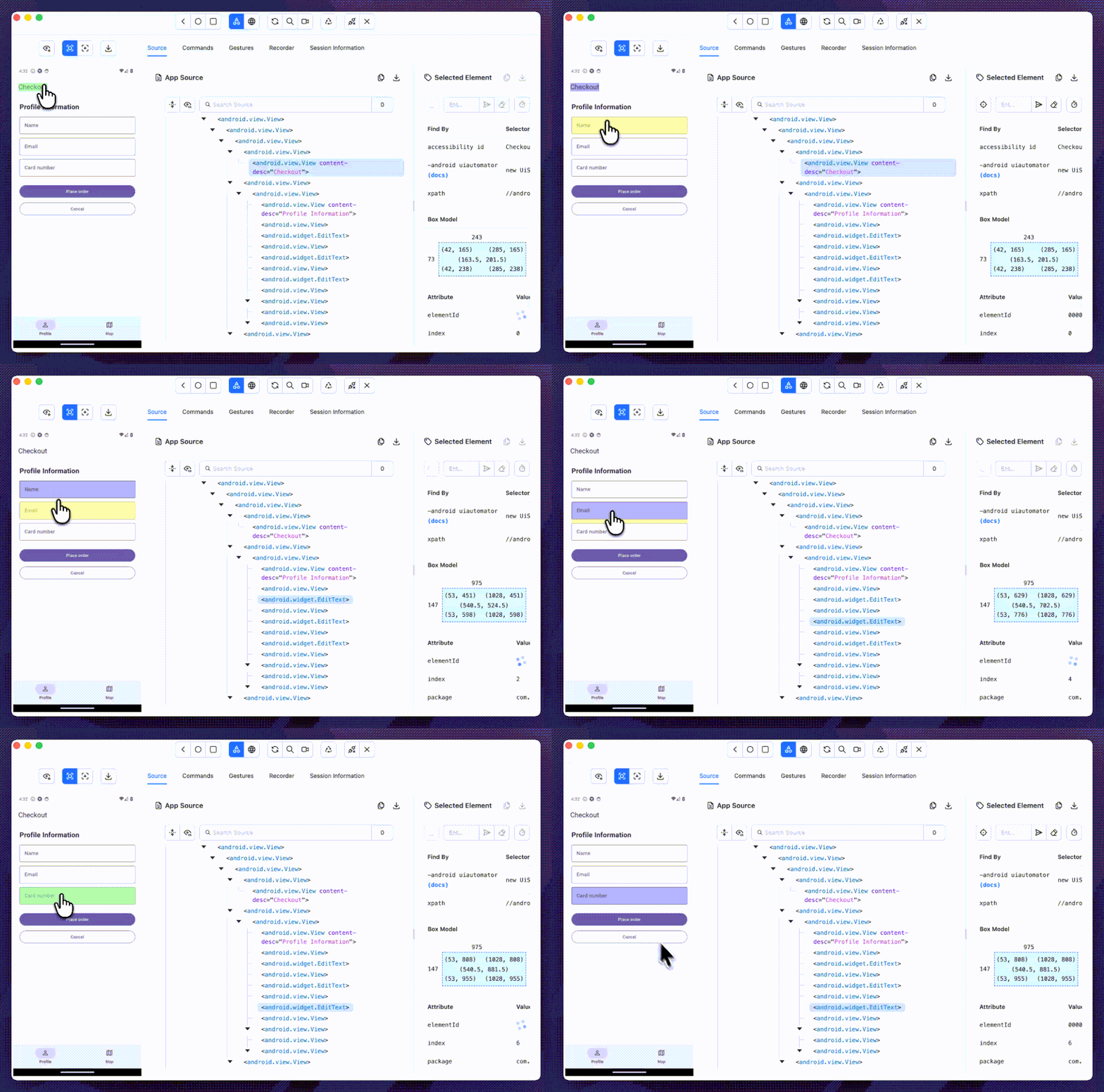
The Flutter form in Appium Inspector: the selected field has no id and no label.
And this is the idiomatic setup, not a contrived one. Teams shipping Flutter apps hit the same wall in production, where reaching a field by anything stable is a fight, so tests lean on positional targeting, clipboard injection, and sleep() calls to limp a form through.
A map is even starker. The whole map, and the pin sitting on it, comes through as one opaque node with nothing inside for a selector to grab.
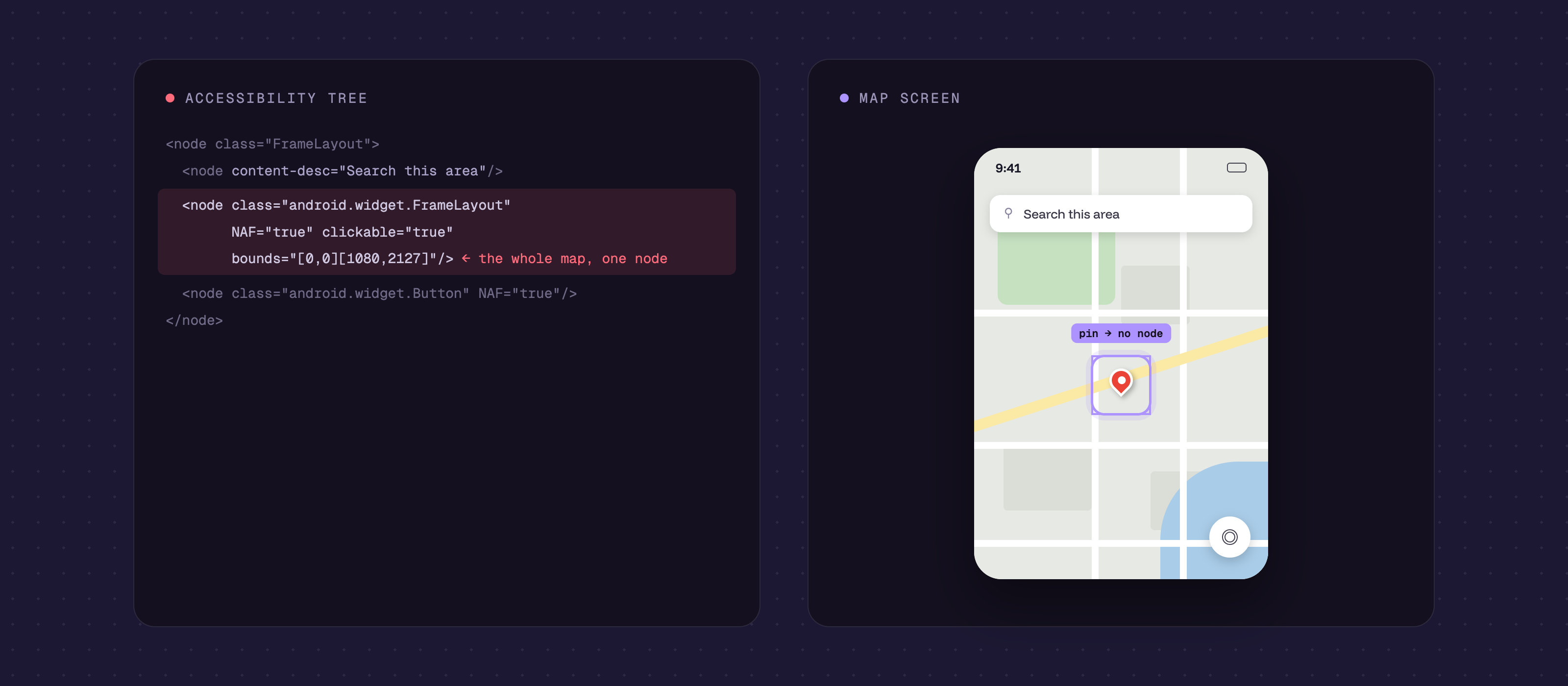
An example map screen and its accessibility tree.
To a user these controls are visible and tappable. To a selector they’re invisible. For anything canvas-rendered, the tree just isn’t where the app lives.
The labels are missing or meaningless.
Plenty of production apps ship with no accessibility labels, or with auto-generated ones like view1 and button2. The tree can tell you an element exists without telling you it’s the Checkout button. Intent is exactly what a test needs, and it’s the part the tree most often lacks.
Present is not the same as visible.
An element can sit in the hierarchy while it’s behind a modal, scrolled off screen, faded to zero opacity, or mid-transition. Frameworks do expose a visibility flag (Espresso’s isDisplayed, Appium’s displayed), but it’s coarse and easy to forget, and it misses cases like zero opacity, a view sitting under an overlay, or an element still animating in. Neither gives a reliable read on what the user can actually act on right now, so a test can act on something a person never would.
Selectors are brittle by construction.
Binding a step to an id or an xpath couples the test to the implementation. Rename a node, reorder the hierarchy, or rely on an auto-generated or non-stable id, and the test breaks even though nothing changed for the user. And on the canvas screens above there’s no stable id to bind to in the first place, so you’re left tapping coordinates, which move the instant anything reflows. It’s one of the biggest reasons mobile suites rot, and it’s structural, not a matter of writing better selectors.
If the job of a test is to verify the app does the right thing for a user, the screen is the right source of truth, because it’s what the user experiences. Grounding on the rendered frame gives us things selectors can’t.
It’s resilient to change. We locate an element by what it looks like and means, not by a fixed identifier, so moving the Checkout button, restyling it, or rebuilding the screen in a different framework leaves the test intact. It’s still recognizably the same button.
Coverage stays vision-first across stacks. One vision model handles native iOS, native Android, React Native, Flutter, web views, and game engines without a per-framework selector strategy. For natural-language taps on Android, Revyl also checks that accessibility metadata at the proposed point supports the requested target; if it cannot verify the match, it fails without tapping.
And it matches how the agent already reasons. Revyl’s loop is capture, ground, act, then look again at the result. Whether a step passed is judged against the visible state, the same evidence a human reviewer uses. Sight is the native sense for that loop.
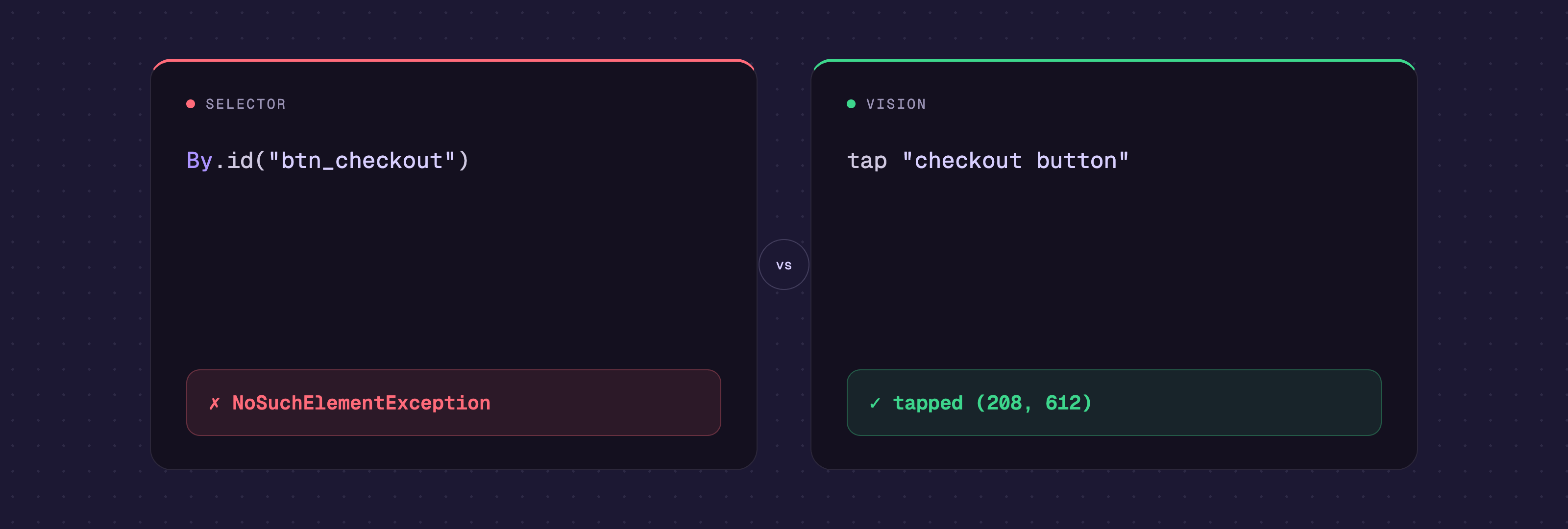
Selector vs. vision on the same button.
Vision isn’t free. Running a model over a screenshot costs more time and compute than reading a value straight out of a node, so each step is slower than a selector lookup. We took that trade on purpose. A test that runs a little slower but passes for the right reasons beats a fast one that breaks the first time someone renames a node. We’d rather be reliable than quick.
The design is vision-first. Every step runs the same four moves, with the screenshot as the grounding source.
"place order" and proposes pixel coordinates. Before an Android target tap, Revyl verifies that the UI metadata at those coordinates semantically supports the target.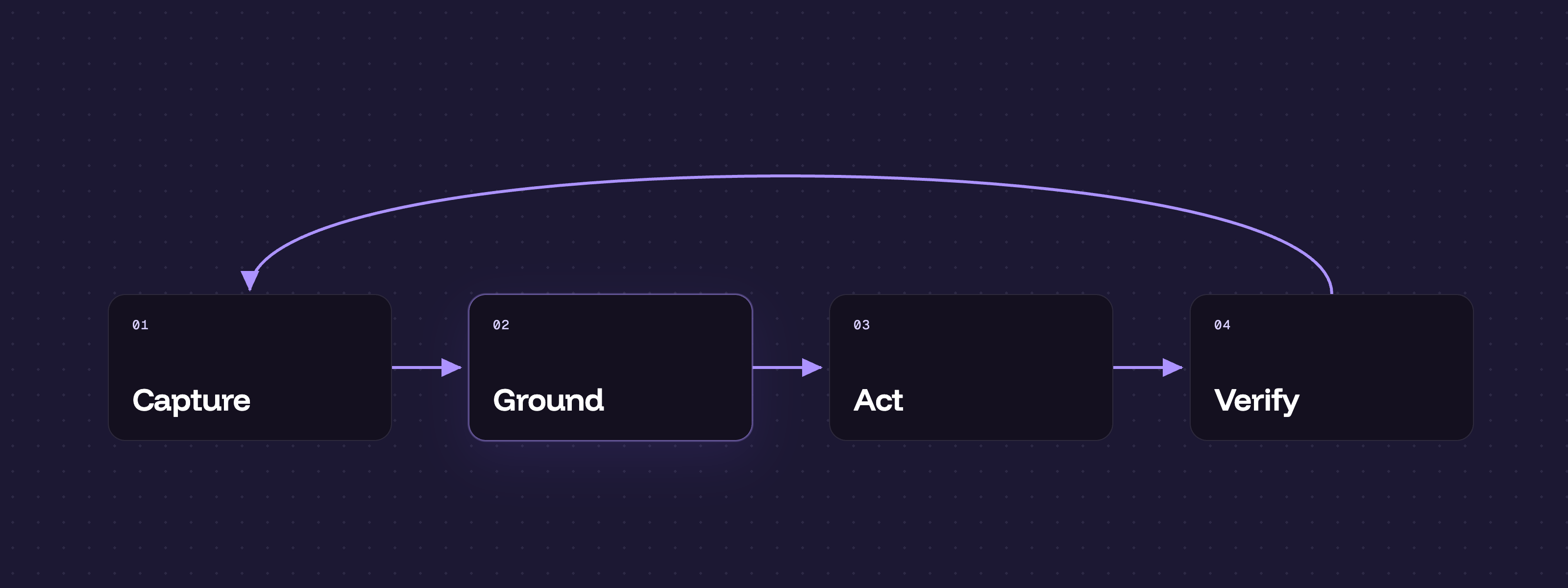
Capture, ground, act, verify.
Both platforms use the same vision-first grounding and visual judging loop. Android adds the hierarchy-backed tap guard so an unverifiable proposal fails closed instead of activating an unrelated control.
The screen is the most stable interface a mobile app has. It’s the one surface that has to stay legible no matter how the code underneath is rewritten, which makes it the right thing to anchor tests to. Vision keeps a Revyl test working across redesigns, framework changes, and missing accessibility labels. And as more app code gets written by agents that won’t keep accessibility labels or ids tidy, testing by sight stops being a nice-to-have: it’s the one approach that doesn’t depend on any of that being maintained.
We’re giving out free credit to teams who want to put this on their app, just shoot us a DM!